

Image upscaling has become essential for designers, photographers, ecommerce sellers, and anyone working with low-resolution visuals. Traditional resizing methods often produce blurry or pixelated results, but AI-powered upscaling can restore lost detail, sharpen edges, and dramatically improve quality.
VisioMint brings next-generation AI super-resolution to your desktop, allowing you to enlarge photos up to 8× while keeping them sharp, clean, and natural-looking. This guide walks you through why VisioMint is ideal for upscaling and how to use it step-by-step.
Why Use VisioMint for Upscaling?
✅ AI Super-Resolution (2×, 4×, 8×): VisioMint uses AI models trained on millions of images to reconstruct missing details, so enlarged photos look crisp rather than stretched or blurry.
✅ Fixes Blur & Noise Automatically: The upscaling module also reduces noise and corrects motion blur, making it ideal for old photos, low-resolution images, and smartphone snapshots.
✅ Fast, Offline, and Easy to Use: No cloud upload required. VisioMint runs natively on Windows and macOS, offering both speed and privacy.
How to Upscale Images with VisioMint AI Photo Editor
Upscaling images with VisioMint is super easy and it can be done very quickly. You don’t need any specific knowledge to get it done. Here is a step by step guide you can check out.
Step 1: Download and Install VisioMint
VisioMint is a desktop app. You need to download and install the app on your PC or Mac first.

Step 2: Add Your Image and Choose the Upscale Tool
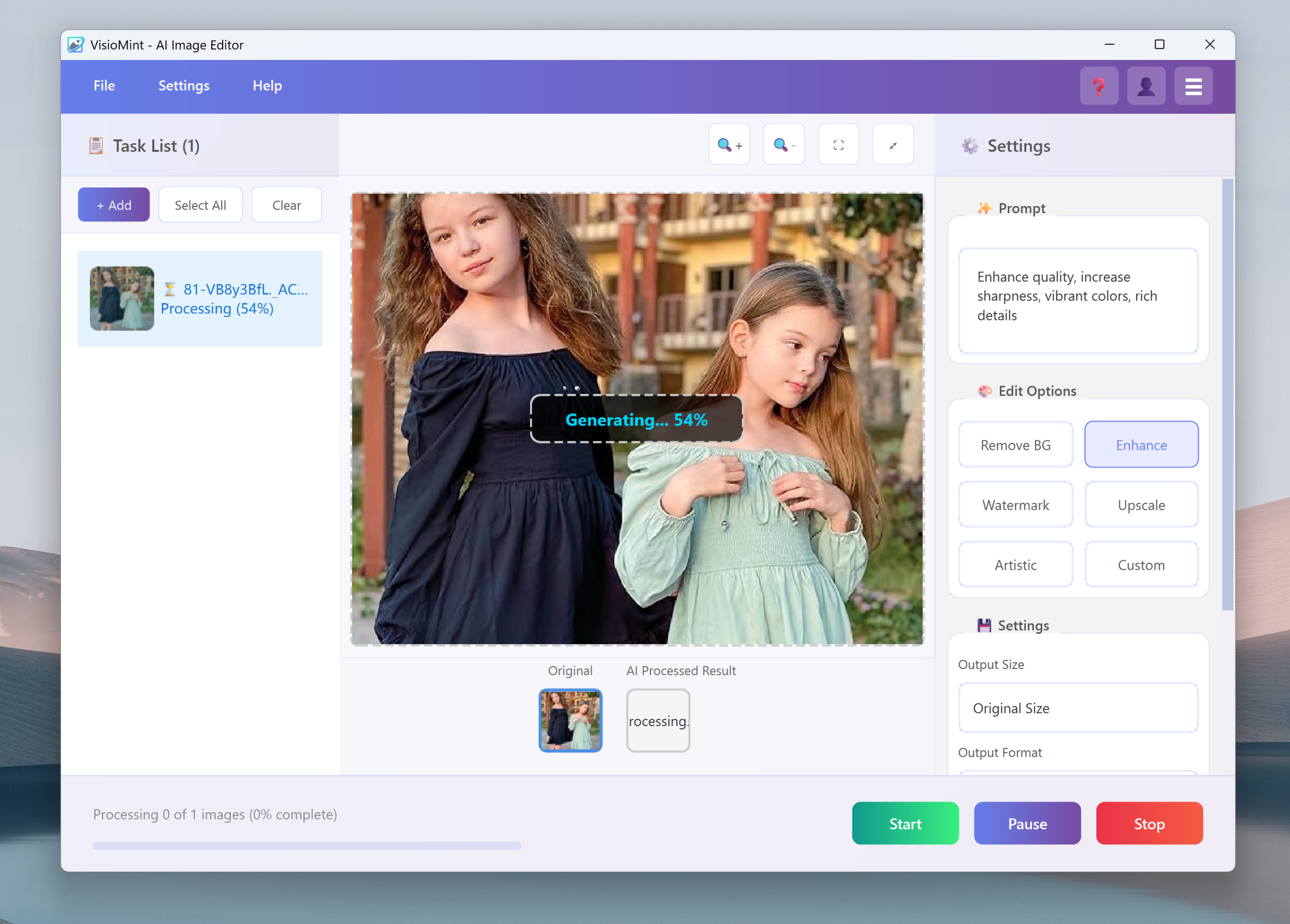
Launch the VisioMint app. Then, click the “Add” button at the left upper corner to import the images.
On the left sidebar, click the “Upscale ” option. This opens the AI super-resolution workspace.
Step 3: Custom Settings
Before the editing task starts, you have to complete a couple of settings under the Settings section. Please choose an output image size, the output format, the save path and adjust the image quality.
Step 4: Start the Upscaling Image
Now, click the “Start” button to let the built-in AI engine edit the image automatically based on the option or prompt you have set. Usually, it only takes a few seconds to process one image.
The Bottom Line
VisioMint makes image upscaling easier and more powerful than ever. With its AI super-resolution technology, you can transform low-resolution or blurry photos into high-quality visuals suitable for professional use. Whether you’re restoring old photos, preparing product images, or enhancing graphics for social media, VisioMint delivers exceptional clarity with just a few clicks.