

Text messages on an iPhone can include personal chats, business records, photos, addresses, verification codes, and other important information. Saving them to a computer is a smart way to back up, print, search, or keep them before switching to a new device.
The Challenges
Apple does not offer a direct Export Messages option. iTunes or Finder can back up the whole iPhone, but they do not make it easy to view, search, or export only SMS, MMS, and iMessage conversations.
Why Choose iCopyGo?
AiseeFox iCopyGo makes iPhone message transfer easier. It can scan your iPhone, preview conversations, select the messages you need, and export them to your Windows PC or Mac for backup, printing, or future use. With iCopyGo, you can save important SMS, MMS, and iMessage conversations locally. This is useful if you need to keep personal memories, business records, customer chats, travel details, order information, or messages for printing and backup.
How to Transfer Text Messages from iPhone to Computer with iCopyGo
Here are the details for transferring SMS from iPhone to PC or Mac with screenshots. Please read it carefully before getting started.
Step 1. Download and Install AiseeFox iCopyGo
Download AiseeFox iCopyGo on your Windows PC or Mac. Follow the setup wizard to install the program, then open it from your desktop or Applications folder.


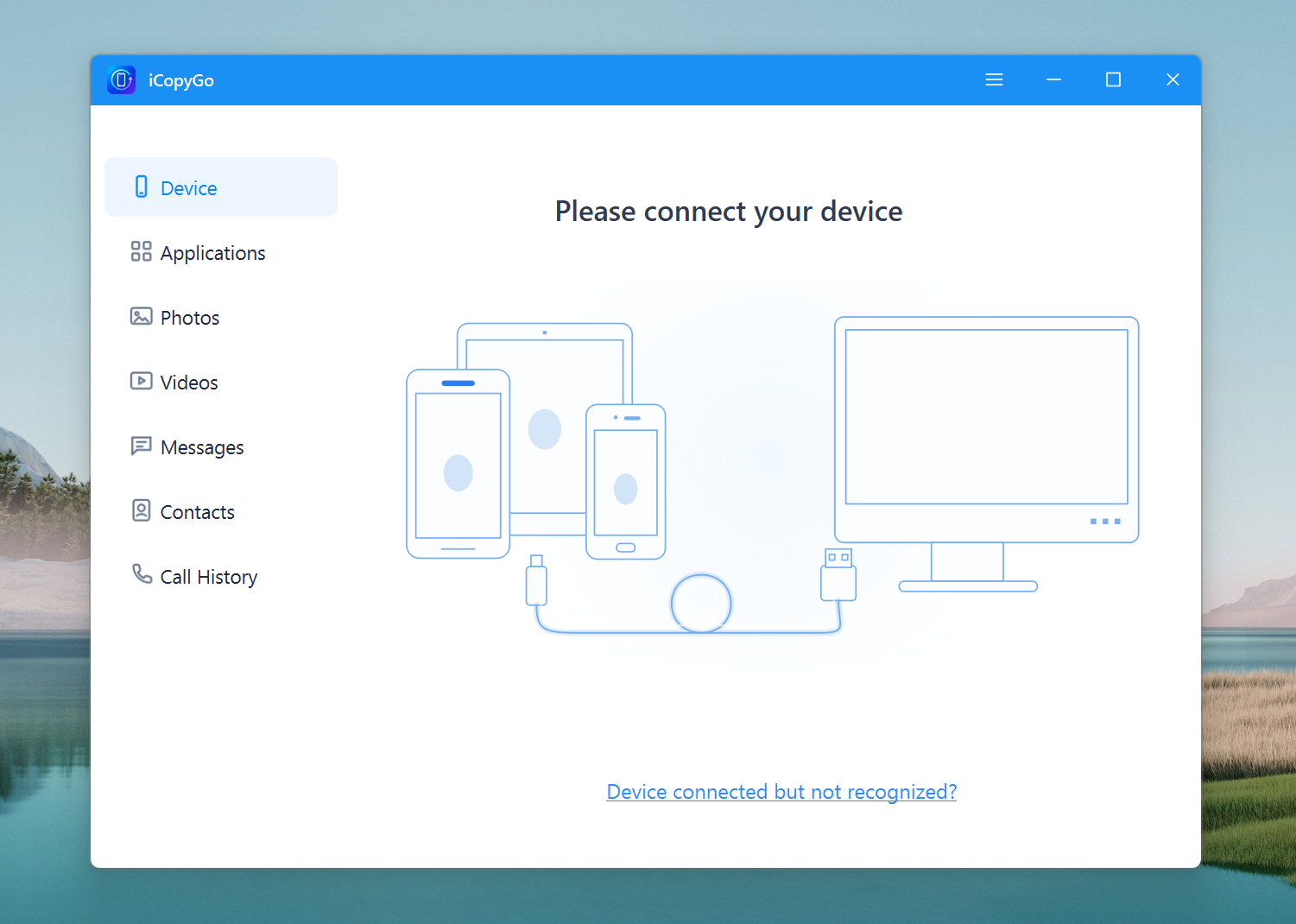
Step 2. Connect Your iPhone to the Computer
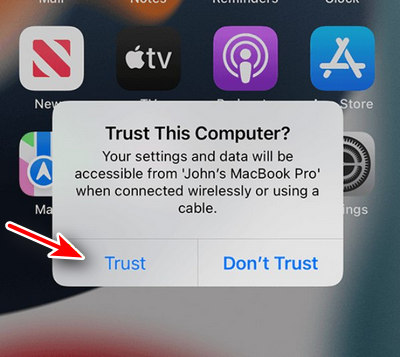
Use a USB cable to connect your iPhone to the computer. Unlock your iPhone and tap Trust This Computer when the prompt appears. Keep the iPhone connected during the whole transfer process. For a more stable connection, use the original Apple cable or a high-quality USB cable.
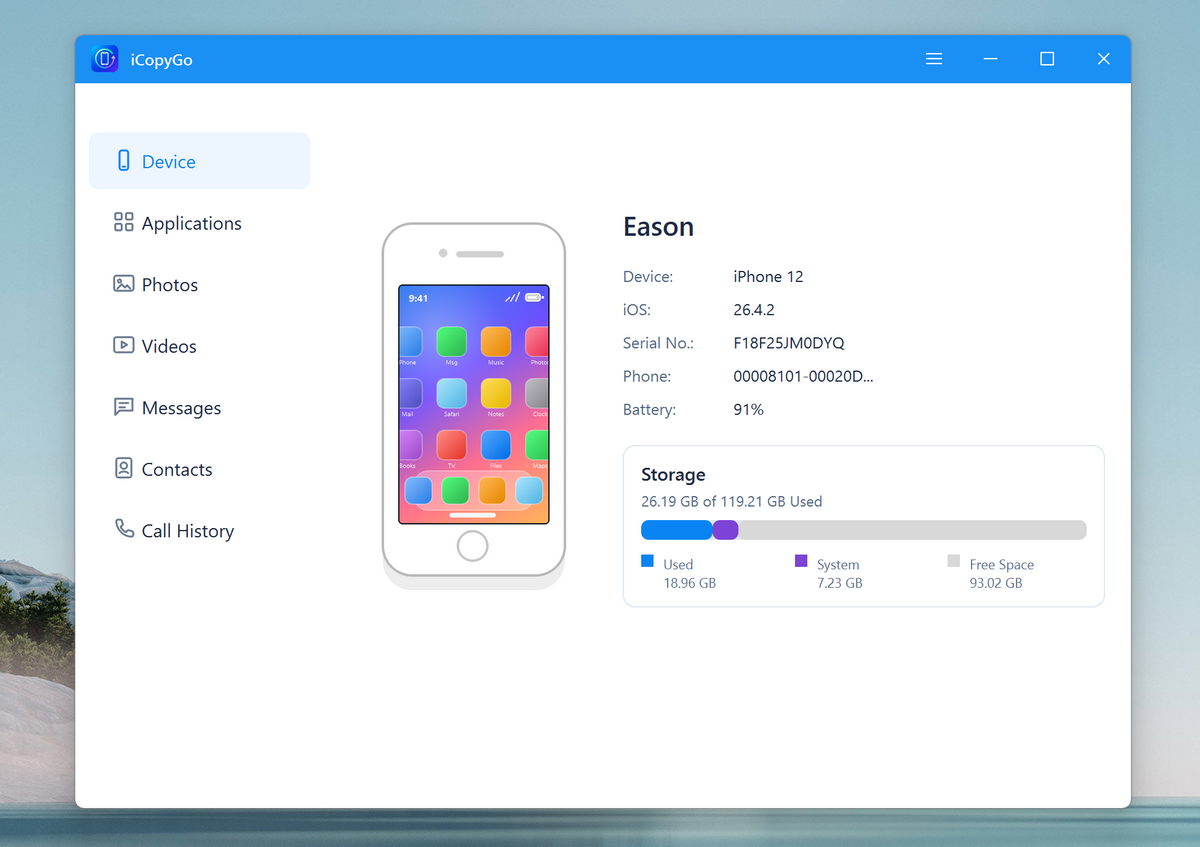
Step 3. Let iCopyGo Detect and Scan Your iPhone
After the connection is successful, iCopyGo will detect your iPhone and load the supported data types. Choose Messages from the main interface. The program will scan your iPhone message database and display the available conversations. This may take a short time if you have many messages or attachments.
Step 4. Preview and Select Text Messages
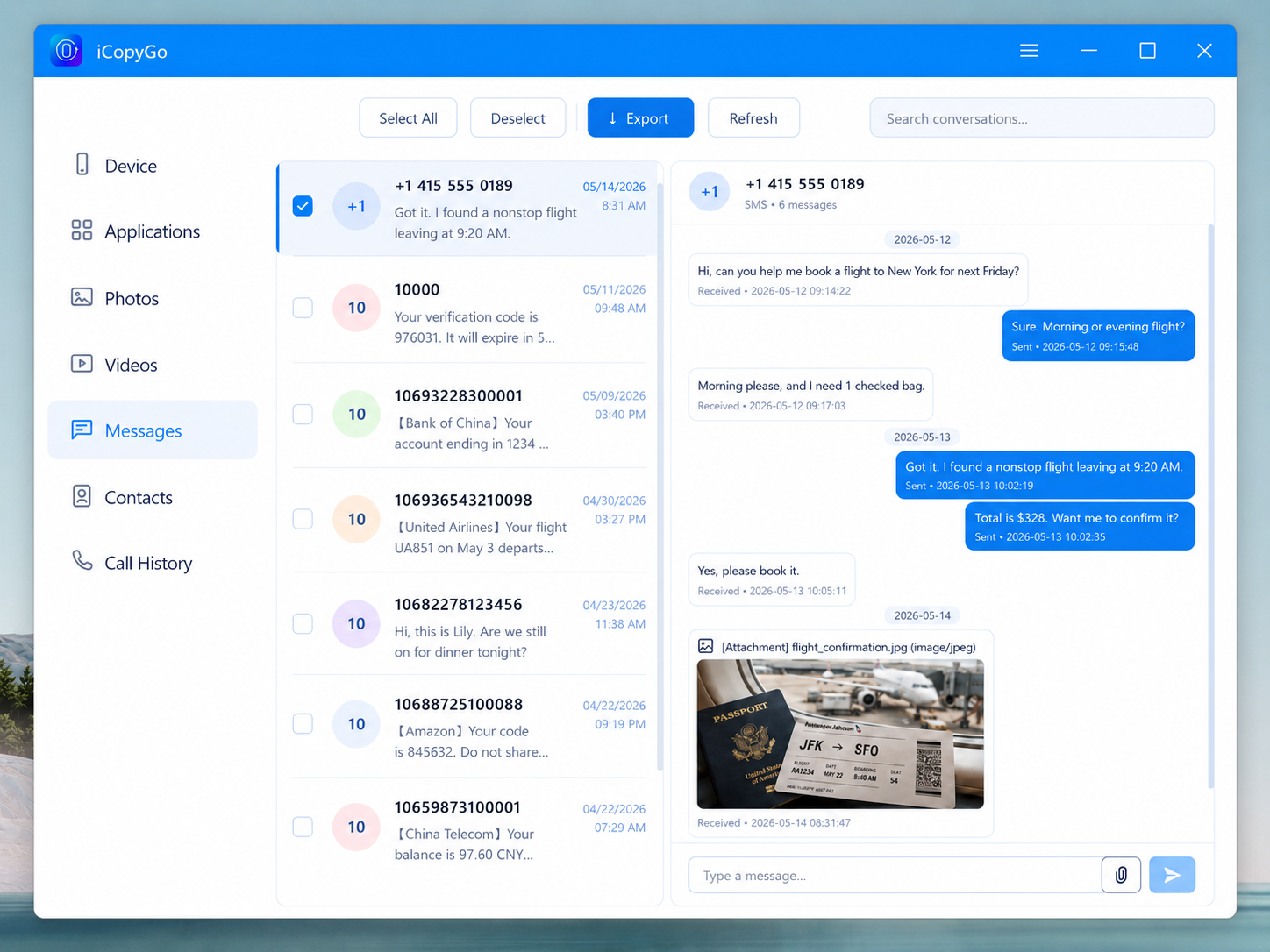
Once the scan is complete, you can preview your iPhone text messages on the computer. Check the sender, date, conversation content, and message details. Select the conversations or individual messages you want to transfer. This is helpful when you only need messages from a specific contact instead of exporting everything.
Step 5. Export Messages to Computer
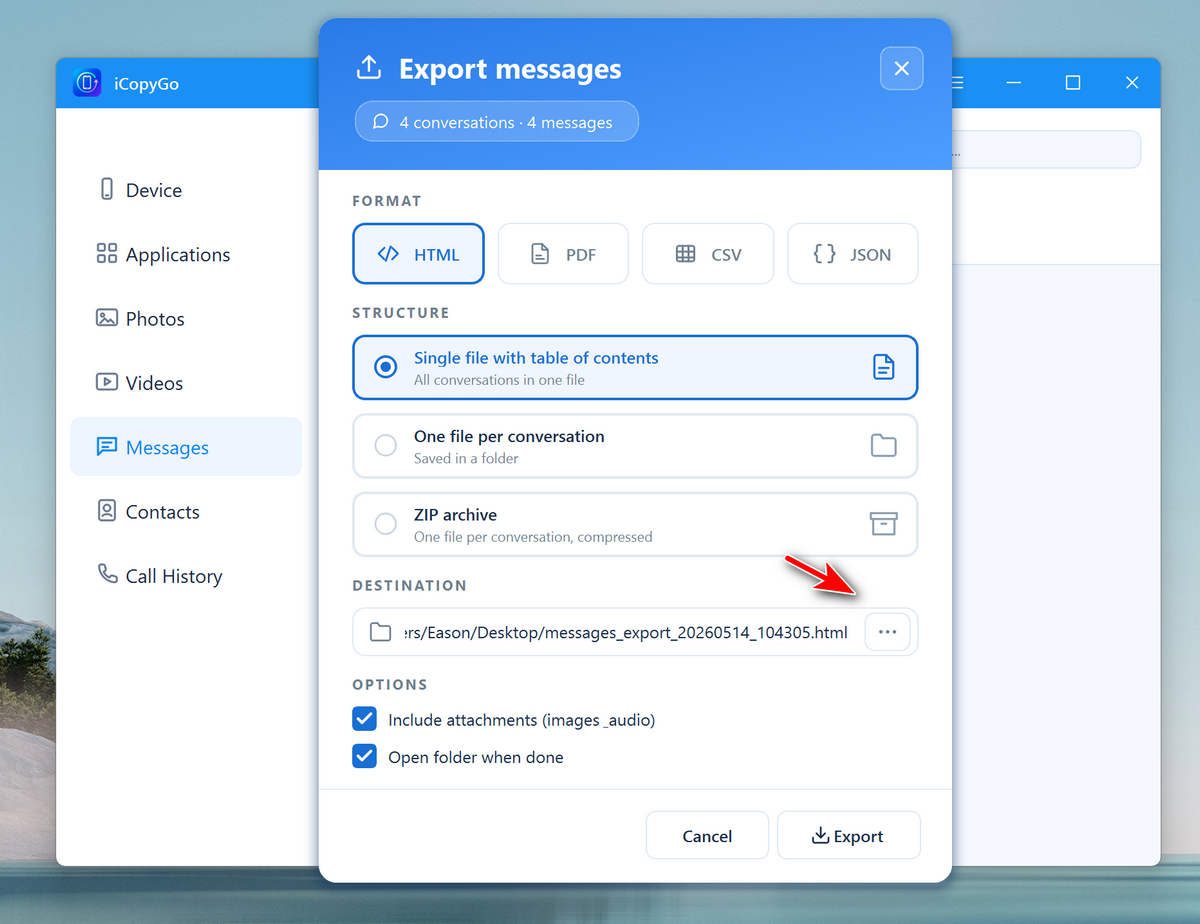
Click the Export button and choose a location on your computer to save the file. You can save the exported messages to a local folder, external hard drive, or USB drive.
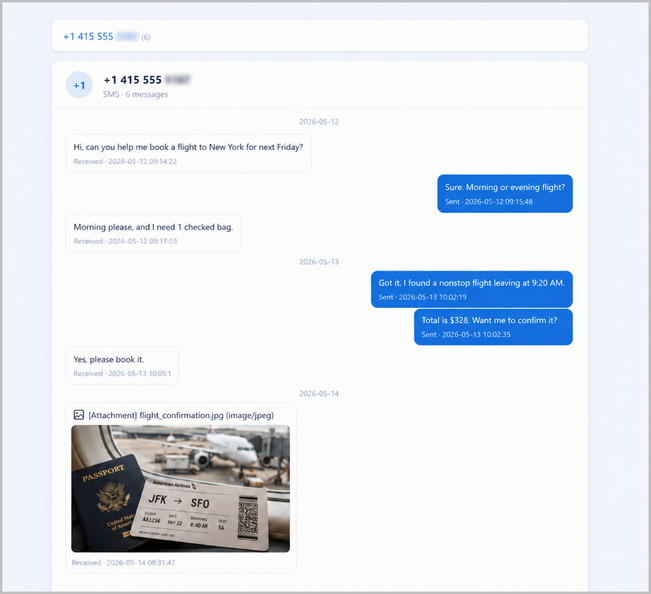
After the export is completed, go to the output folder and open the html for printing.
You can download this app for free.
Extra Tips Before Exporting iPhone Messages
- Make sure your iPhone has enough battery power before the transfer starts.
- Do not unplug the USB cable while iCopyGo is scanning or exporting data.
- If the iPhone is not detected, unlock the device, reconnect the cable, change the USB port, or restart both the iPhone and computer.
If you need the messages for legal, court, or business records, keep the original exported files unchanged and save an extra copy in another secure location.
Conclusion
Transferring text messages from iPhone to computer is not as simple as copying photos, but it is still possible with the right tool. iTunes, Finder, and iCloud can help with general backup, but they are not ideal when you need to preview, select, export, or print specific iPhone messages.
AiseeFox iCopyGo offers a more direct and practical way to transfer text messages from iPhone to computer. It lets you connect your iPhone, scan messages, preview conversations, and export the texts you need to a PC or Mac. For users who want a readable local copy of important iPhone messages, iCopyGo is a simple and reliable choice.