

iPhone videos can quickly fill up storage, especially 4K videos, long recordings, and clips saved from social apps. Transferring videos to a computer helps free up iPhone space and keeps a safe local backup for editing, sharing, and long-term storage.
The Challenges
Copying iPhone videos is not always smooth. Large videos may transfer slowly, Windows Photos may fail during import, USB connections may drop, and some HEVC videos may not open easily on every computer. iCloud, iTunes, and Finder can help, but they are not ideal for previewing and exporting only selected videos.
Why Choose iCopyGo?
iCopyGo makes video transfer easier. It lets you connect your iPhone, scan and preview videos, select the clips you need, and export them to a Windows PC or Mac without complicated sync settings. It is useful for backing up family videos, saving 4K recordings, and freeing up iPhone storage.
How to Transfer Videos from iPhone to Computer with iCopyGo
Here are the details for transferring videos from iPhone to PC or Mac with screenshots. Please read it carefully before getting started.
Step 1. Download and Install AiseeFox iCopyGo
Download iCopyGo on your Windows PC or Mac. Follow the setup wizard to install the program, then open it from your desktop or Applications folder.


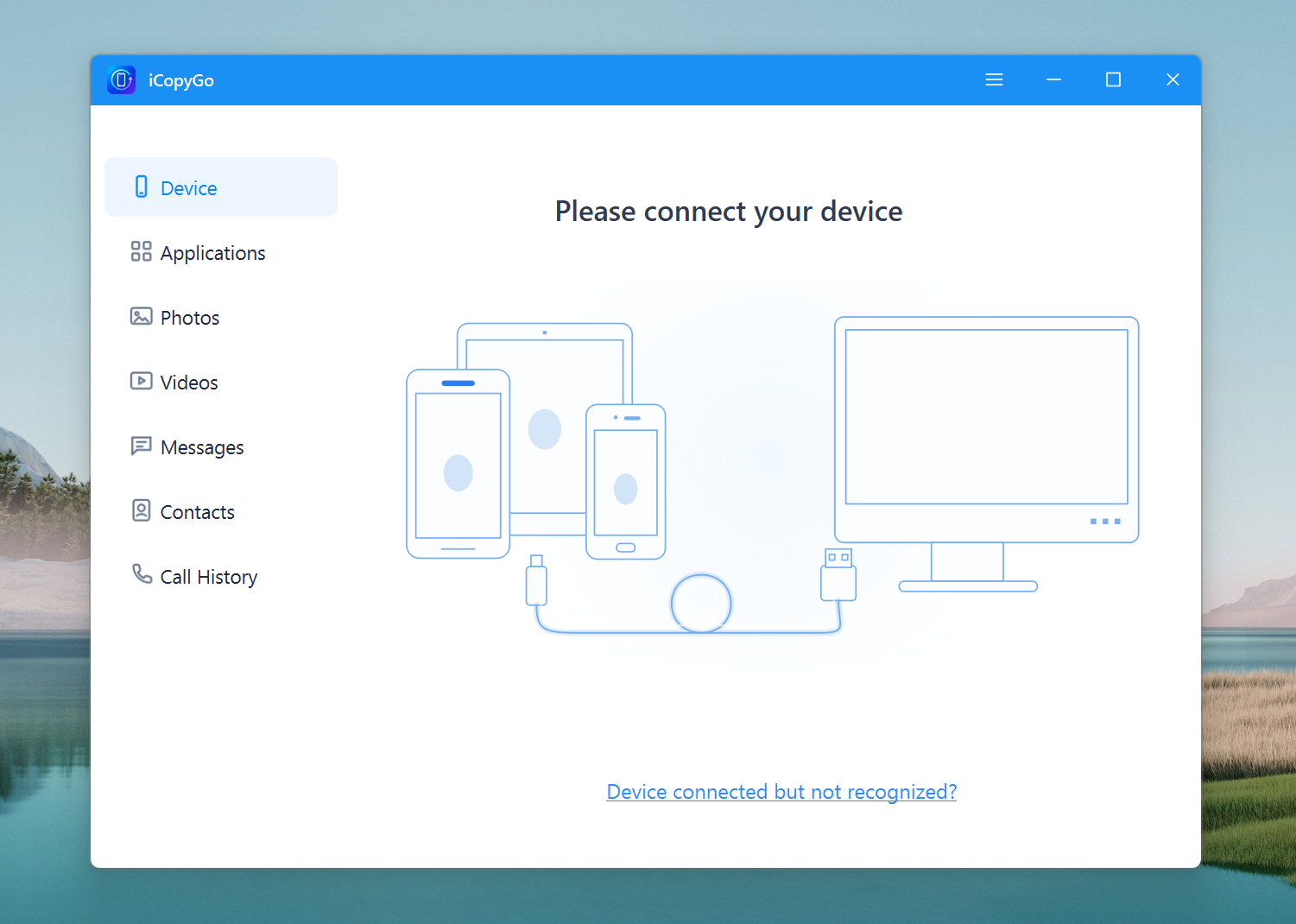
Step 2. Connect Your iPhone to the Computer
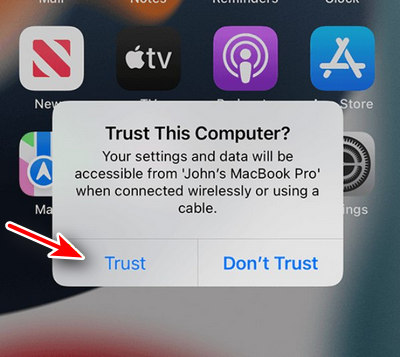
Use a USB cable to connect your iPhone to the computer. Unlock your iPhone and tap Trust This Computer when the prompt appears. Keep the iPhone connected during the whole transfer process. For a more stable connection, use the original Apple cable or a high-quality USB cable.
After the connection is successful, iCopyGo will detect your iPhone and load the supported data types.
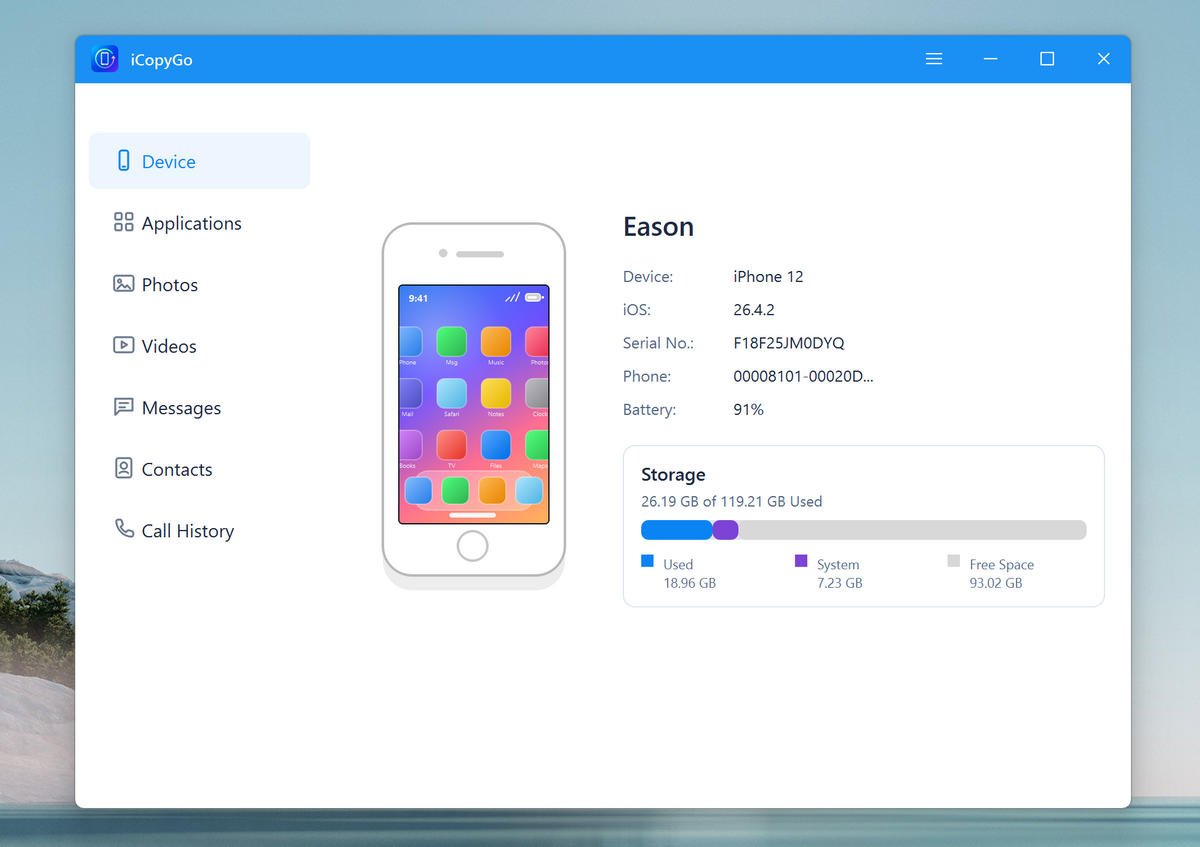
Step 3. Let iCopyGo Detect and Scan Your iPhone
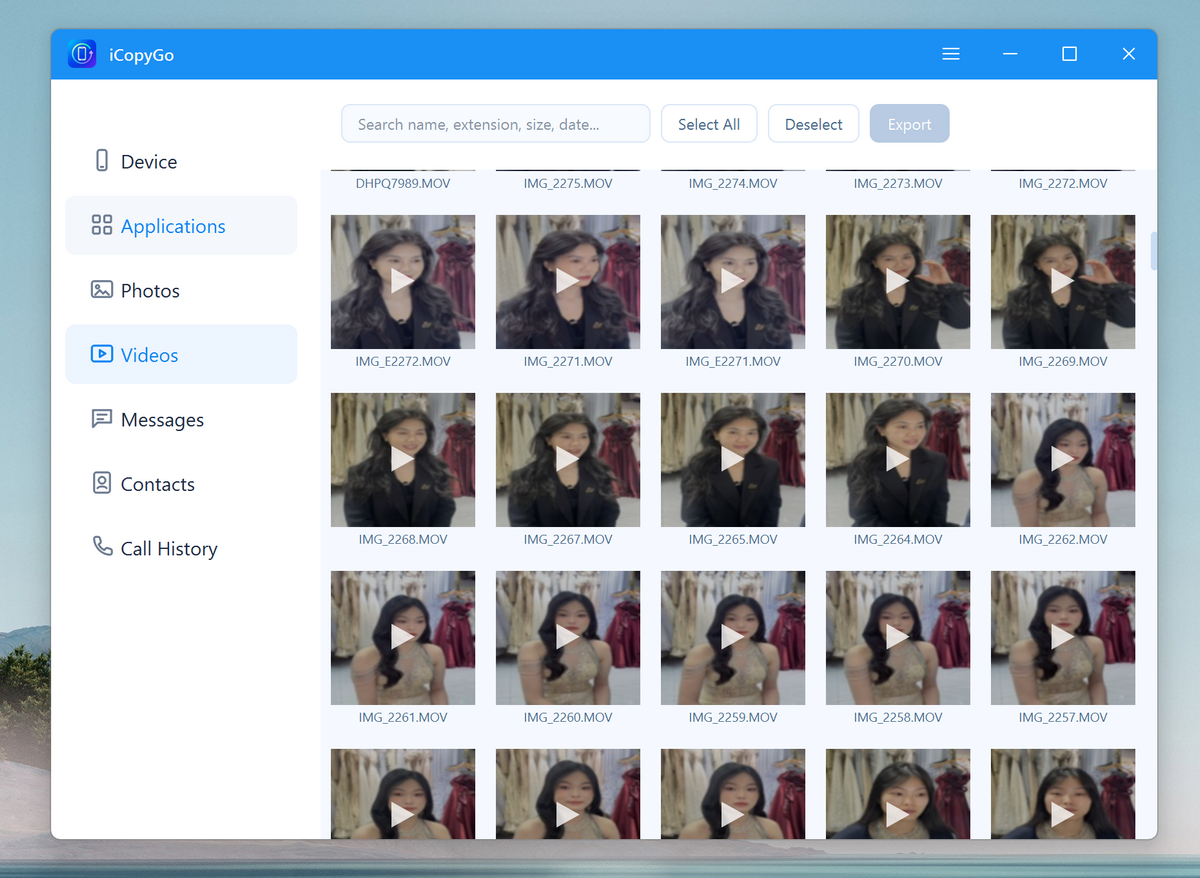
Click the Videos menu from the left sidebar. The app will start scanning the device immediately.
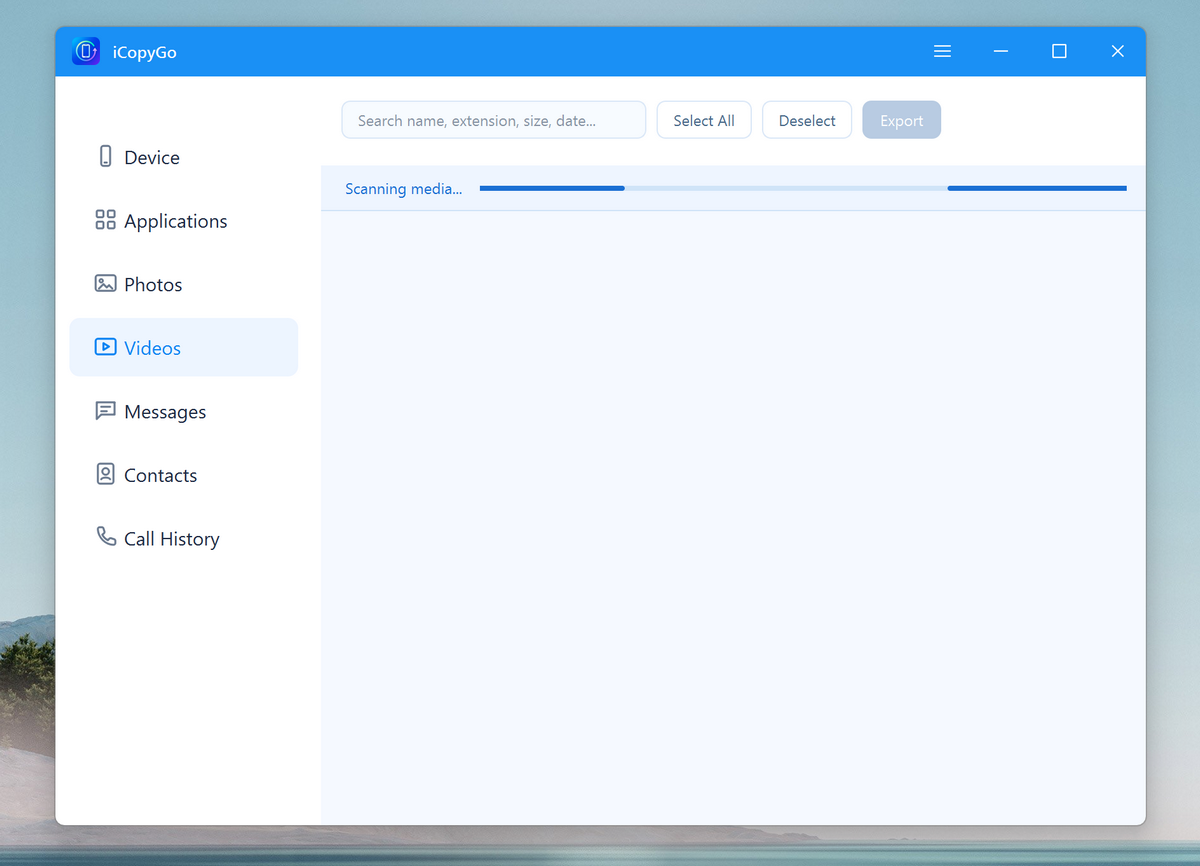
Step 4. Preview and Select Videos
Once the scan is complete, you can preview all videos saved on this iPhone. You can select the videos individually or select all of them in one-click.
Step 5. Export Videos to Computer
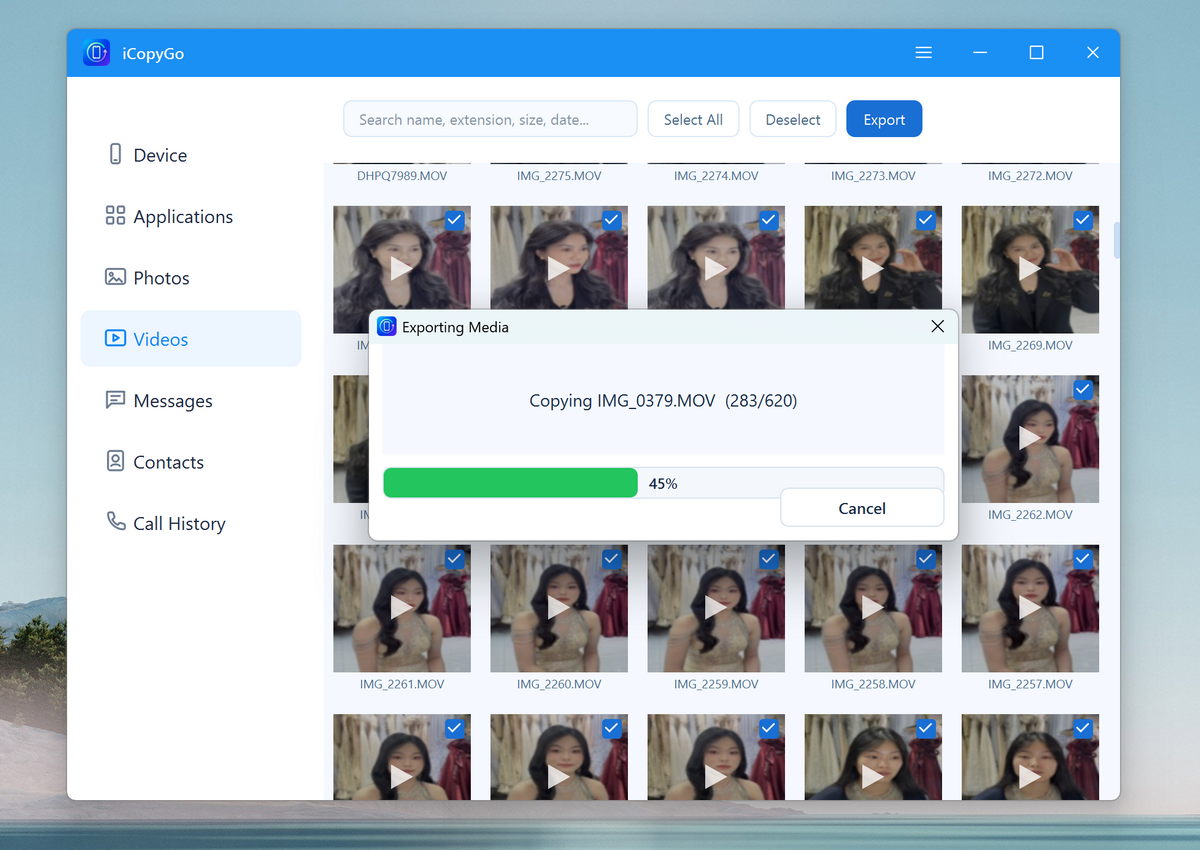
After selection, click the Export button and choose a save location on your computer. You can save the exported messages to a local folder, external hard drive, or USB drive.
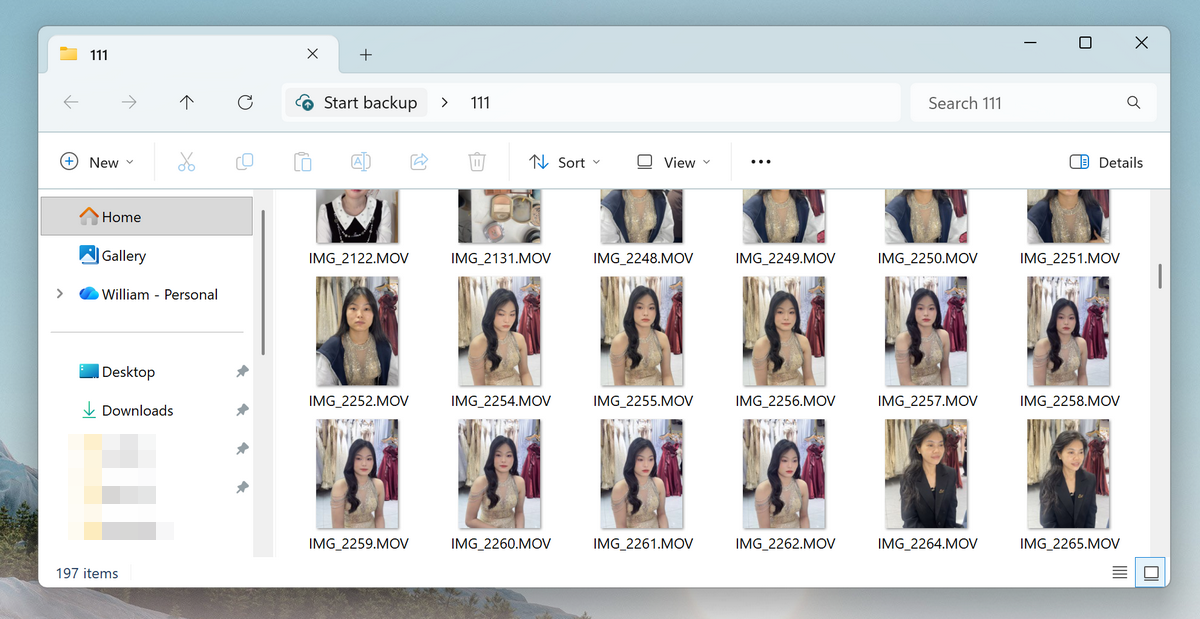
When the export is completed, open the output folder to watch or edit the videos.
Download it for free and start moving your iPhone photos to your computer in just a few clicks.
Conclusion
A fast and reliable video transfer method is important when you have large iPhone videos, limited iPhone storage, or many clips to back up. Built-in tools like Windows Photos, iCloud, iTunes, and Finder can work in some cases, but they may not be flexible enough for users who want to preview and export selected videos directly.
AiseeFox iCopyGo makes the process easier by helping you transfer videos from iPhone to computer with a simple desktop workflow. It is a practical option for saving 4K videos, backing up personal clips, freeing up iPhone space, and managing iPhone media files on Windows or Mac.