

I ran into this issue when I was trying to install Windows in UEFI mode. My disk was still MBR, and I wanted to convert it to GPT, but I didn’t want to delete partitions or lose files. I checked some DiskPart methods, but they looked a bit risky, especially if I typed the wrong command.
So I ended up using Dr.Partition instead. It gave me a visual way to choose the disk, preview the change, and convert MBR to GPT without going through complicated command lines.
Convert MBR to GPT with Dr.Partition
Dr.Partition lets you convert a disk from MBR to GPT without manually typing DiskPart commands, which makes the process much easier for normal users.
Step 1: Back up important files first
Even though the goal is to convert MBR to GPT without data loss, it is still smart to back up important files before changing disk partitions.
Step 2: Open Dr.Partition
Install and launch Dr.Partition on your Windows computer. After opening it, you will see your disks and partitions listed clearly.

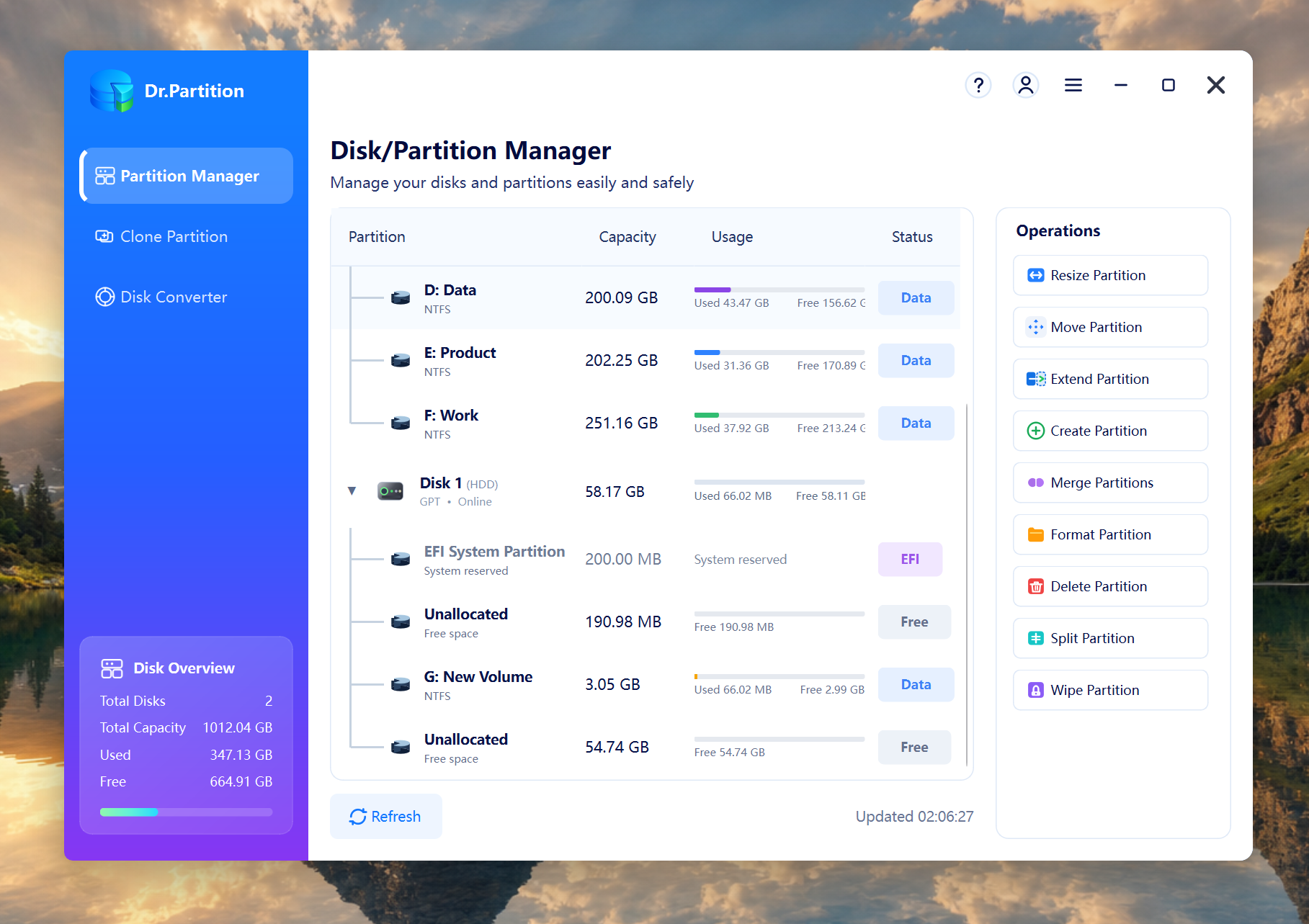
Step 3: Choose the conversion type.
Switch to Disk Converter, choose MBR → GPT, and continue to the next step to select the target MBR disk.
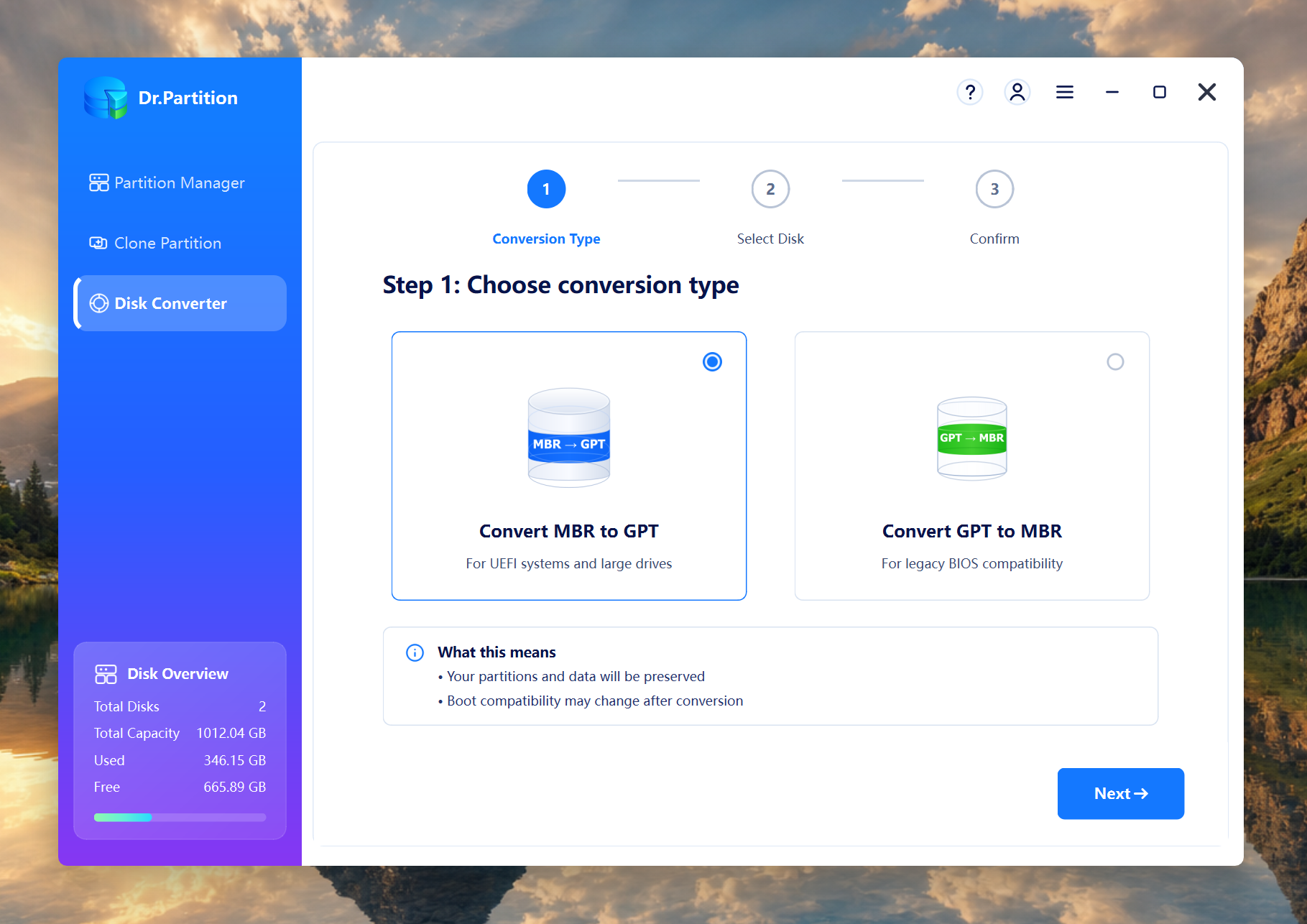
Step 4: Choose Convert MBR to GPT
Select the target MBR disk you want to convert, check the disk name and size carefully, then click Next.
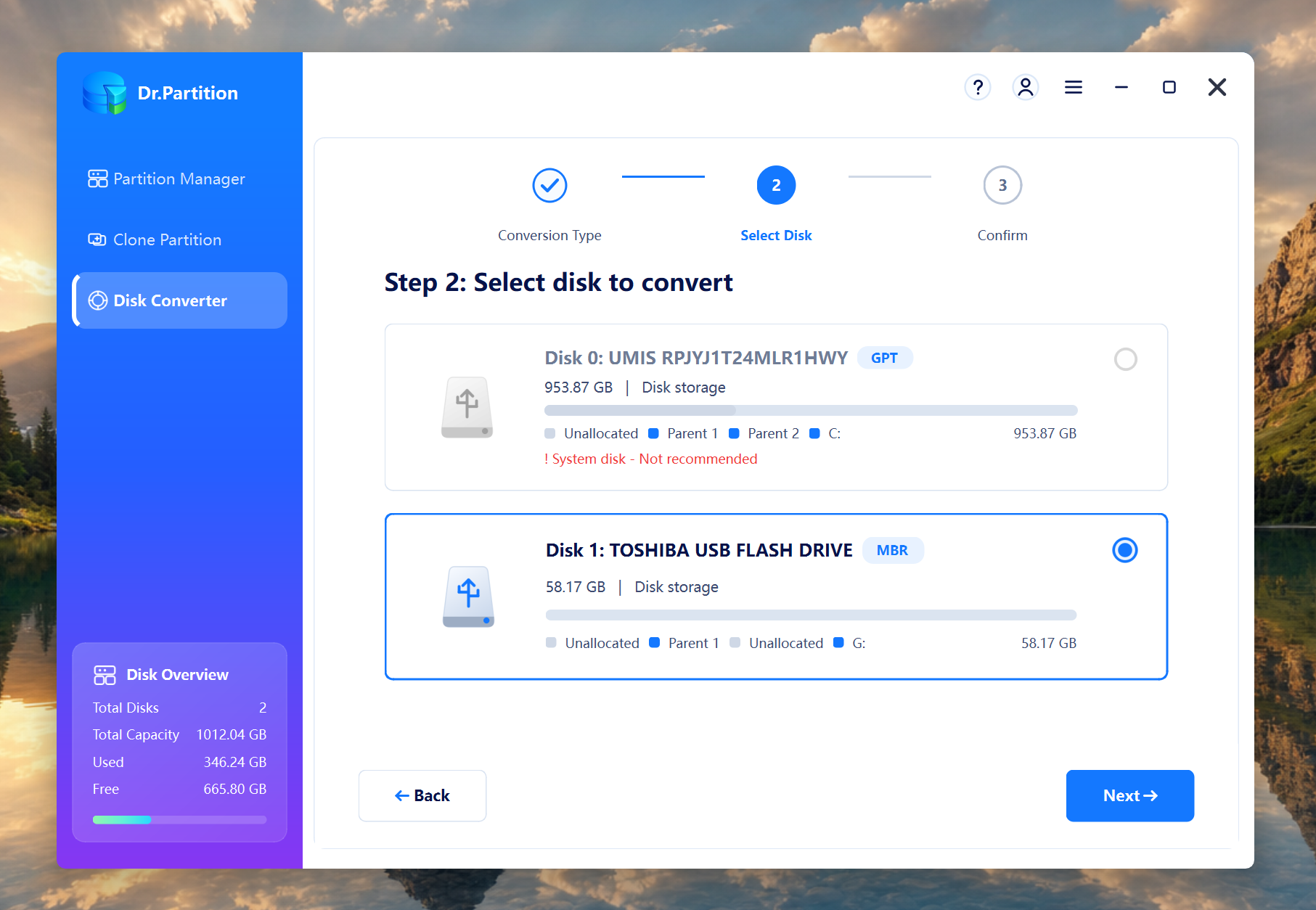
Step 5: Preview the operation
Before applying the change, check the pending operation carefully. This helps you confirm that the selected disk is correct.
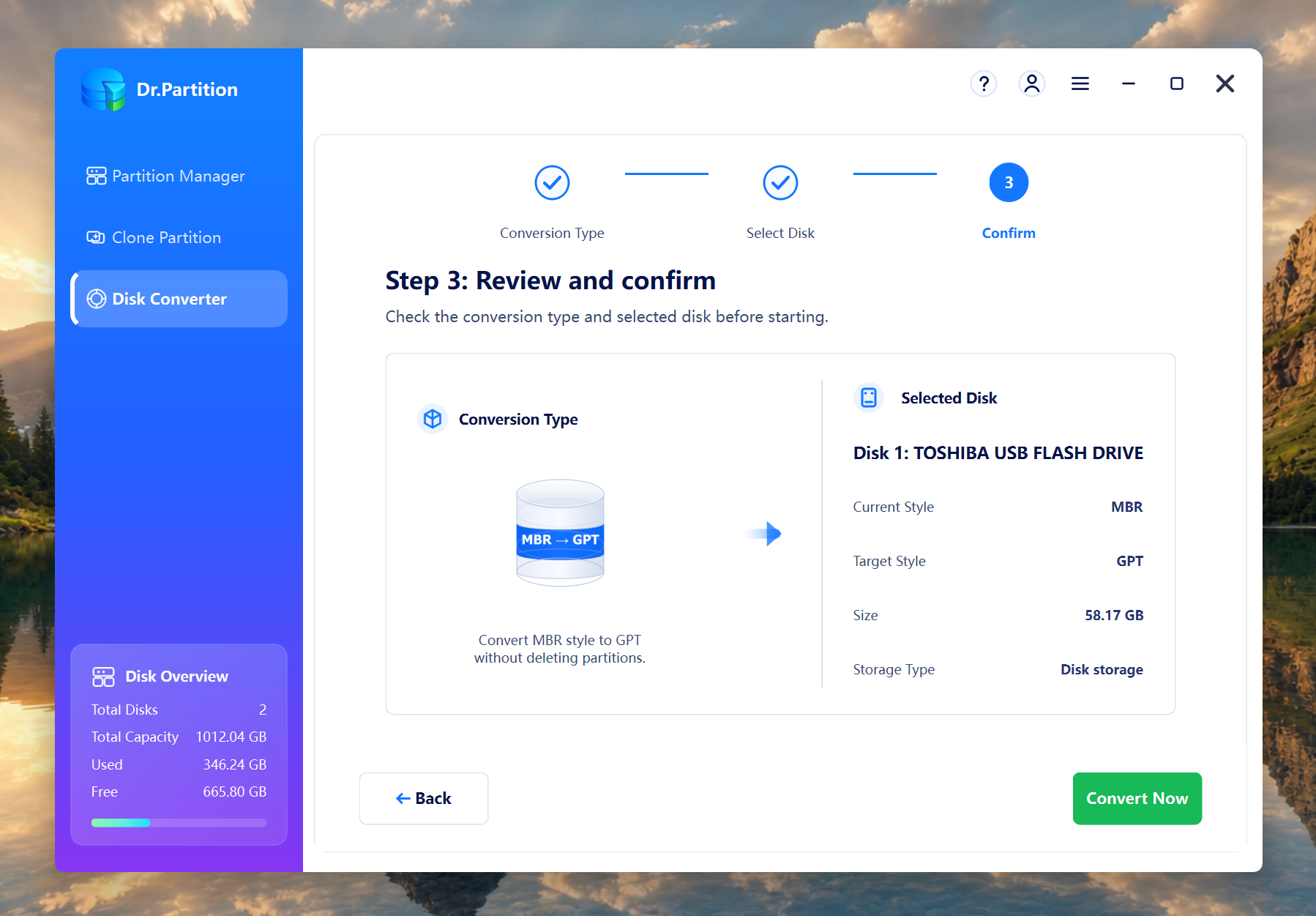
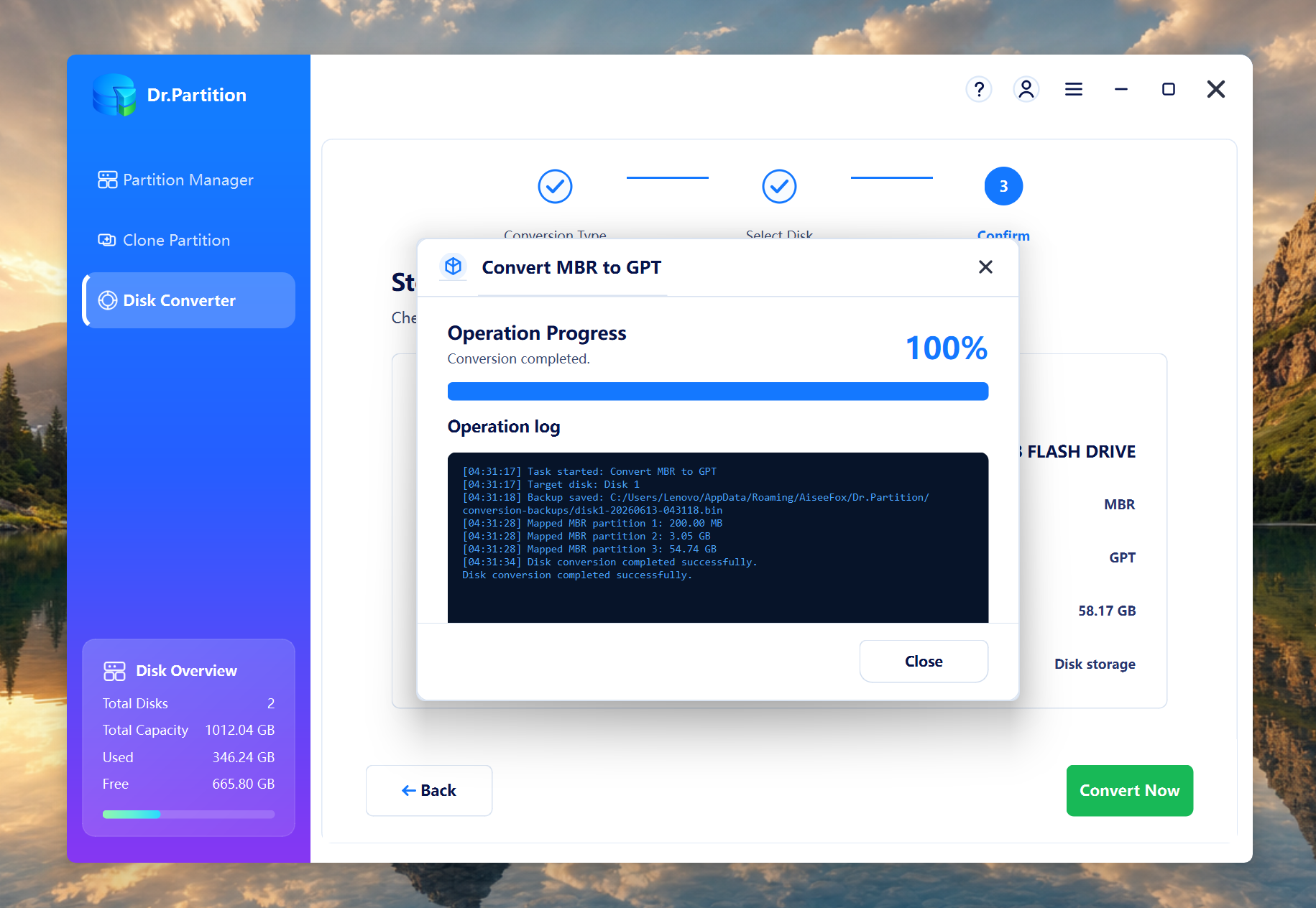
Step 6: Apply the conversion
Click Apply to start converting the disk from MBR to GPT. Do not shut down the computer while the process is running.
Step 7: Switch boot mode to UEFI
After the conversion is finished, restart your computer and enter BIOS/UEFI settings. Change the boot mode from Legacy/CSM to UEFI, then save and restart.
My Thoughts
For me, Dr.Partition is the easier choice because I don’t have to mess with command lines or worry about typing the wrong DiskPart command. The preview step also makes the whole process feel safer.
If you want to convert MBR to GPT without data loss, Dr.Partition is a good option to try, especially if you prefer a visual tool over manual commands.