

Your iPhone contact list may contain years of important phone numbers, email addresses, business contacts, family details, and personal information. If you are switching to a new phone, backing up your iPhone, moving contacts to another app, or keeping a safe copy on your computer, exporting iPhone contacts as a VCF file is one of the most convenient options. However, Apple does not provide such an option. For users who want a more direct way to export the entire contact list from iPhone to a Windows PC or Mac, AiseeFox iCopyGo offers an easier solution.
What Is a VCF File and Why Use It?
VCF, also known as vCard, is a standard contact file format used for saving and sharing contact information. A VCF file can include names, phone numbers, email addresses, company names, job titles, addresses, notes, and other contact details.
The biggest advantage of VCF is compatibility. You can import a VCF file into many devices, email apps, contact managers, and cloud services, including iPhone, Android, Gmail, Outlook, iCloud, and macOS Contacts. This makes it a good format for backing up contacts or moving them between different platforms.
How to Export Entire Contact List from iPhone to Computer as VCF with AiseeFox iCopyGo
iCopyGo is an iPhone data transfer tool for Windows and Mac that helps users export, back up, and manage iPhone files without relying on iTunes. It is great for exporting contact lists because it can scan your iPhone contacts, let you preview and select the entries you need, and save the entire contact list to your computer as a VCF file for easy backup, sharing, or import into Gmail, Outlook, iCloud, Android, or another iPhone.
Step 1. Download and Install AiseeFox iCopyGo
Download AiseeFox iCopyGo on your Windows PC or Mac. Follow the setup wizard to install the program, then open it from your desktop or Applications folder.


Step 2. Connect Your iPhone to the Computer
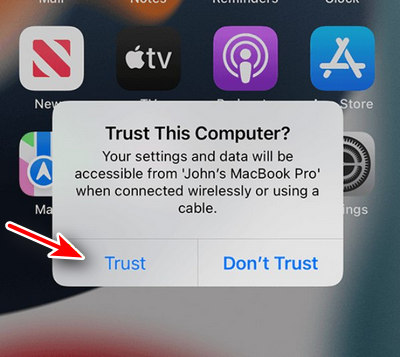
Use a USB cable to connect your iPhone to the computer. Unlock your iPhone and tap Trust This Computer when the prompt appears. Keep the iPhone connected during the whole transfer process. For a more stable connection, use the original Apple cable or a high-quality USB cable.
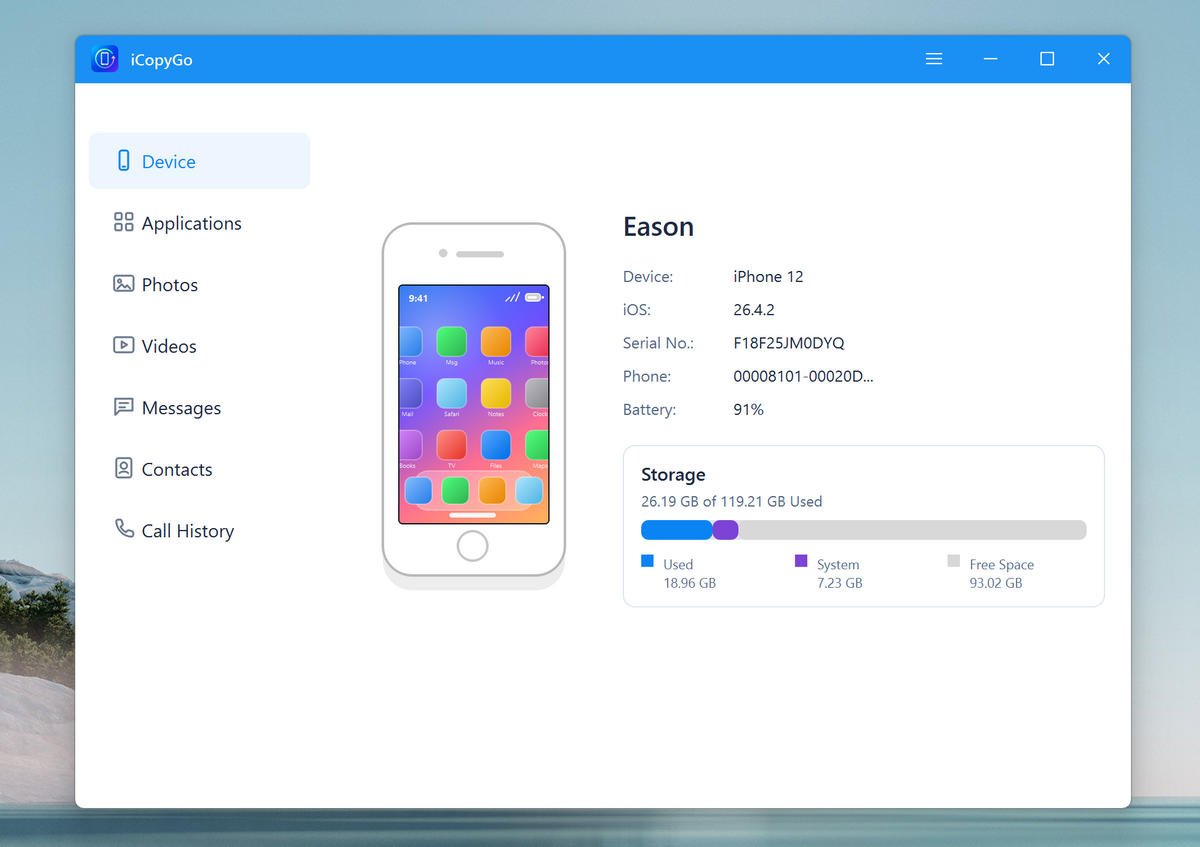
After the connection is successful, iCopyGo will detect your iPhone and load the supported data types.
Step 3. Let iCopyGo Detect and Scan Your iPhone
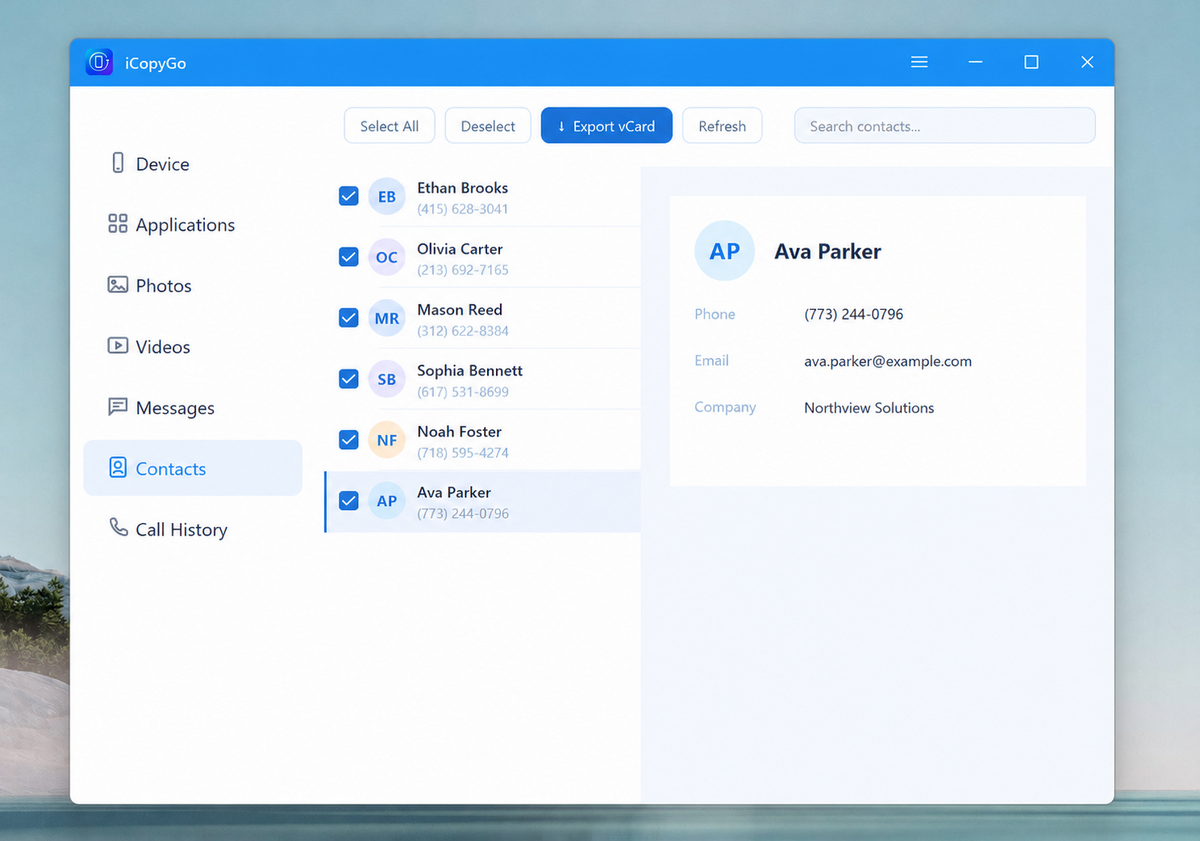
Click the Contacts menu from the left sidebar. The app will start scanning the device immediately.
Step 4. Preview and Select Contacts
Once the scan is complete, you can preview all photos saved on this iPhone. You can select the videos individually or select all of them in one-click.
Step 5. Export Contacts from iPhone to Computer
After selection, click the Export button and choose a save location on your computer. You can save the exported messages to a local folder, external hard drive, or USB drive.
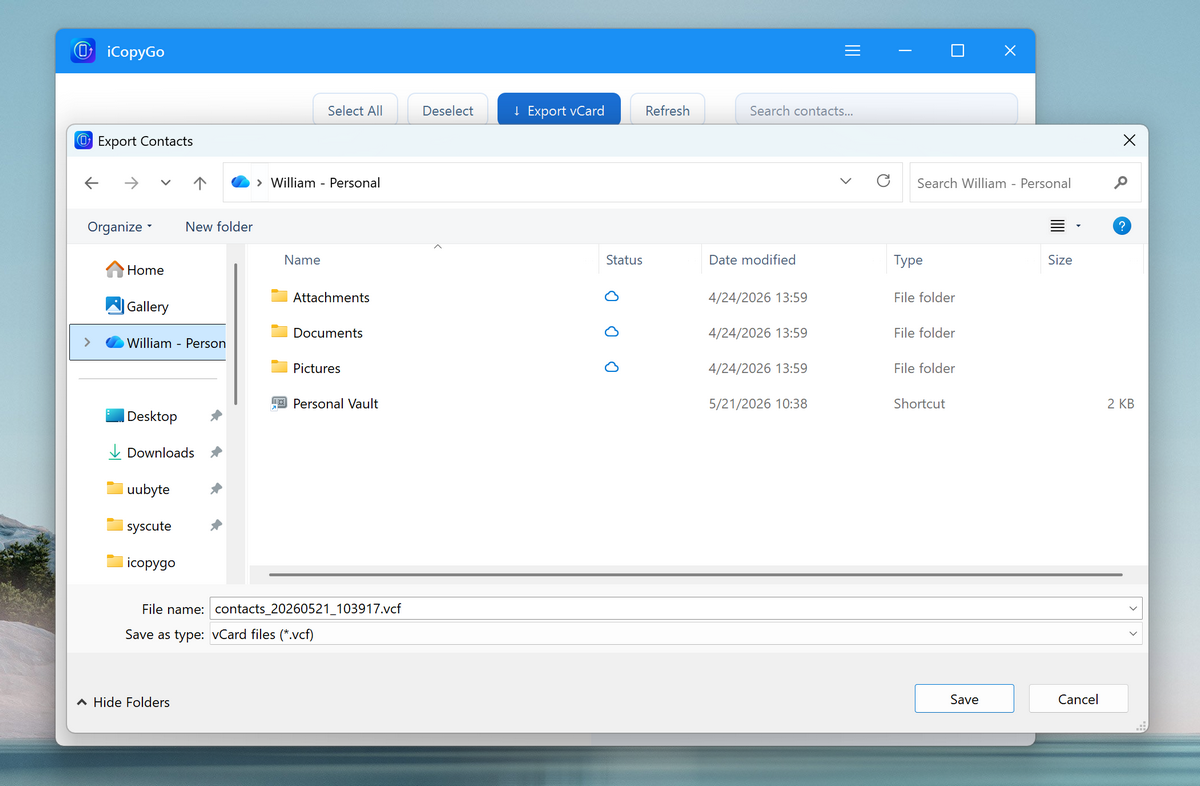
When the export is completed, open the output folder to view or edit the VCF file.
Conclusion
Exporting your entire iPhone contact list as a VCF file is a smart way to protect important contact information and make it easier to move contacts between devices or platforms. VCF is widely supported, easy to store, and suitable for both backup and transfer.
AiseeFox iCopyGo makes the process simple by letting you connect your iPhone, preview your contacts, select the full list, and export everything as a VCF file on a Windows PC or Mac. For users who want a direct and beginner-friendly way to back up iPhone contacts, iCopyGo is a practical choice.