

Forgetting WiFi password can be inconvenient, especially when you need to connect a new device or share access with others. Dr.KEY makes recovering saved WiFi passwords on your computer effortless. Whether you’ve connected to multiple networks or just need to retrieve your home WiFi password, Dr.KEY scans your system and displays all stored passwords in seconds. Follow this guide to quickly recover your WiFi credentials and stay connected without hassle.
Step 1: Download and Install Dr.KEY
Visit the official Dr.KEY website and download the software. Run the installer and follow the on-screen instructions to complete the installation.

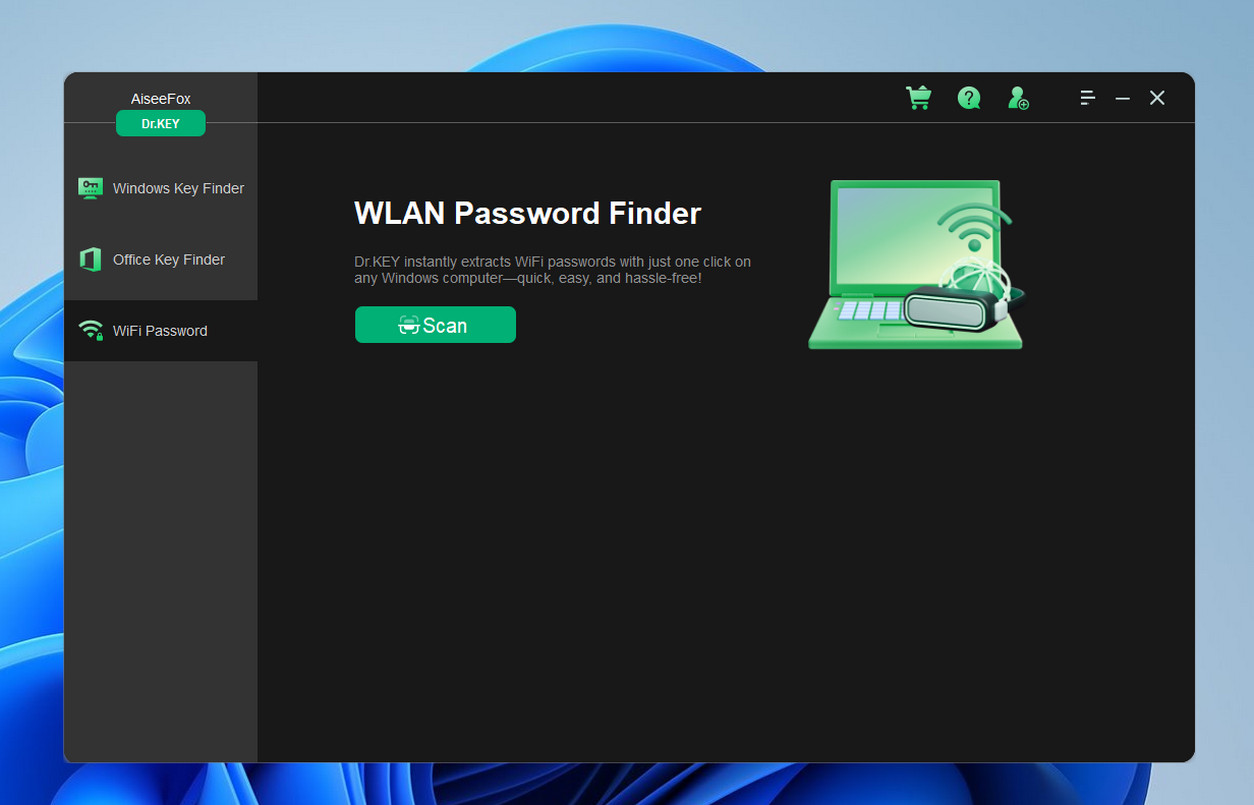
Step 2: Select ‘WiFi Password’ Option
Open the Dr.KEY application on your computer. On the main interface, you’ll see multiple recovery options. Click on the option labeled ‘WiFi Password’ and click the ‘Scan’ button to begin retrieving all the WiFi passwords saved on the computer.
Step 3: Waiting for Result
Wait a few seconds and you will see the final result as shown in below. The key is masked by default.
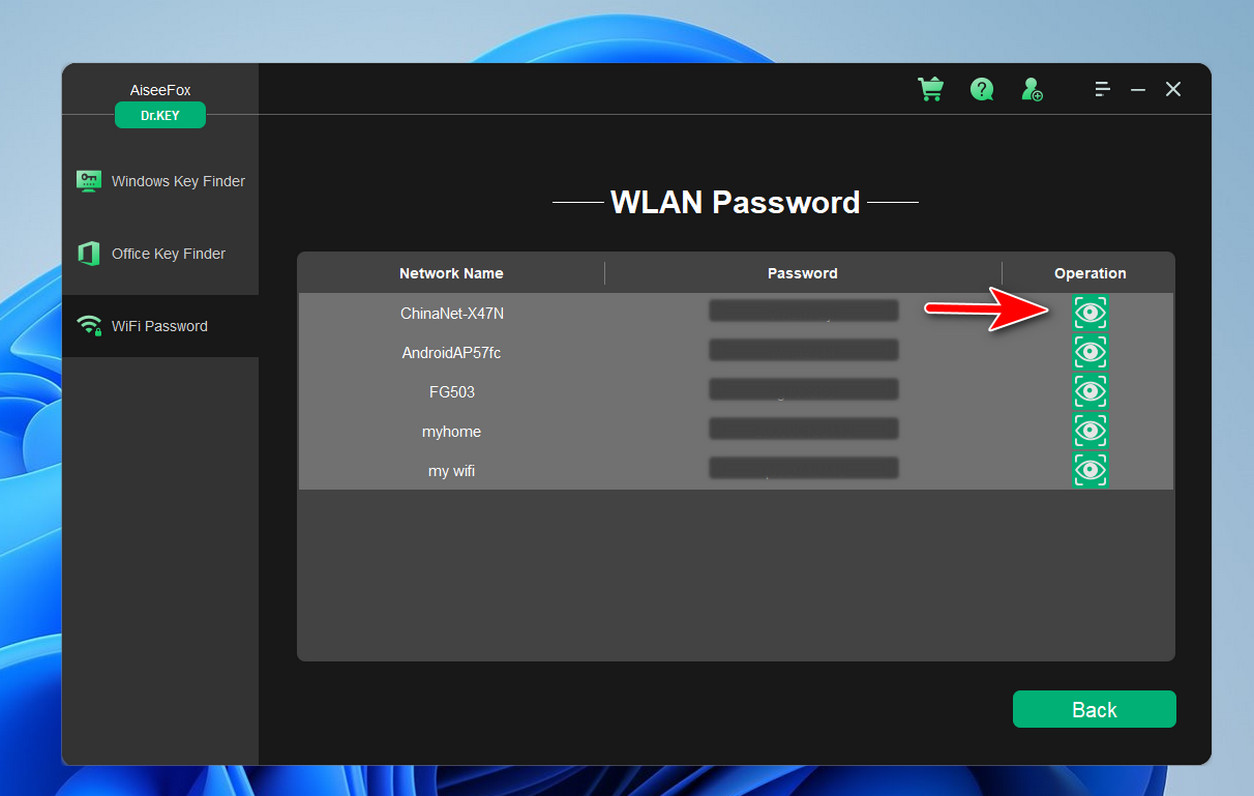
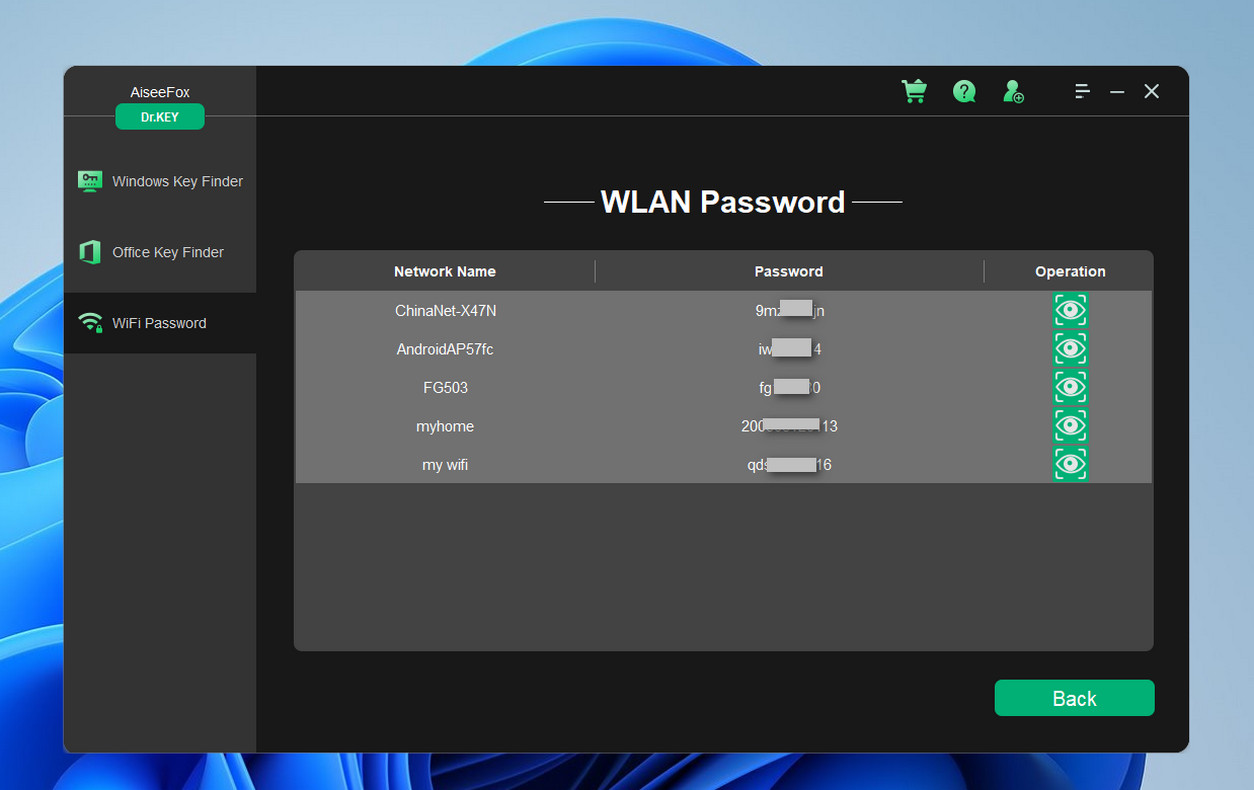
Step 4: Show the Product Key
Now, click the eye icon displayed at the right side of product key field to show the full password it finds.
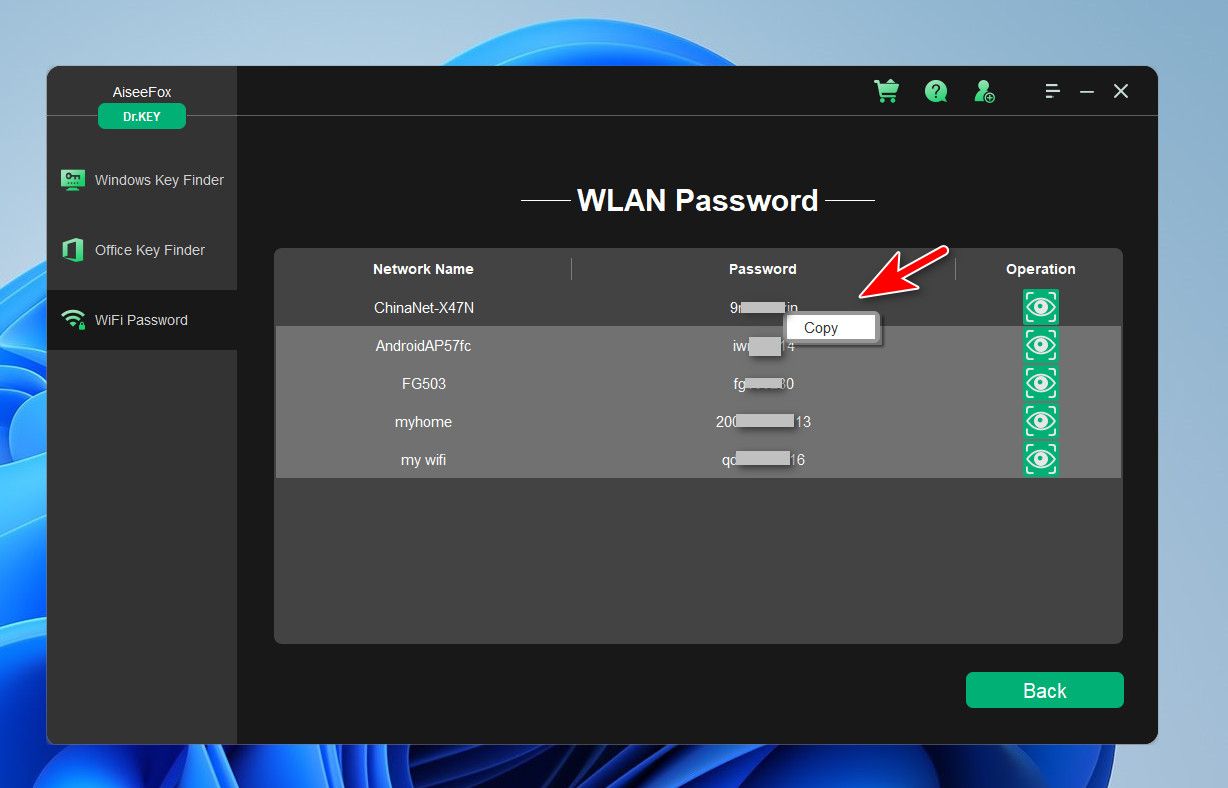
Step 5: Copy the WiFi Password
Select all the characters from the ‘Password’ field and right click on the. Choose the ‘Copy’ option to copy the key and save it in a safe place.
Thank you for choosing Dr.KEY as your trusted solution for retrieving lost product keys and WiFi passwords. With its user-friendly interface and efficient features, Dr.KEY aims to save you time and eliminate the stress of key recovery. We hope this manual has provided clear and helpful guidance for using the software to its full potential.
Should you have any questions or require further assistance, our dedicated support team is always ready to help. Enjoy the peace of mind that comes with having your essential keys securely and conveniently at your fingertips!