

There are two main reasons why the SD card is not visible in Windows file explorer even the drive is connected to the computer via USB port. One reason is that the partition was deleted and all the free space are unallocated. This means there is no file system on the drive so it can’t be detected by file explorer.
Another reason is that the partition is not supported by Windows. If the SD card is formatted by a Mac or Linux file system, the SD card will not showing in file explorer for sure. No matter what the reason is, we can help to get it fixed by deleting and creating a new partition on the drive with Dr.Partition.
How to Fix SD Card Not Showing or Visible in File Explorer
To solve this issue, we need a disk manager software to create a new partition or delete the unsupported partition. It depends on the status of the SD card. If the file system is not supported, you need to format the SD card. If there was no partition on the SD card, you need to create a new partition.
Step 1: Download and install Dr.Partition software, one of the best disk partition software in 2025.

Step 2: Plug in the SD card and open the software. You can see the SD card is listed in the software interface. Currently, there is no partition and file system on the SD card. This is why it is not showing in file explorer.
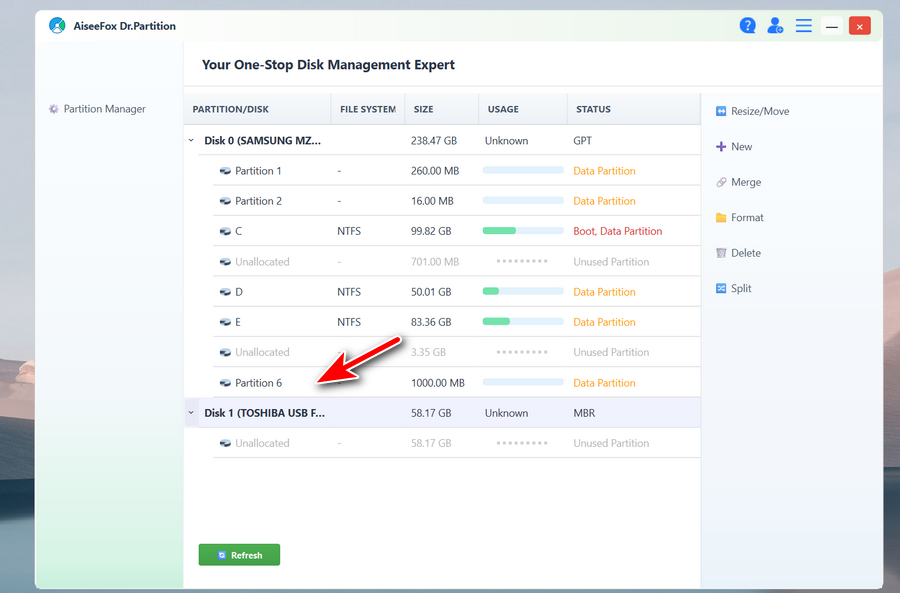
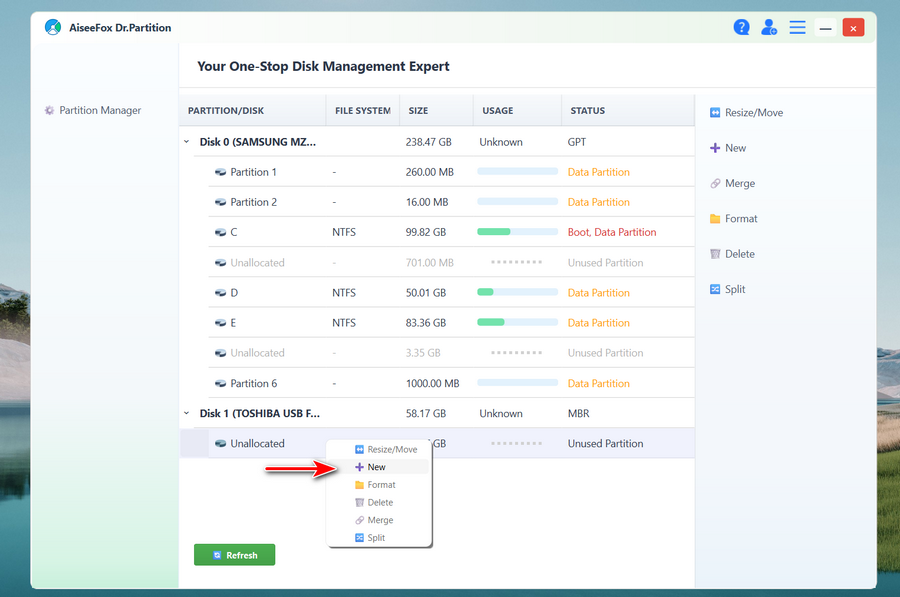
Step 3: Create a new partition of the SD card by right clicking the drive name and choosing the New option.
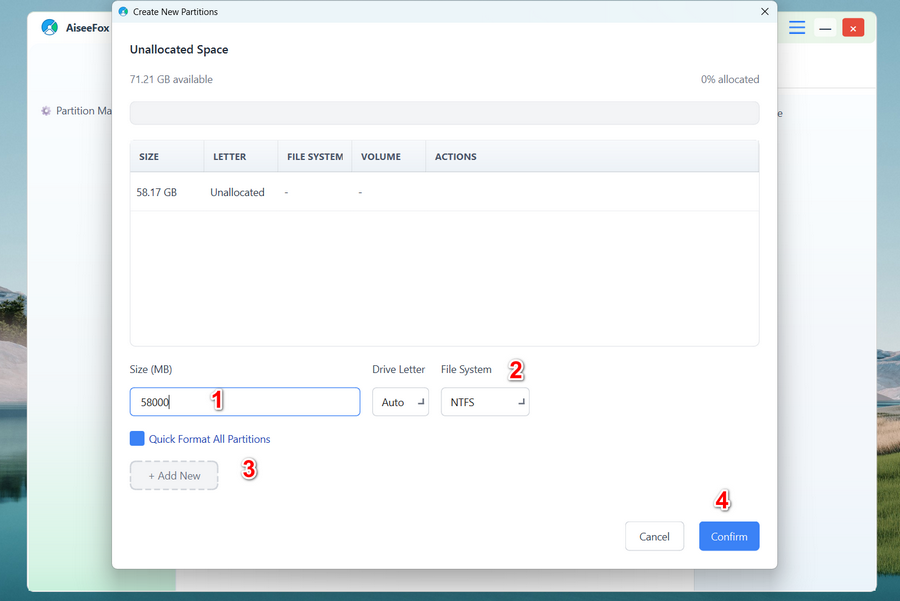
Step 4: Set the partition size and file system and start creating a new partition on the SD card.
Step 5: When the partition is created successfully, you will see the drive letter, file size and file system from the software interface.
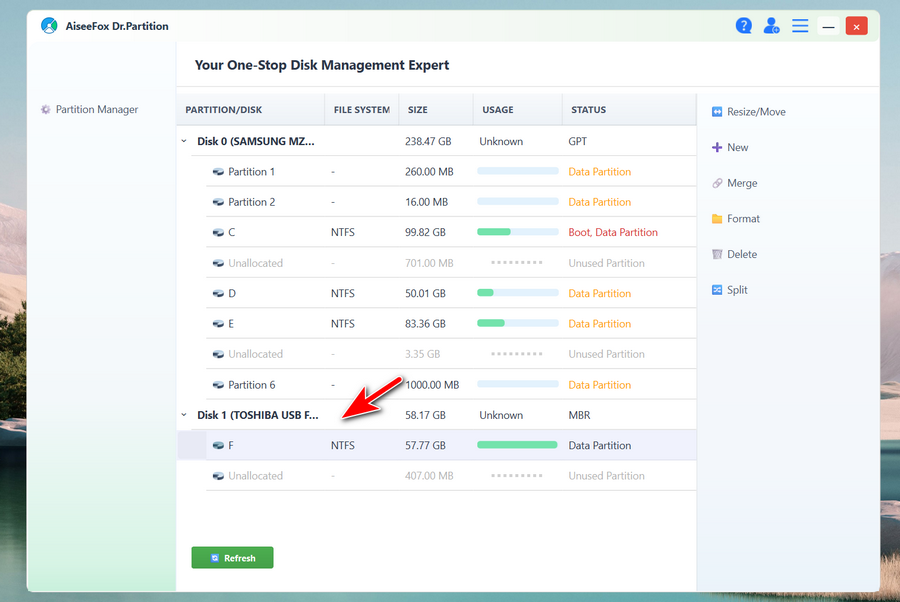
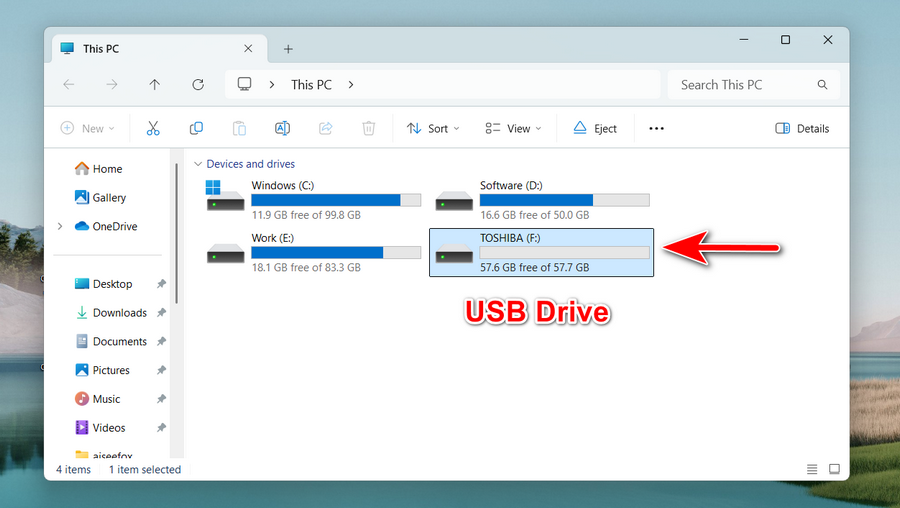
Step 6: When it is done, you can see the SD card is visible in Windows file explorer.
Summary
Dr.Partition is a powerful and easy-to-use partition manager that you can use to fix various issues in regards to disk partition. You can create new partition, format the partition, resize the partition and merge two partitions for any storage devices, including SD card, hard drive and USB drive.