

Let’s be real — over time, your PC becomes a bit of a digital dumpster. You’ve got photos from five different trips, 10 versions of the same song, PDFs with identical names (but who knows which is the “final final” one), and who-knows-how-many copy-pasted folders. Duplicate files are sneaky storage hogs.
I recently cleaned up my own mess on Windows 11 and found a tool that saved me tons of time: AnyDupeCleaner. Super simple, fast, and no sketchy stuff.
Why bother with duplicate files?
- They eat up storage space.
- Slow down backups or sync tools (like Google Drive or OneDrive).
- Cause confusion: which version is the real one?
- Just annoying.
Tool I used: AnyDupeCleaner
Honestly, I tried a few free tools before settling on this one. Some were bloated, others screamed “trial version” every 10 seconds. AnyDupeCleaner is lightweight, works on Windows 10 and 11, and shows results super fast — even on huge folders.
Steps to clean up with AnyDupeCleaner
Download & install
Just go to the official website and install it. You can also download it directly from the following link:


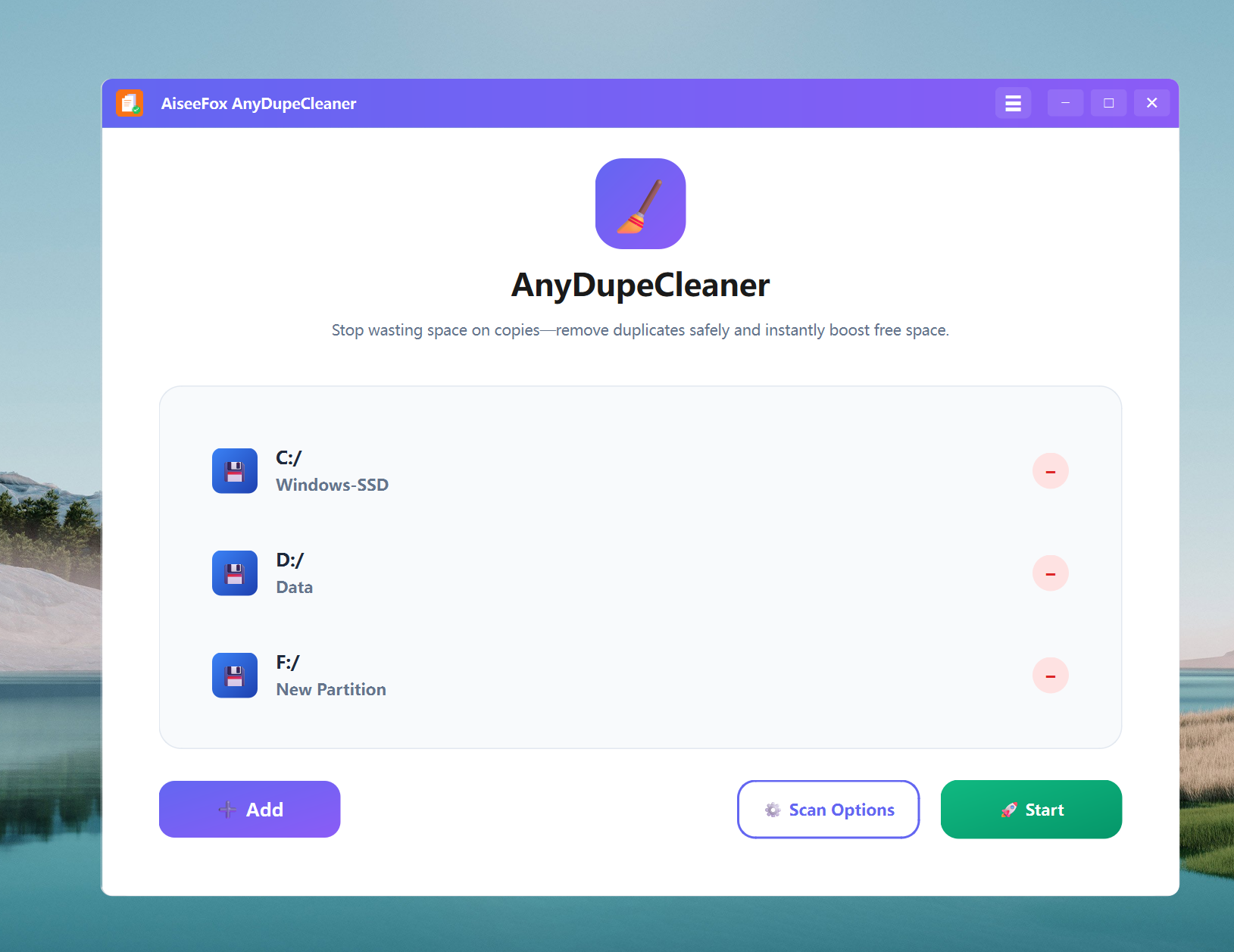
Add folders to scan
Launch the app, then hit the “+” to add folders. I usually scan Downloads, Documents, and my Pictures folder.
Set your scan options
Want to scan just photos? Or ignore system files? You can tweak filters — file type, size range, date, and more. (I unchecked system folders to speed things up.)
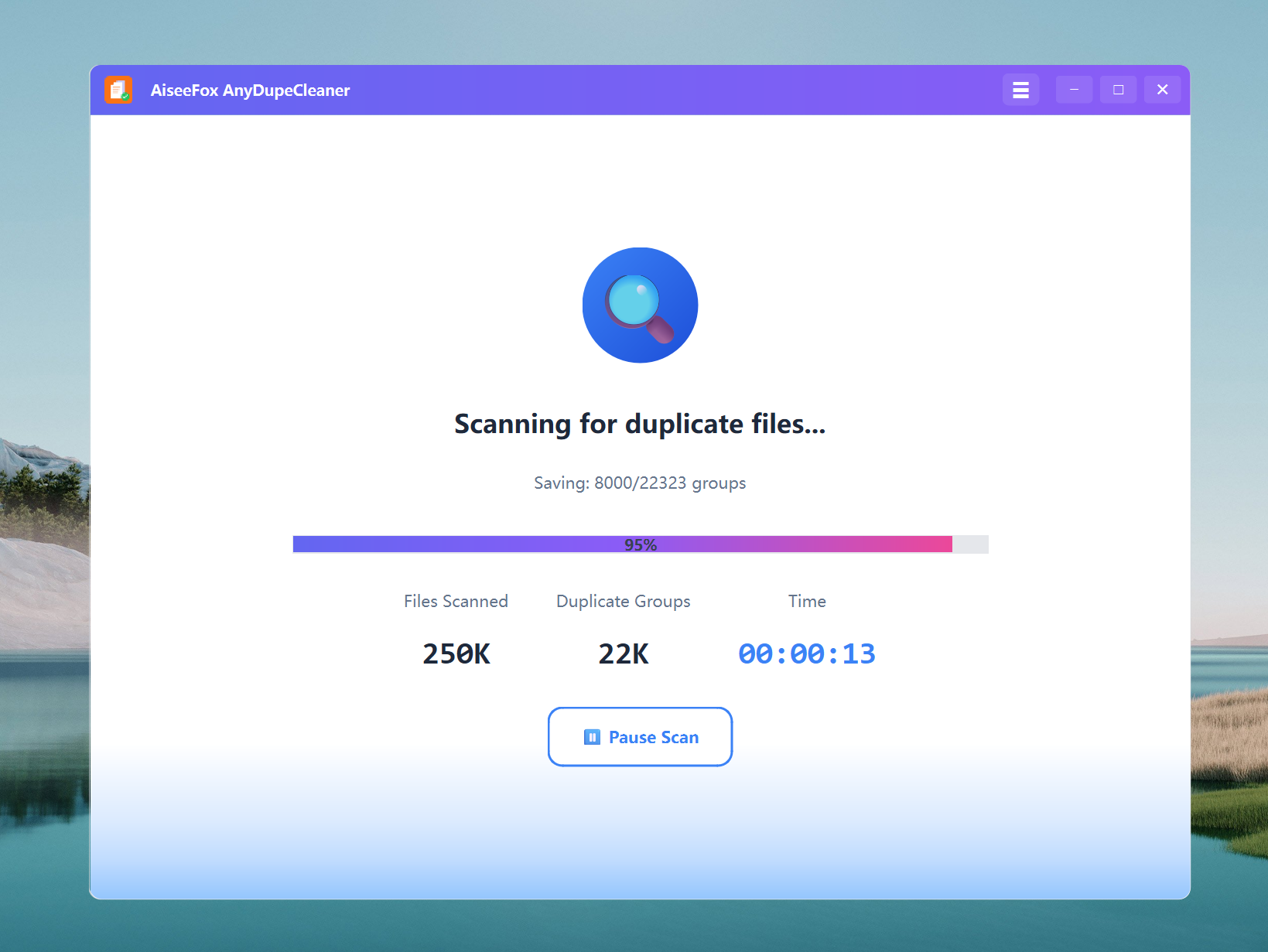
Start scanning
Hit “Scan” and let it do its thing. For me, it took under 2 minutes to go through 20,000+ files.
Review duplicates
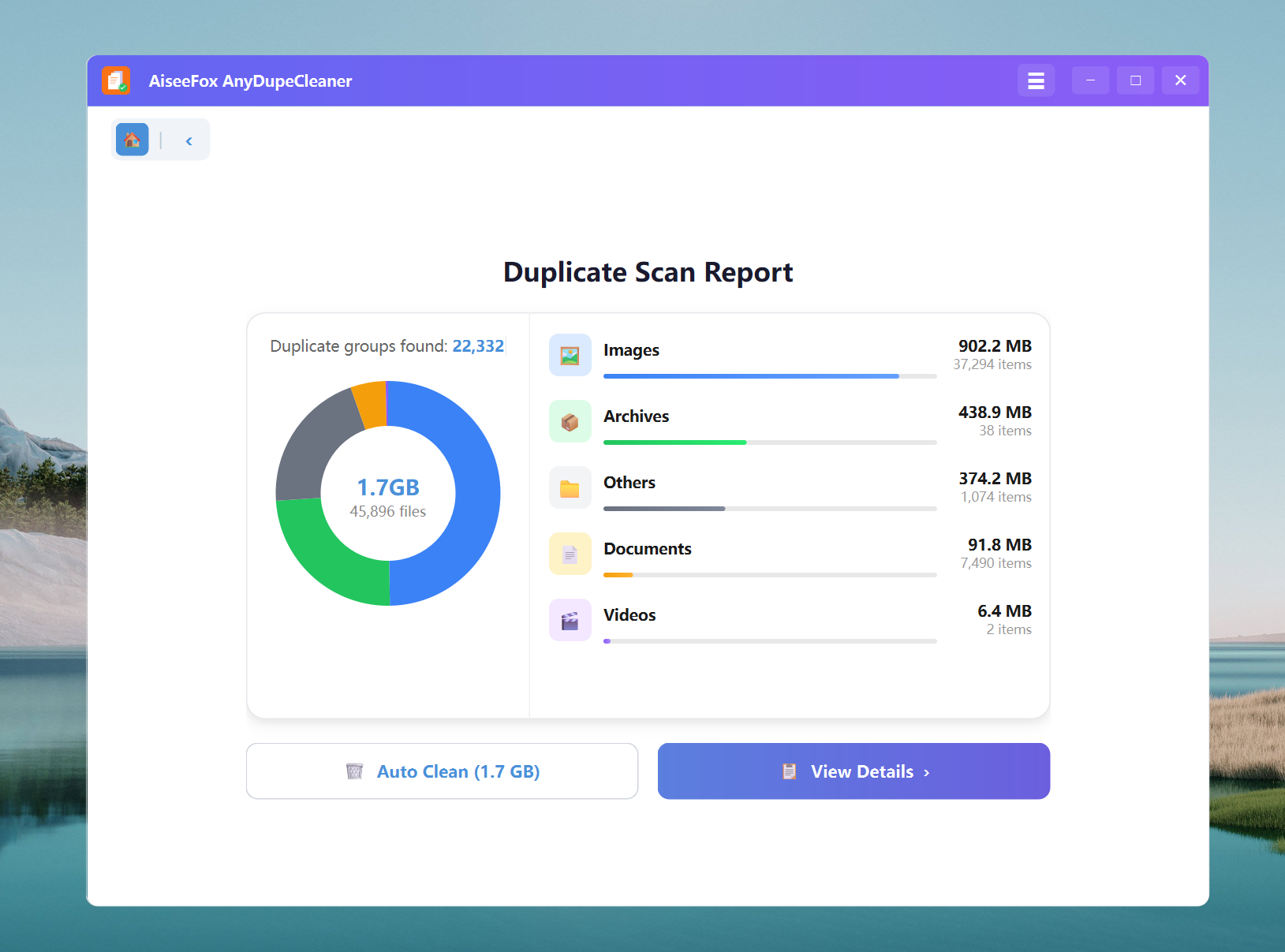
After the scan, you’ll see the Duplicate Scan Report with total space you can save and a category breakdown. Click View Details to review/preview duplicates—by default it keeps the earliest/original file and selects newer copies—then hit Auto Clean to remove them.
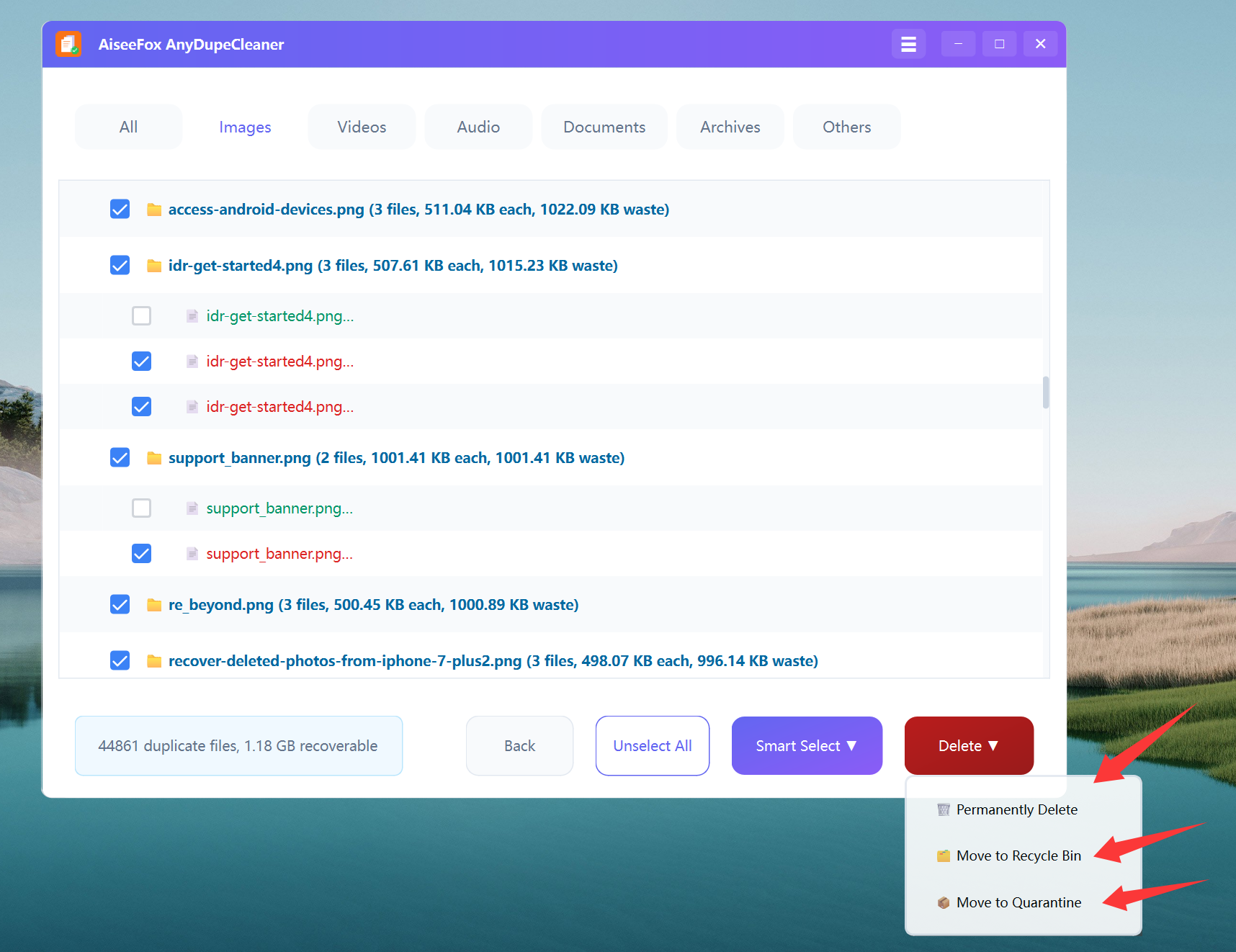
You’ll get a nice list grouped by file name, size, or even exact content. You can preview photos, videos, or documents before deciding.
Select & delete
Click the Select All button to keep one copy and delete the rest. Then just hit “Delete”, and boom — space saved.
Click Delete ▼ to choose how duplicates are removed:
- Permanently Delete: erase files immediately (can’t be undone).
- Move to Recycle Bin: send files to the bin so you can restore if needed.
- Move to Quarantine: move files to a safe folder for later review.
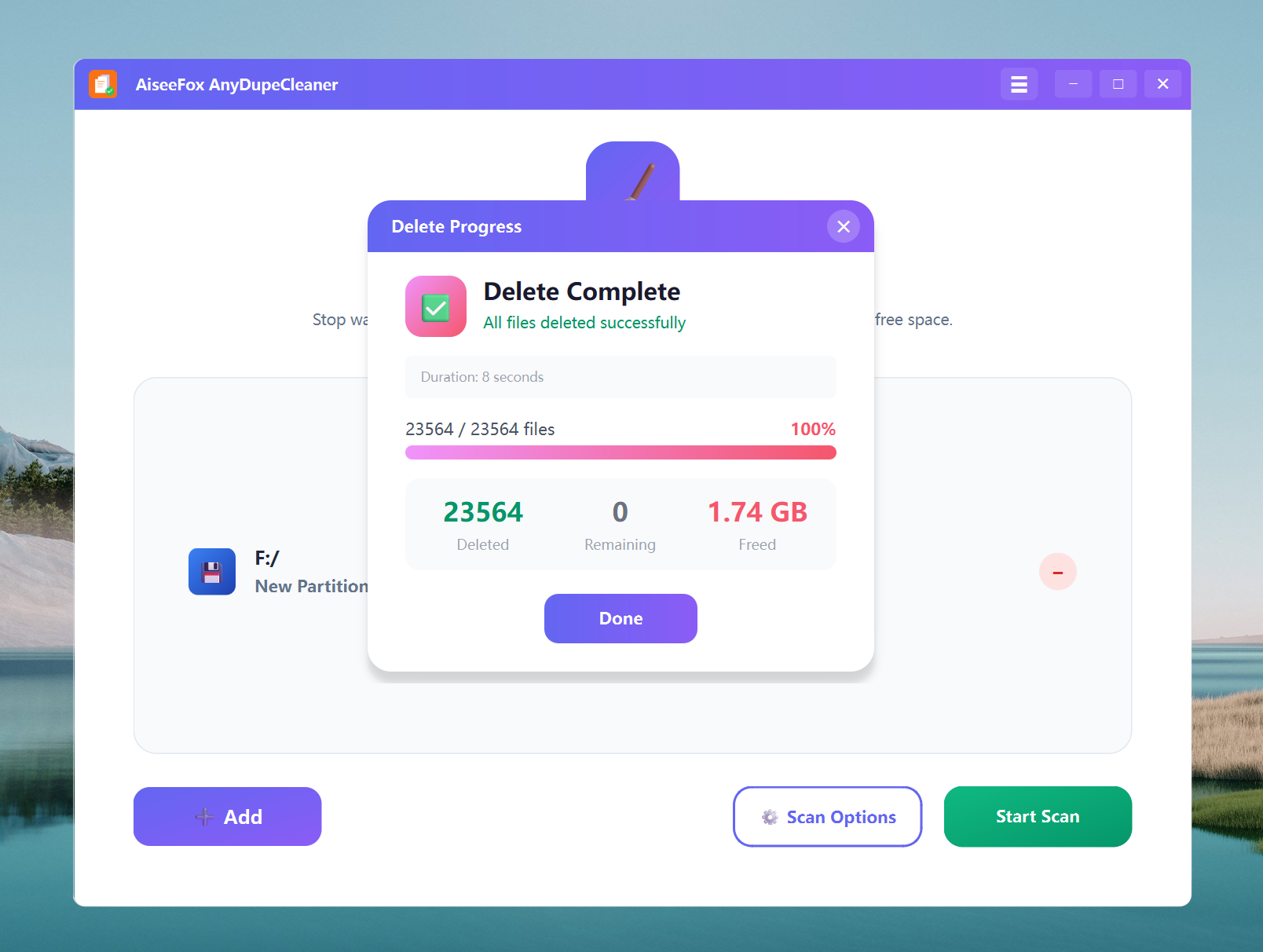
The delete process is really fast — in secon ds, it clears the selected files and shows exactly how many were removed and how much space you freed. Click Done to close the progress window.
Download the trail version here, really worth a try!
My thoughts
After using AnyDupeCleaner, I cleared almost 9 GB of duplicates I didn’t even know existed. The UI is clean (feels native to Windows), and I never had to read a manual or Google anything. For someone who hates over-complicated tools, that’s a win.
Final tip
Run this once every couple of months — especially if you’re a digital hoarder like me. Your SSD (and sanity) will thank you.