

Honestly, I used to dread trying to remove strangers or unwanted people from my photos—Photoshop always felt way too complicated and time-consuming. But with VisioMint AI Image Editor, it’s surprisingly easy. I just uploaded my photo, typed a simple prompt, and the AI handled the rest, giving me clean, natural-looking results in seconds.
I tried it on a group photo and a few travel shots where random people were in the background, and VisioMint removed them seamlessly without messing up the scenery. For anyone who’s not a design pro, this tool makes photo cleanup actually enjoyable.
Why I Love Using VisioMint AI to Remove People
What really impressed me about VisioMint is how fast and accurate it is, and the fact that I can edit multiple photos at once. Unlike traditional photo editors where I’d have to manually handle each image with layers and masks, here I just type what I want removed and VisioMint takes care of a whole batch in seconds.
- AI-powered precision – Automatically fills removed areas with matching background so every photo looks natural.
- Batch processing – I can clean up dozens of travel or event photos at once, which saves so much time.
- Free or affordable – Most features are available without extra cost.
- Works everywhere – Browser, Windows PC, and integrated apps all handle batch edits smoothly.
Honestly, it’s one of the easiest ways I’ve found to clean up photos without breaking a sweat.
1. How to Remove People from Images with VisioMint
Step 1: Open VisioMint
Download and Launch VisioMint AI Image Editor from your device or web browser. Make sure you are signed in if required.

Step 2: Upload Your Image
Click “+ Add” and select the photo containing the person or people you want removed.
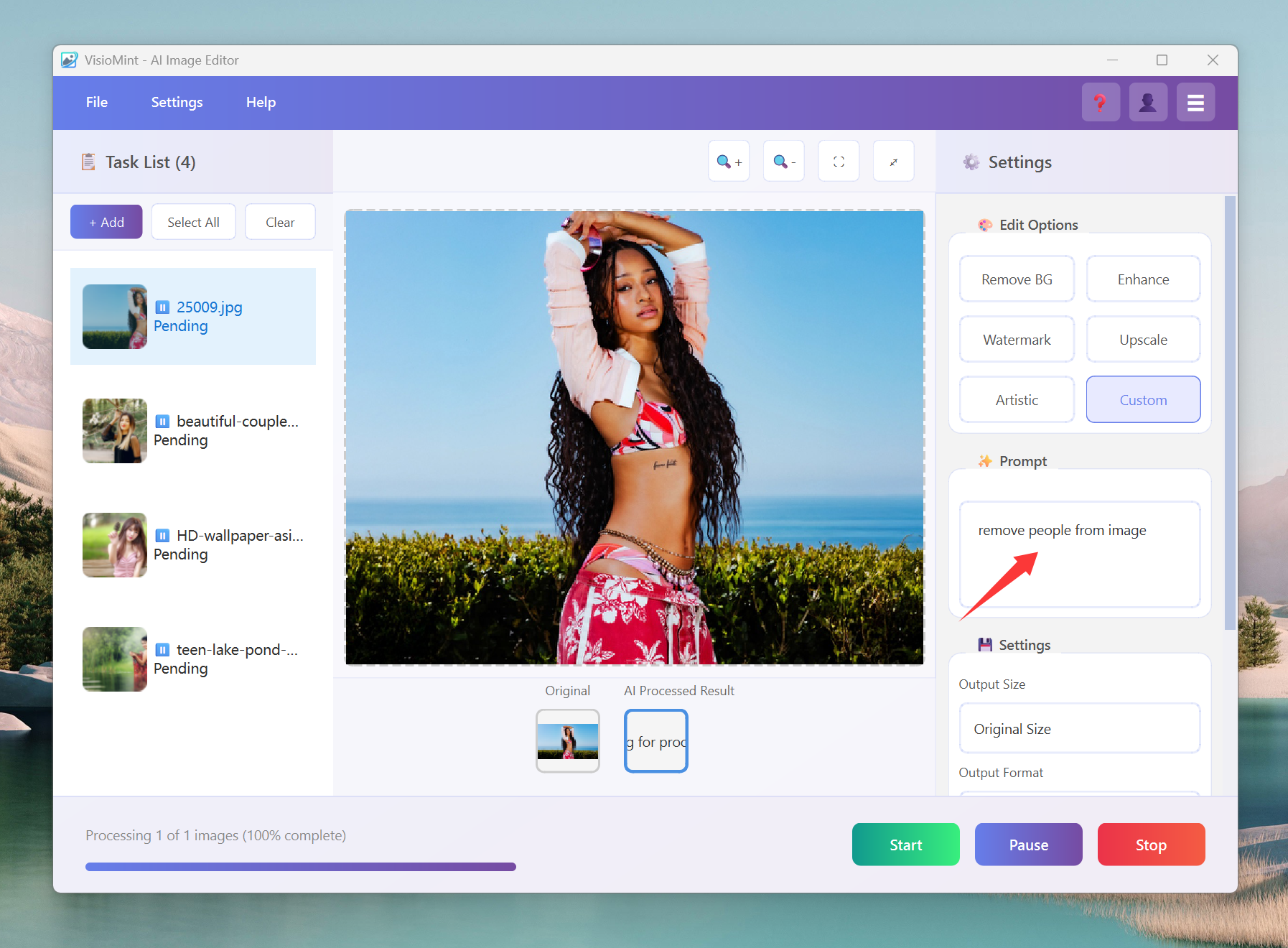
Step 3: Apply a Prompt
Under the Custom or Edit Options panel, type a prompt such as:
- “Remove people from image.”
-
“Remove the person on the right.”
-
“Erase the group in the background.”
-
“Delete the person in blue shirt.”
VisioMint will process the image and generate a clean, natural-looking version.
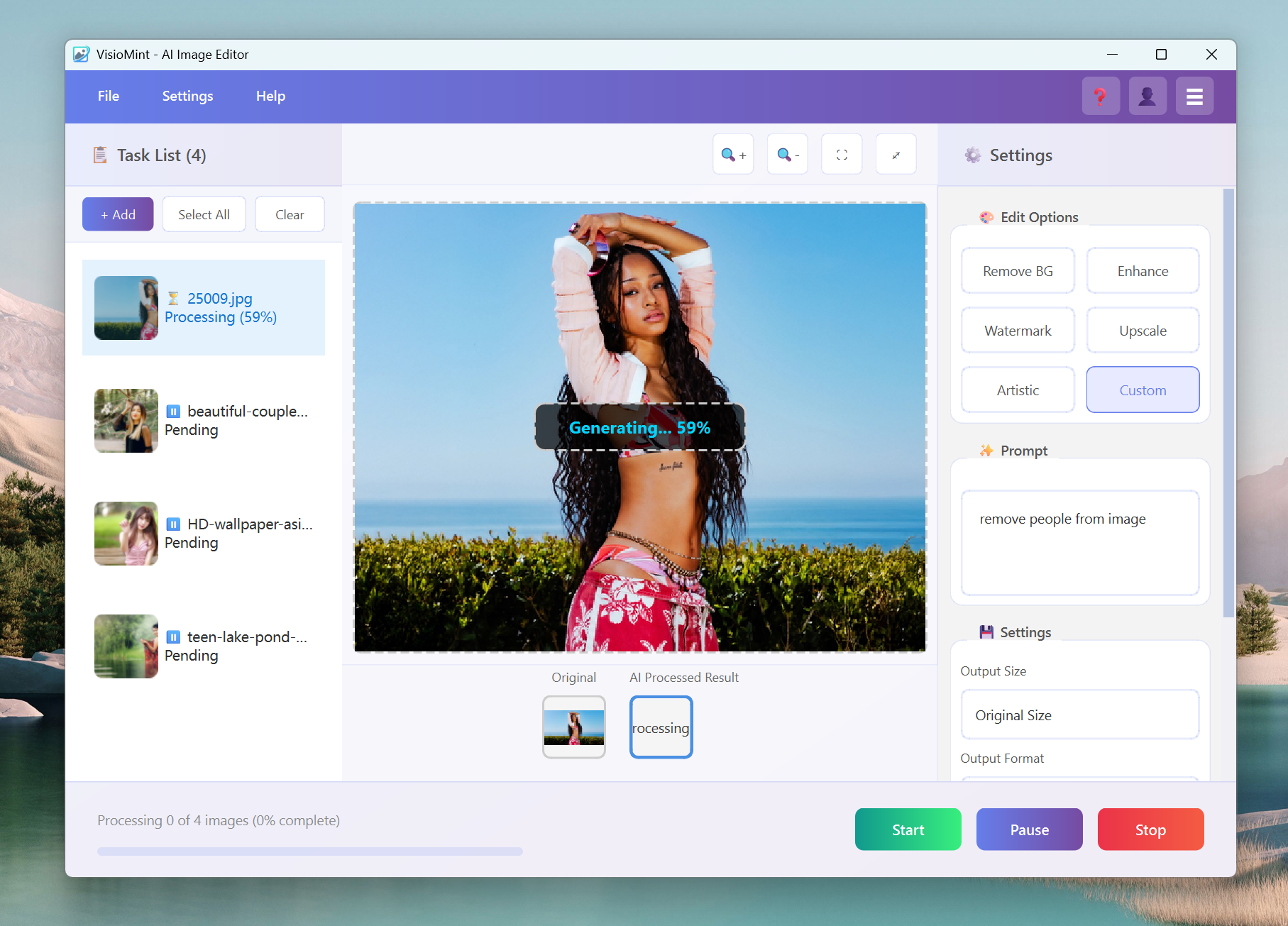
Step 4: Review and Refine
VisioMint often provides multiple AI-processed results. Review them, select the best one, or refine your prompt for better blending:
- “Smooth out the shadow left behind.”
- “Blend the background more naturally.”
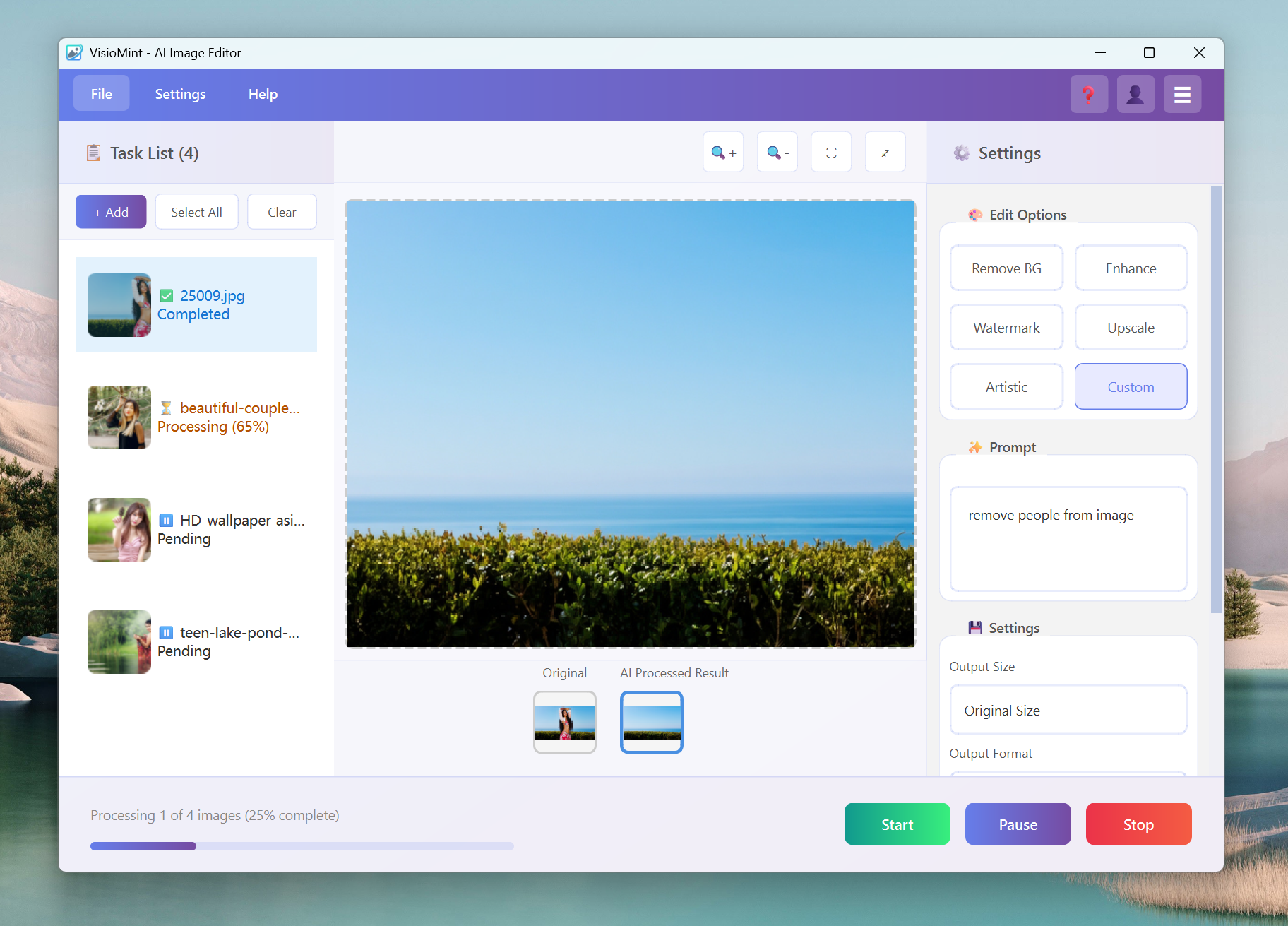
Step 5: Download
Once satisfied, click Download to save your final edited image.
2. Remove Watermark
So here’s the thing — sometimes I find a really good photo, but there’s that annoying little watermark sitting in the corner. It’s not like I’m trying to steal anyone’s work; usually, it’s just for my personal mockups or presentations.
VisioMint’s Remove Watermark tool is ridiculously easy to use. You just click the button, and the AI automatically finds and removes any text or logo-like marks on the image. No need to clone, blur, or paint over — it fills the background naturally, like it was never there. The first time I tried it, I was expecting it to smudge the area or make it obvious, but it actually blended everything perfectly — even on complex backgrounds like trees or textured walls.
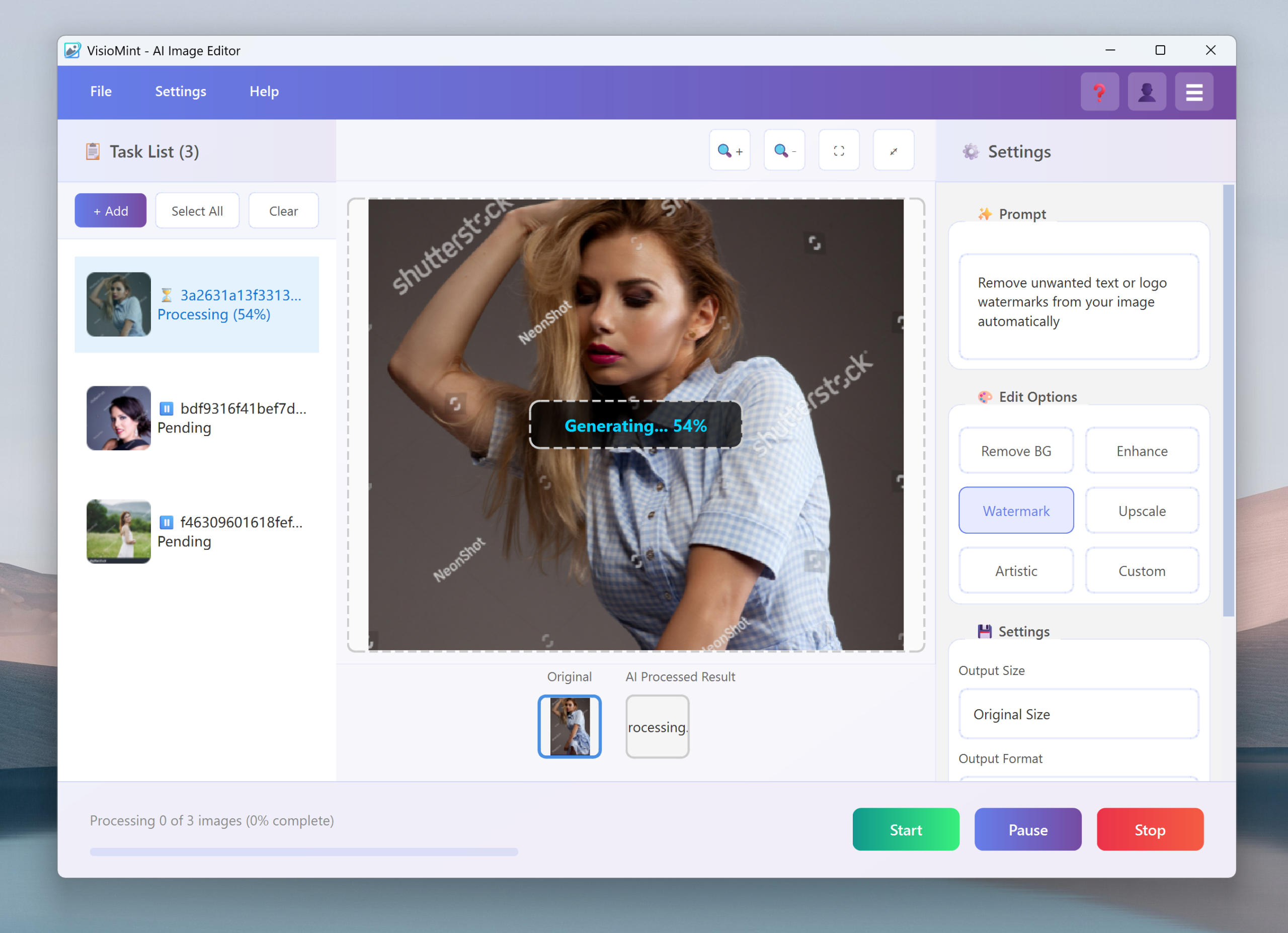
I’m very satisfied with the image quality after removing the watermark!


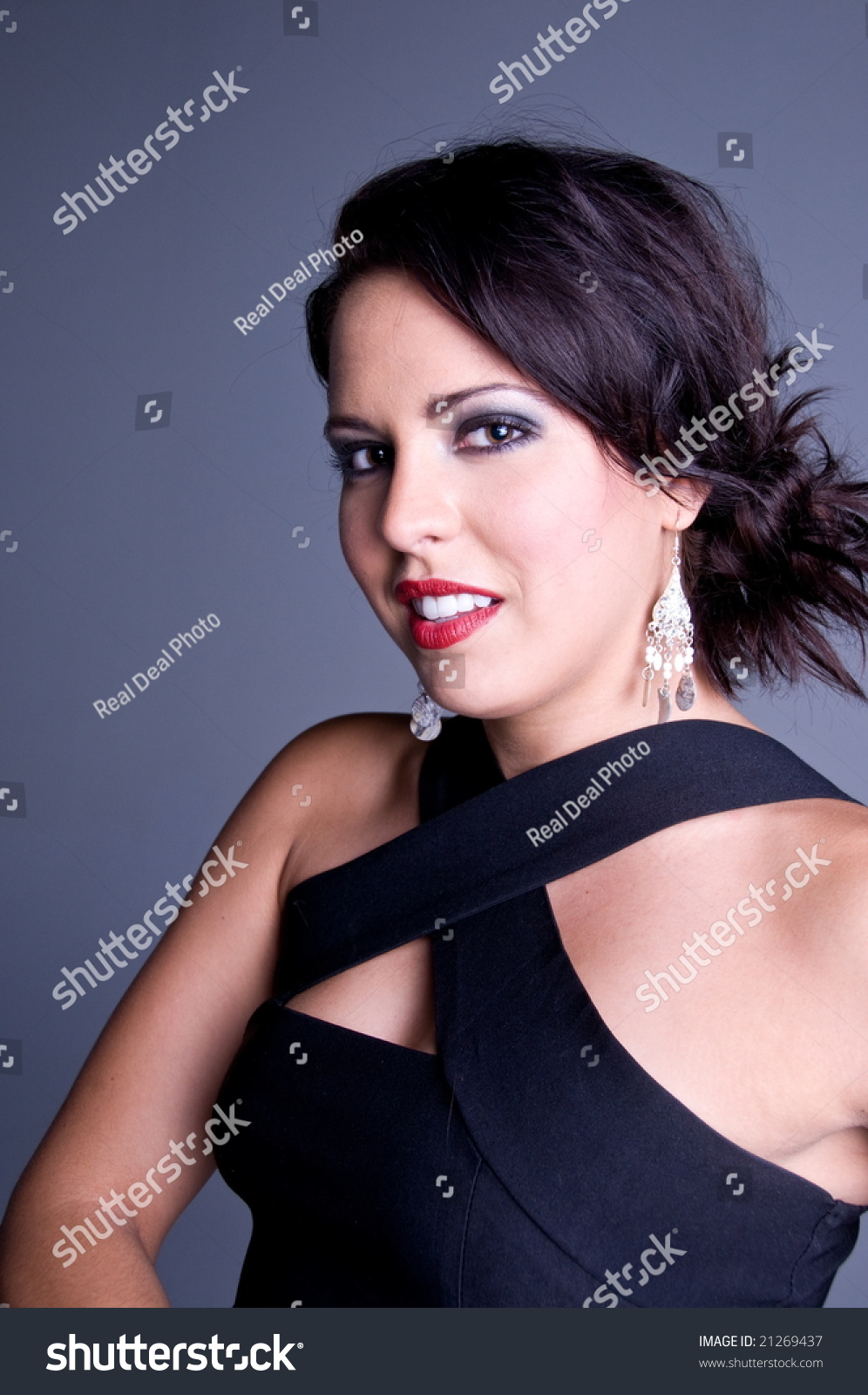

It’s honestly one of those “why didn’t I have this before” moments. If you’ve ever spent ten minutes cloning pixels in Photoshop just to hide a logo, you’ll appreciate how magical this feels.
3. Remove Background
Cutting out a subject by hand used to take forever — zooming in, tracing edges, fixing halos… nightmare.
With VisioMint’s Remove Background, it’s literally one click. The AI detects the subject and cleans everything around it in seconds, no weird outlines or missing details.
I’ve used it on product photos, portraits, even stuff with shadows — it just works. Now I can drop my images onto any background instantly.

Doesn’t the person look much cleaner after the background is removed?

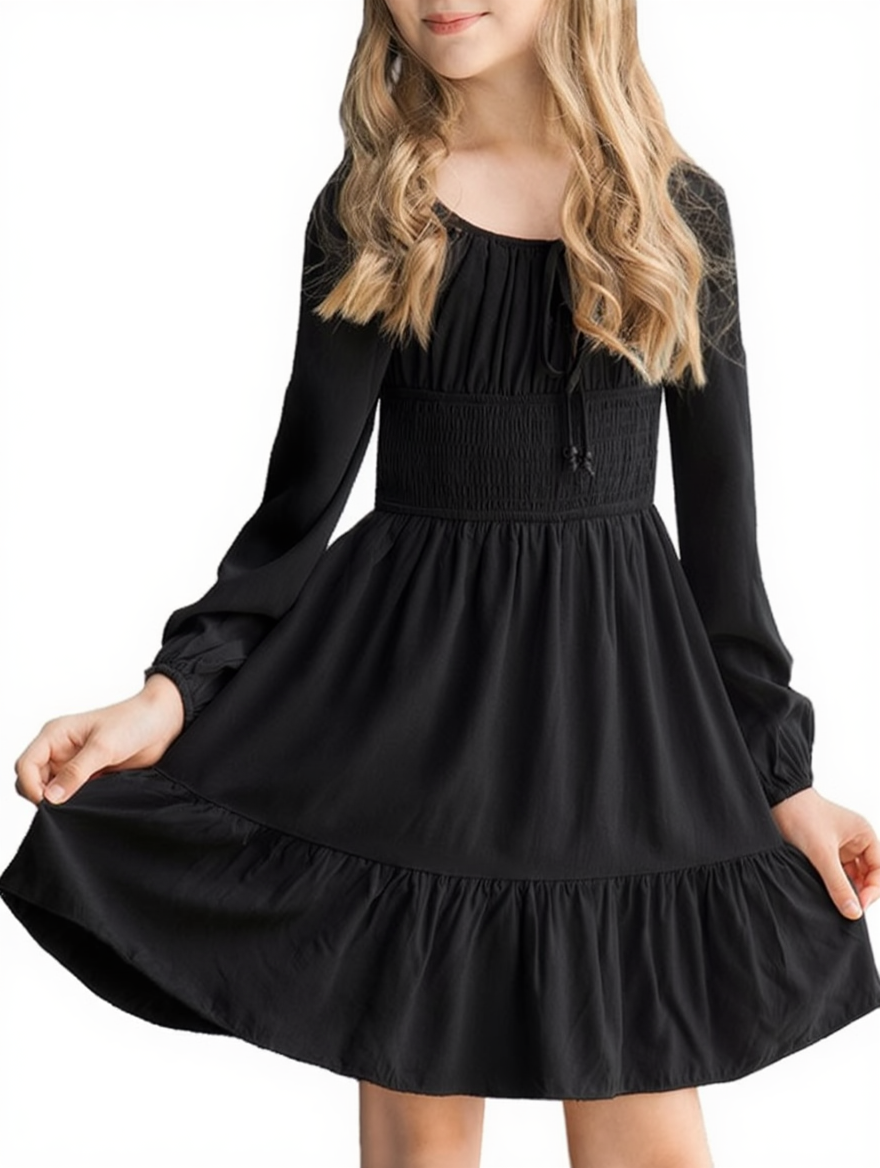
Give it a try today and see how easy it edit your image in bulk.
Summary
VisioMint AI Image Editor makes removing people from photos easy and professional. From travel shots to group photos or product images, simply upload your photo, describe what you want removed, and let VisioMint do the work. With AI-powered precision, fast processing, and a beginner-friendly interface, your images look clean and polished in seconds.