


Converting video files from one format to another can be essential for ensuring compatibility with your favorite media devices and players. Any2VID is a versatile video conversion tool that simplifies this process, allowing you to convert VOB files—commonly found on DVDs—to the widely supported MP4 format. In this guide, we'll walk through the steps required to use Any2VID for converting your VOB files, ensuring that you get a high-quality MP4 output suitable for streaming, mobile playback, or archival.
Why Using Any2VID for Video Conversion?
Wide Format Support: Any2VID stands out for its extensive compatibility with a variety of video formats. Whether you're working with VOB, MP4, AVI, MOV, MKV, or more, you can easily convert your files without worrying about format restrictions.
High-Speed Conversion: Enjoy fast and efficient video conversion without sacrificing quality. Any2VID employs advanced encoding techniques to deliver quick results, enabling you to convert multiple videos in a fraction of the time.
Batch Conversion Capability: Save time by converting multiple videos at once with Any2VID's batch conversion feature. This allows you to process entire folders of videos simultaneously, making it perfect for large projects or bulk conversions.
Customized Settings: Tailor your video output according to your preferences. Any2VID offers a range of customizable settings, including resolution, bitrate, and codec options, allowing you to achieve the perfect balance of quality and size for your videos.
How to Bulk Convert VOB to MP4 with Any2VID
Bulk converting videos with Any2VID is a simple and efficient way to handle large numbers of files simultaneously, saving you time and effort. Whether you're working with different formats like VOB, WMV,WebM, MOV, MKV, MP4 or AVI, Any2VID allows you to convert multiple videos in just a few clicks without compromising quality. Follow the steps below to learn how to easily bulk convert videos using Any2VID.
Step 1Download and Install Any2VID
Any2VID is a cross-platform image toolkit that supports the latest Windows 11 and macOS Sequoia. Please download the setup file and install the app on any PC or Mac.
Free Trial Free Trial
Step 2Open Any2VID Software and Import VOB Videos
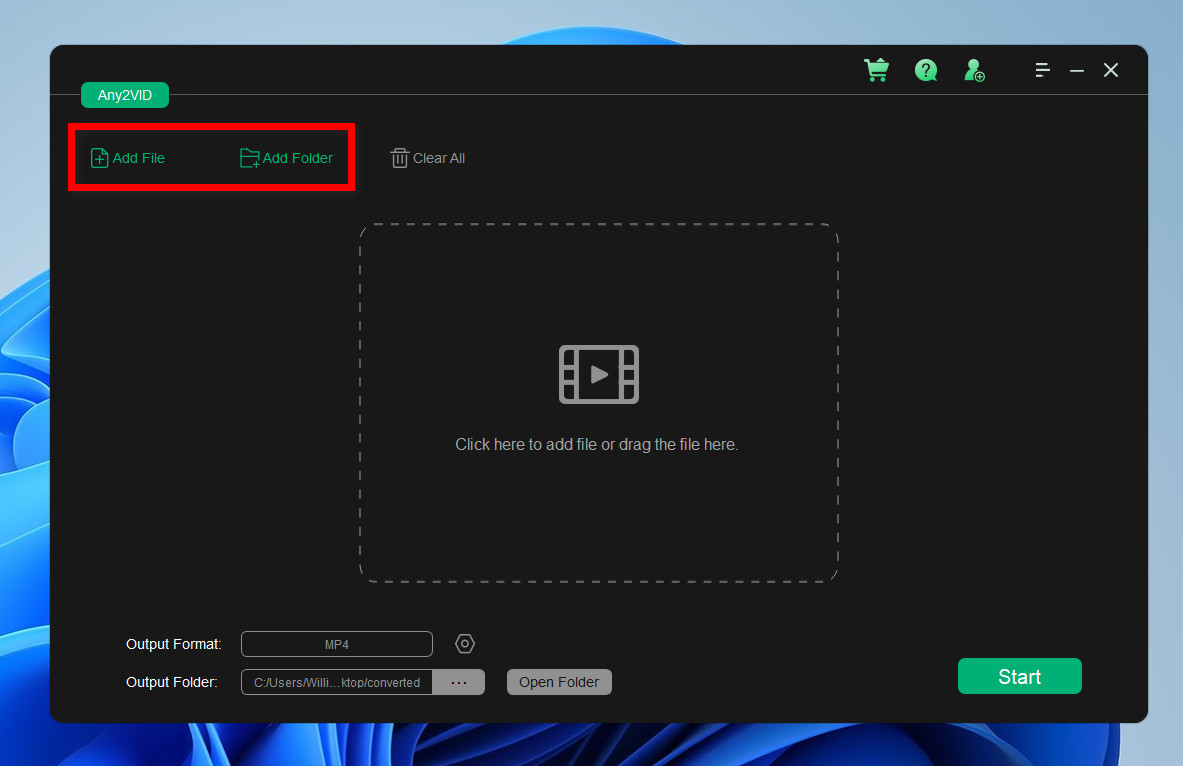
Double click the desktop shortcut to run Any2VID app on your PC or Mac. When the program opens, you will be redirected to the home screen. From there, click the " Add File" menu at the top to import local videos into the program.
Step 3Select MP4 as the Output Format and Output Folder
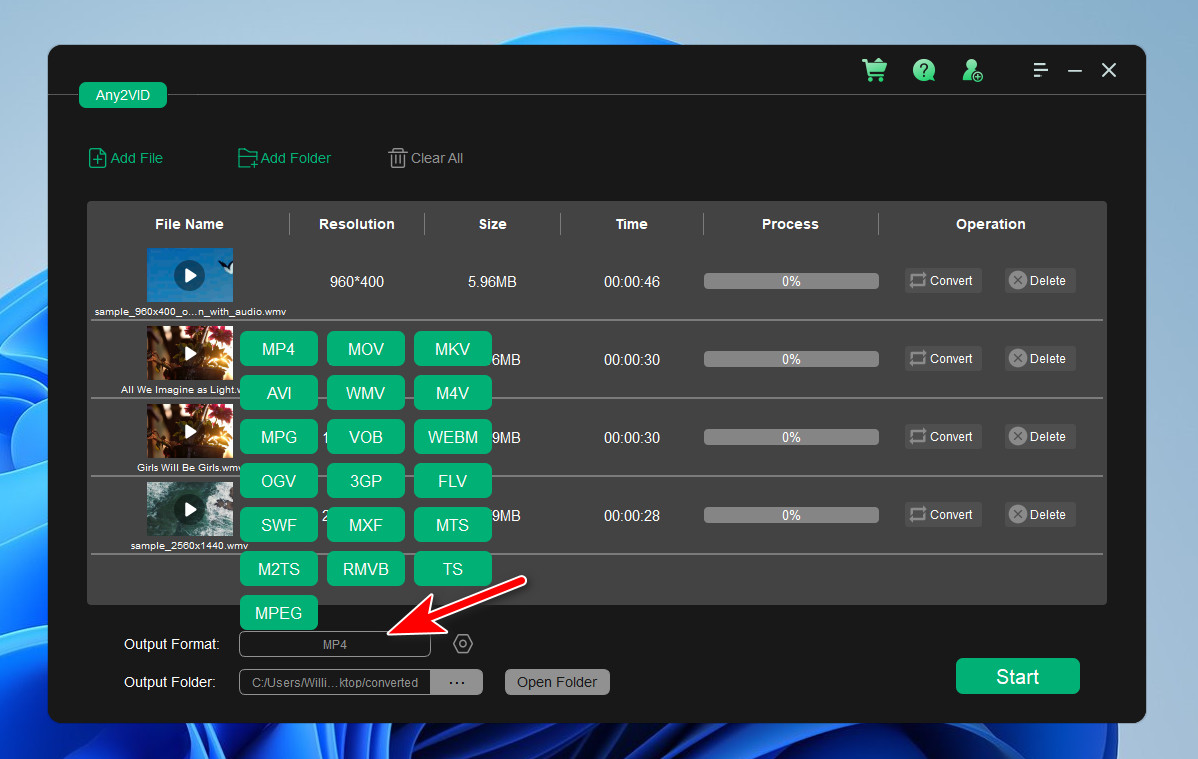
Once your videos are added, select MP4 as the desired output format from the "OutPut Format " section. In addition, specify the folder where you want to save the converted images by clicking on the "..." button near the output folder option.
Step 4Adjust Conversion Settings (Optional)
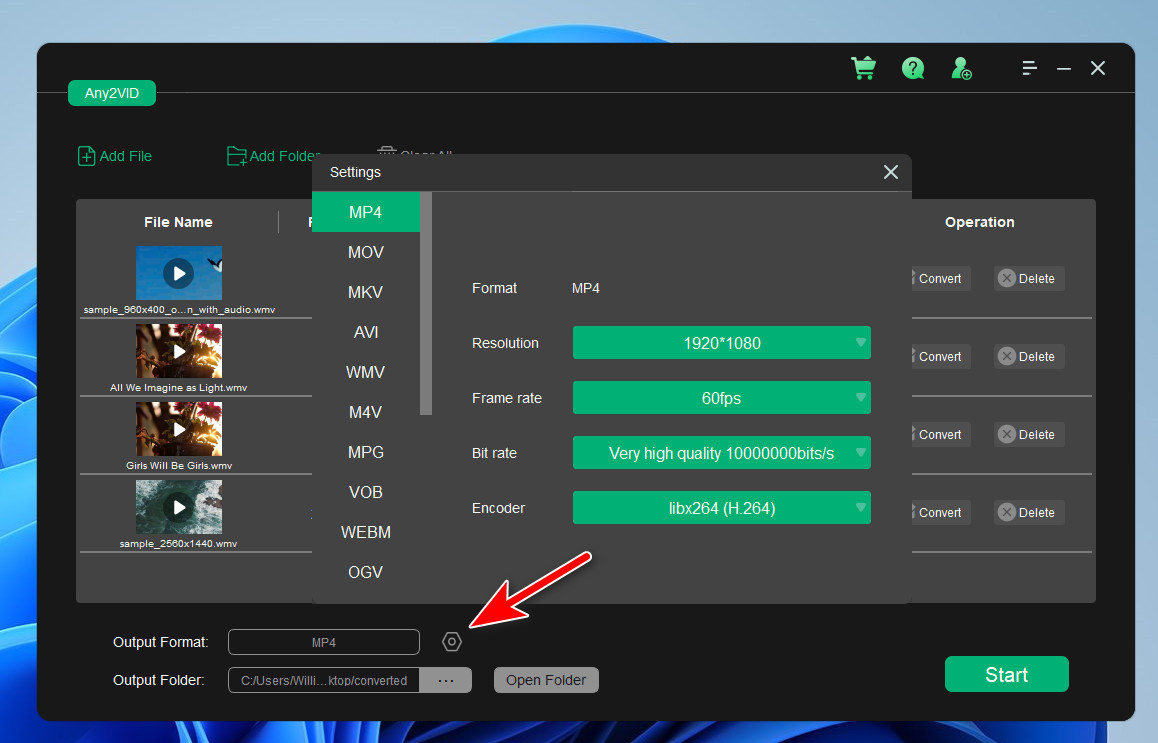
Depending on the format, you can adjust settings like resoulution, frame rate, bitrate and encoder to suit your needs.
Step 5Start the Conversion
Click the "Start" button to begin the batch conversion process. Any2VID will convert all selected videos to your specified format and save them in the chosen folder.
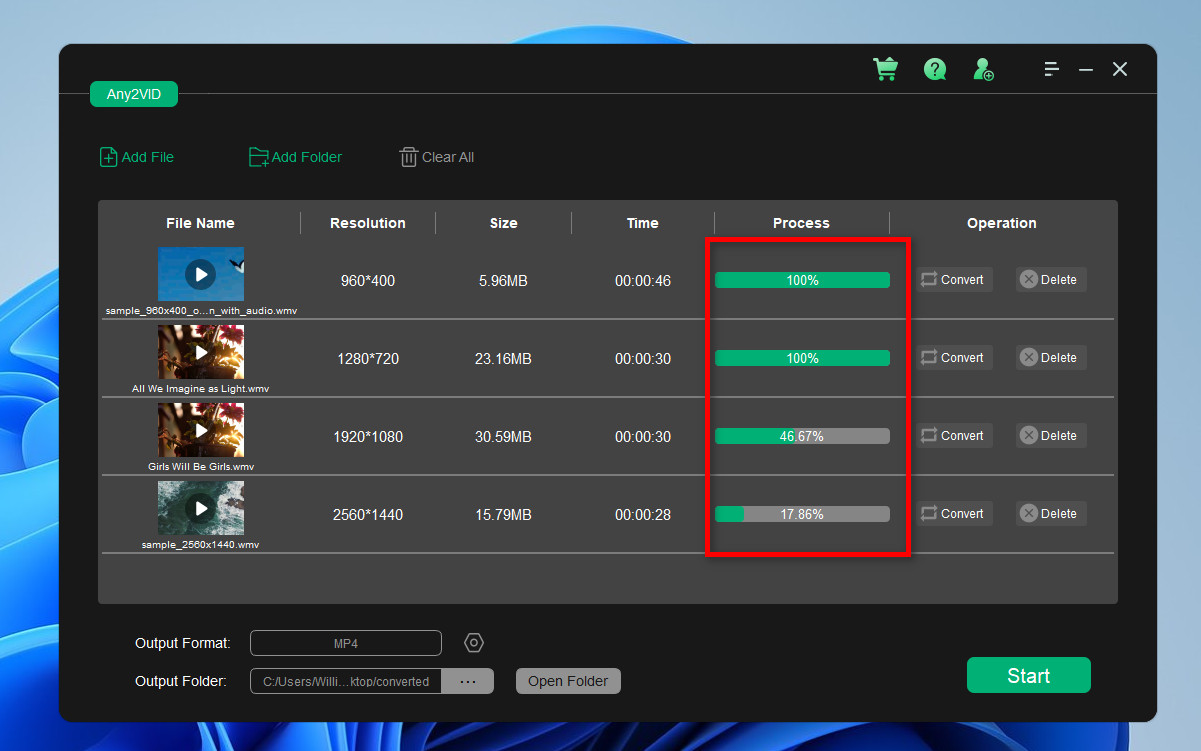
After the conversion is completed, you can open the destination folder and play the converted videos as you like.

Conclusion
Using Any2VID to convert VOB files to MP4 is a straightforward process that can significantly improve the compatibility of your video files. With a simple interface, the software allows you to import your VOB file, select MP4 as the output format, and adjust settings according to your needs—all with just a few clicks. Whether you’re preparing your videos for mobile devices, online streaming, or simply archiving your DVD content, Any2VID offers a reliable and easy solution to achieve a high-quality conversion. Enjoy your newly converted MP4 files with enhanced versatility and compatibility across all your devices!
Free Trial Free Trial
Mateo Ryan
Mateo is a senior editor at Aiseefox and lifelong tech enthusiast with over a decade of experience writing thousands of articles about Windows and macOS. Beyond writing, Mateo enjoys creating short explainer videos, gaming and exploring animated shows.