


Let’s be honest—finding your Windows 11 product key isn’t exactly straightforward. Whether you’re reinstalling your operating system, upgrading hardware, or just being proactive, it’s not like Microsoft makes this information easy to access. If you’re struggling to track it down, don’t worry—you’re not alone.
I recently had to do the same and stumbled upon what I now consider the simplest, most efficient solution: Dr.Key. Forget complicated commands or digging through your system files—this tool gets the job done in seconds. Let me walk you through how it works.
The Ultimate Solution: Dr.Key
After wasting way too much time searching for DIY methods and digging through tech forums, I discovered Dr.Key. This tool does exactly what it promises: finds your Windows 11 product key quickly and without any hassle.
Here’s why I highly recommend this tool:
- Fast and Easy: No complicated steps, no unnecessary clicks—just open the tool, scan, and you’re done.
- Accurate Results: It extracts the correct product key, even if it’s embedded in your system’s BIOS or UEFI.
- Secure and Reliable: Unlike some questionable software, Dr.Key is trustworthy and doesn’t make changes to your system.
How to Use Dr.Key to Find Windows 11 Product Key
Step 1Download and Install Dr.Key on a PC
First things first, download Dr.Key from the official site and install it. It’s quick to set up and doesn’t come with any unnecessary add-ons, which I always appreciate.
Free Trial
Step 2Launch the Program
Open Dr.Key on your system. There’s no complicated configuration or setup required.
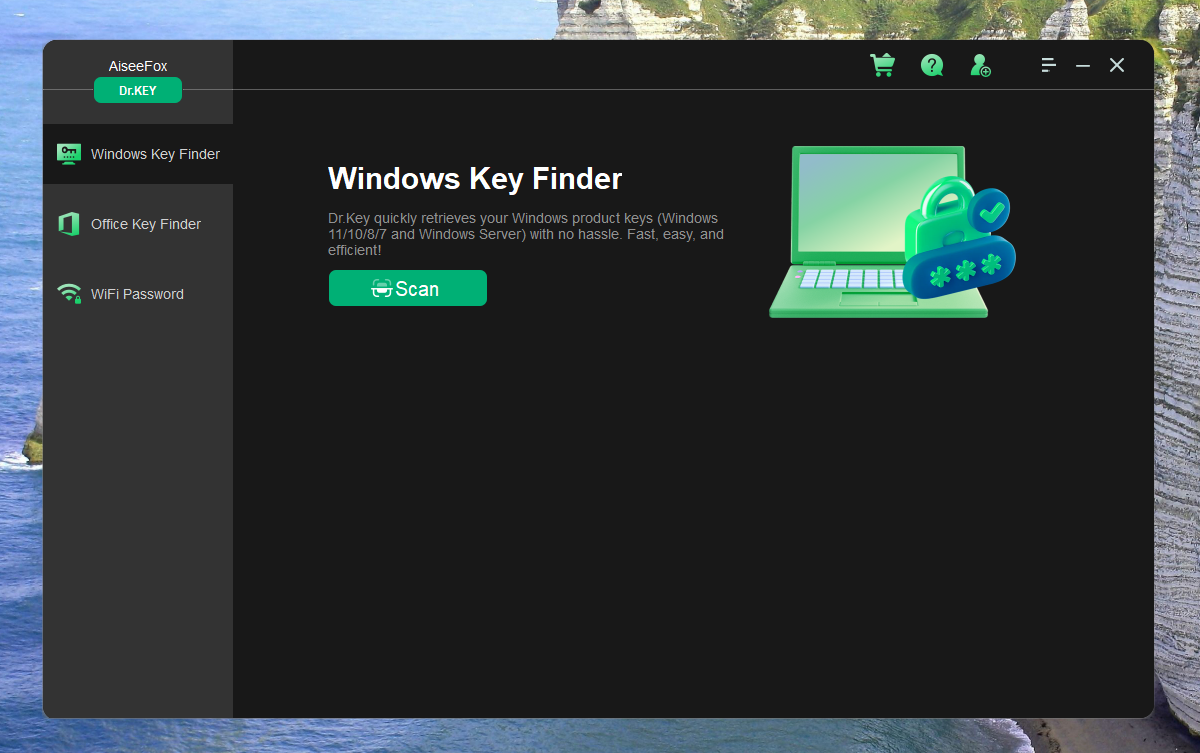
Step 3Click “Scan”
Hit the scan button, and the program will automatically search your system for the product key. Within moments, it’ll display your Windows 11 key.
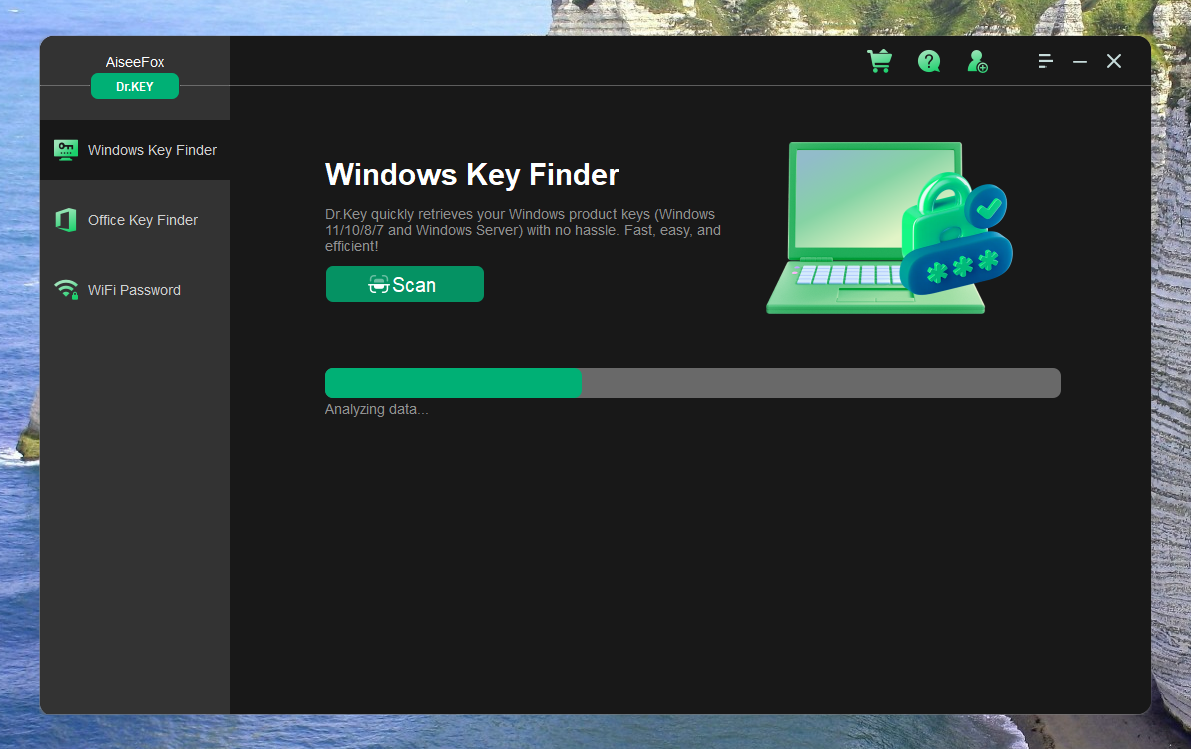
Step 4Save Your Key
After scanning, your product key will be displayed in the app. It is blurred. You need to click the icon on the right to display the complete product key.
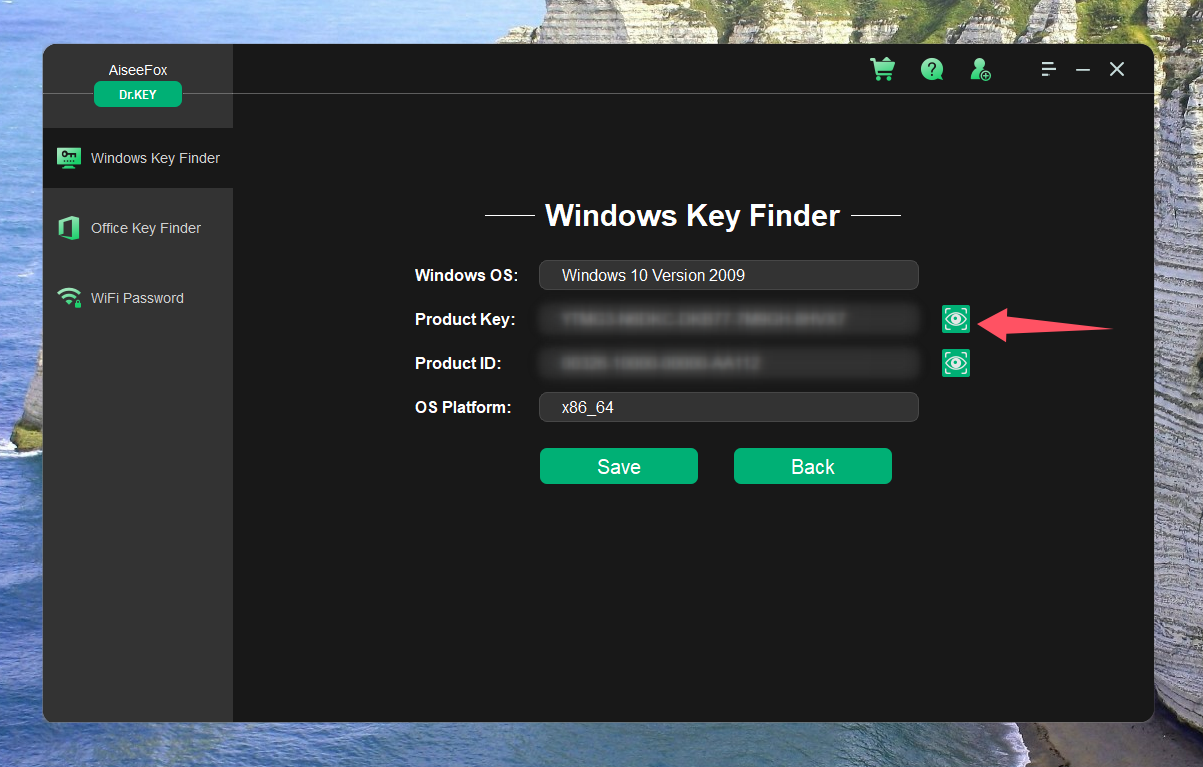
Once you have your key, copy it and store it somewhere safe—like a password manager or a secure note app. You’ll thank yourself later when you don’t have to repeat this process.
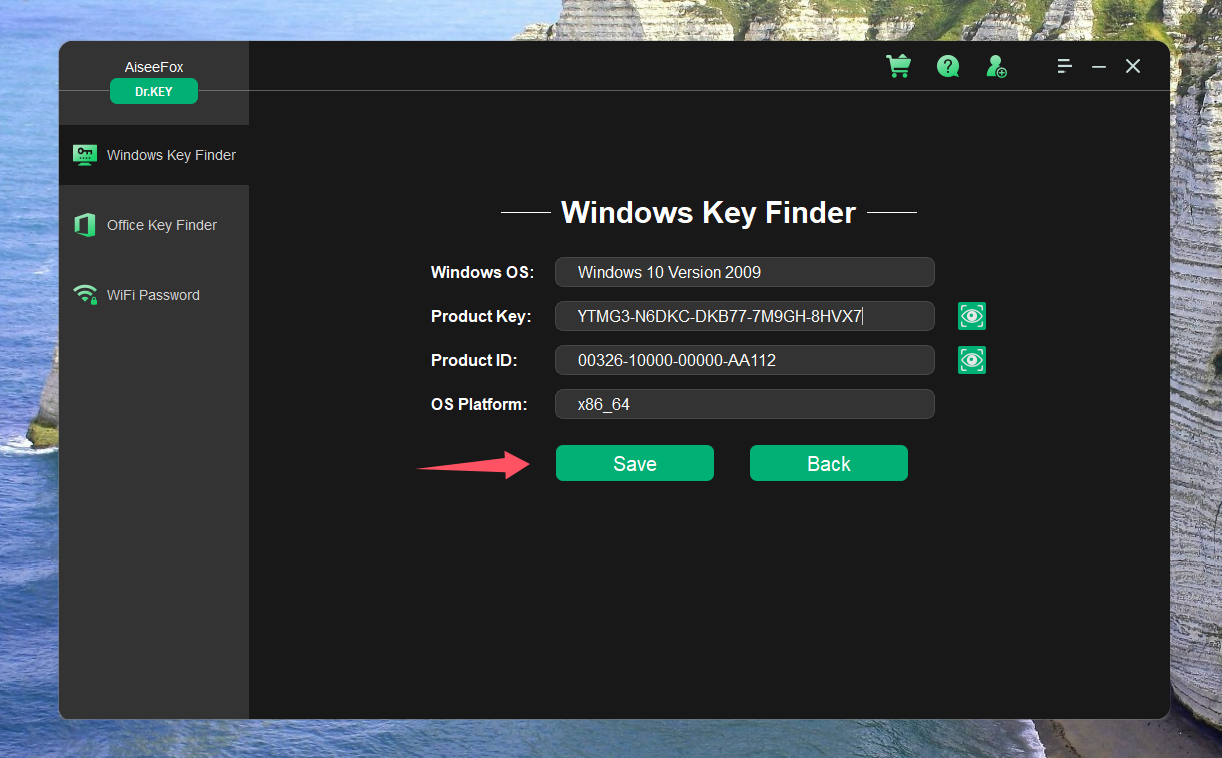
I copied the key, saved it in a secure place, and finally felt at peace. My Windows reinstall went smoothly, and I didn’t have to worry about activation issues. It doesn’t just work for Windows 11; it can also find keys for other versions of Windows, Office, and more.
Free Trial
My Thoughts on Dr.KEY
Finding your Windows 11 product key doesn’t have to be a frustrating experience. Dr.Key makes the entire process seamless, accurate, and stress-free. If you’re dealing with a system reinstall, hardware upgrade, or just preparing for the future, this tool is a no-brainer. So, skip the headaches and grab Dr.Key—it’s the fastest way to locate your product key and move forward with confidence.

Mateo Ryan
Mateo is a senior editor at Aiseefox and lifelong tech enthusiast with over a decade of experience writing thousands of articles about Windows and macOS. Beyond writing, Mateo enjoys creating short explainer videos, gaming and exploring animated shows.