


When you delete files from an SD card using your computer's Recycle Bin or a simple "Shift+Delete," the files are not truly erased—they're just marked as free space. Until that space is overwritten, recovery tools can easily bring those files back. This poses a serious risk if you're disposing of, selling, or repurposing the SD card.
A dedicated file wiping app like Dr.Wiper ensures permanent deletion by overwriting the data multiple times using secure algorithms like DoD 5220.22-M or Gutmann. These methods make it virtually impossible to recover the files with any data recovery software, safeguarding your personal or sensitive information.
Why Dr.Wiper?
Dr.Wiper is a reliable choice for permanently deleting files because it offers military-grade data erasure algorithms, such as DoD 5220.22-M and Gutmann, ensuring that deleted data cannot be recovered by any means.
Unlike standard deletion methods, Dr.Wiper securely overwrites the file content multiple times, making it ideal for wiping sensitive data from hard drives, SSDs, USB drives, and SD cards. Its user-friendly interface and ability to target specific files, partitions, or even free space make it a practical tool for both home users and professionals looking to securely erase confidential information.
Step 1Download Dr.Wiper and Connect SD Card to Computer
First things first, download Dr.Wiper from the official site and install it. It's quick to set up and doesnt come with any unnecessary add-ons, which I always appreciate. Now, connect the SD card to your computer using a card reader or built-in SD slot. Make sure it's detected by the computer.
Free Trial Free Trial
Step 2Select Data Wiping Method
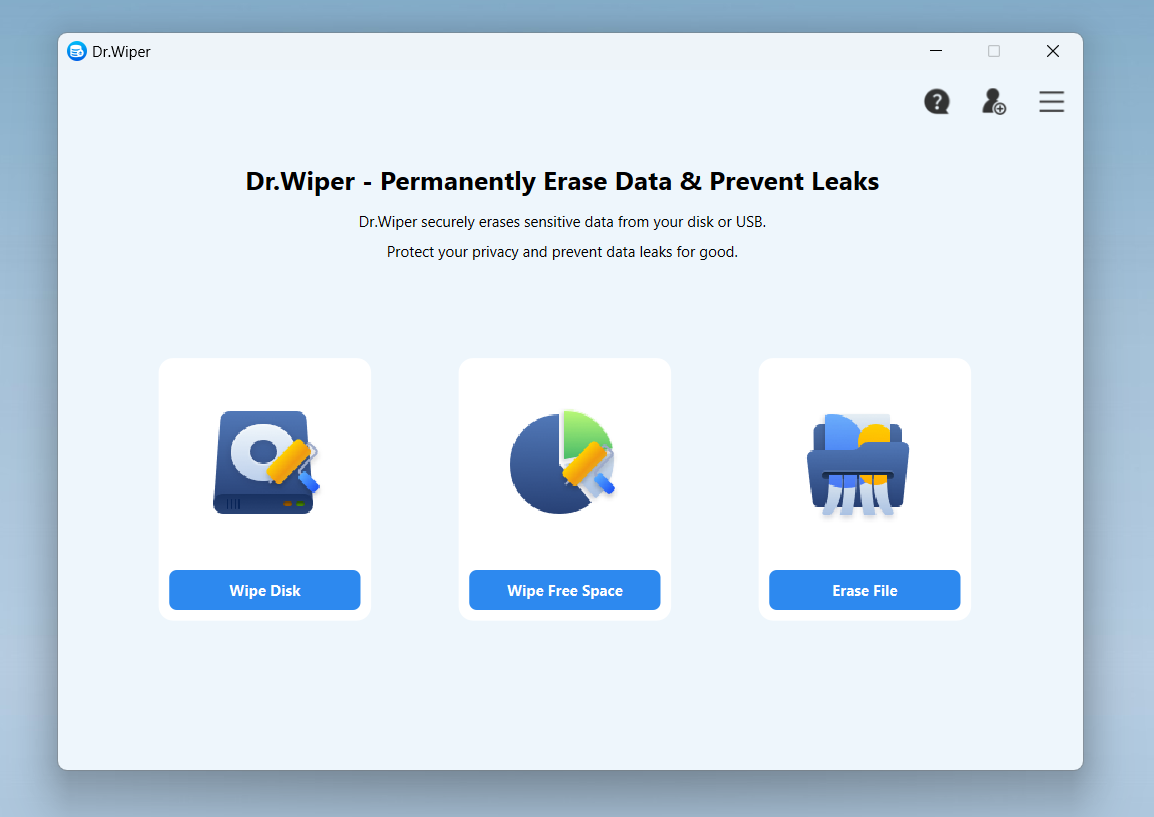
Open the Dr.Wiper program after installation. You will see three options: Wipe Disk, Wipe Free Space and Erase File. At this time, please click on the "Erase File" option.
Step 3Add Files from SD Card to Dr.Wipe
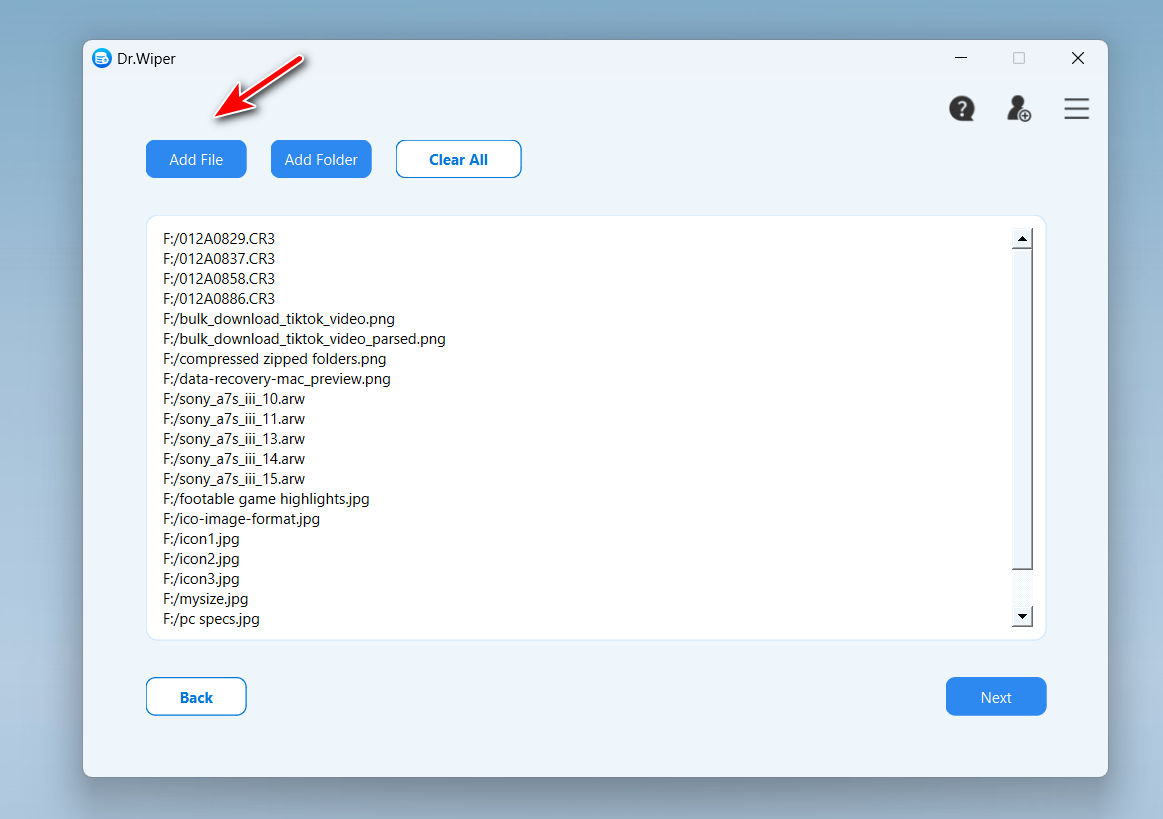
Click the "Add File" menu at the top to import the files from SD card to the app. These files are the ones to be permanently deleted. You can also drag and drop the files into the app interface. After that, click the "Next" button to move to the next step.
Step 4Choose a Wiping Algorithm
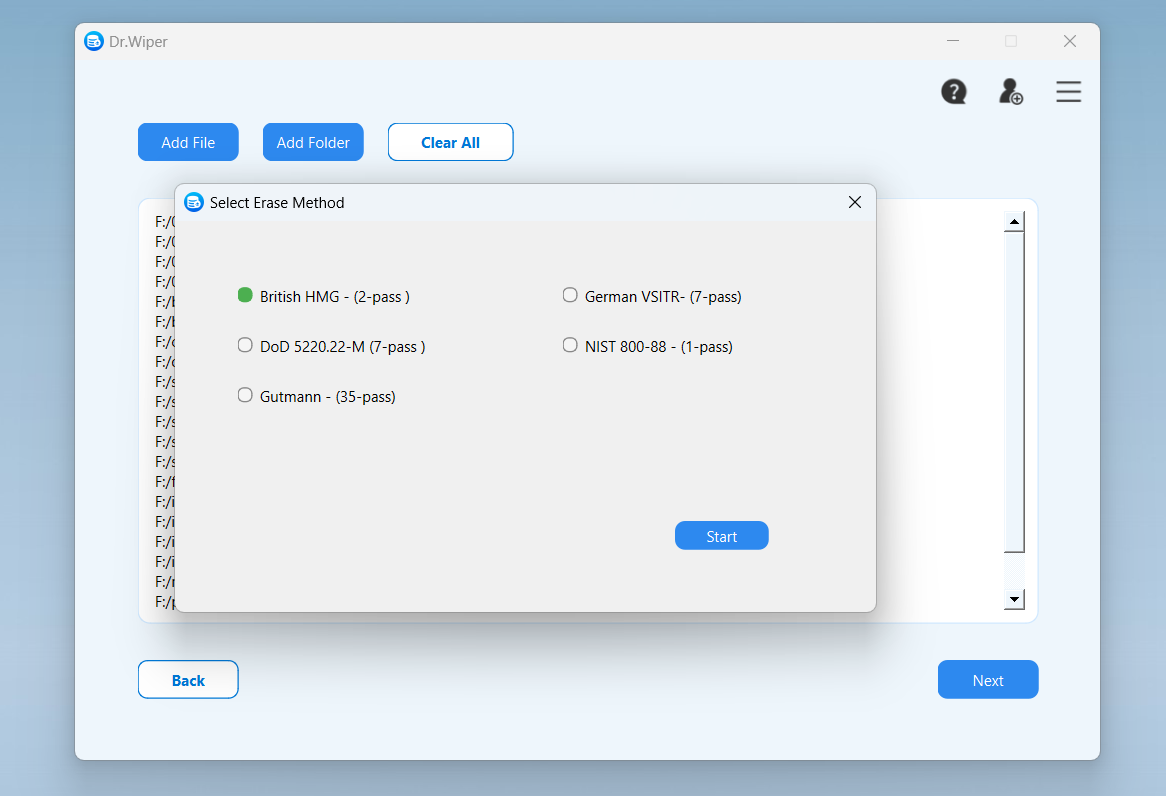
Dr.Wiper will prompt you to choose a data wiping method. You can select from secure standards like British HMG, German VSITR, DoD-5220.22-M, NIST-800-88 and Gutmann. All of them are safe and the files will be deleted permanently. However, the more pass count, the more time it takes to erase the files.
Step 5Start Deleting the Files Permanently
Confirm your selection and click the "Start" button at the bottom. At this time, you need to enter "Erase" to confirm the operation as it is a permanent deletion.
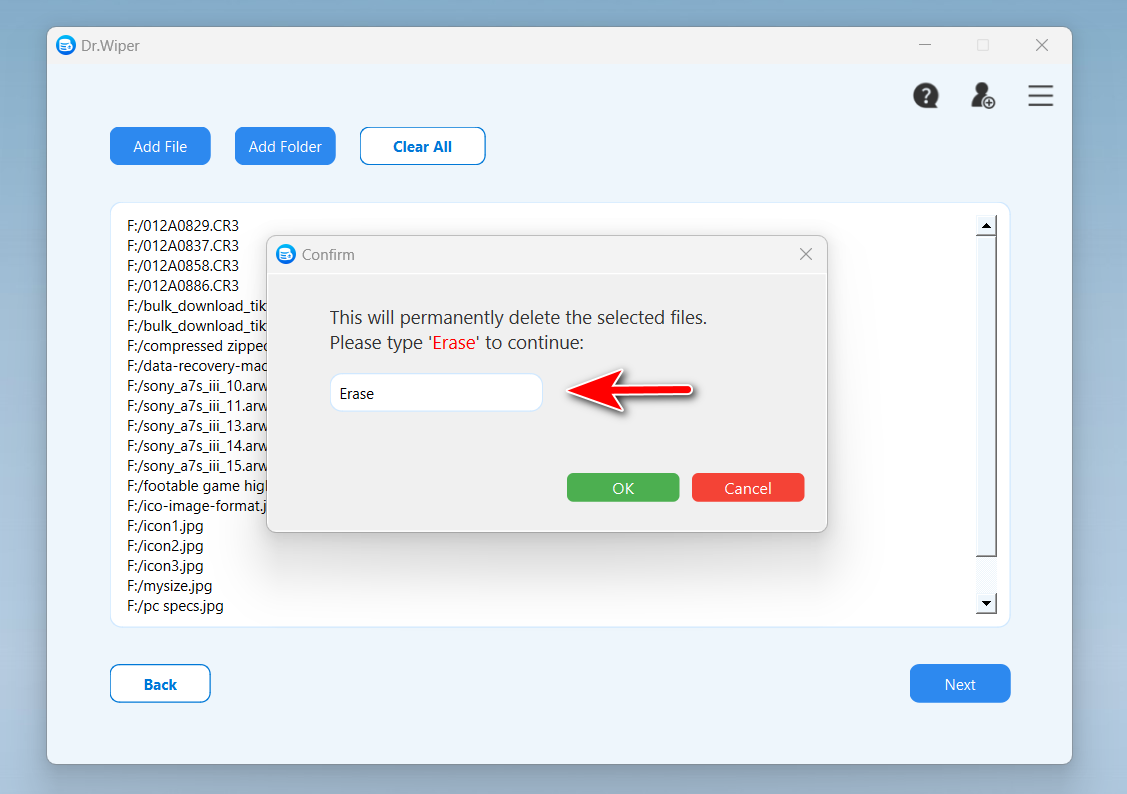
Next, click the OK button to start the wiping process. Dr.Wiper will begin overwriting the data, making recovery impossible.
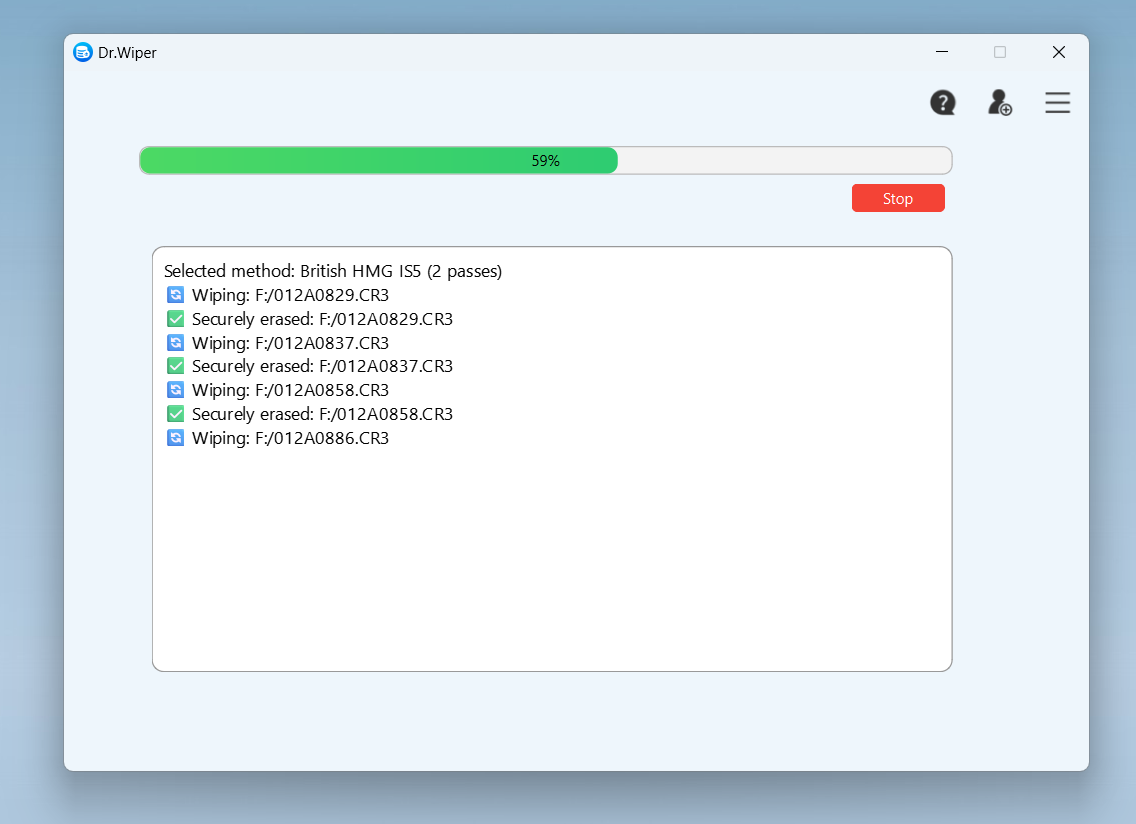
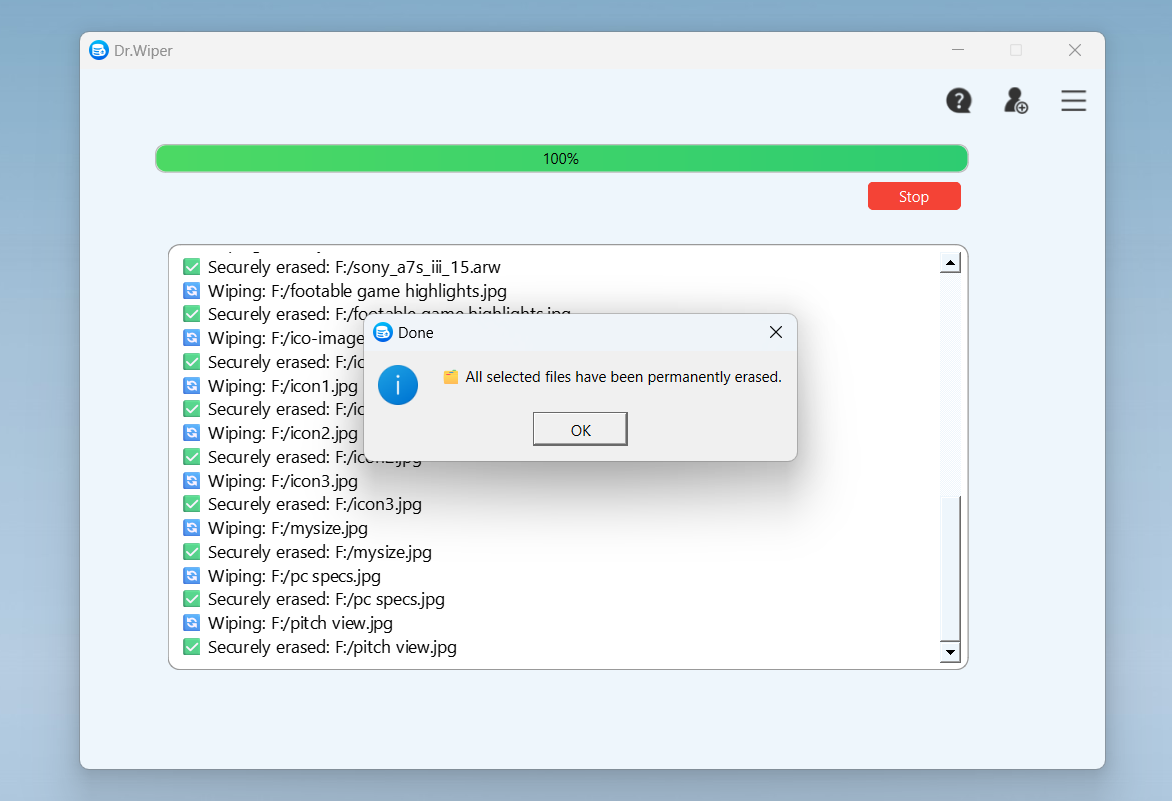
The process might take a few minutes depending on the size of the data or card. Once done, your selected files or the entire SD card will be securely wiped.
 Free Trial
Free Trial
Free Trial
My Thoughts on Dr.Wiper
Dr.Wiper is a powerful and intuitive file and disk wiping solution designed for users who need secure, permanent data deletion on both Windows and Mac. It supports industry-standard erasure algorithms like DoD 5220.22-M, NIST 800-88, Gutmann, British HMG, and German VSITR, making it ideal for completely removing sensitive files, wiping entire partitions, or erasing free space beyond recovery. With its clean interface and flexible wiping options, Dr.Wiper is well-suited for both personal users and IT professionals looking to protect privacy or prepare storage devices for resale or disposal.

Mateo Ryan
Mateo is a senior editor at Aiseefox and lifelong tech enthusiast with over a decade of experience writing thousands of articles about Windows and macOS. Beyond writing, Mateo enjoys creating short explainer videos, gaming and exploring animated shows.