
How to Bulk Convert WebP to GIF without Losing Quality
— Much Faster, Better Privacy
I recently had a folder of WebP images that needed to be converted to GIF for a website project. Converting them one by one would have taken too much time..
I used AiseeFox Any2Pic to batch convert the WebP files to GIF. I simply added the images, selected GIF as the output format, and converted the whole batch at once.
Why I Needed to Convert WebP to GIF
WebP is widely used on modern websites, but GIF is still useful for older platforms, simple graphics, and projects that specifically require the GIF format.
I wanted a quick way to convert multiple WebP images without opening and exporting each file manually.
Why I Tried Any2Pic
Any2Pic supports batch image conversion on Windows and Mac. I can add multiple WebP files or import an entire folder and convert everything together.
This makes it much easier when working with a large number of images.
How to Bulk Convert WebP to GIF without Losing Quality
Download Any2Pic and quickly convert WebP graphics to high-quality GIF images on Windows or Mac.
Free Trial Free Trial
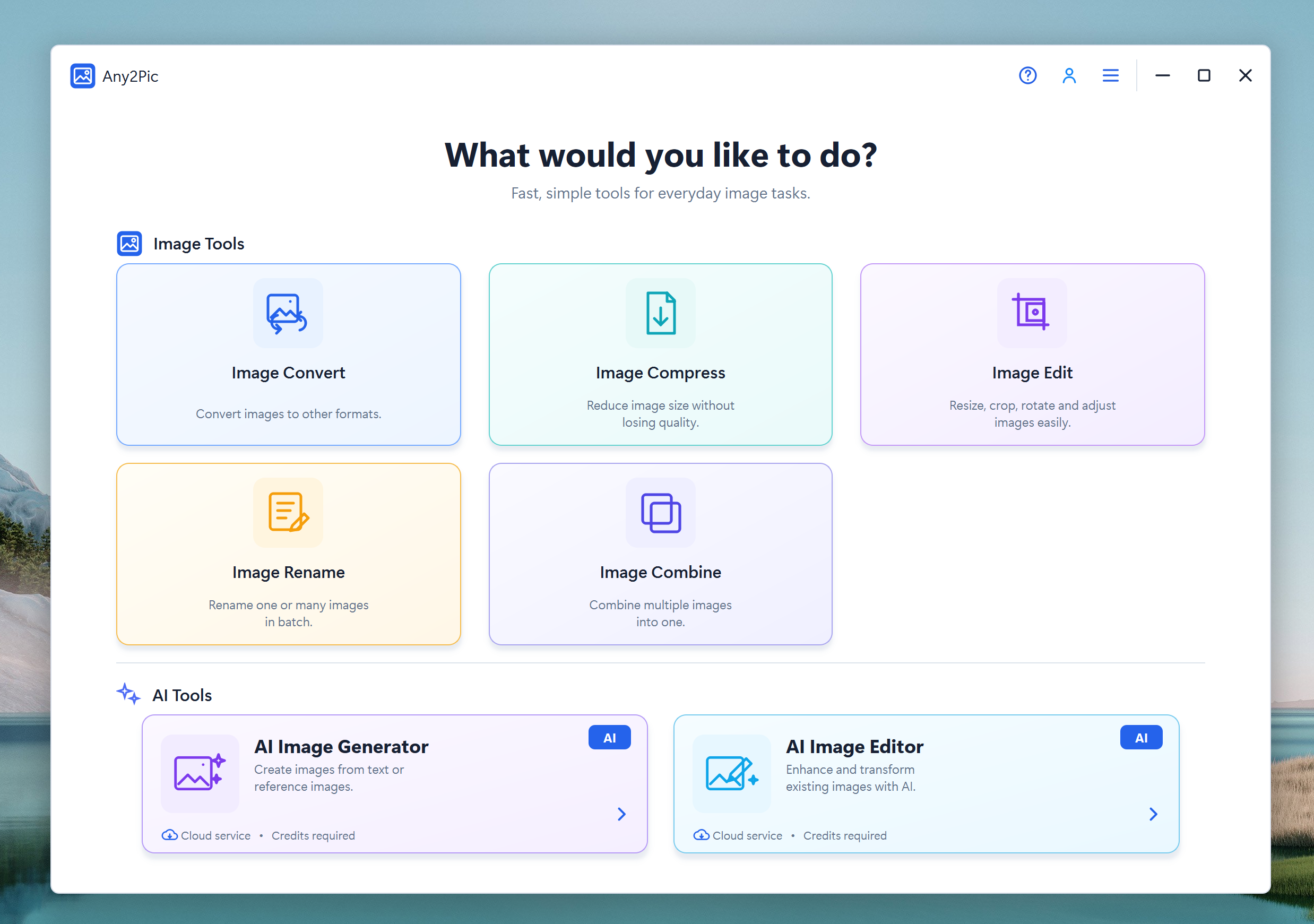
Step 1Choose the Image Convert Tool
Install Any2Pic and launch the app on your Windows PC or Mac. Choose Image Convert from the home screen to open the conversion workspace.
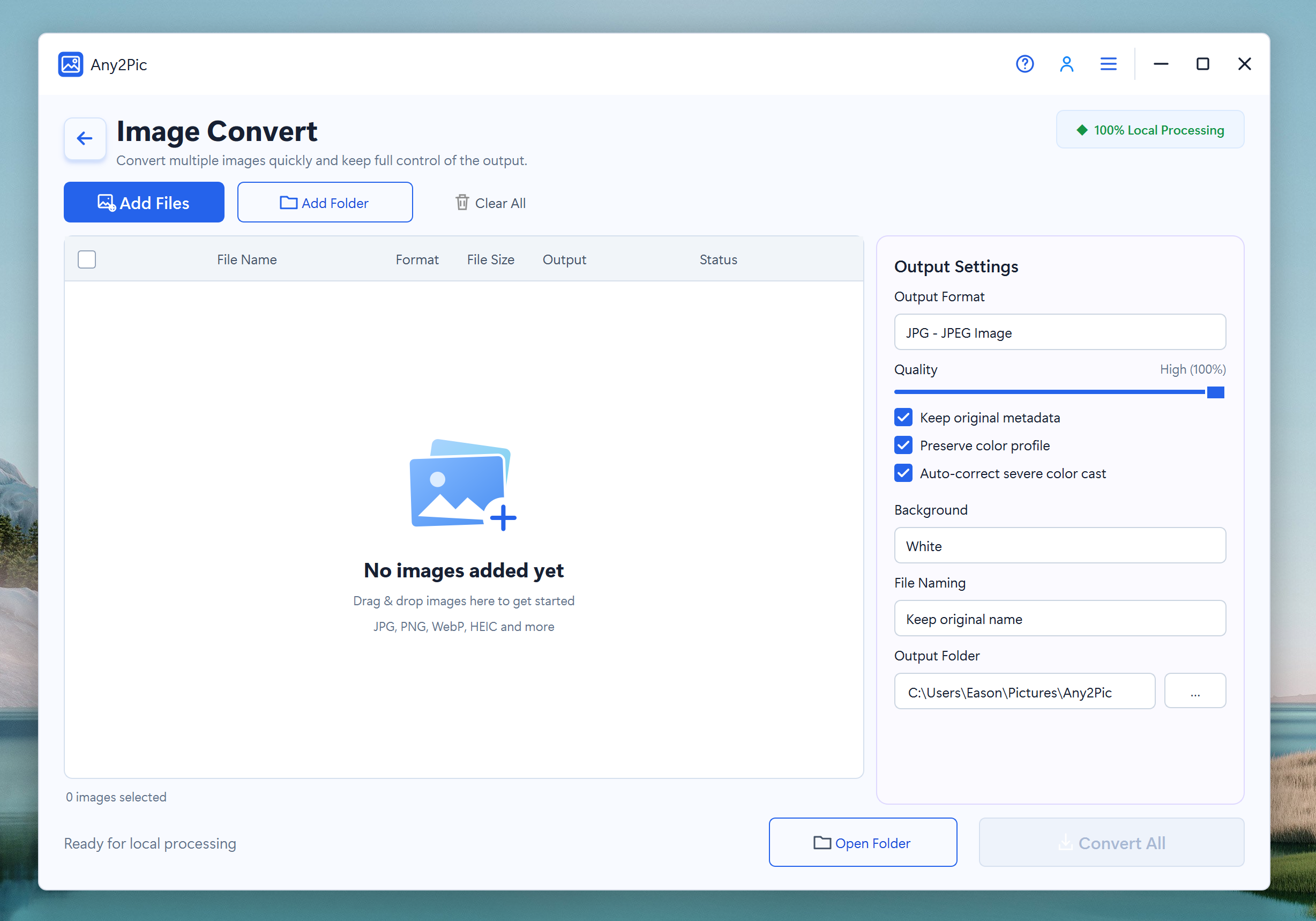
Step 2Add the WebP Files
Click Add Files and select all the WebP images you want to convert. If the images are already in one folder, use Add Folder to load the entire batch more quickly.
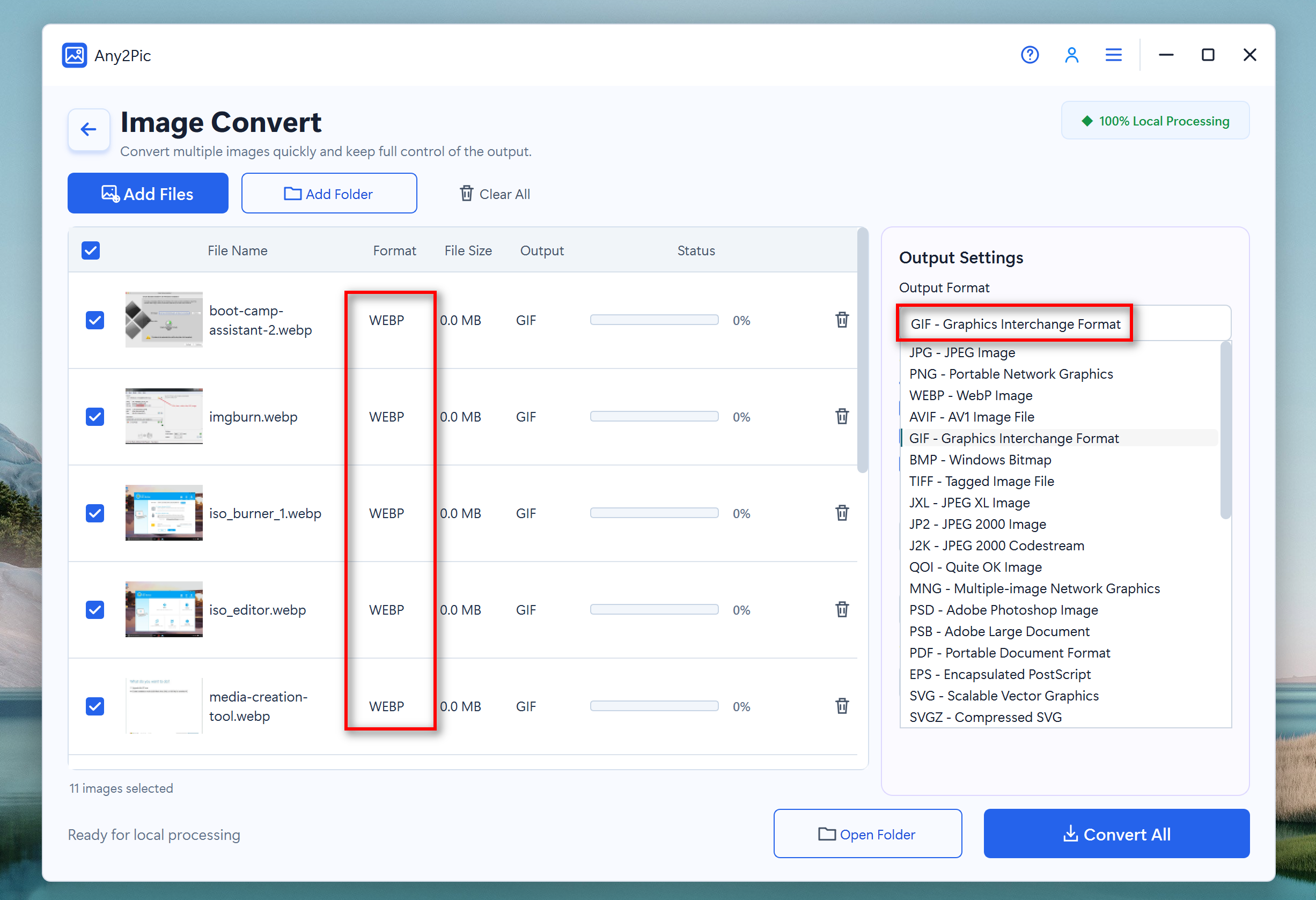
Step 3Set GIF as the Output Format
Open the Output Format menu and choose GIF. The selected format can be applied to the whole list, so you do not need to change every image individually.
This is especially useful when you are converting dozens or hundreds of WebP files and want consistent output across the entire batch.
Step 4Start Converting WebP to GIF
Choose where the converted images should be saved, review the file list, and click Convert All. Any2Pic will process the WebP files and create GIF versions in the selected output folder.
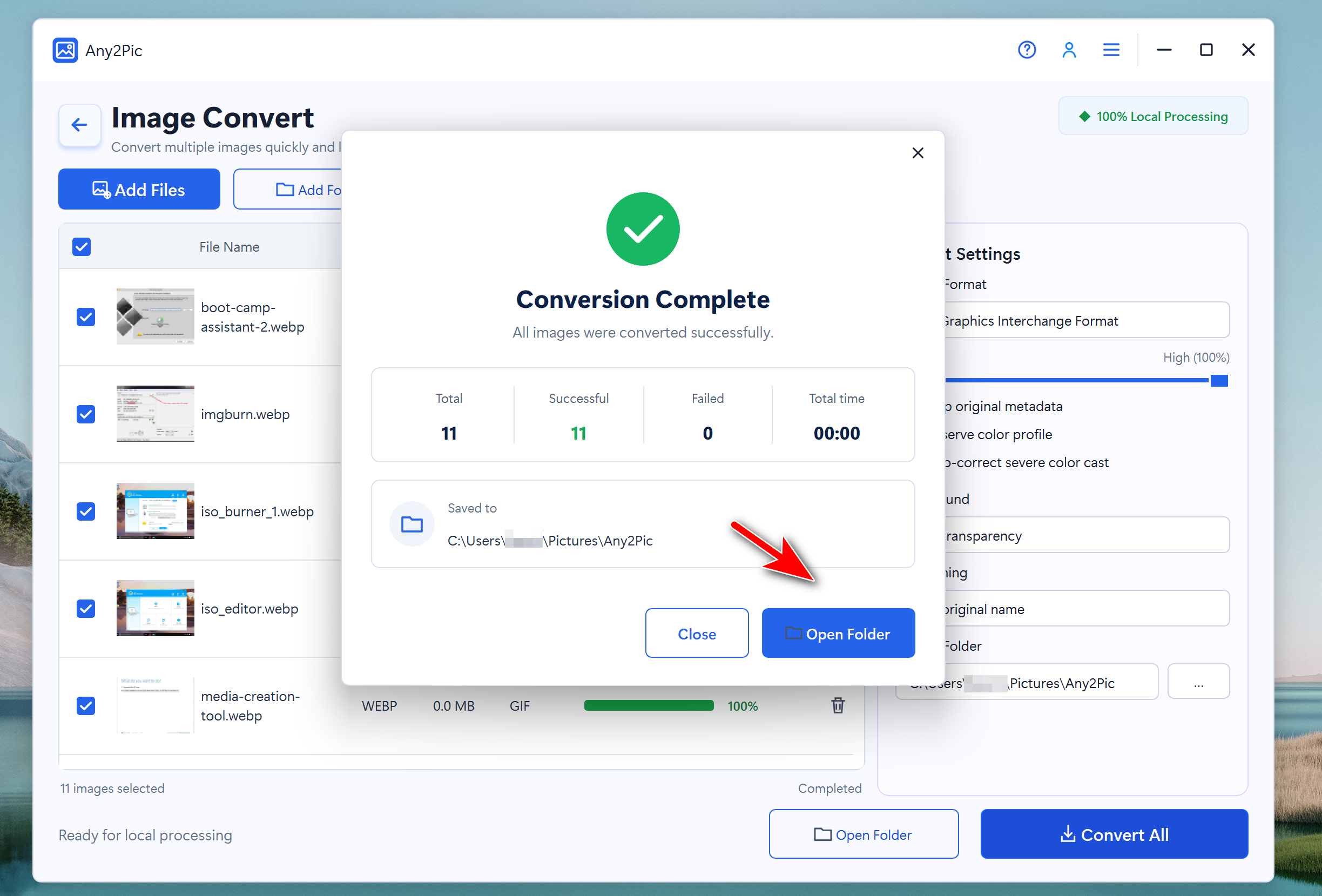
When the batch conversion was complete, I opened the output folder and checked several of the new GIF images. The files were ready to open in common photo viewers, editors, browsers, document apps, and other software.
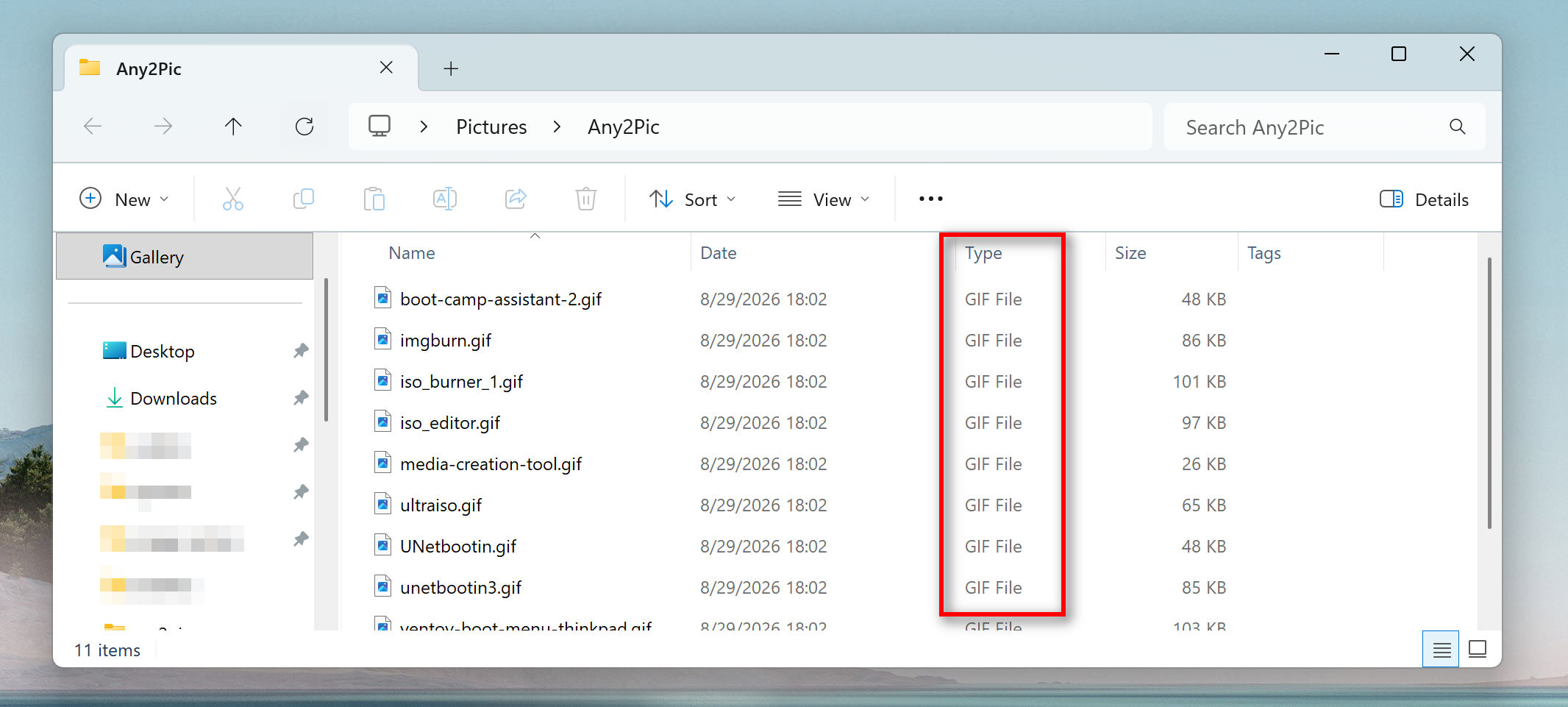
With Any2Pic, you can add multiple WebP files, select GIF, and convert the entire batch in a few simple steps on Windows or Mac.
Free Trial Free Trial
What I Thought About Any2Pic
Any2Pic made the process straightforward. I could import multiple WebP files, select GIF once, and convert everything together. It is especially useful when you need to process a large image collection quickly.

Mateo Ryan
Mateo is a senior editor at Aiseefox and lifelong tech enthusiast with over a decade of experience writing thousands of articles about Windows and macOS. Beyond writing, Mateo enjoys creating short explainer videos, gaming and exploring animated shows.
💬 Reviews