
Fast iPhone Data Transfer
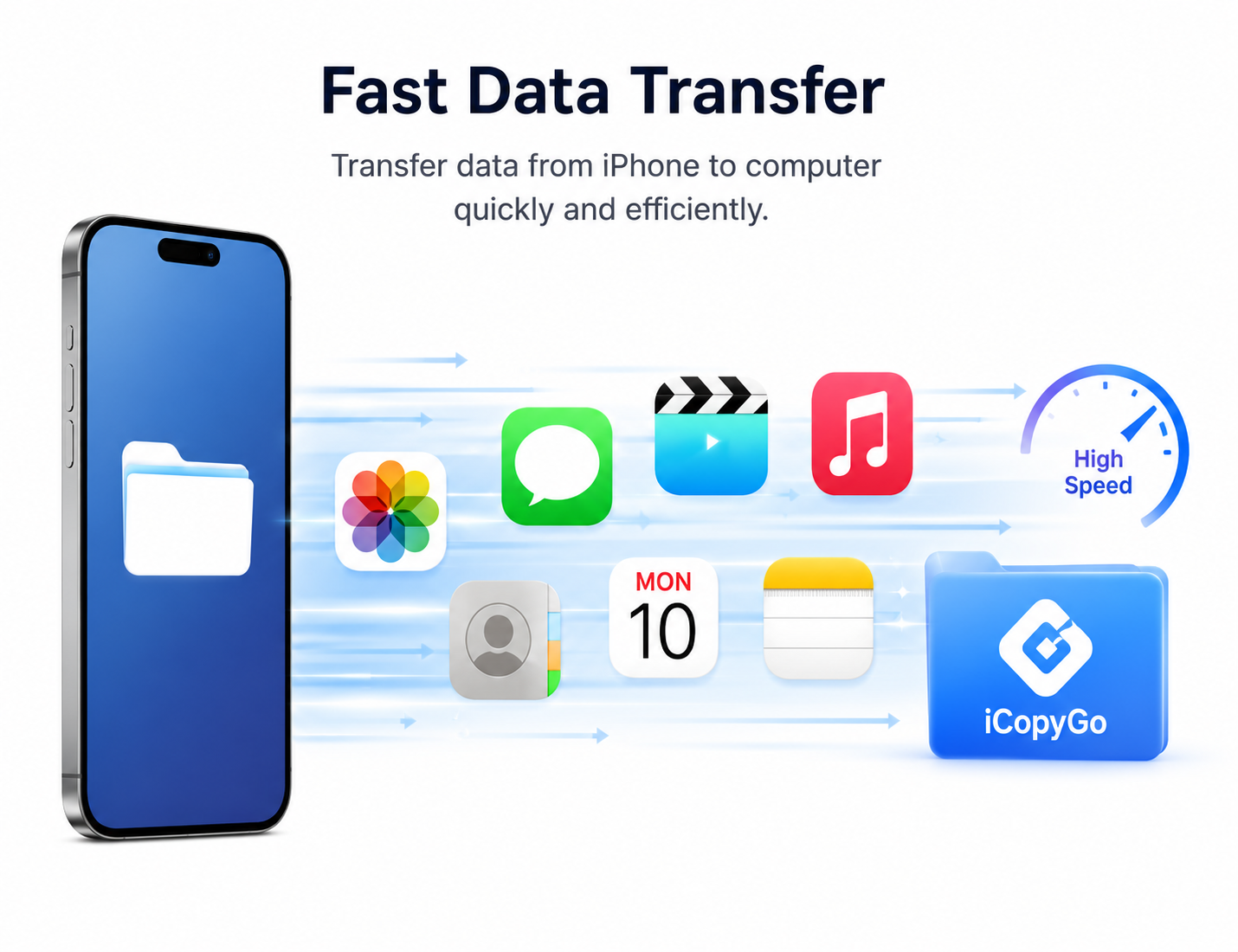
Move files between iPhone and computer in just a few clicks. Whether you want to export photos to a PC, copy music to your iPhone, save important messages, or transfer documents, iCopyGo makes the whole process simple, fast, and beginner-friendly.
Complete iPhone Backup
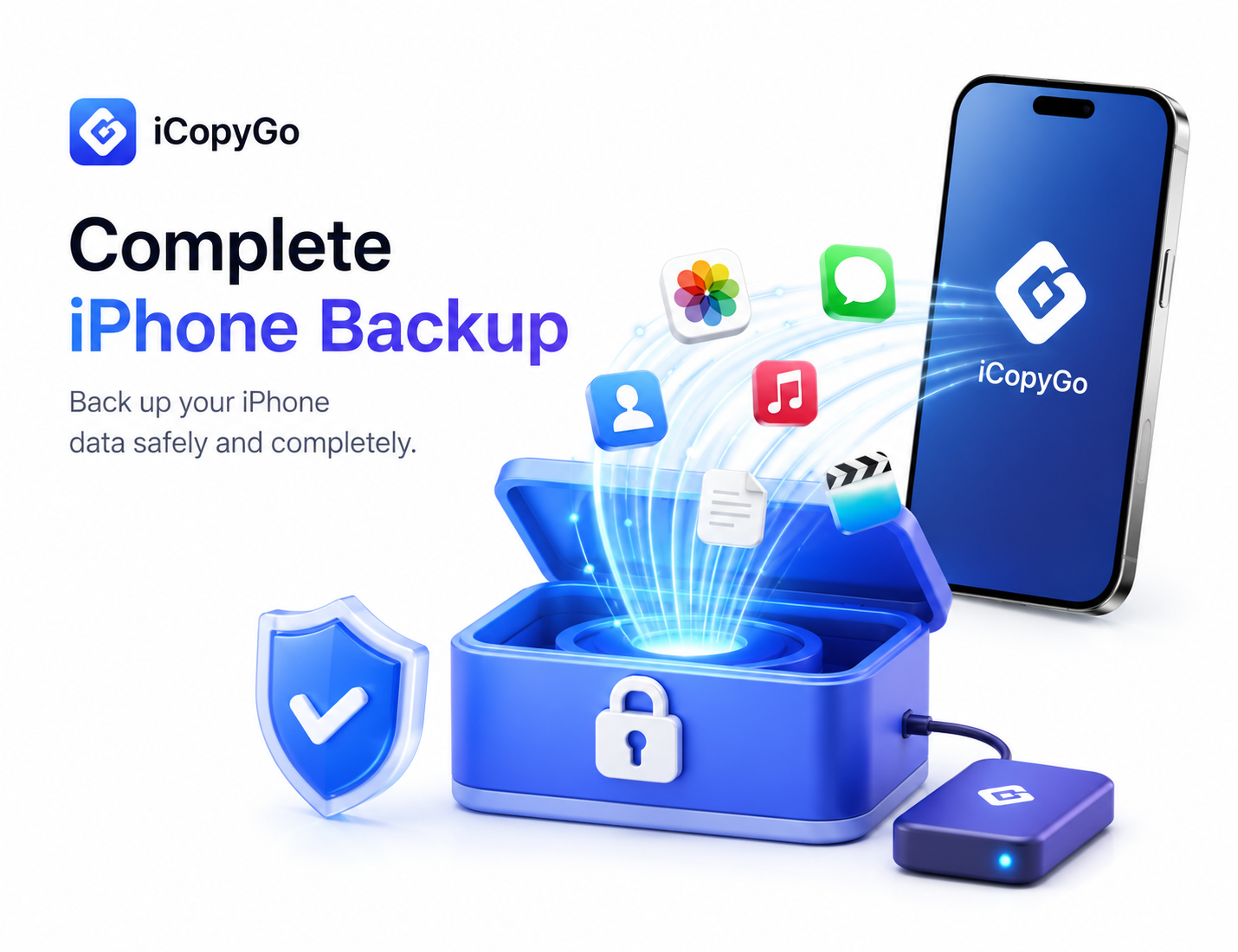
iCopyGo gives you a flexible way to back up your iPhone data to your computer. Instead of relying only on cloud storage or a full iTunes backup, you can choose the data you need and save it locally for better control.
Export and Print SMS
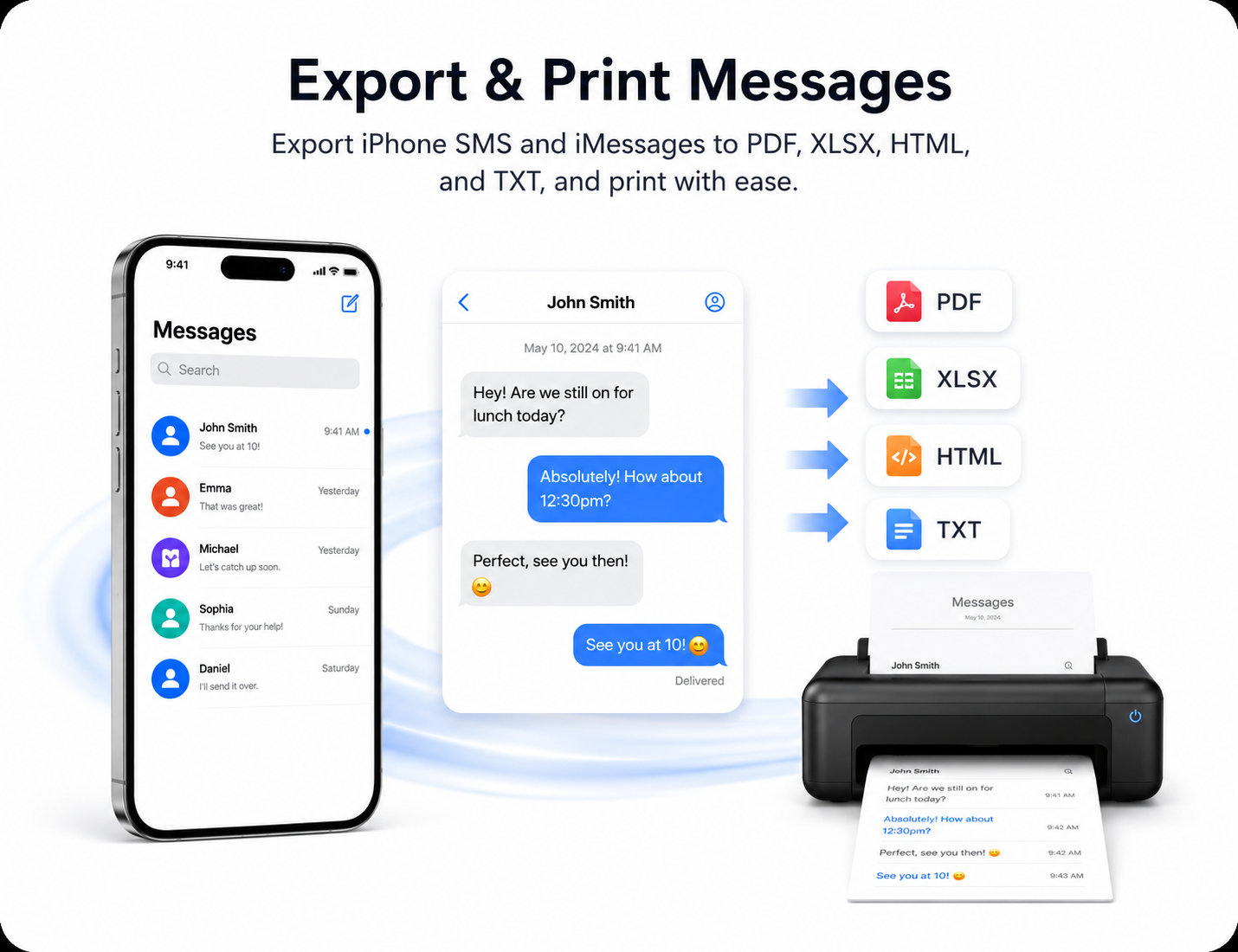
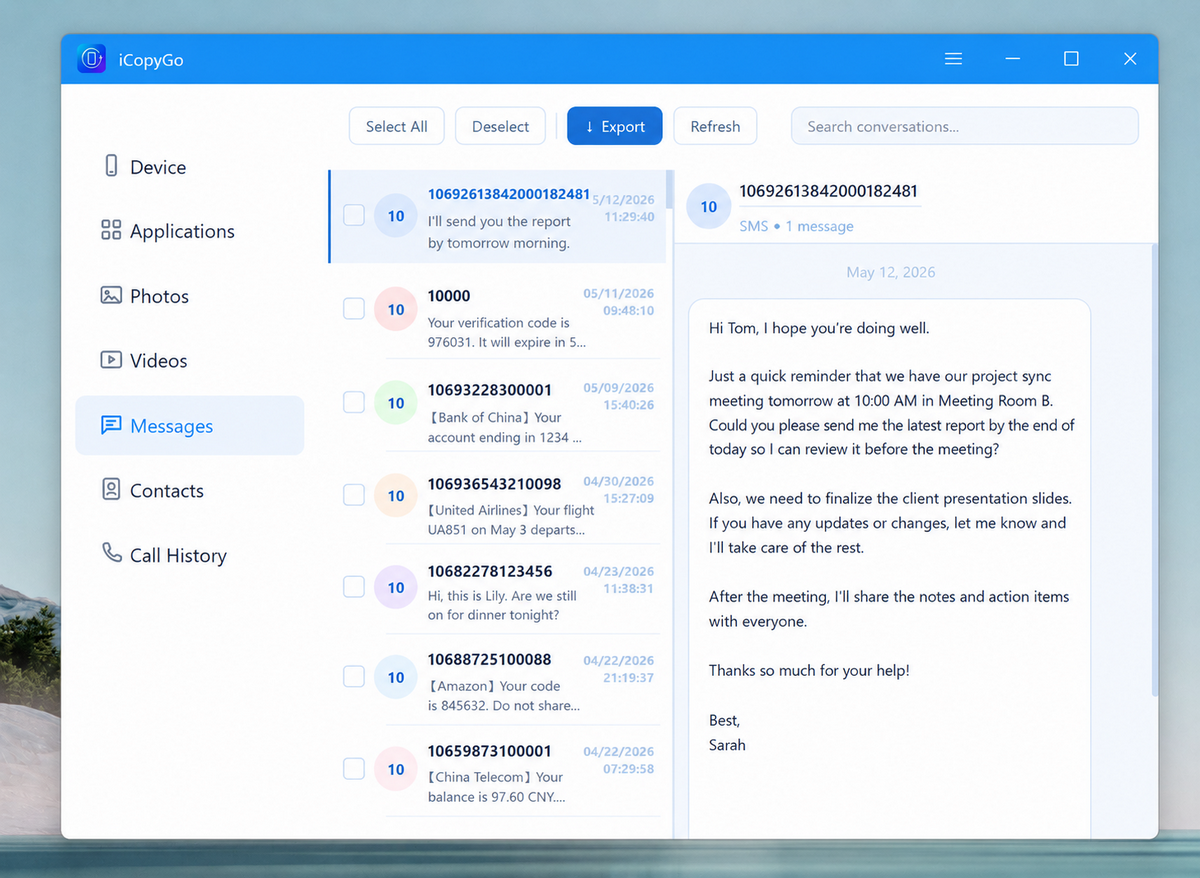
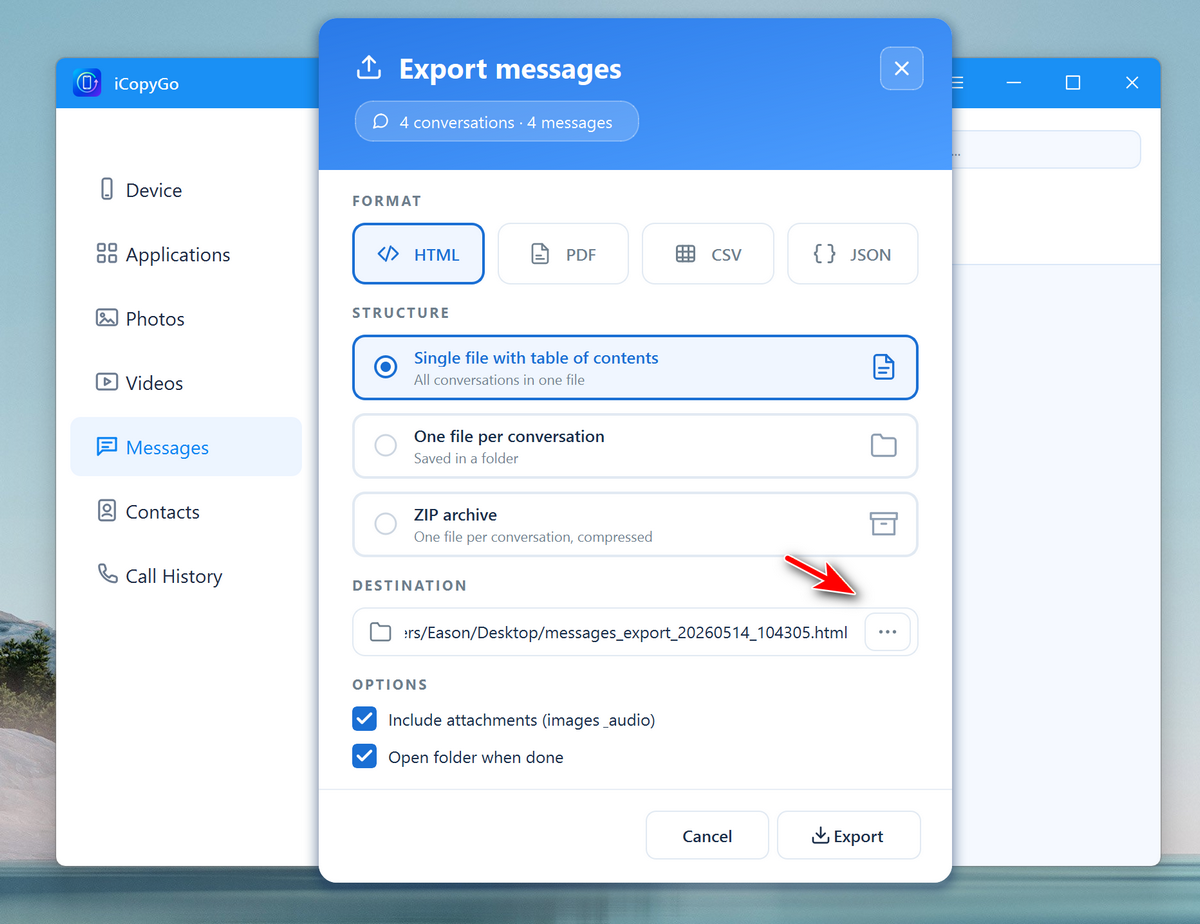
iCopyGo makes it easy to export iPhone text message conversations to your computer for backup, review, sharing, or printing. With iCopyGo, you can export text messages in multiple formats, including Excel, PDF, HTML, and Text. PDF is ideal for printing or sharing, Excel is useful for sorting and managing message records, HTML keeps the conversation easy to view in a browser, and Text gives you a lightweight plain-file backup.
Transfer iPhone Data Without iTunes
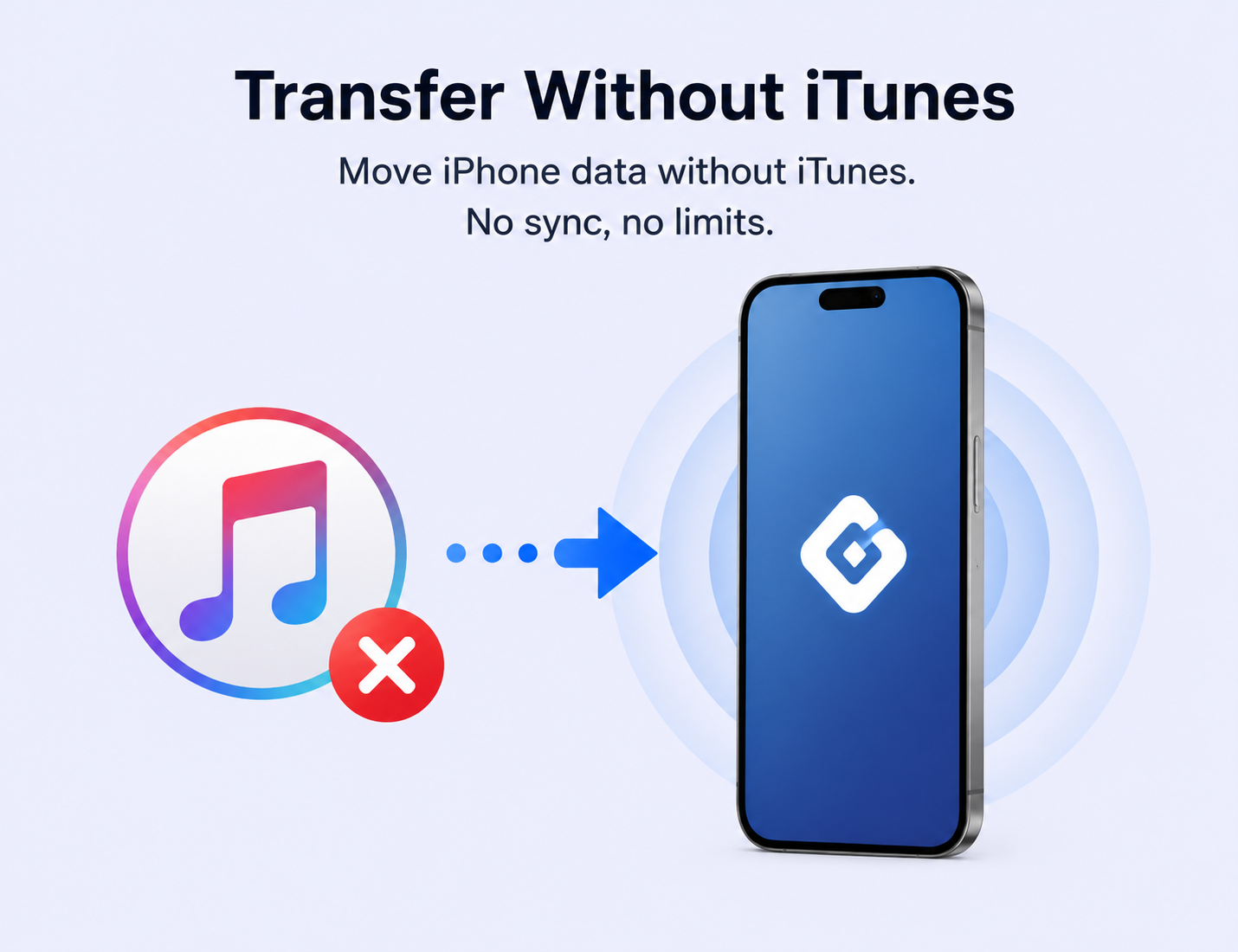
iCopyGo is designed for users who want a simpler way to move data between iPhone and computer. You can transfer photos, videos, music, contacts, messages, PDFs, voice memos, and other files without complex sync settings. It is useful when you get a new iPhone, need to free up iPhone storage, want to save personal data to a computer, or need to move files from PC or Mac back to your iPhone.
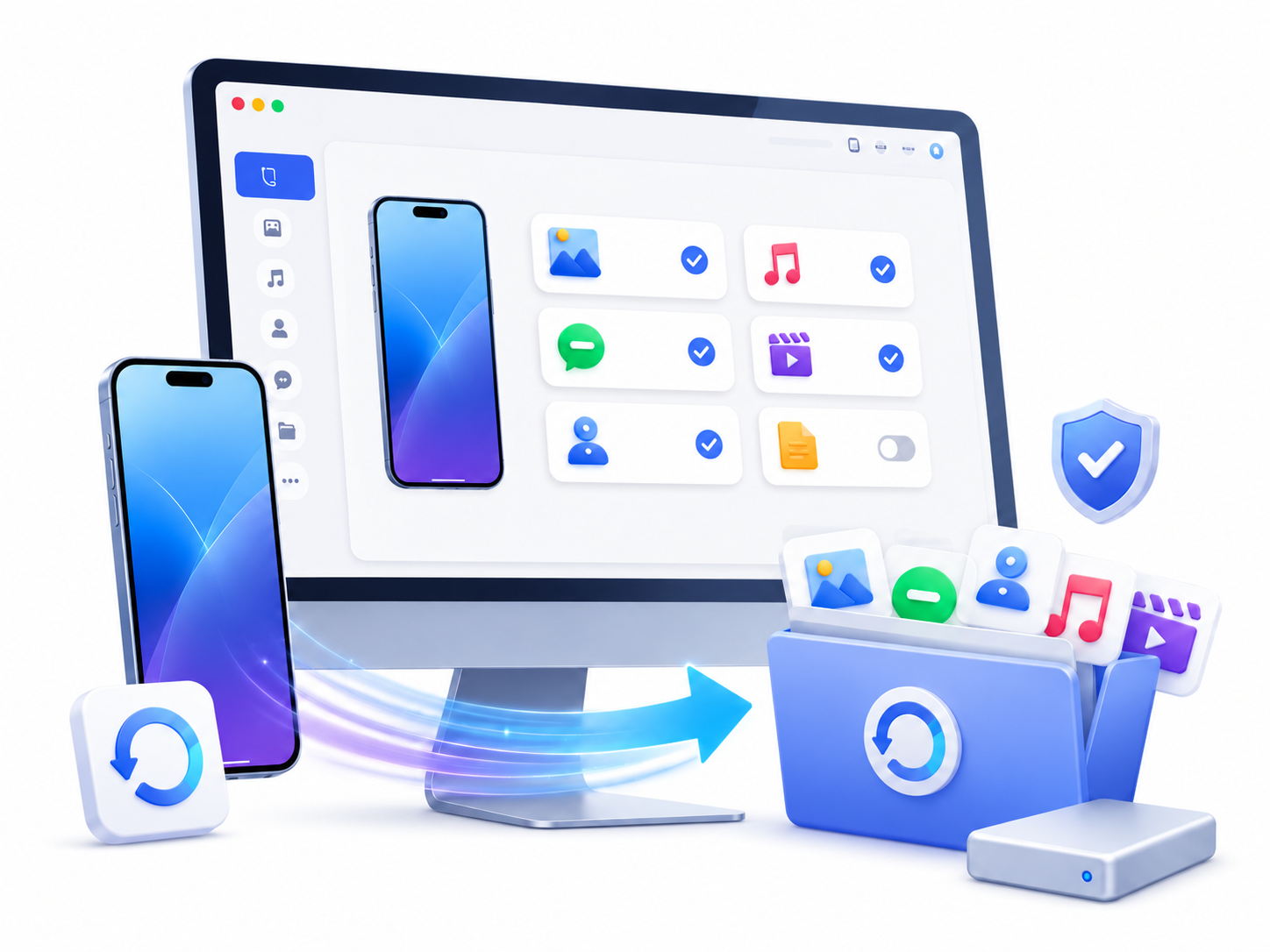
Smart Backup for Photos, Messages, Contacts and More
With iCopyGo, you can create local backups of important iPhone data on your computer. This is helpful for users who want to keep a copy of family photos, business contacts, text messages, WhatsApp files, or other personal data. Unlike traditional full-device backup tools, iCopyGo lets you choose what to back up. You can export only the files you need, which saves time and keeps your backup clean.
How to Use iCopyGo for iPhone Data Transfer
-
Step 1. Download and Open iCopyGo App
Install and run iCopyGo for your platform from our website.
-
Step 2. Connect Your iPhone to the Computer via USB Cable
Connect your iPhone to the computer with a USB cable. Unlock your iPhone and tap Trust This Computer if prompted.
-
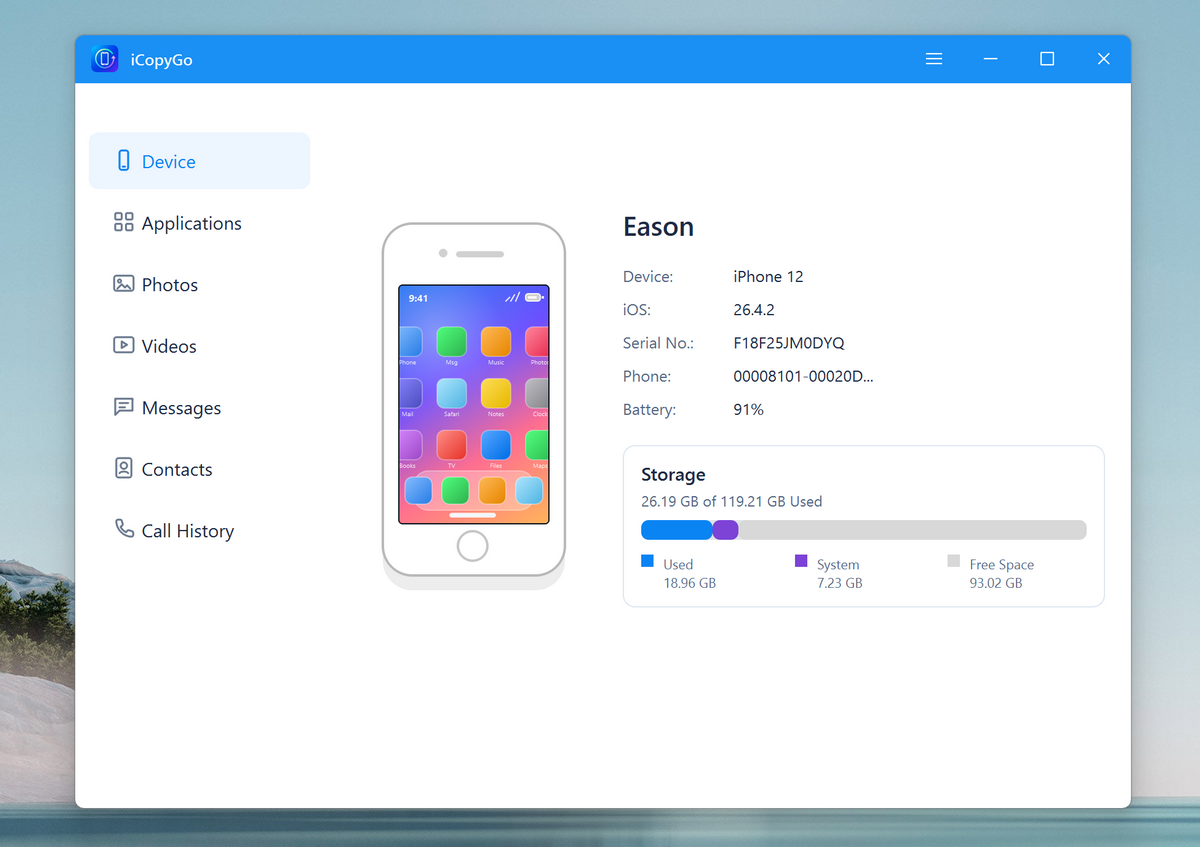
Step 3. Choose the Data Type and Start Transfer
Select the type of data you want to transfer. Preview the files, choose the items you need to start the transfer.
Editor Reviews

"iCopyGo makes iPhone data transfer much easier than traditional iTunes sync. The clean interface is ideal for users who want to move files without technical steps."

"The selective backup feature is very practical. You can choose photos, messages, contacts, or other files instead of making a full iPhone backup every time."

"For users switching to a new iPhone or saving data to a computer, SkyMirrorTo offers a smooth and reliable transfer experience."

"The app is a strong iMazing-style option for users who need local iPhone backup, file transfer, and data management on Windows or Mac."
AiseeFox iCopyGo
Transfer, back up, and manage your iPhone data with a simple desktop tool.