
How I Converted Any Video Format on Windows 11 / MacOS
Without Quality Loss
A few days ago, I tried to open an old AVI video on my Windows 11 PC, but it would not play properly. I also had several MOV and MKV videos that could not be imported into the video editor I was using.
Instead of installing extra codecs or trying different media players, I decided to convert all the videos to MP4 with Any2VID.
Why Any2VID?
I chose Any2VID because it is simple to use and supports common video formats such as MP4, MOV, AVI, MKV, WMV and WebM. I did not need to install extra codecs or learn complicated settings.It also supports batch conversion and GPU acceleration, which helped me convert several large videos faster on my Windows 11 PC.
Another useful feature is audio extraction. I could save the audio from a video as a separate file without using another program.
Supported Formats and Video Quality
Convert videos between popular formats, choose different resolutions, or extract audio from video files.
| Video Formats | MP4 | MOV | MKV | AVI | WMV | WebM | M4V |
|---|---|---|---|---|---|---|---|
| MPEG Video | VOB | MPEG-TS | OGV | 3GP | FLV | MXF | |
| Audio Formats | MP3 | WAV | M4A | WMA | AAC | AC3 | AIFF |
| M4B | FLAC | MKA | M4R | MP2 | ALAC | DTS | |
| Video Quality | SD 480p | HD 720p | Full HD 1080p | 2K | 4K UHD | 8K UHD | |
| Same as Source | Small File | ||||||
How I Converted the Videos with Any2VID
Step 1Add My Videos
Convert videos faster with Any2VID. No complicated settings, no online upload — just add your files and start converting locally.
Free Trial Free Trial
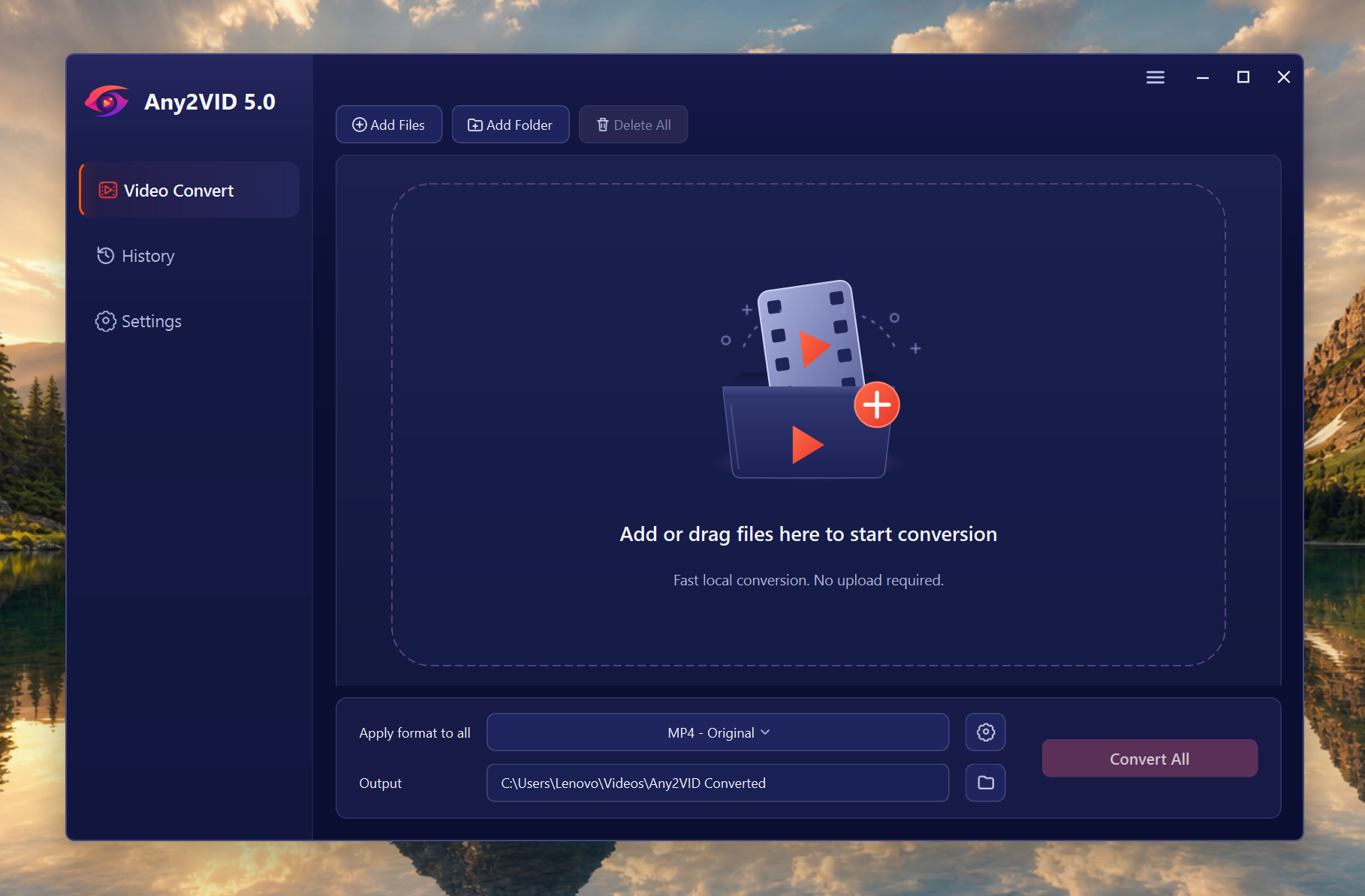
After opening Any2VID 5.0, I clicked Add Files and selected several MOV, AVI and MKV videos from my Windows 11 PC. I could also add an entire folder, which was helpful when converting multiple videos at once.
Step 2Select the Output Format and Convert
After importing the videos, I selected the output format. I chose MP4 because it works well with most Windows programs, phones, TVs and video players. Any2VID also supports formats such as MOV, MKV, AVI, WMV and WebM.
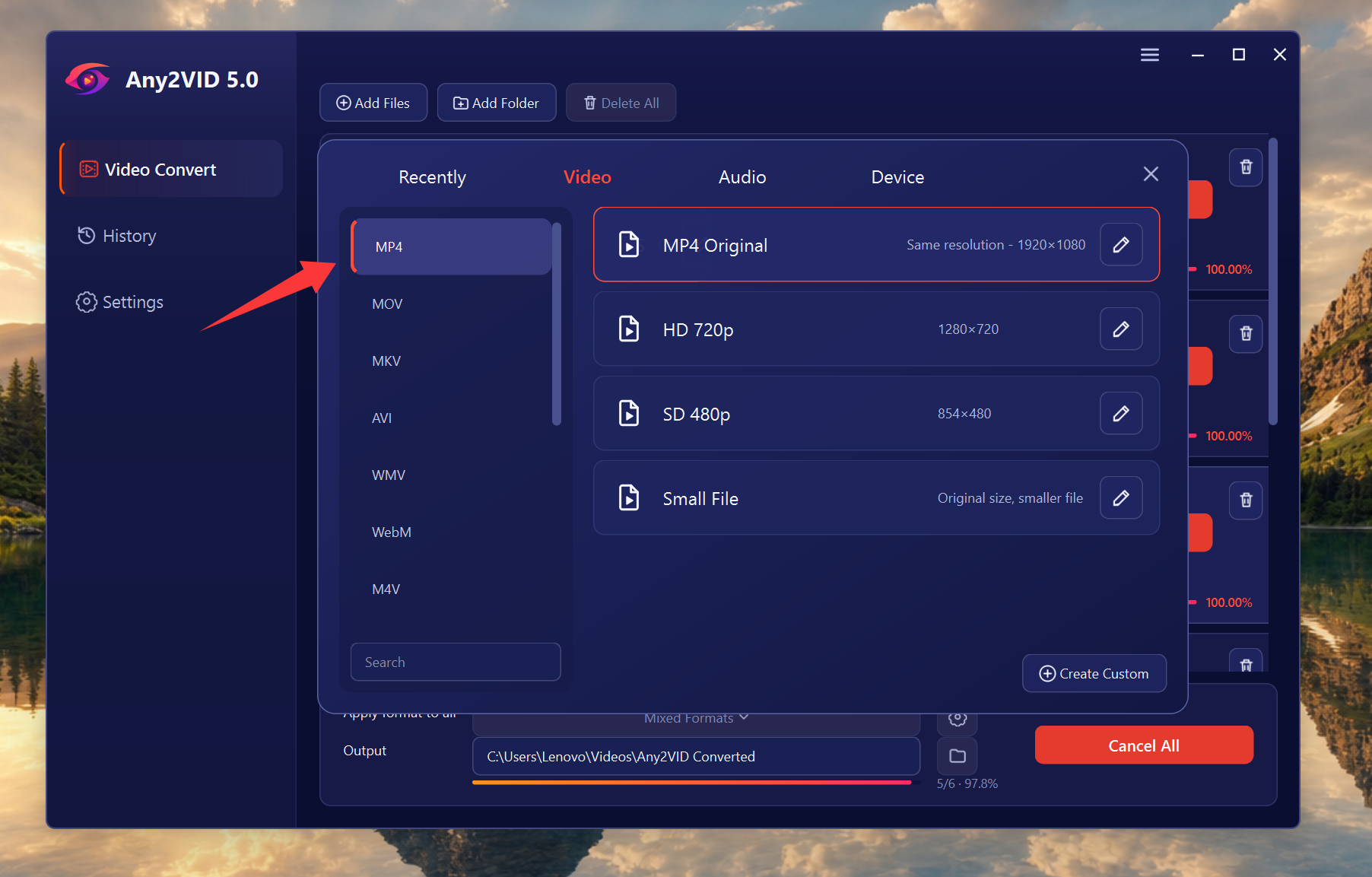
I could also adjust video settings such as resolution, frame rate, bitrate and encoder if needed. For larger videos, GPU acceleration helped improve the conversion speed.
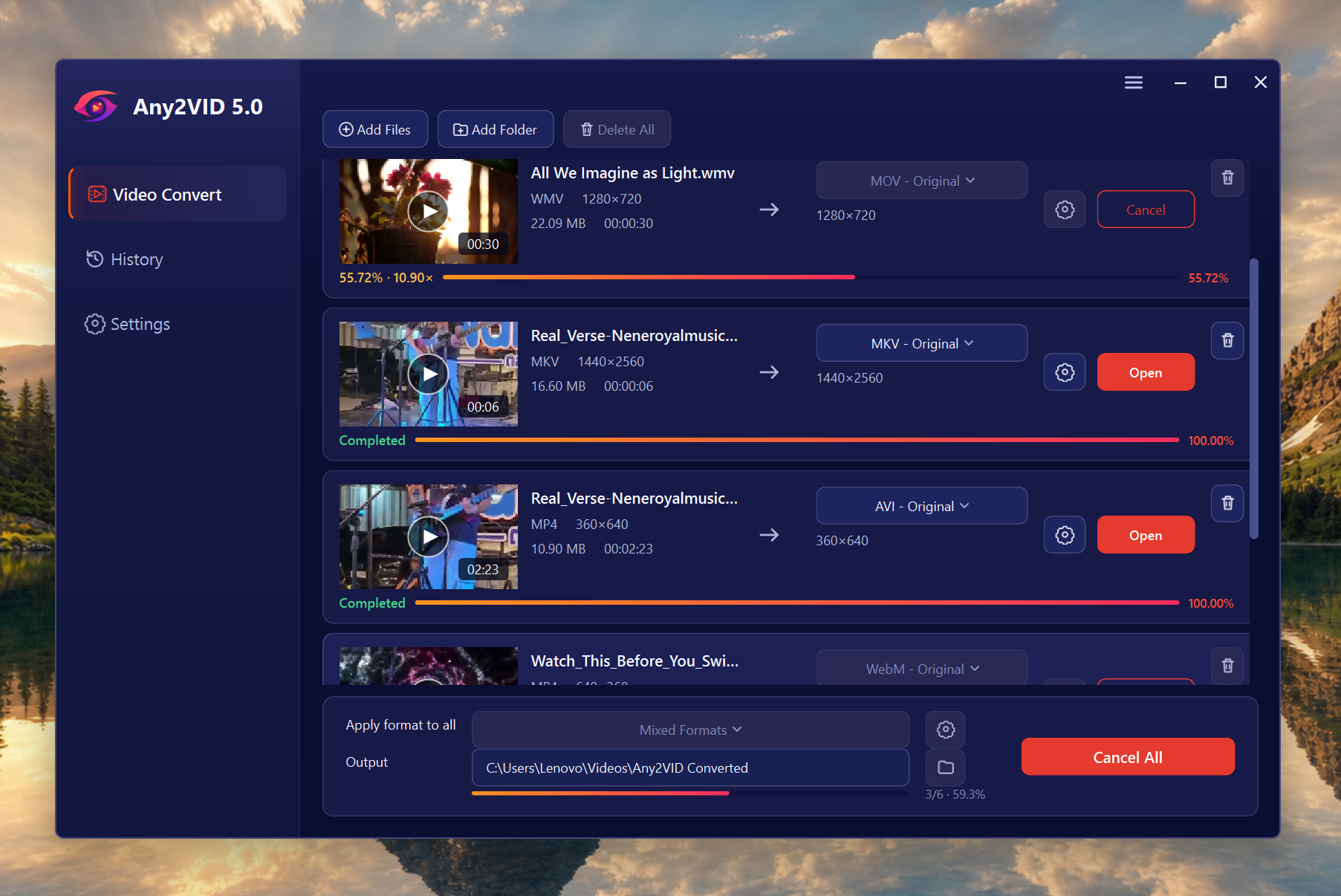
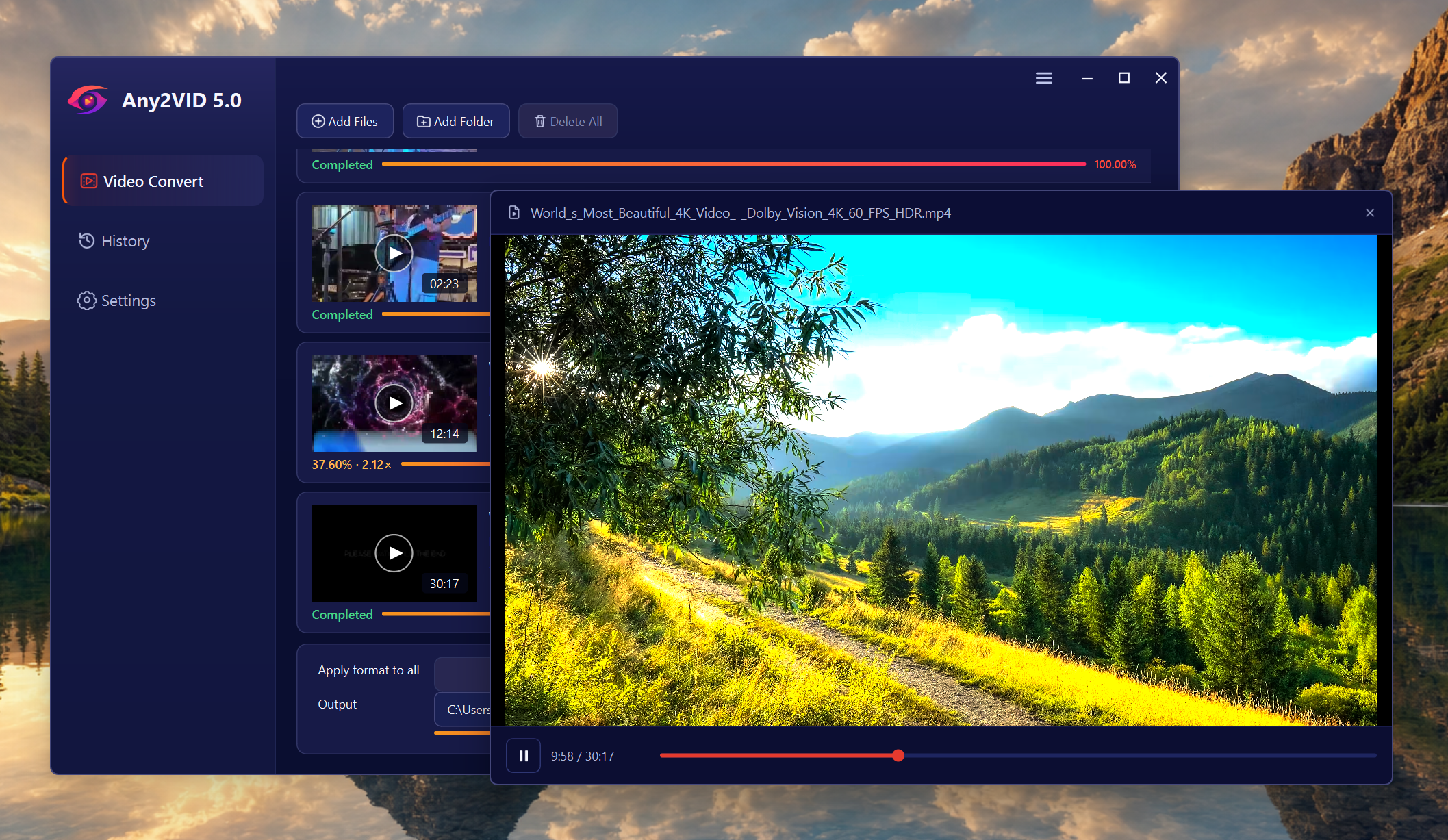
After choosing the output folder, I clicked Convert All. Any2VID processed the videos and displayed the conversion progress for each file.
Step 3Check the Converted Videos
When the conversion finished, I clicked Open to view the converted files.
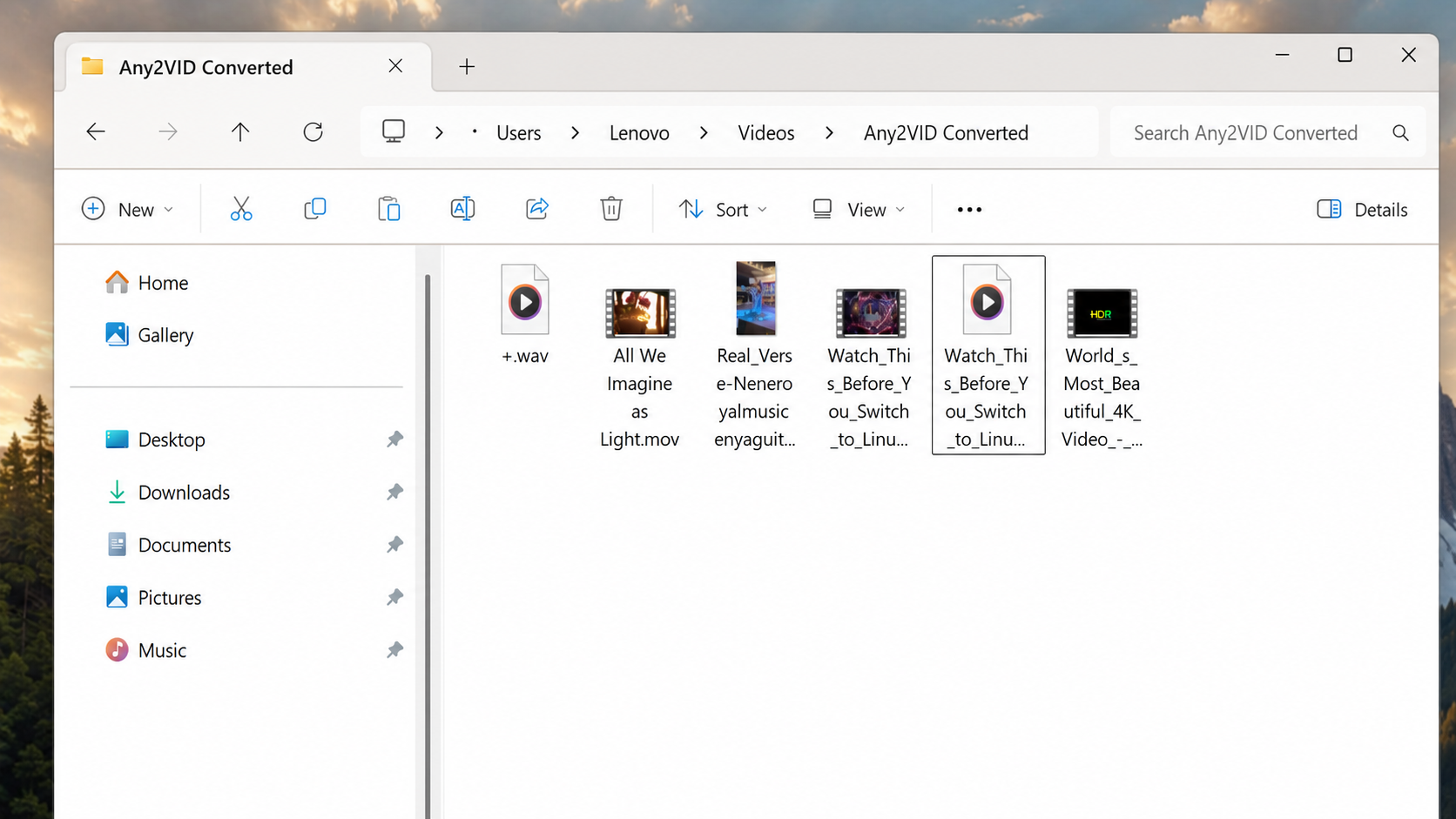
The MP4 videos played normally on my Windows 11 PC and could be imported into my video editor without compatibility issues.
Extracting Audio from a Video
I also tried the audio extraction feature. I added an MP4 video, selected an audio output format and started the task. Any2VID saved the soundtrack as a separate audio file, so I did not need to install another audio tool.
Convert videos faster with Any2VID. No complicated settings, no online upload — just add your files and start converting locally.
Free Trial Free Trial
My Experience
The feature I liked most was batch conversion. I had several videos in different formats, and I could convert all of them at once. The interface was easy to understand, and I did not need much knowledge about codecs or bitrates.
For a normal conversion, I only needed to add the files, choose MP4, select an output folder and click Start. GPU acceleration made the process feel quicker when I was working with larger videos.
My goal was to make several unsupported videos work properly on my Windows 11 PC, and Any2VID handled the task without making it complicated. It supports common video formats, batch conversion, GPU acceleration and audio extraction, making it a practical option for converting, editing and sharing videos.

Mateo Ryan
Mateo is a senior editor and lifelong tech enthusiast with over a decade of experience writing thousands of articles about Windows and macOS. Beyond writing, Mateo enjoys creating short explainer videos, gaming and exploring animated shows.
💬 Reviews