
iCopyGo is an easy-to-use iPhone data transfer tool for Windows and macOS. It helps you transfer photos, videos, music, contacts, messages, voice memos, documents, and other files between iPhone and computer without using iTunes. Whether you want to back up iPhone files to a PC, move data to a new iPhone, or free up iPhone storage, this guide will show you how to get started.
Why Choosing iCopyGo?
iCopyGo is a dedicated iPhone data transfer and export tool designed for users who want a simple way to save iPhone messages to a computer.
Easy Message Export & Printing — Export iPhone SMS conversations as Excel, PDF, HTML, or Text files.
Selective Backup — Choose the exact photos, videos, contacts, messages, or files you want to save.
Fast Transfer Speed — 10X faster transfer speed than WiFi and Blutooth.
User-Friendly — Connect your iPhone, choose messages, select an export format, and finish the task in minutes.
How to Transfer Data from iPhone to Computer (SMS as Example)
You ca easily and safely export different content from iPhone to your PC or Mac with iCopyGo, including photos, videos, contacts, messages, music and call history. In here, we will use text message as example. The steps are the same for other data types.
Step 1Download and Install iCopyGo Software
Download the iCopyGo setup file and install the app on your Windows PC or Mac. After installation, open iCopyGo from your desktop or Applications folder.
Free Trial
Step 2Connect Your iPhone to the Computer
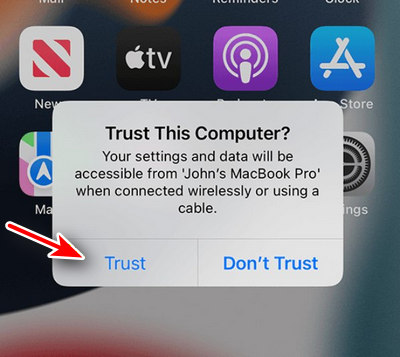
Use a USB cable to connect your iPhone to the computer. Now, unlock your iPhone and tap the "Trust" button to proceed when the following prompt appears on iPhone screen. This allows iCopyGo to read your iPhone data safely.
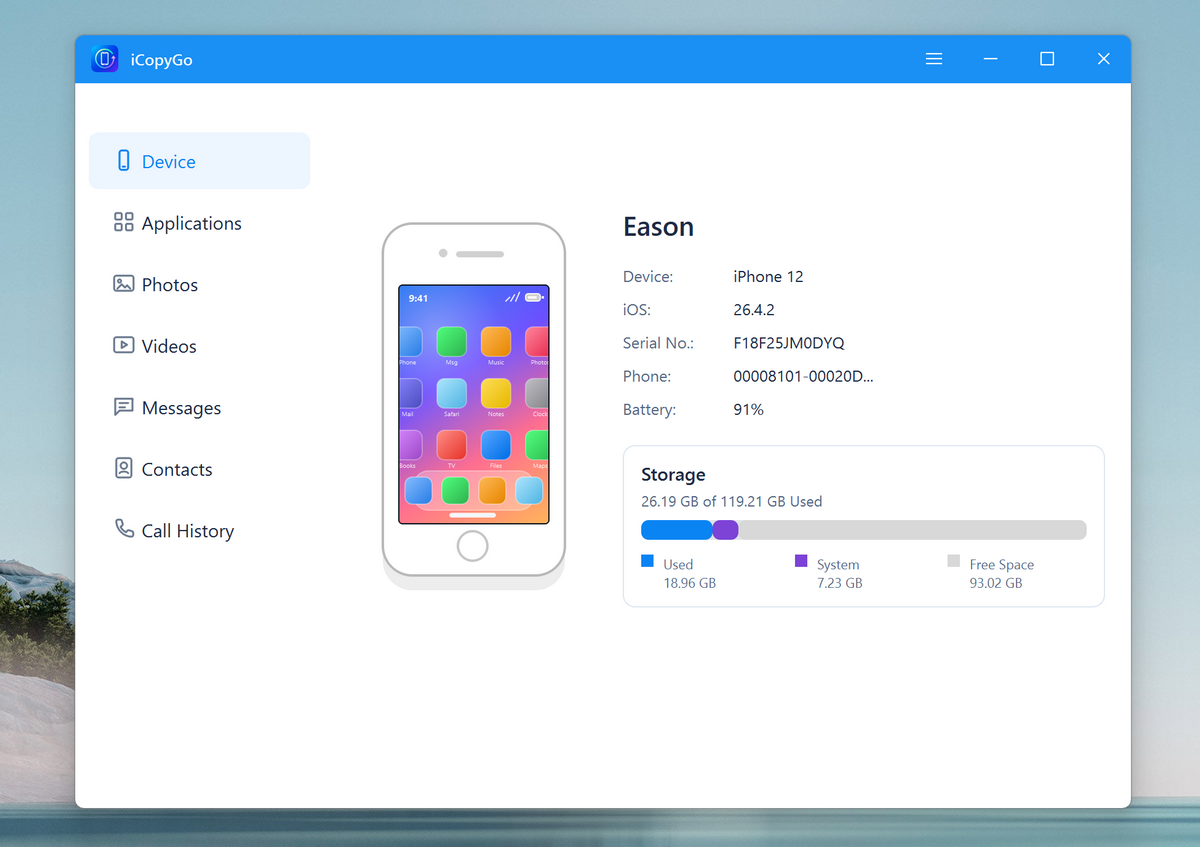
Upon success, open the iCopyGo app and you will see the device information on the home screen.
Step 3 Choose the SMS or Messages Option
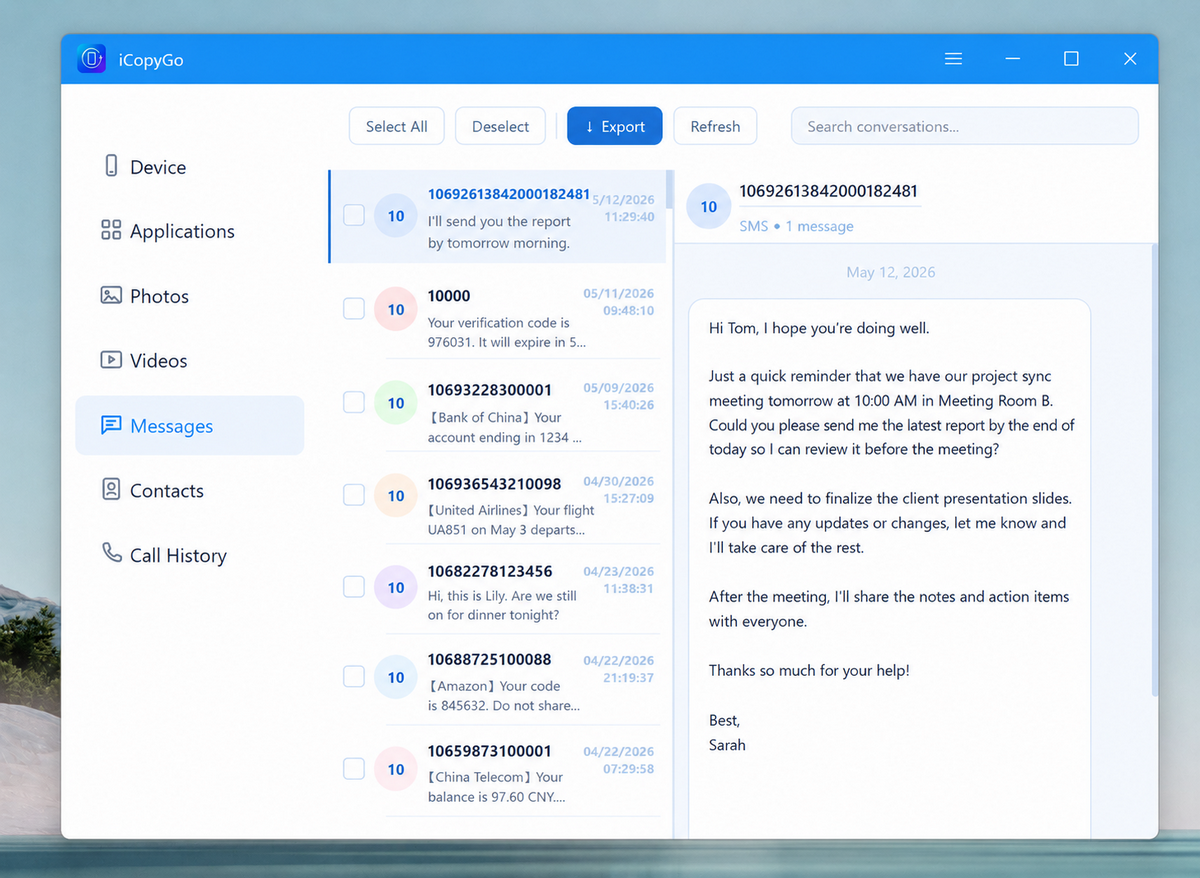
Once your iPhone is detected, select "Messages" from the left-side menu. iCopyGo will scan and load the text message conversations from your iPhone. Depending on the amount of data, this may take a short moment.
After the scan is complete, you can preview your iPhone SMS conversations inside iCopyGo. Select the contact or conversation you want to export.
Step 4Select an Export Format
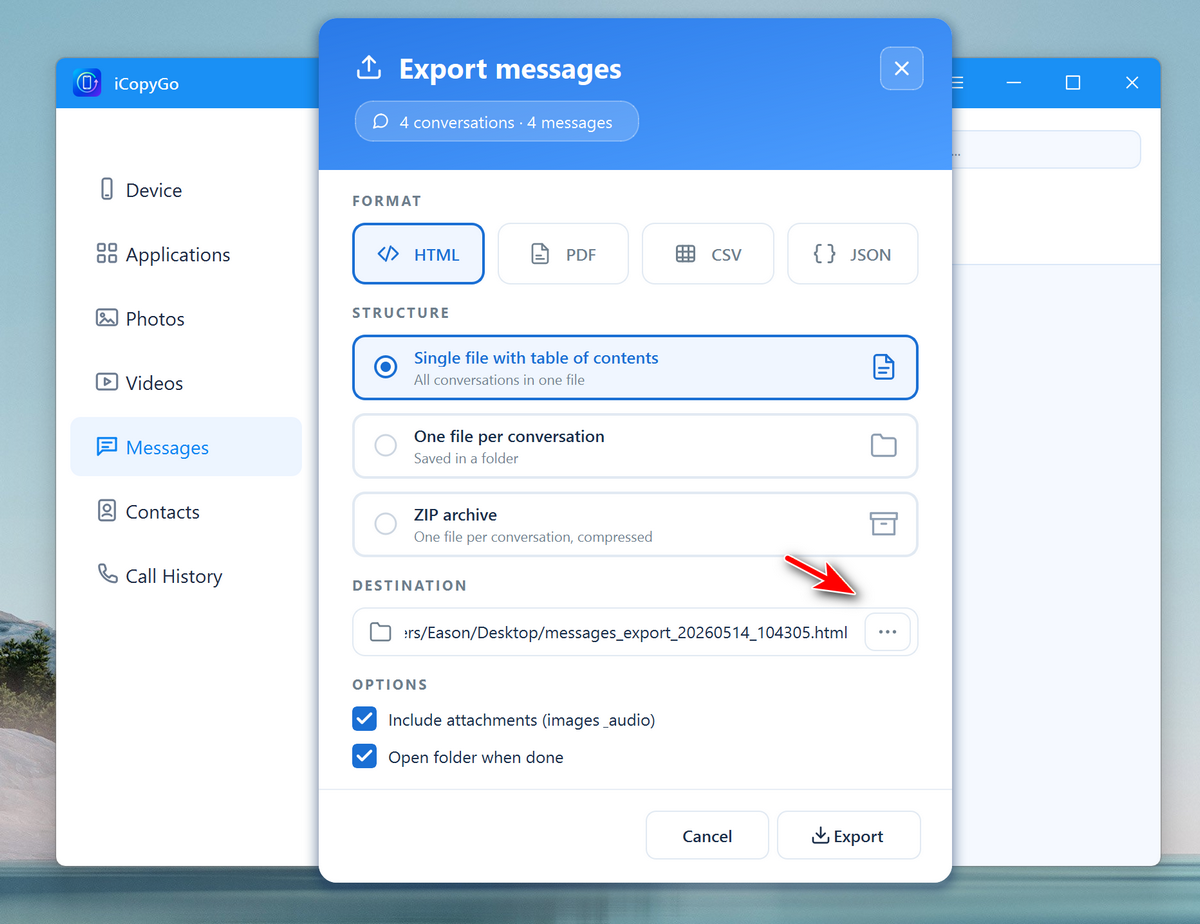
Click the "Export" button at the top and choose your preferred output format. iCopyGo supports four common formats, including HTML, PDF, CSV and JSON. For printing purposes, HTML is usually the best choice because it keeps the conversation easy to read and simple to print.
Step 5 Export SMS Conversations to Computer
Choose a folder on your computer to save the exported message file. Then click "Export" to start the process. iCopyGo will export the selected iPhone text messages to your computer in the format you selected. When the export is finished, open the destination folder to view or print the text messages.

Conclusion
iCopyGo gives you a simple way to transfer, back up, and manage iPhone data on Windows and Mac. It is useful for exporting iPhone photos to a computer, saving messages and contacts, moving music or videos, importing files to iPhone, and creating local backups without iTunes. For users who need more control over iPhone data, iCopyGo is a practical and beginner-friendly solution.
Free Trial

Mateo Ryan
Mateo is a senior editor at Aiseefox and lifelong tech enthusiast with over a decade of experience writing thousands of articles about Windows and macOS. Beyond writing, Mateo enjoys creating short explainer videos, gaming and exploring animated shows.