
A Safe and Fast Way to Transfer Files, Apps and Settings
from PC to PC Using TransFox
Moving to a new computer sounds simple, but it often turns into a long checklist: copy files, reinstall apps, sign in again, and reconfigure system settings from scratch. If you have a lot of data or a tight schedule, the manual way can be stressful and easy to mess up.
TransFox is built to make PC-to-PC migration smooth and reliable. It helps you transfer files, installed apps, Windows settings, and user profiles in one guided process—over Wi-Fi or a faster Ethernet cable connection.
Why Choosing TransFox PC Migration App?
TransFox stands out as the go-to solution for PC migration thanks to its perfect balance of speed, stability, and simplicity.
- Fast & Stable Migration — Transfer large data quickly via local network, with Wi-Fi for convenience or Ethernet for maximum speed.
- All-in-One Transfer — Move files, apps, system settings, and user profiles together instead of doing everything manually.
- User Friendly Workflow — Clear on-screen guidance makes the whole process simple, even for first-time users.
- Safe Local Transfer — No cloud upload needed. Your data stays within your own devices and network.
How to Transfer Files, Apps and Settings from PC to PC with TransFox
TransFox is a powerful PC-to-PC transfer app designed to help you move files, installed apps, and Windows settings from one computer to another quickly and safely. With support for both Wi-Fi transfer and Ethernet cable connection, it makes upgrading to a new PC simple. No cloud upload, no complicated steps, and no manual reinstallation!
Step 1Download and install TransFox on both PCs
Download the TransFox setup file and install it on both the old PC and the new PC. After installation, launch TransFox from your desktop.
Free Trial
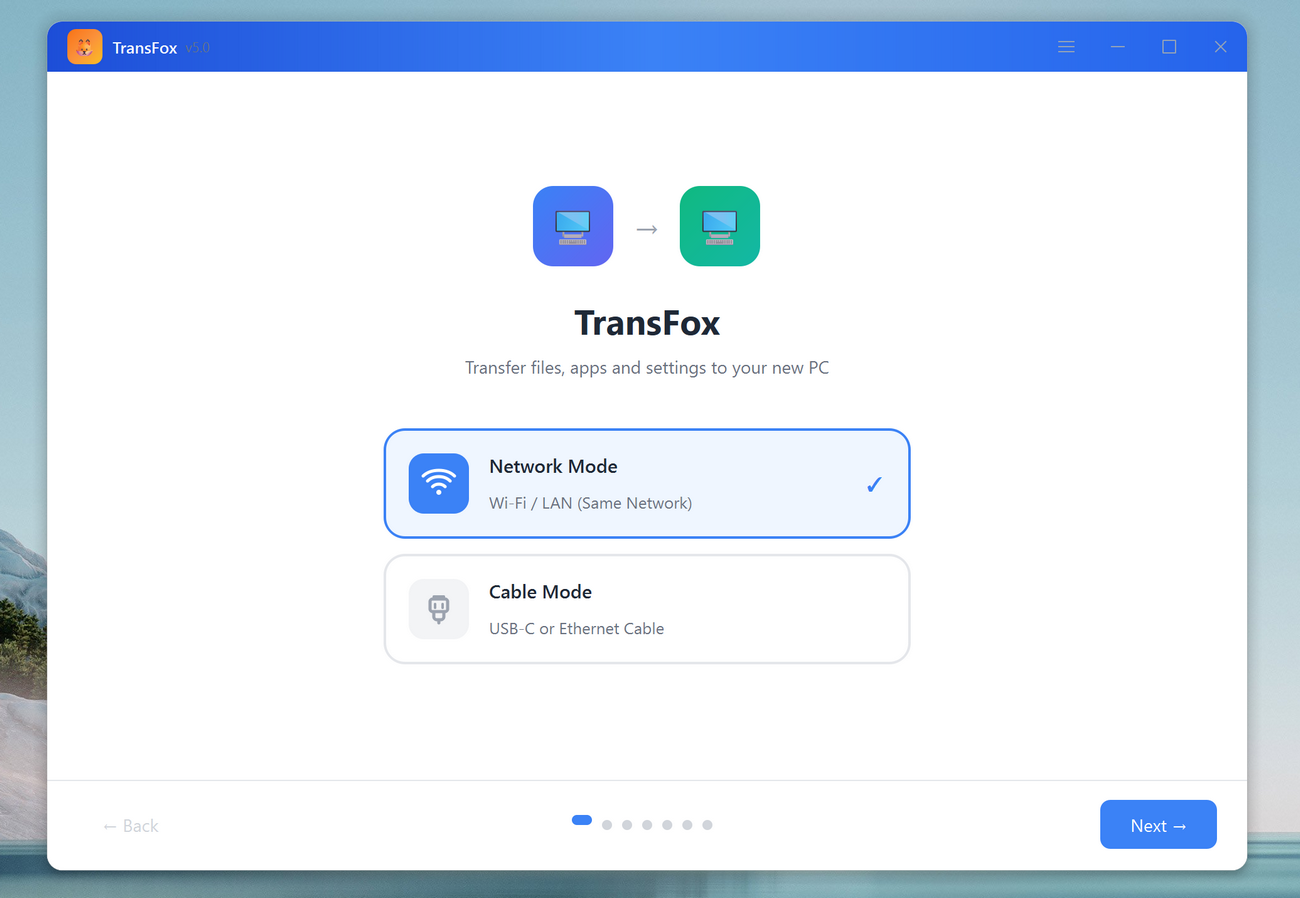
Step 2Select a Transfer Mode
The Network Mode is for WiFi transfer and the Cable Mode is for data transfer via ethernet cable. Select a proper mode and click Next to proceed.
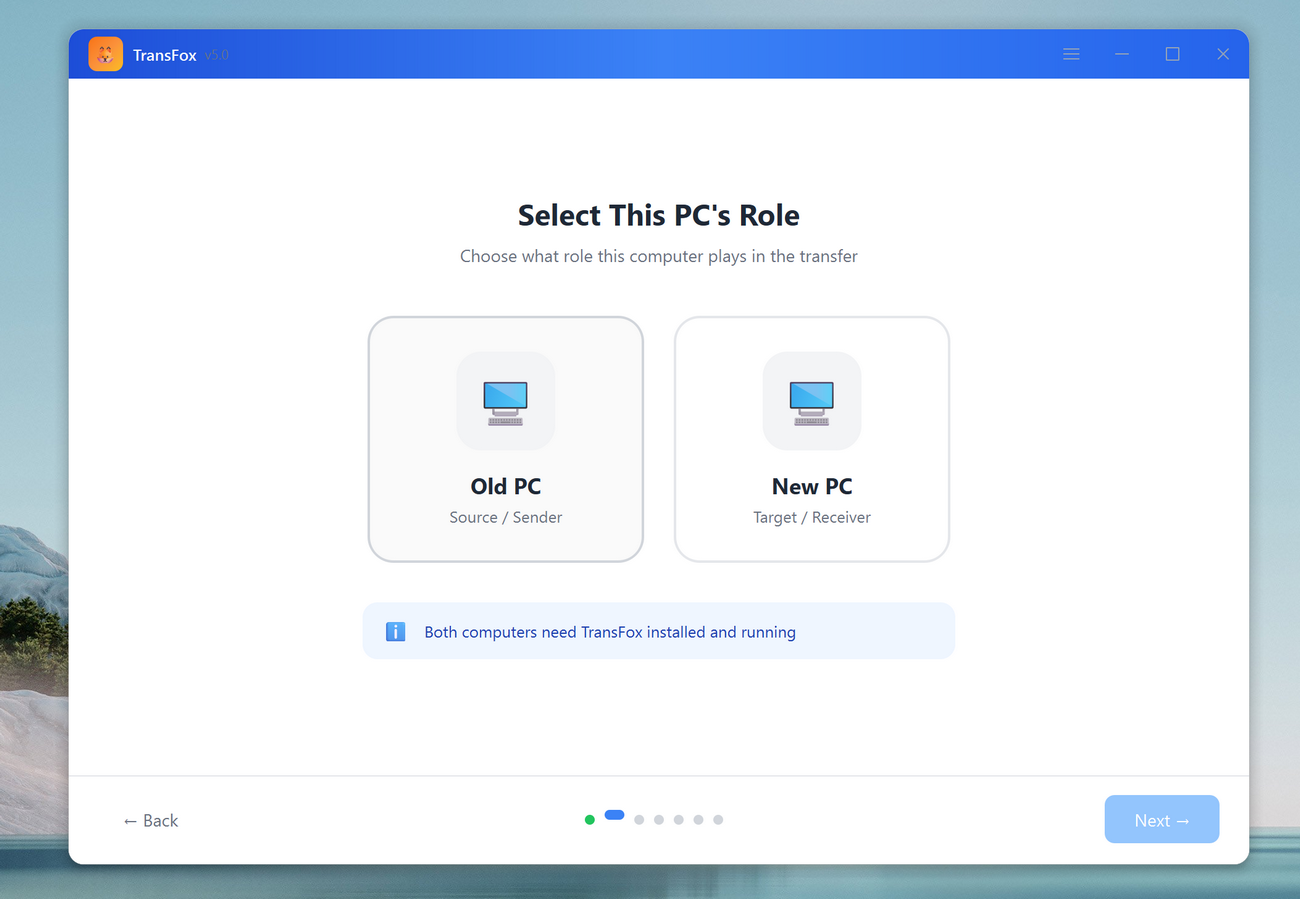
Step 3Choose a Role for Each PC
The Old PC is the source device to send files, apps and settings. And the New PC is the destination device to receive the data. This makes sure TransFox sends the right data in the correct direction.
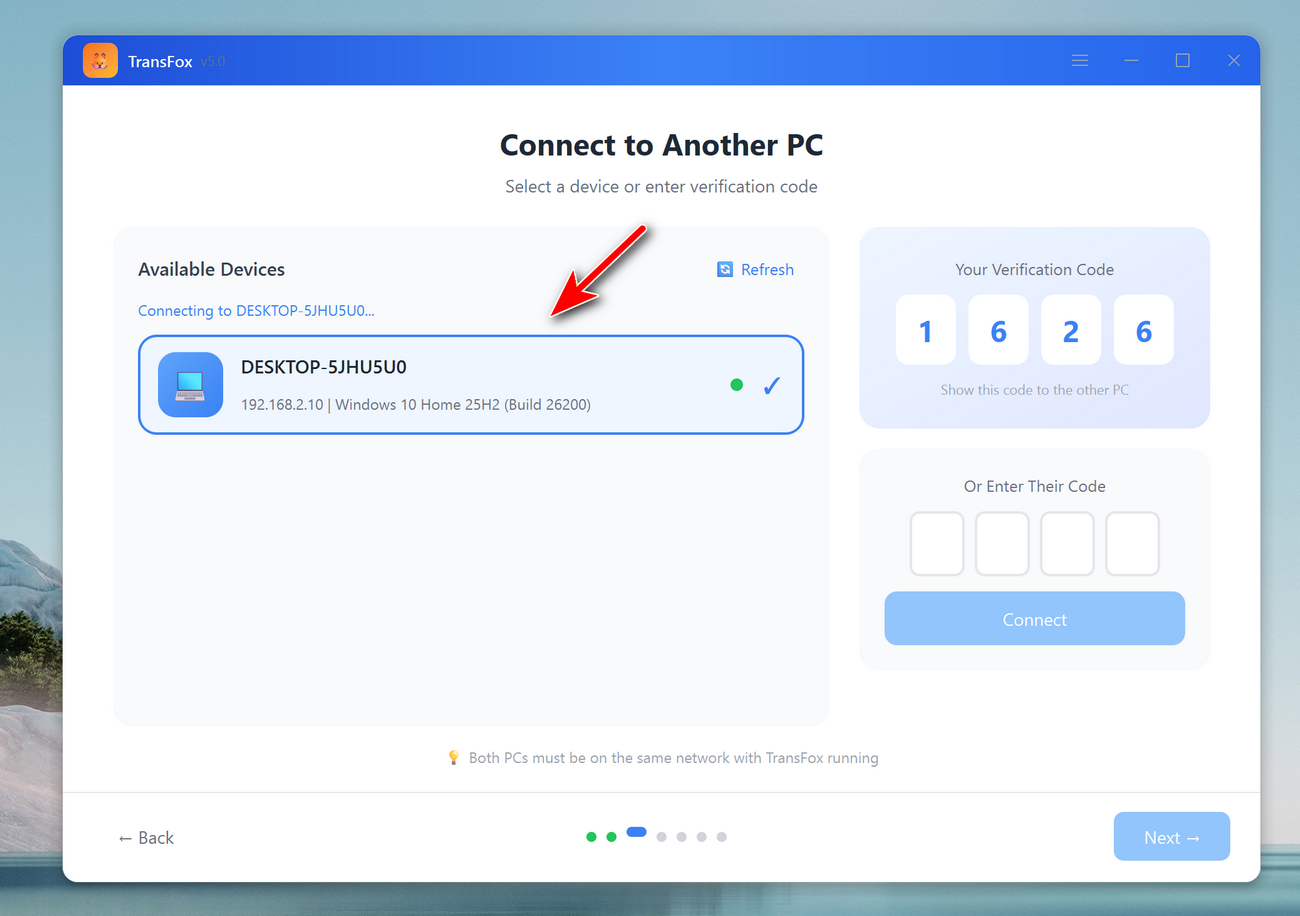
Step 4 Scan the Local network and Connect the two PCs
TransFox will scan your local network and list all available devices. On the old PC, click the destination PC name to establish the connection and prepare for transfer.
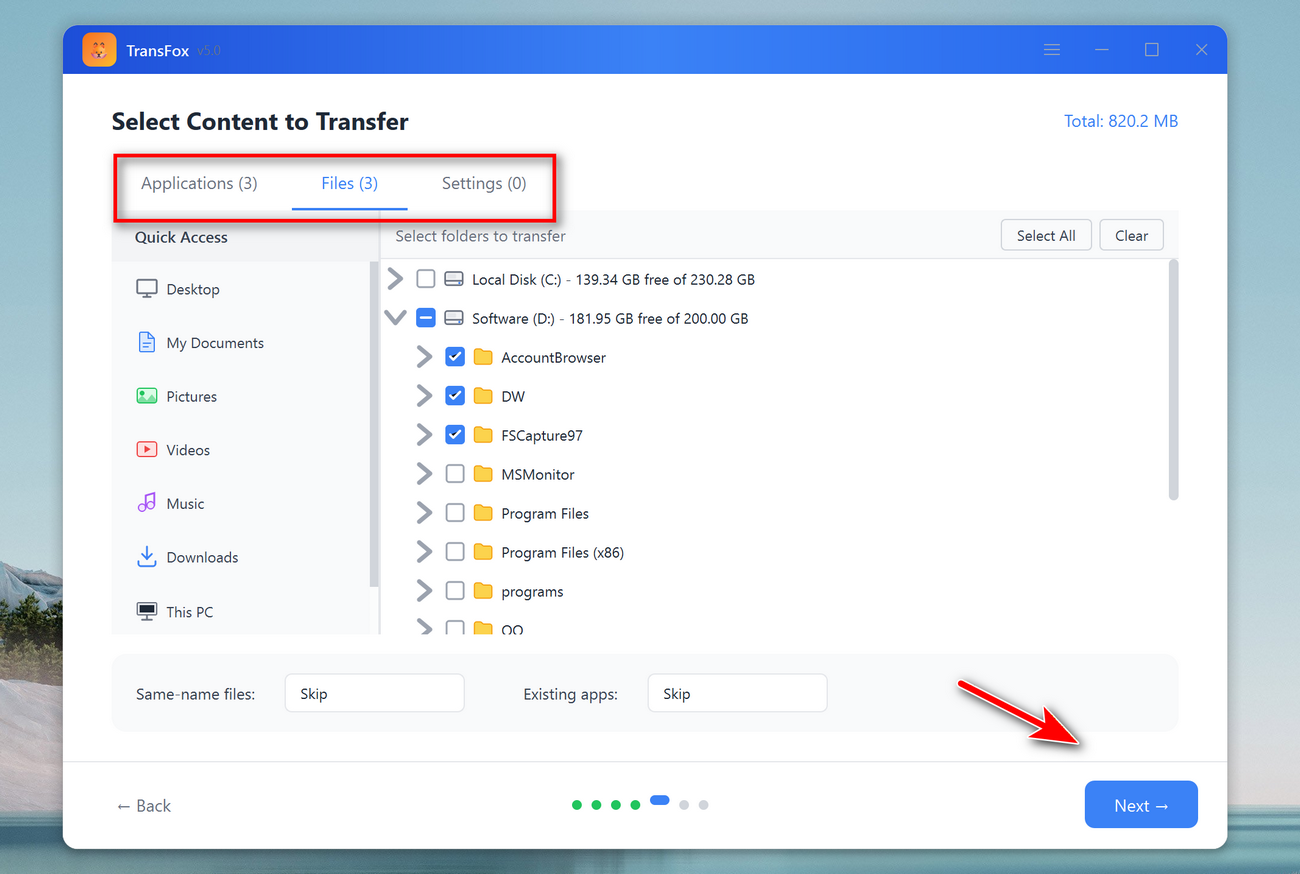
Step 5 Choose What to Transfer
Now select the content you want to move, such as the folders (Documents, Desktop, Downloads, Pictures, videos, etc.), installed apps, system settings and user profile. TransFox lets you transfer everything at once or only pick what matters most.
Warning: TransFox only support folder transfer. If you want to transfer separate files, please put them into a folder first before transfer.
Step 6 Start the Transfer and Wait for Completion
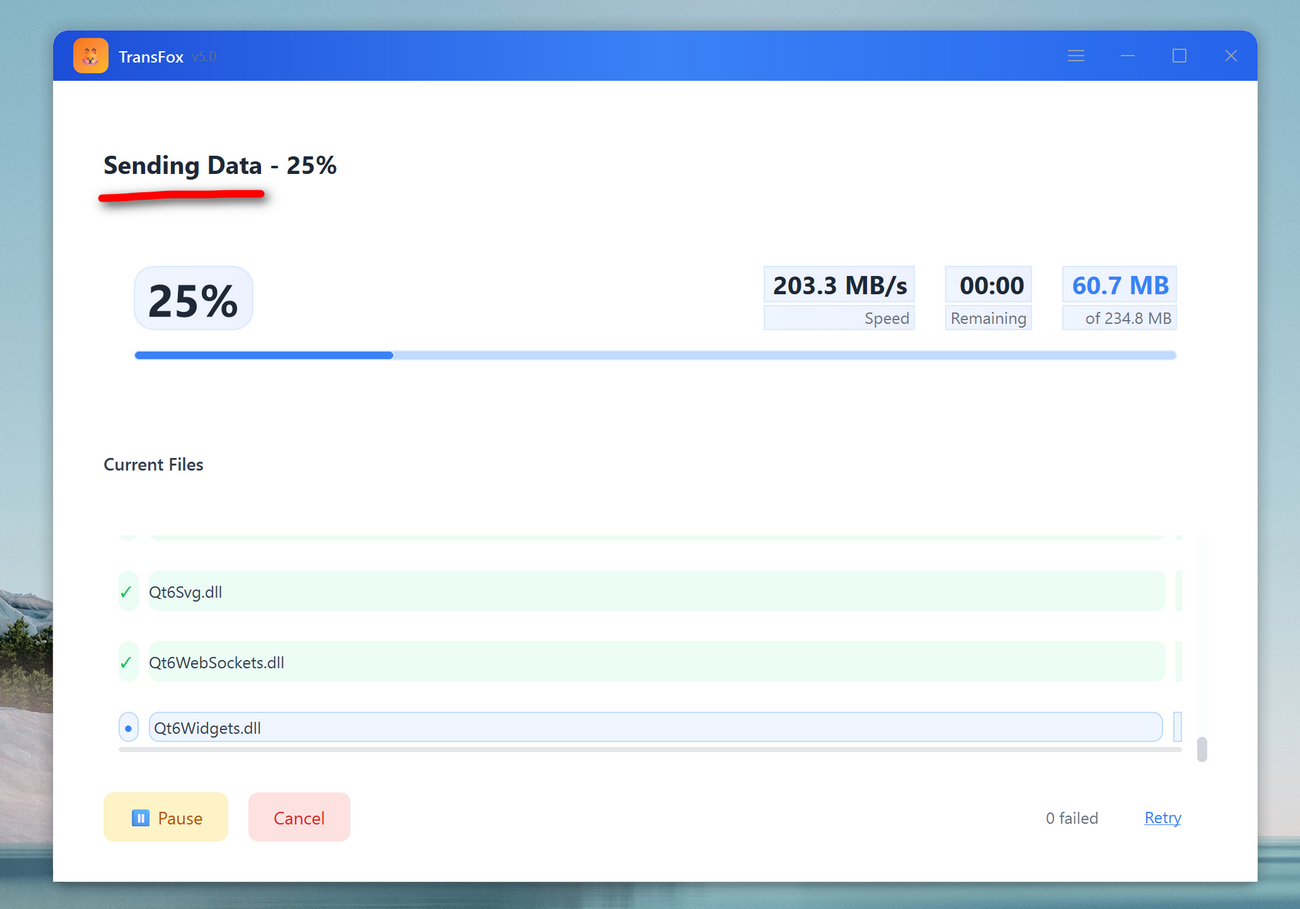
Click Next to start the transfer. Please keep both PCs connected until the process finishes. On the source PC, you will see this:
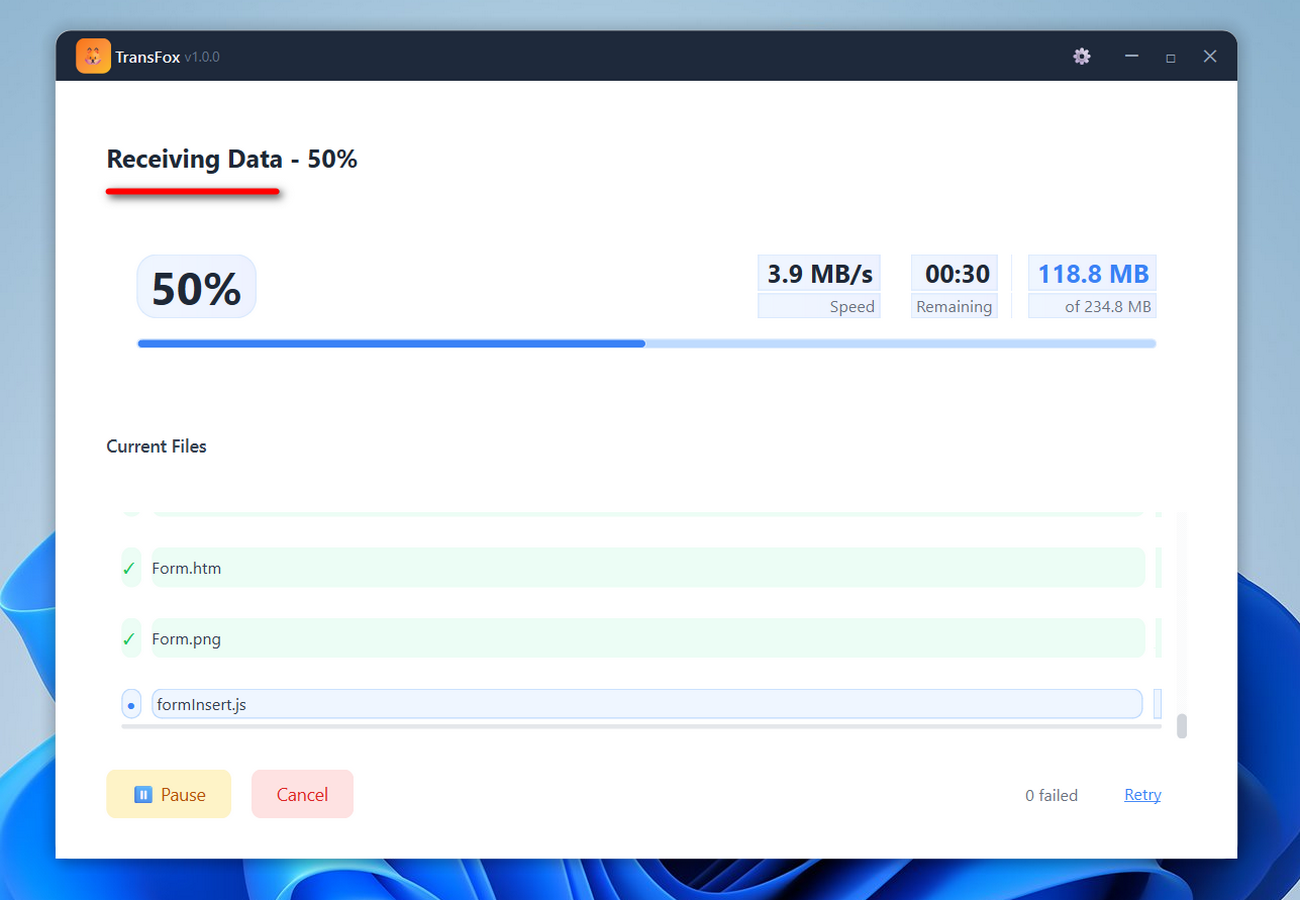
On the destination PC, you will see this:
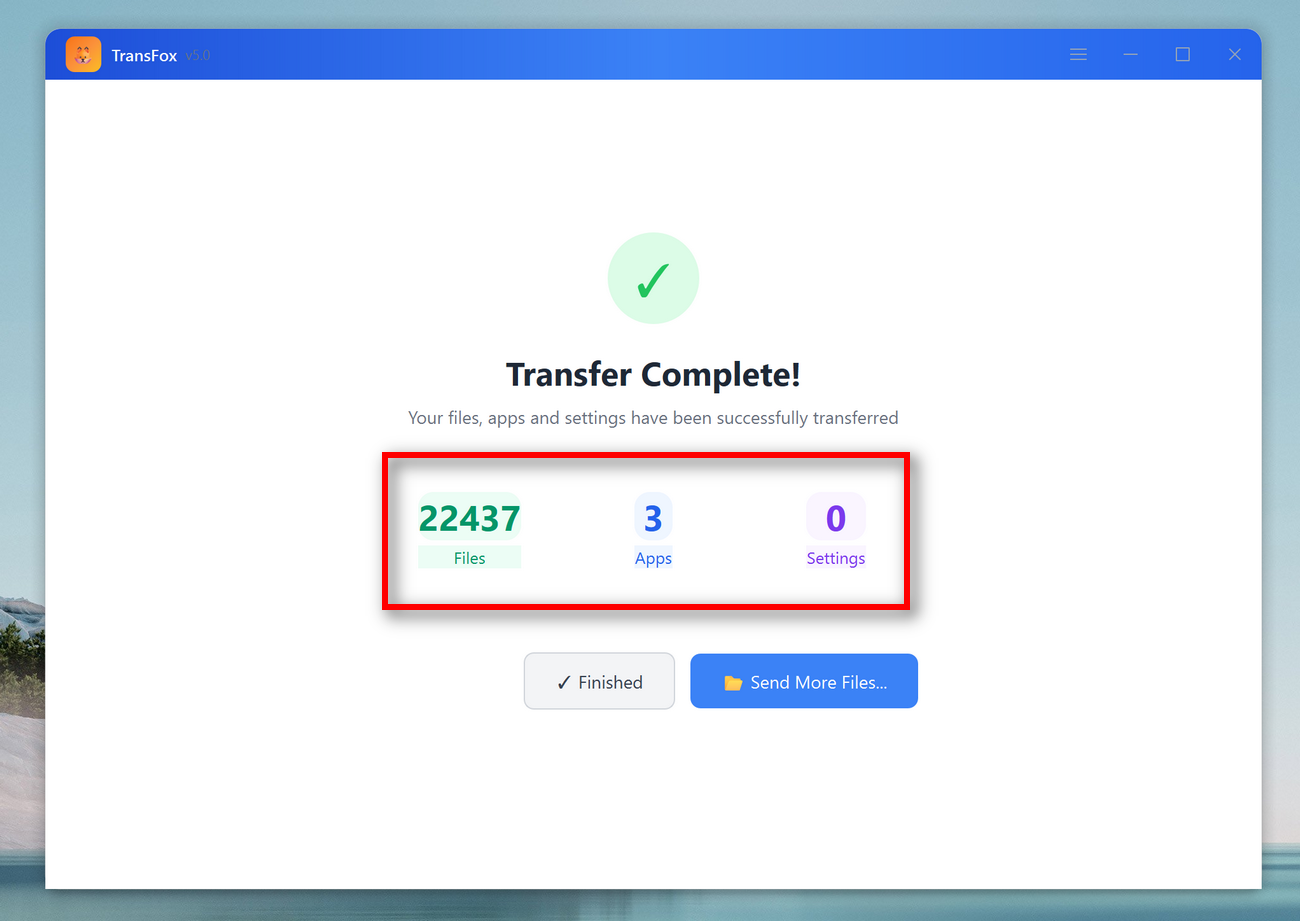
The waiting time is largely dependent on how many files and apps you chose to transfer. When it is finished, you will see the following screen.
Conclusion
TransFox offers a safe and fast way to transfer files, apps, and Windows settings from PC to PC without complicated steps. If you're switching to a new computer and want to save hours of manual work, TransFox is the easiest way to move everything and start fresh instantly.
Free Trial

Mateo Ryan
Mateo is a senior editor at Aiseefox and lifelong tech enthusiast with over a decade of experience writing thousands of articles about Windows and macOS. Beyond writing, Mateo enjoys creating short explainer videos, gaming and exploring animated shows.
💬 Reviews