
How to Easily Protect, Merge, Split and Compress PDF with PDFZin
on a Windows PC or Mac
PDFZin is an easy-to-use desktop application that helps you manage PDF documents more efficiently. Instead of using multiple tools, PDFZin brings together four essential PDF features in one lightweight program: protecting PDF files with passwords and permissions, merging multiple PDFs, splitting large documents, and compressing PDFs without significantly affecting quality.
Part 1. How to Password Protect a PDF File with PDFZin
Protecting your PDF files helps keep sensitive information safe from unauthorized access. With PDFZin, you can easily add an open password and apply permissions to prevent editing, copying, or printing before sharing your documents.
Step 1Download and Launch PDFZin
Click the below download button and follow the prompts to install PDFZin software on your computer.
Free Trial Free Trial
Step 2Choose "Protect PDF" Menu and Import PDF Files
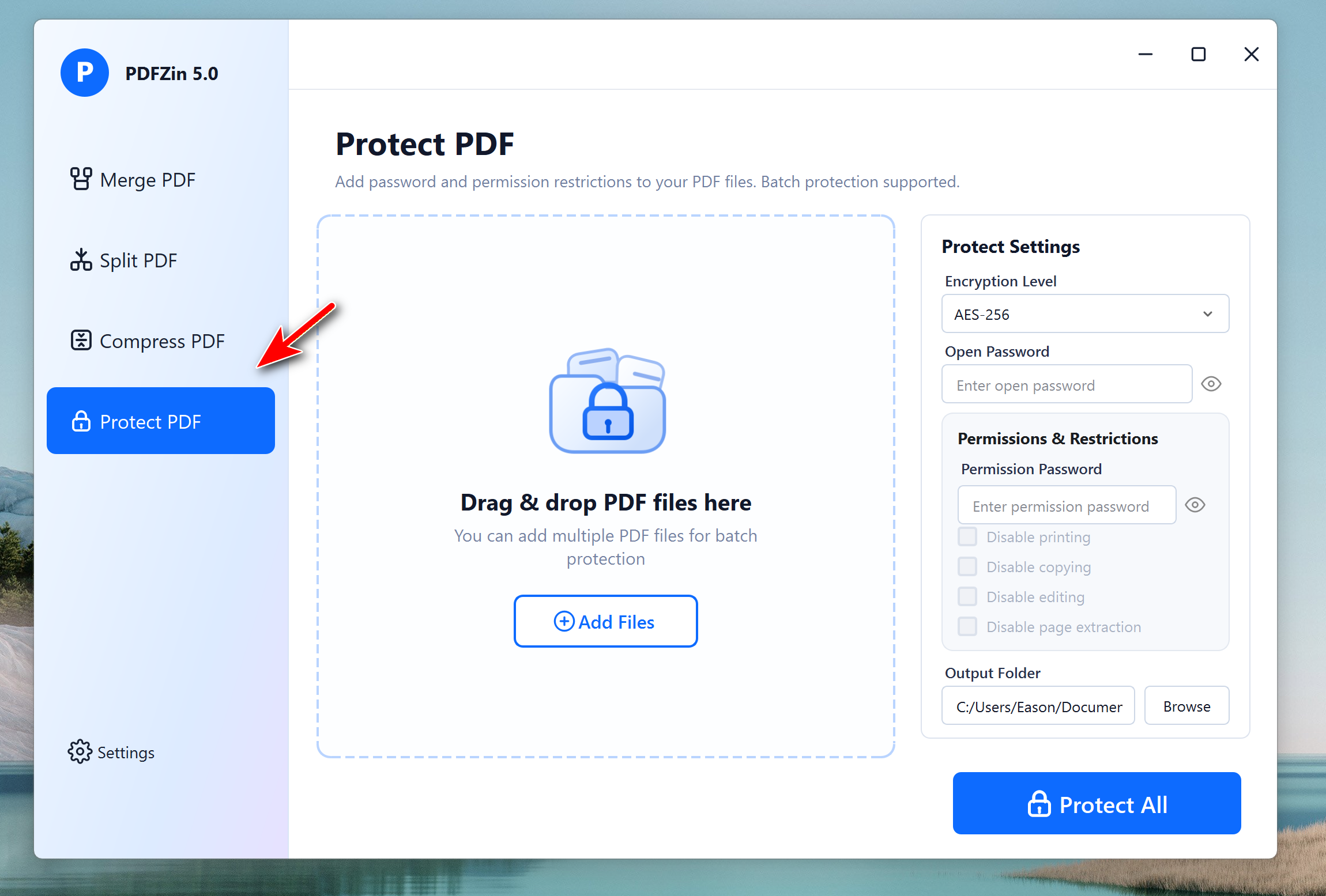
Open PDFZin software and click the Protect PDF menu from the left sidebar. Now, click the Add Files button to load PDF documents from the local drive.
Step 3Configure an Open Password or Permission Password
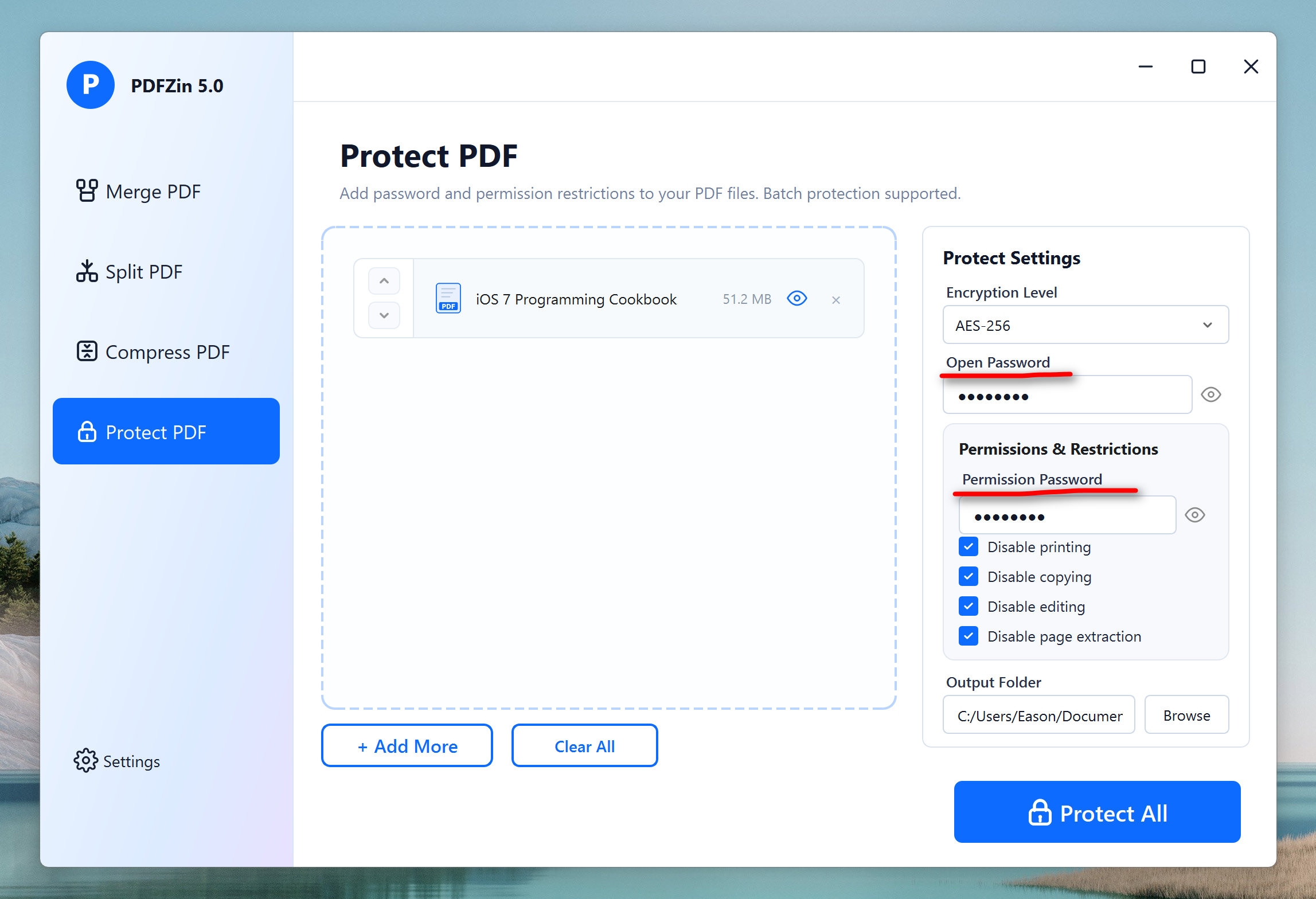
Choose whether to add an Open Password for access protection or a Permission Password to restrict document actions. You can now enter the password and configure the permissions by enabling or disabling editing, copying, and printing as needed.
Step 4Start Adding a Password to PDF File
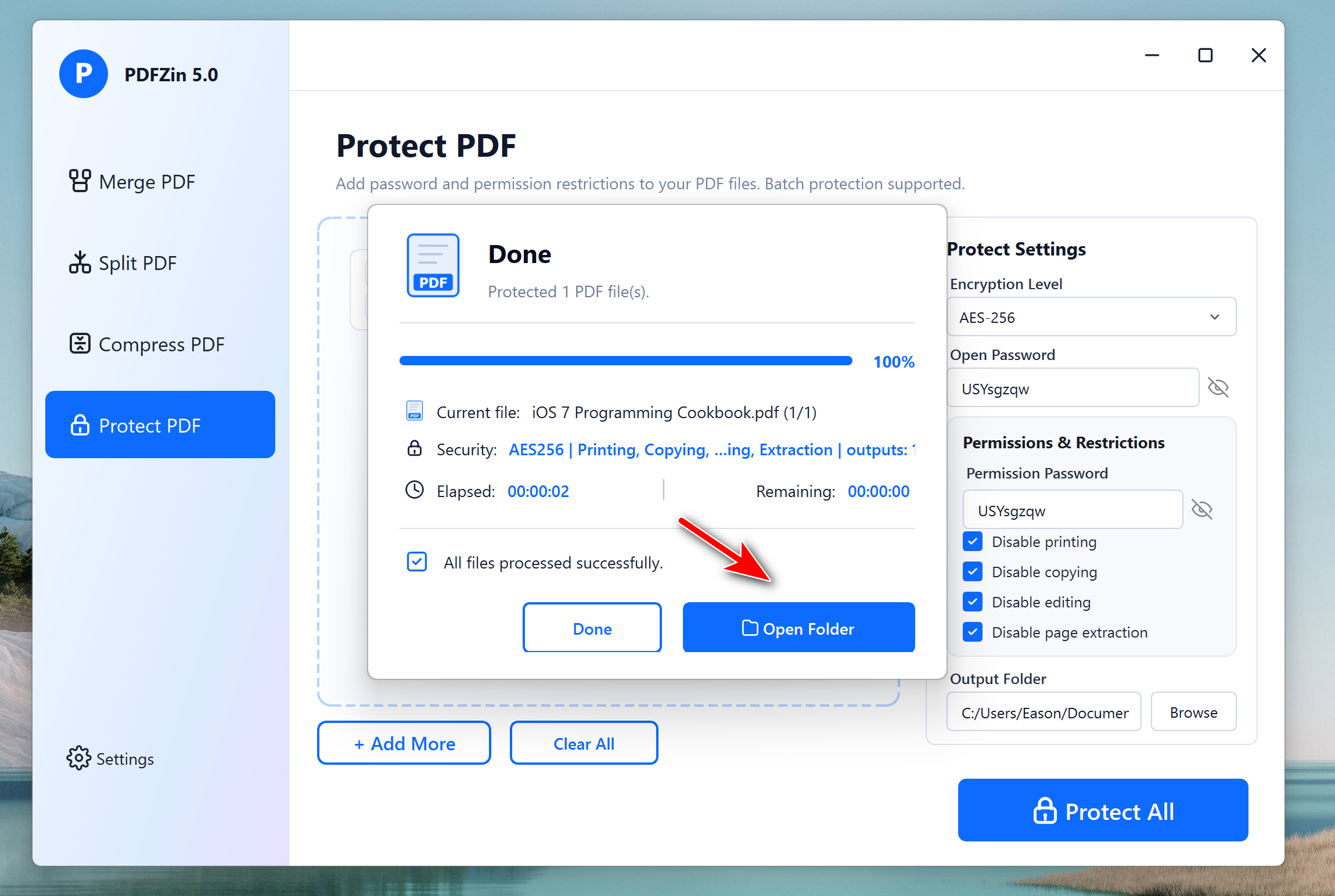
Select the destination folder where you want the protected PDF files to be saved. Now, Click Protect All at the bottom and wait a few seconds while PDFZin encrypts and saves your secured PDF documents.
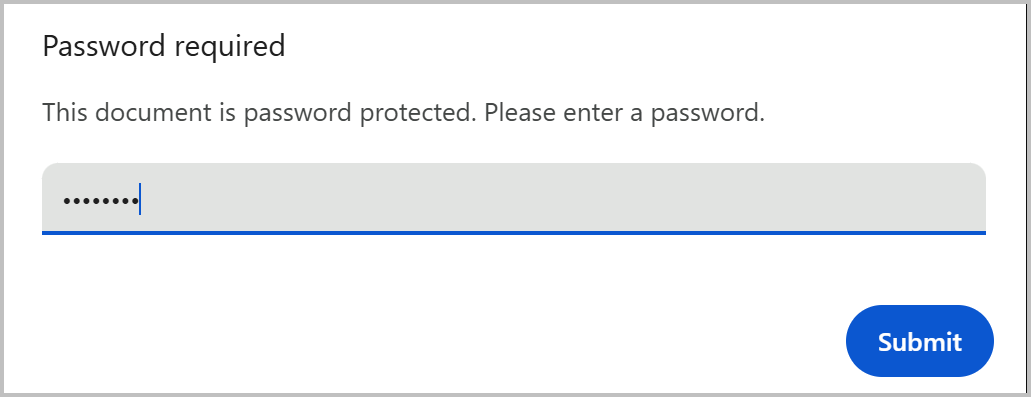
Once it is done, you need to enter the password first before viewing the content in the PDF file.
Part 2. How to Merge Multiple PDF Files into a Big One with PDFZin
Combining multiple PDF files into a single document makes them easier to organize, archive, and share. PDFZin allows you to merge PDFs quickly while preserving the original formatting and layout.
Step 1Choose the "Merge PDF" Option
Open PDFZin and select the Merge PDF feature from the left sidebar.
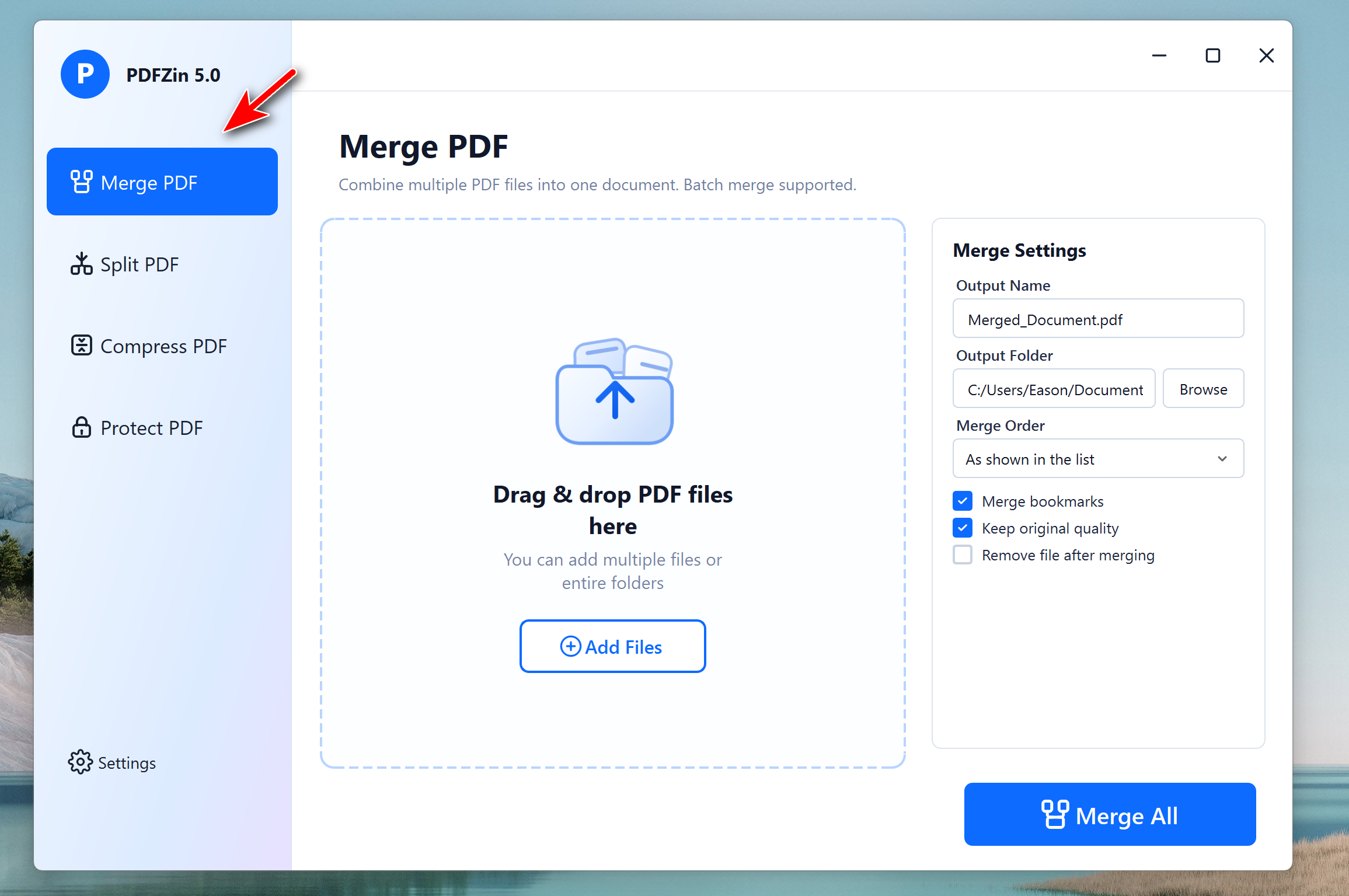
Step 2Add PDF Files
Click Add Files to import all the PDF documents you want to combine into one file.
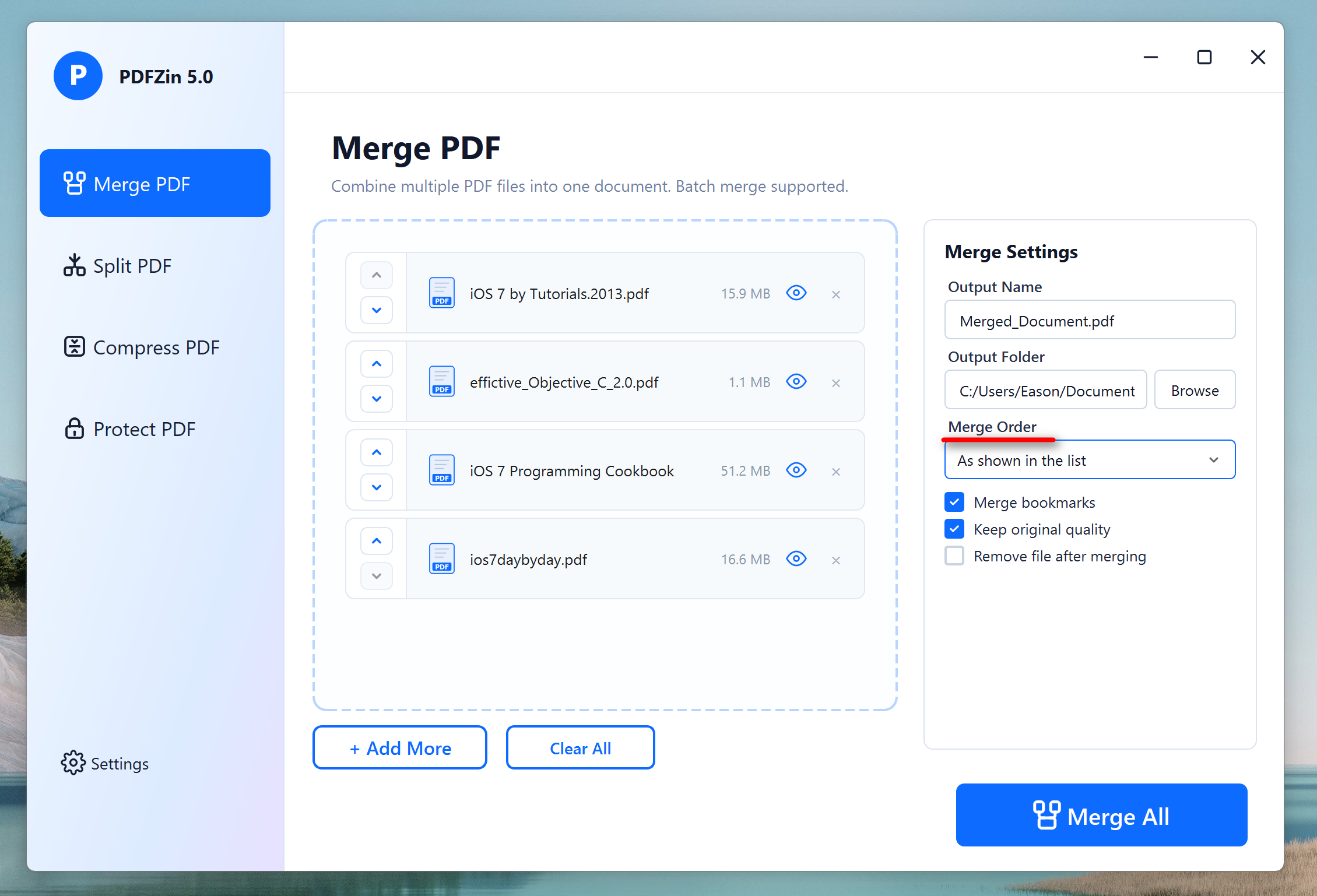
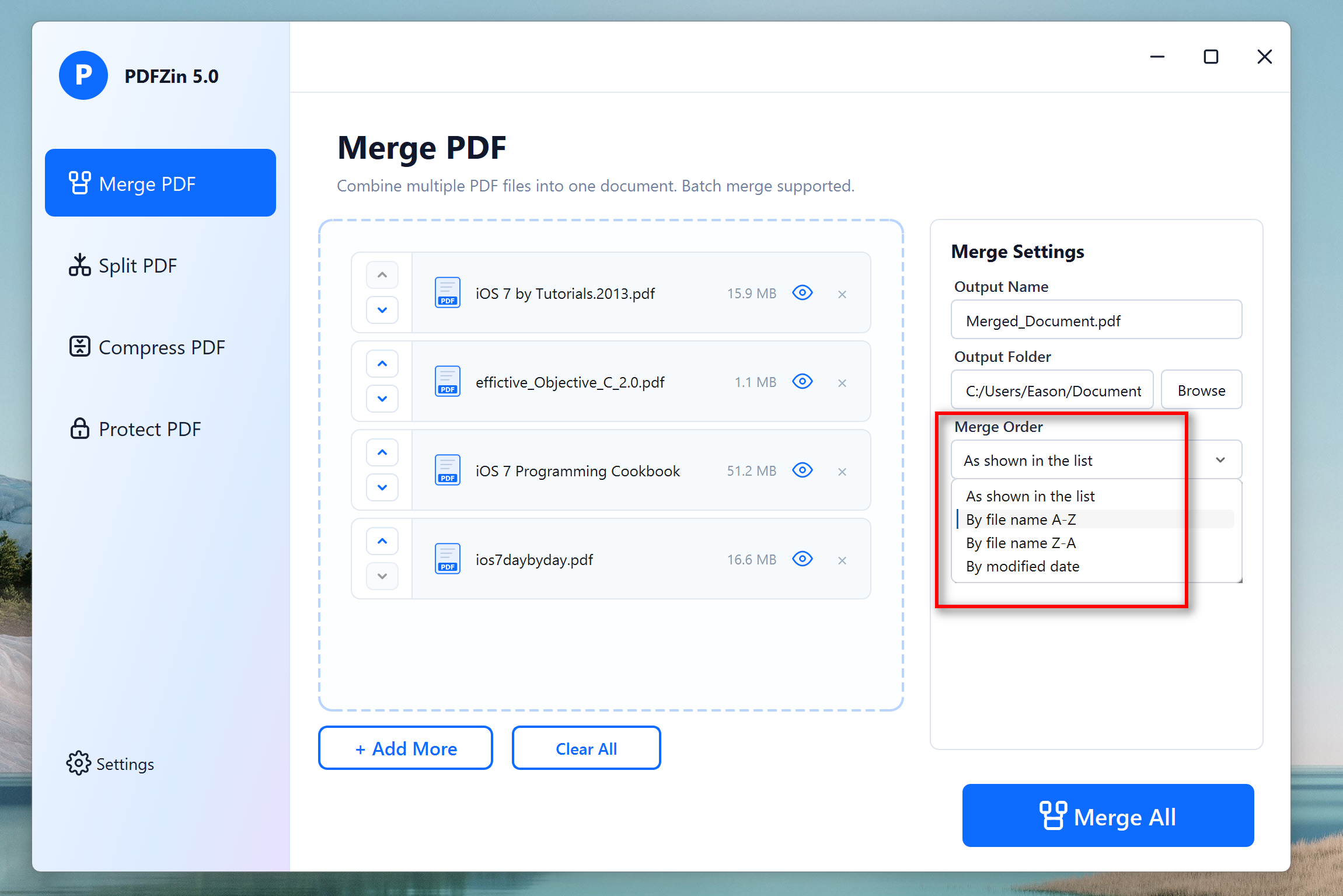
Step 3Configure the Merge Order
Arrange the imported PDFs in the correct order by moving them up or down in the file list. The merge order can be also set to file name or modified date.
Step 4Start Merging PDF Files
Choose the output folder where the merged PDF document will be saved after processing. Finally, click Merge All to combine all selected PDF files into a single, organized document.
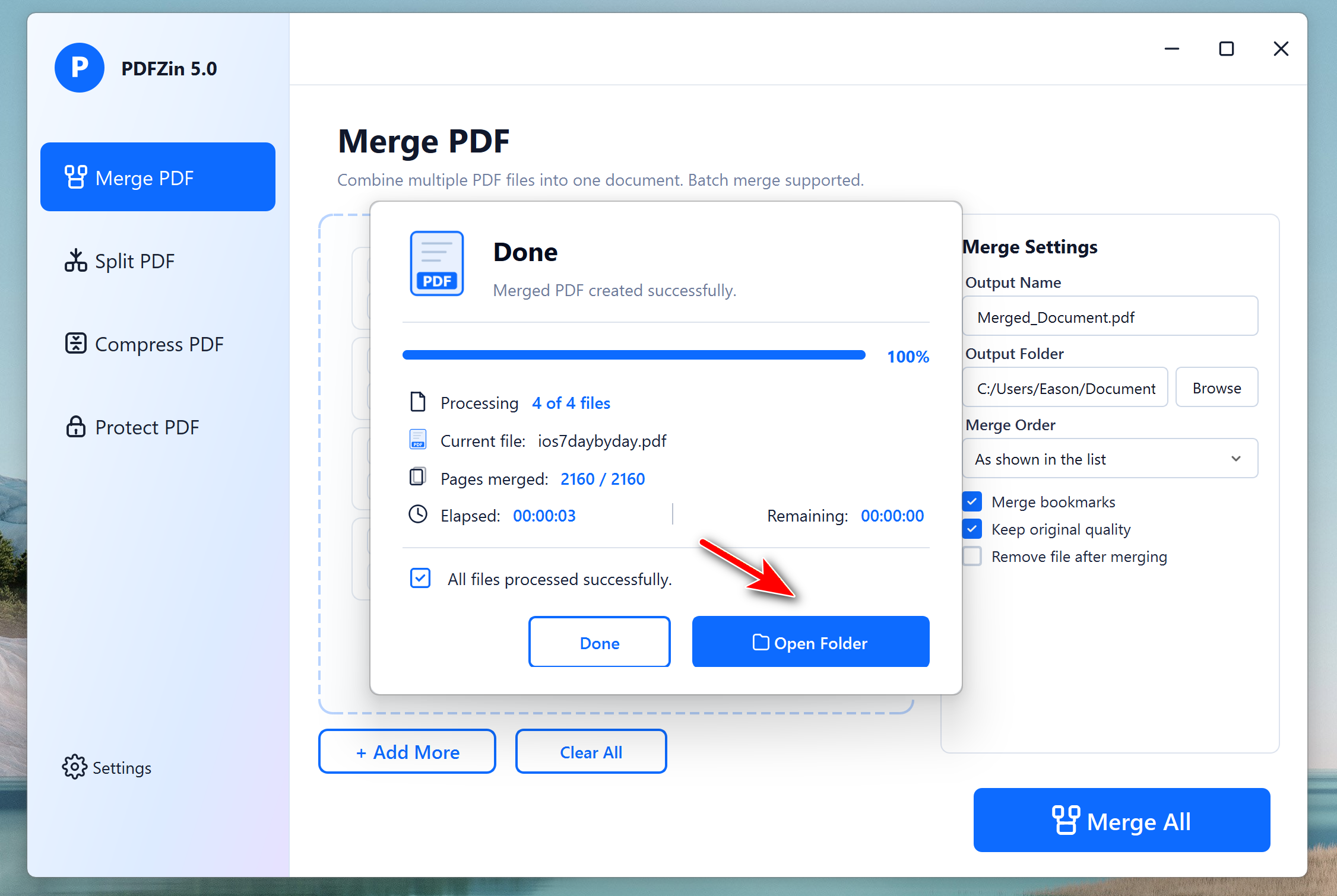
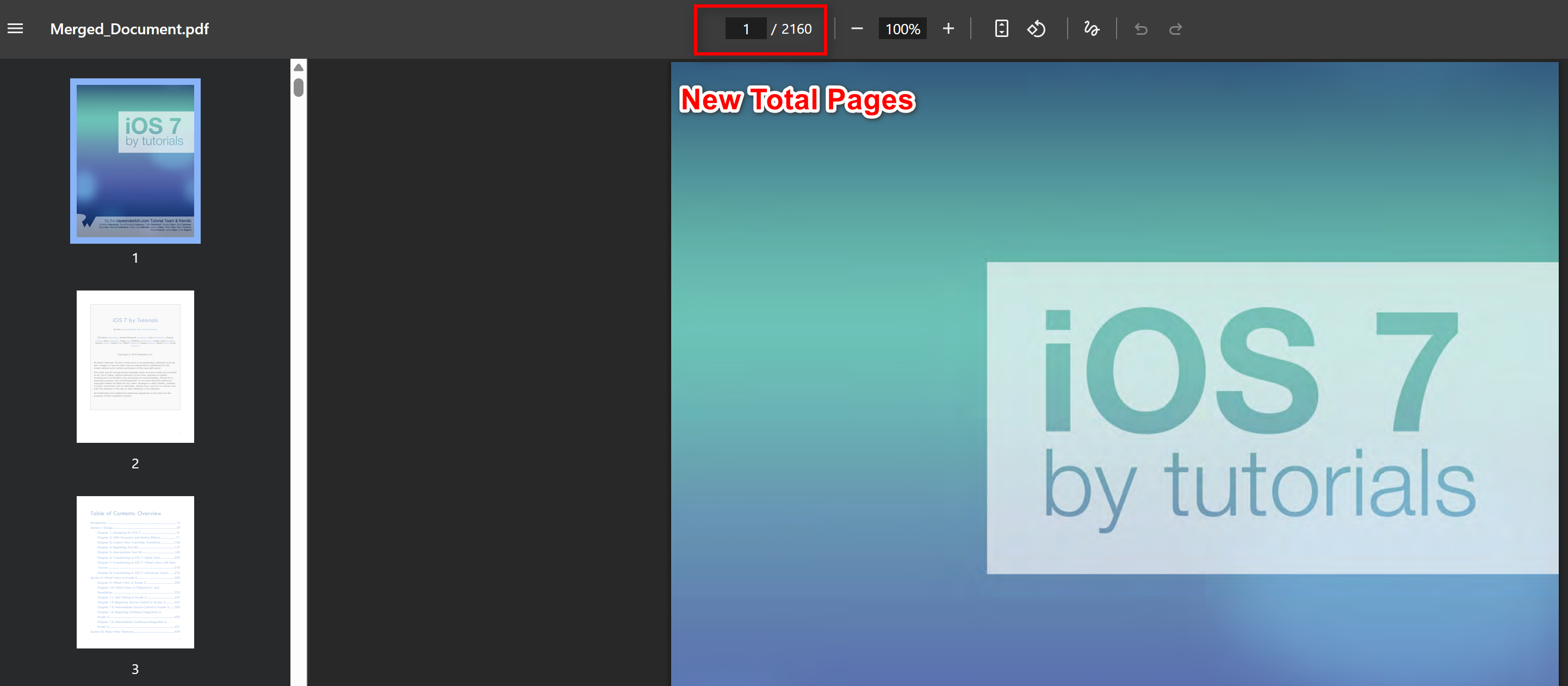
You can open the merged PDF file by clicking the Open Folder button when it is done. You can see the total pages was increased to 2160.
Part 3. How to Compress a PDF with PDFZin
Large PDF files can be difficult to upload, email, or store. PDFZin helps reduce PDF file size while maintaining excellent document quality, making your files easier to manage and share.
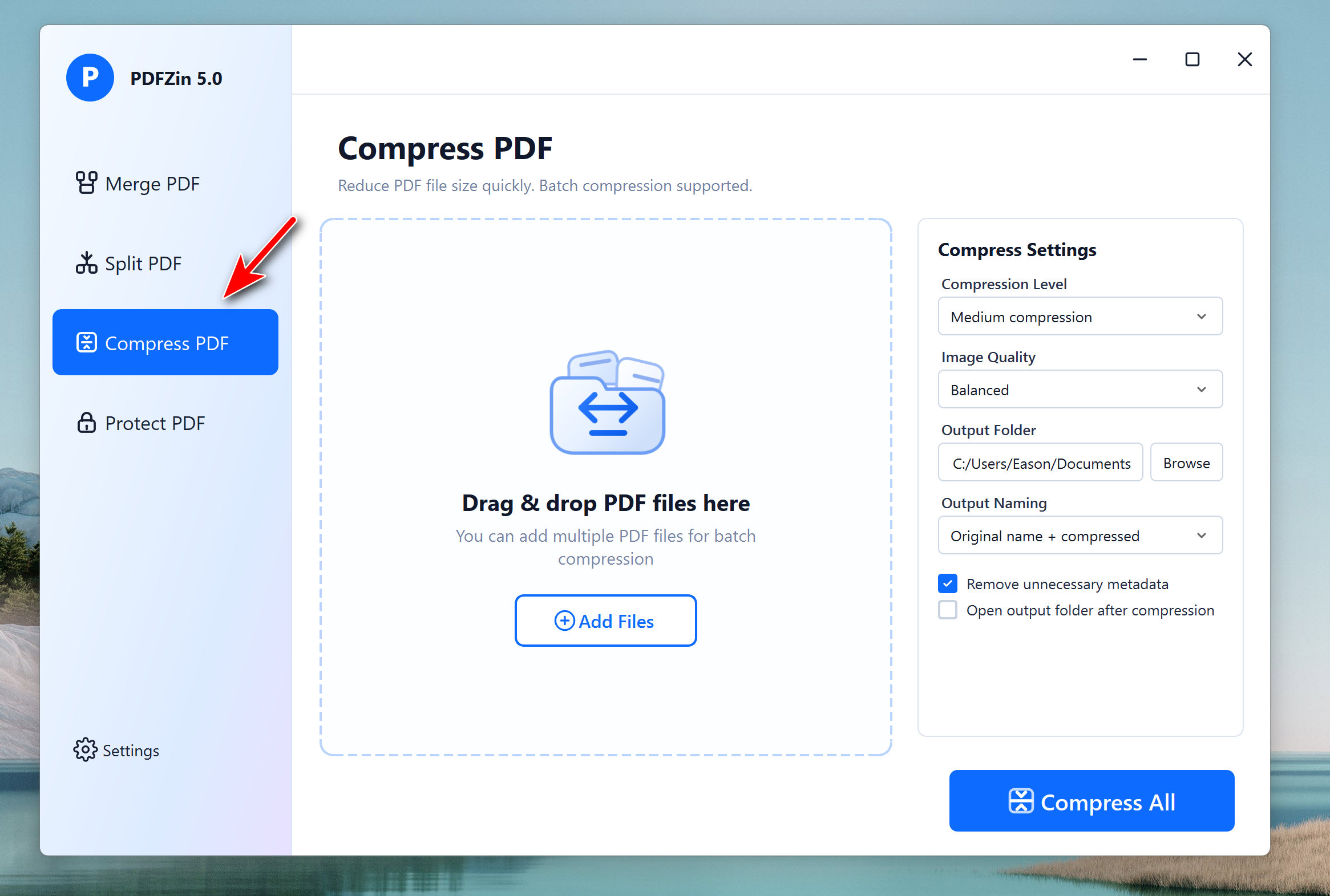
Step 1 Choose the "Compress PDF" Option
Open PDFZin and select the Compress PDF feature from the left sidebar.
Step 2Add PDF Files
Click Add Files to import one or more PDF documents that you want to compress.
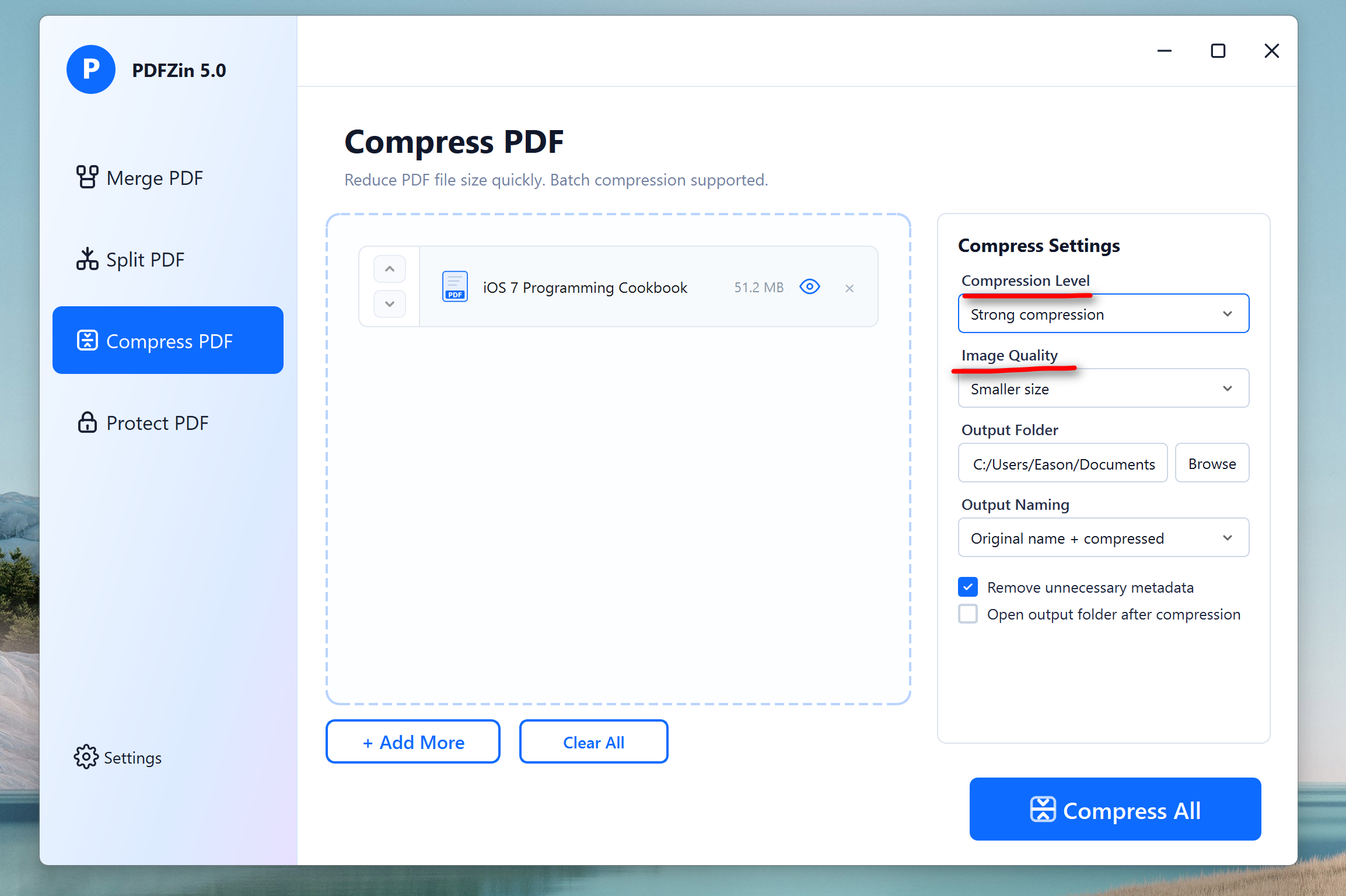
Step 3Configure the Compressing Settings
Before compressing, you need to configure the settings. You can adjust the options based on your own needs. Please select the compression level that best balances file size reduction and document quality.
Step 4Start Compressing PDF Files
Choose the output folder where the compressed PDF document will be saved after processing. Finally, click Compress All button to combine all selected PDF files into a single, organized document.
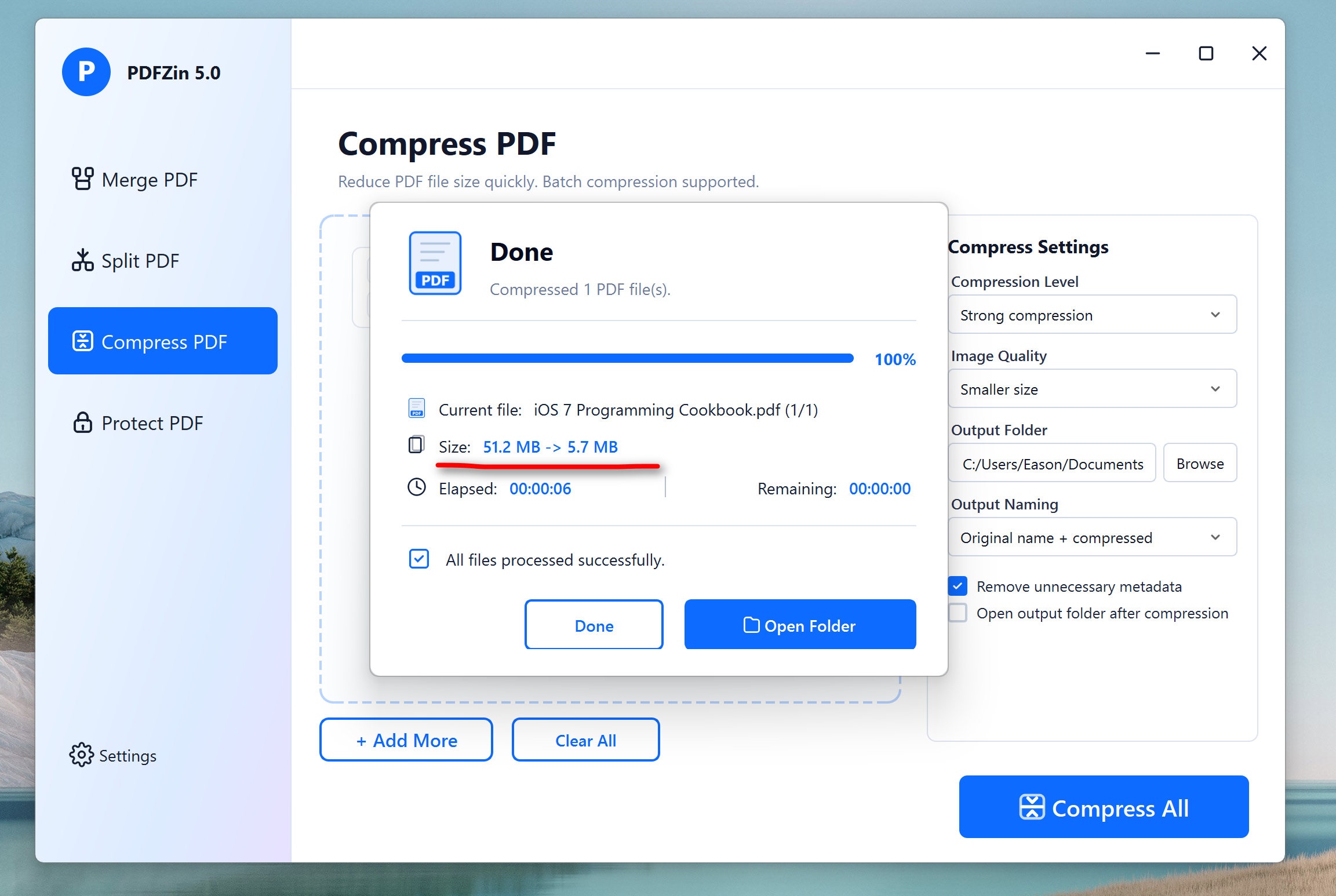
As you can see, the PDF file size was reduced to 5.7 MB from 51.2 MB. Now, you can open the compressed PDF file by clicking the Open Folder button when it is done.
Part 4. How to Split a PDF with PDFZin
Splitting a PDF allows you to extract only the pages you need or divide a large document into smaller, more manageable files. PDFZin provides flexible splitting options that are fast and easy to use.
Step 1 Choose the "Split PDF" Option
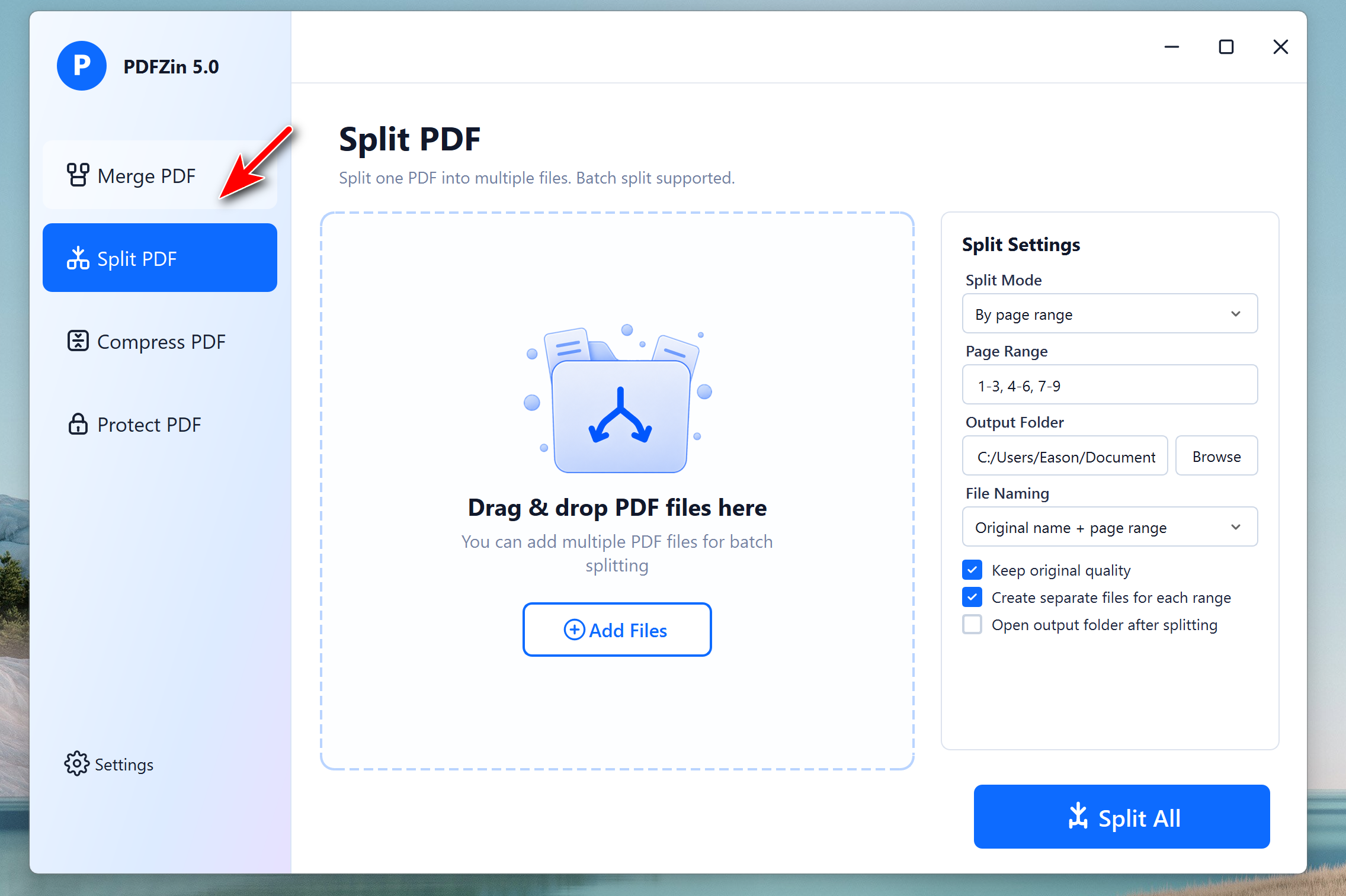
Open PDFZin and select the Split PDF feature from the left sidebar.
Step 2Add PDF Files
Click Add Files to import one or more PDF documents that you want to split.
Step 3Configure the Split Settings
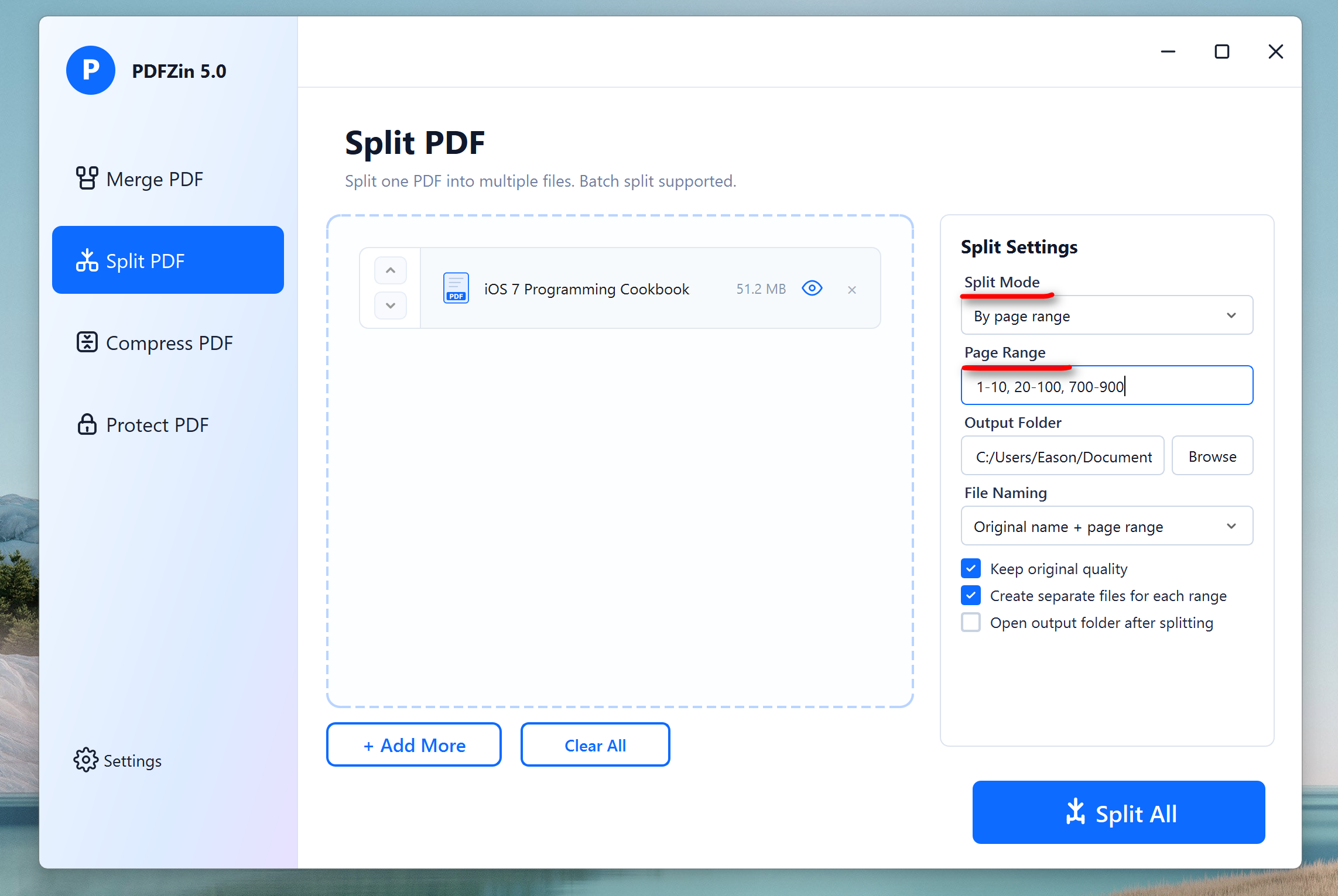
Before splitting, you need to configure the settings, including split mode, page range, output folder and file naming. You can adjust the options based on your own needs.
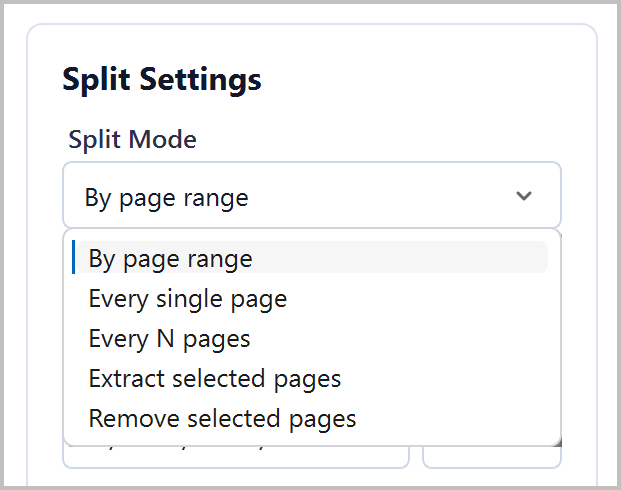
Please select your preferred split method, such as splitting by page range or creating one PDF for each page. Next, enter the page numbers or page ranges according to how you want the document to be split.
Step 4Start Splitting PDF Files
Select an output folder where all newly created PDF files will be stored. Finally, click Split All to process the document and automatically generate the new PDF files.
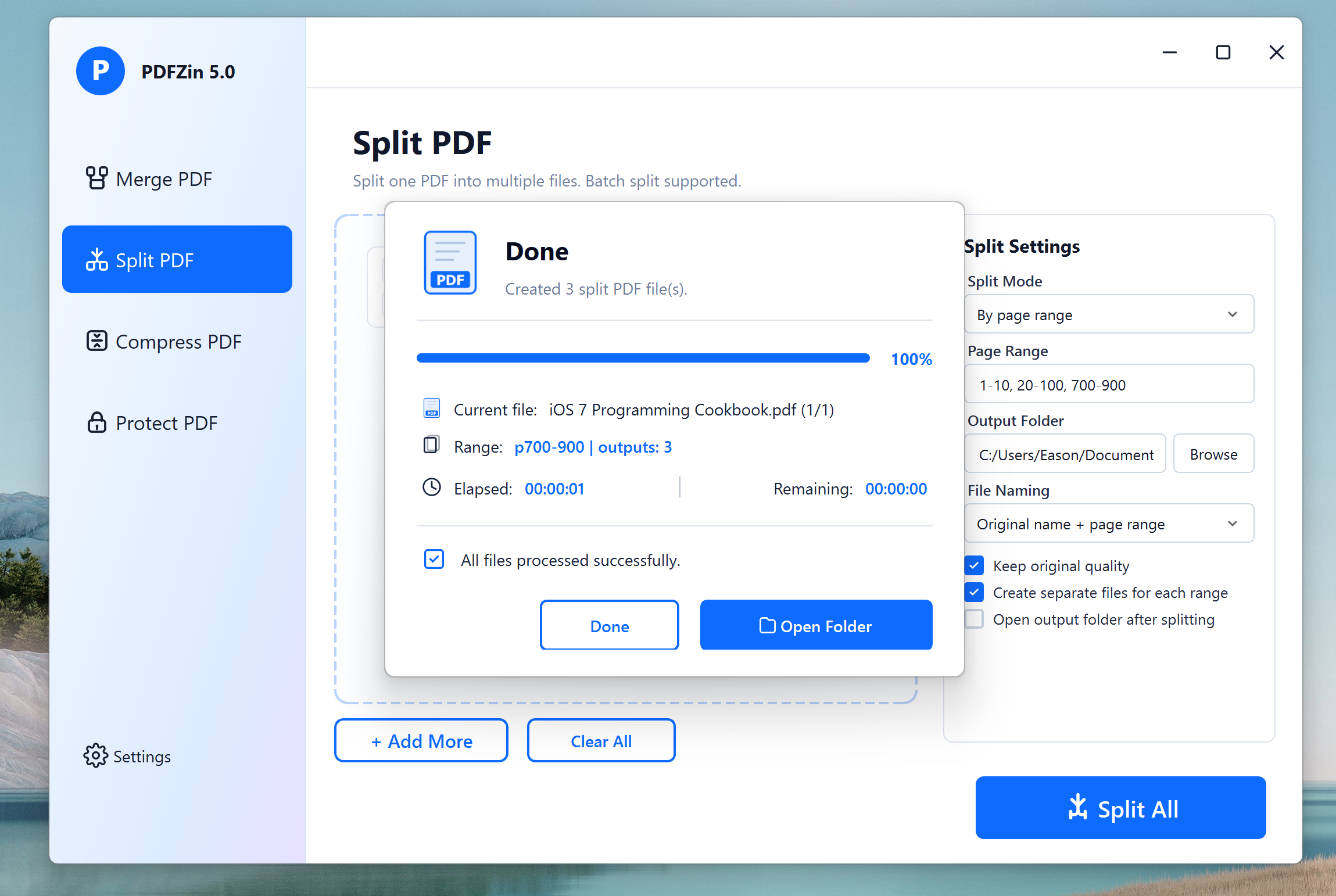
You can open the split PDF file by clicking the Open Folder button when it is done.
 Free Trial
Free Trial
Free Trial
Conclusion
PDFZin provides everything you need to manage PDF documents efficiently in one desktop application. From protecting sensitive files with passwords to merging documents, splitting large PDFs, and reducing file sizes, every feature is designed to simplify your workflow while keeping your files secure. With its intuitive interface and fast offline processing, PDFZin helps you complete everyday PDF tasks quickly and confidently, whether you're at home, in the office, or on the go.

Mateo Ryan
Mateo is a senior editor at Aiseefox and lifelong tech enthusiast with over a decade of experience writing thousands of articles about Windows and macOS. Beyond writing, Mateo enjoys creating short explainer videos, gaming and exploring animated shows.
💬 Reviews