iPHONE TROUBLESHOOTING GUIDE

How to Put Your iPhone Into Recovery Mode

Follow the correct button combination for your iPhone model. Recovery mode can help when your device is stuck, won't update, or can't be restored normally.

BEFORE YOU START

Get Your iPhone and Computer Ready

You need a USB cable and a Mac or Windows PC. Keep your iPhone connected throughout the process.

①

Connect with USB

Connect your iPhone to your computer using a compatible USB cable.

②

Open Apple software

On a Mac, open Finder. On Windows, open the latest Apple Devices app.

③

Keep it connected

Use the buttons below until the "Connect to computer” screen appears.

MODEL-SPECIFIC INSTRUCTIONS

Choose Your iPhone Model

Tap your model family to go straight to the correct button sequence.

METHOD 01

iPhone 8 or Later

Including iPhone X, 11, 12, 13, 14, 15, 16 and newer models, and iPhone SE (2nd generation or later).

  1. Press and quickly release Volume Up.
  2. Press and quickly release Volume Down.
  3. Press and hold the Side button until the "Connect to computer" screen appears. Keep holding even if you see the Apple logo.

The first two presses should be quick. Hold only the Side button in the final step.
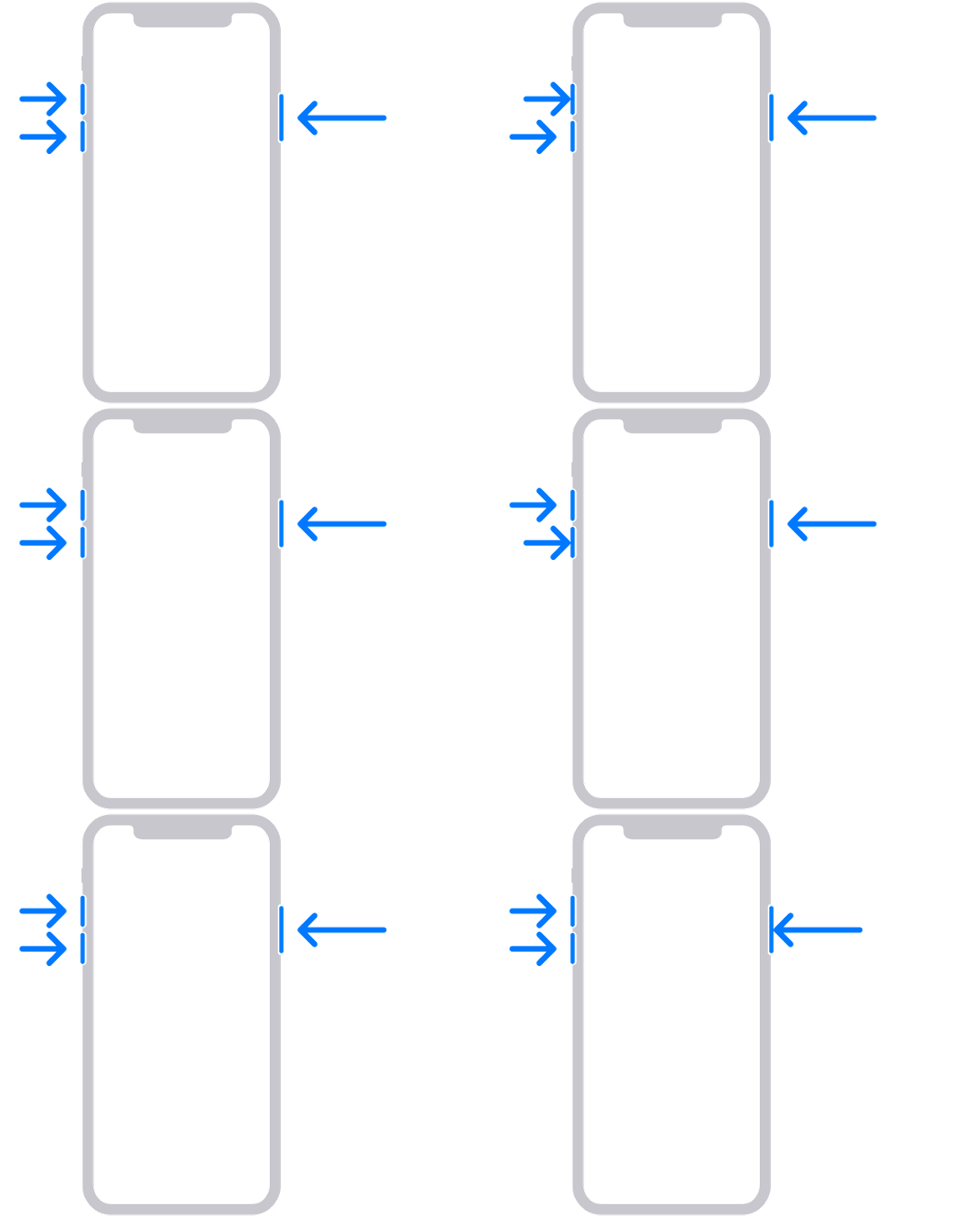
Apple animation showing Volume Up, Volume Down and Side button sequence for newer iPhones
Apple Support illustration • iPhone 8 and later
METHOD 02

iPhone 7 and iPhone 7 Plus

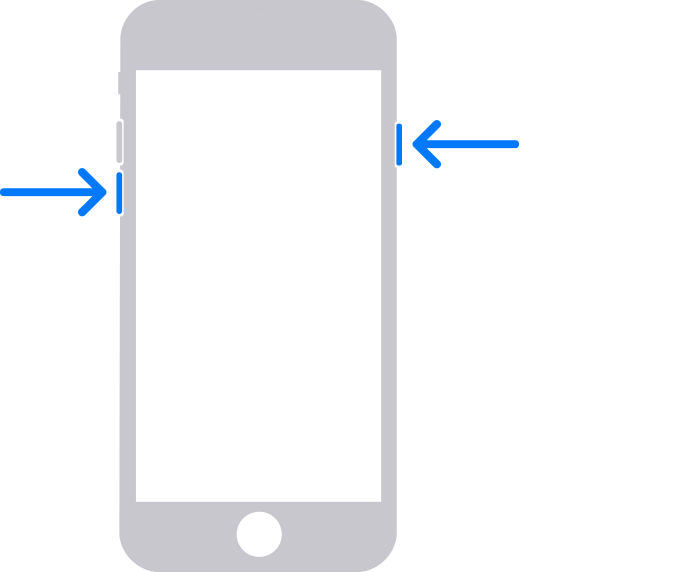
  1. Press and hold the Side (or Top) button and Volume Down at the same time.
  2. Keep holding both buttons until the "Connect to computer" screen appears.

Do not release the buttons when the Apple logo appears.

Apple illustration showing Side and Volume Down buttons on iPhone 7
Apple Support illustration • iPhone 7 / 7 Plus
METHOD 03

iPhone 6s or Earlier

Including iPhone SE (1st generation) and older iPhone models with a Home button.

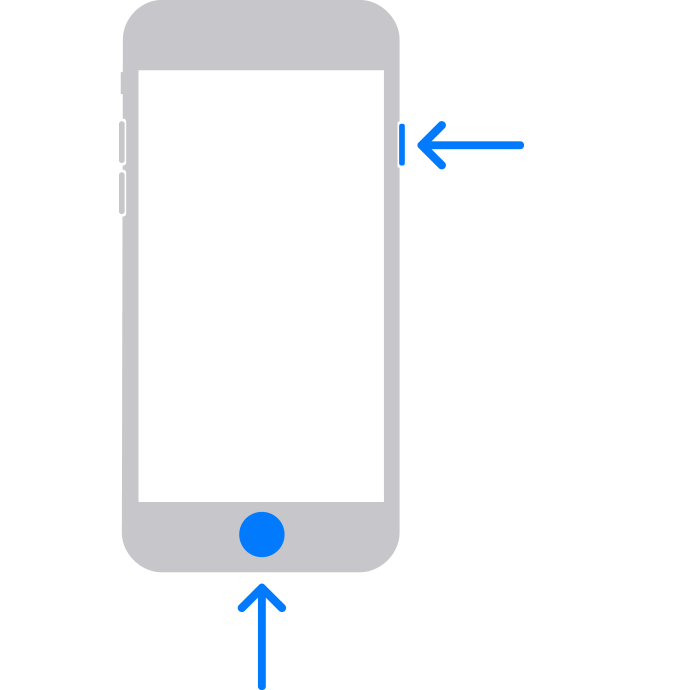
  1. Press and hold the Home button and Side (or Top) button together.
  2. Keep holding both buttons until the "Connect to computer" screen appears.

Continue holding past the Apple logo until the recovery screen displays.

Apple illustration showing Home and Side buttons on older iPhones
Apple Support illustration • iPhone 6s and earlier
QUICK ANSWERS

iPhone Recovery Mode FAQs

Does entering recovery mode delete iPhone data?

No. Entering recovery mode alone does not erase your data. Selecting Restore in Finder or Apple Devices does erase the iPhone.

Why does my iPhone show the Apple logo instead?

Keep holding the required button or buttons until the "Connect to computer” screen appears. Releasing at the Apple logo is too early.

What if my computer doesn't recognize the iPhone?

Try another working cable or USB port, update Finder/macOS or Apple Devices, and repeat the button sequence. If the buttons are stuck or broken, the device may need service.

Can recovery mode remove Activation Lock?

No. Recovery mode does not bypass Activation Lock. Your Apple Account credentials may still be required after restoring the device.