
SkyMirrorTo makes it simple to mirror your iPhone screen to a computer, whether you‘re on Windows or macOS. With just a quick setup, you can enjoy real-time screen sharing for presentations, gaming, teaching, or recording. This guide will walk you through each step, so you can get started effortlessly and make the most out of SkyMirrorTo's powerful features.
Why Choosing SkyMirrorTo?
SkyMirrorTo stands out as the go-to solution for iPhone-to-computer mirroring thanks to its perfect balance of speed, stability, and simplicity.
Seamless Setup — Start mirroring in just a few clicks with no complex configuration.
High-Quality Display — Enjoy crisp visuals and smooth performance with minimal latency.
Audio & Video Sync — Experience perfectly synchronized sound and visuals.
Secure & Private — Local connection ensures your data stays safe.
How to Mirror iPhone to Computer via WiFi with SkyMirrorTo
FileGuarder is an easy-to-use file encryption app for Windows and macOS that helps you protect sensitive data with a password. Whether you're locking a confidential document, an entire folder, or a USB flash drive, FileGuarder ensures your files stay private with strong AES-256 encryption technology.
Step 1Download and Install SkyMirrorTo Software
Please download the setup file and install the app on any PC. After installing the app, open SkyMirrorTo from your desktop or applications folder.
Free Trial Free Trial
Step 2Make Sure the iPhone and Computer Under the Same WiFi Network
Currently, SkyMirrorTo app only supports iPhone mirroring via WiFi. Please check the WiFi connection on both devices and make sure they are under the same WiFi network..
Step 3 Start iPhone Mirroring and Turn on Mirror Feature on iPhone
Now, click the Start to Mirror button on the home screen.

Wait a few seconds, you will see the iPhone is connected for mirroring.

Step 4Choose a Mirror Device on iPhone
The mirror feature is disabled on iPhone by default. You need to turn it on manually.
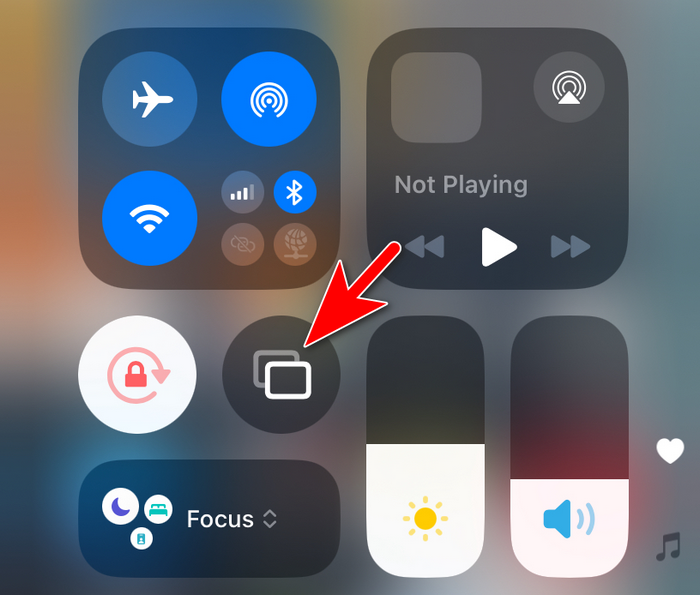
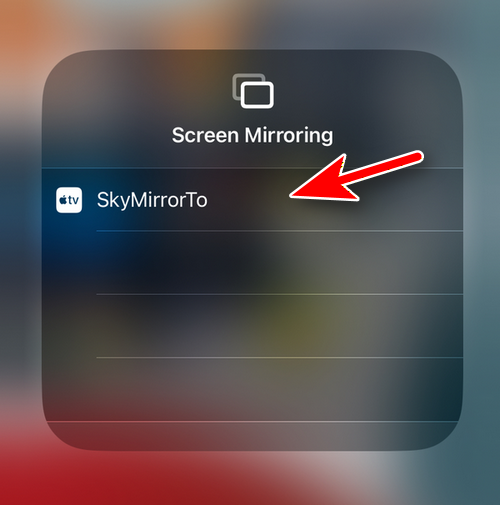
Choose the mirroring device from the list. In here, it is SkyMirrorTo.
Step 5Start Mirroring iPhone to Computer
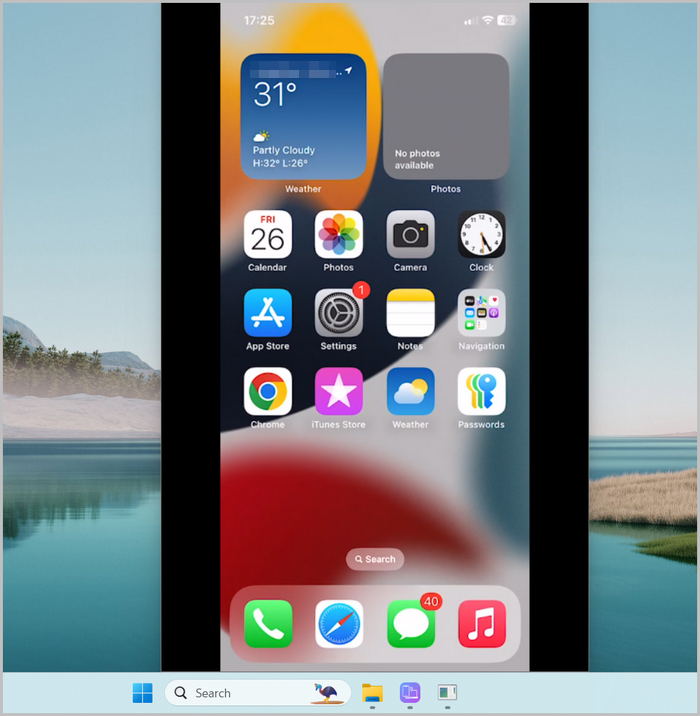
The iPhone screen will be casted to the computer screen automatically after tapping on the UxPlay@ADMIN name. You can now see the iphone screen being mirrored to a big screen.
Conclusion
By following the steps above, you can seamlessly mirror your iPhone to your computer in minutes. SkyMirrorTo combines ease of use with high performance, making it the perfect solution for work, study, or entertainment. Whether you’re showcasing apps, streaming media, or capturing tutorials, you now have everything you need to enjoy a smooth and reliable mirroring experience.
Free Trial Free Trial

Mateo Ryan
Mateo is a senior editor at Aiseefox and lifelong tech enthusiast with over a decade of experience writing thousands of articles about Windows and macOS. Beyond writing, Mateo enjoys creating short explainer videos, gaming and exploring animated shows.