
How to Bulk Rename Images on a Windows PC or Mac
Renaming a few photos is easy. Renaming 50, 200, or even 1,000 images one by one is a completely different story.
That was exactly the problem I wanted to avoid. I had a folder full of images with names like IMG_4832.jpg, IMG_4833.jpg, and Screenshot_2026-08-20.png, but I needed clean, consistent filenames that were easier to identify and sort.
Instead of editing every filename manually, I used AiseeFox Any2Pic to rename the entire image collection in one batch. It lets you create flexible naming rules and apply them to multiple images at once on either Windows or Mac.
Why I Use Any2Pic to Bulk Rename Images
Any2Pic is especially useful when you frequently work with large collections of photos or graphics. Instead of renaming files individually, you can import the images, define how the filenames should change, and process the entire batch together. Some of the most useful renaming options include:
- Add a prefix – turn 001.jpg into vacation-001.jpg
- Add a suffix – turn product.jpg into product-amazon.jpg
- Add sequential numbers – create organized filenames such as wedding-001.jpg, and wedding-002.jpg.
- Replace text – replace repeated words or characters across multiple filenames.
How to Bulk Rename Images on a PC or Mac with Any2Pic
The entire process only requires a few steps. You do not need scripts, PowerShell commands, Terminal commands, or complicated file-management tools.
Free Trial Free Trial
Step 1Choose the Image Renmae Tool
Install Any2Pic and launch the app on your Windows PC or Mac. Choose Image Rename from the home screen to open the conversion workspace.

Step 2Add the Image Files
Click Add Files and select all the PNG images you want to convert. If the images are already in one folder, use Add Folder to load the entire batch more quickly.
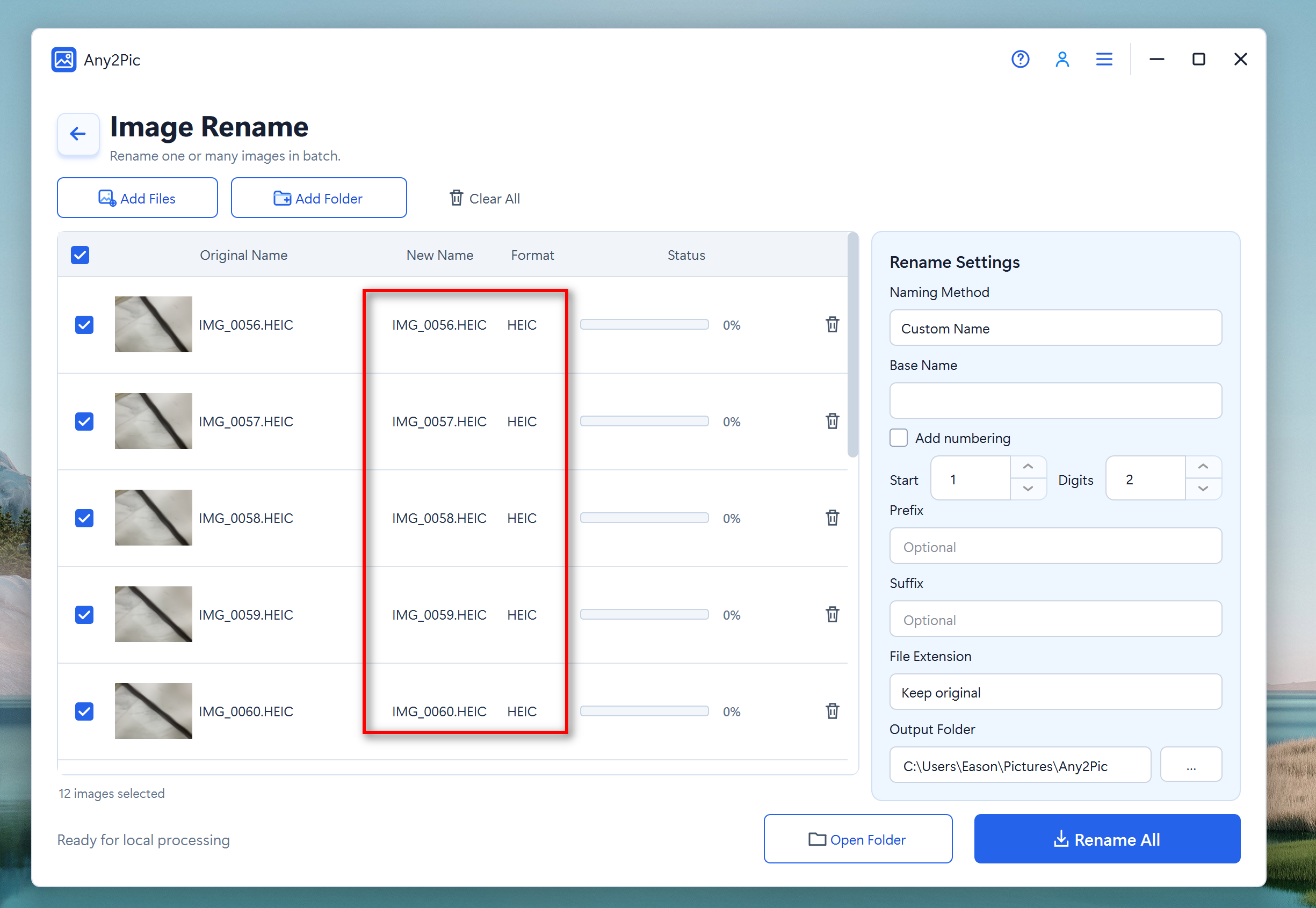
Step 3Configure Rename Settings
Open the Output Format menu and choose JPG - JPEG Image. The selected format can be applied to the whole list, so you do not need to change every image individually.
Go to the Rename Settings panel on the right side of the window.
Under Naming Method, choose the naming option you want to use. For a straightforward batch rename, select Custom NameS and enter the new common filename in the Base Name field.
P.S. If you need every image to have a unique filename, enable Add numbering.
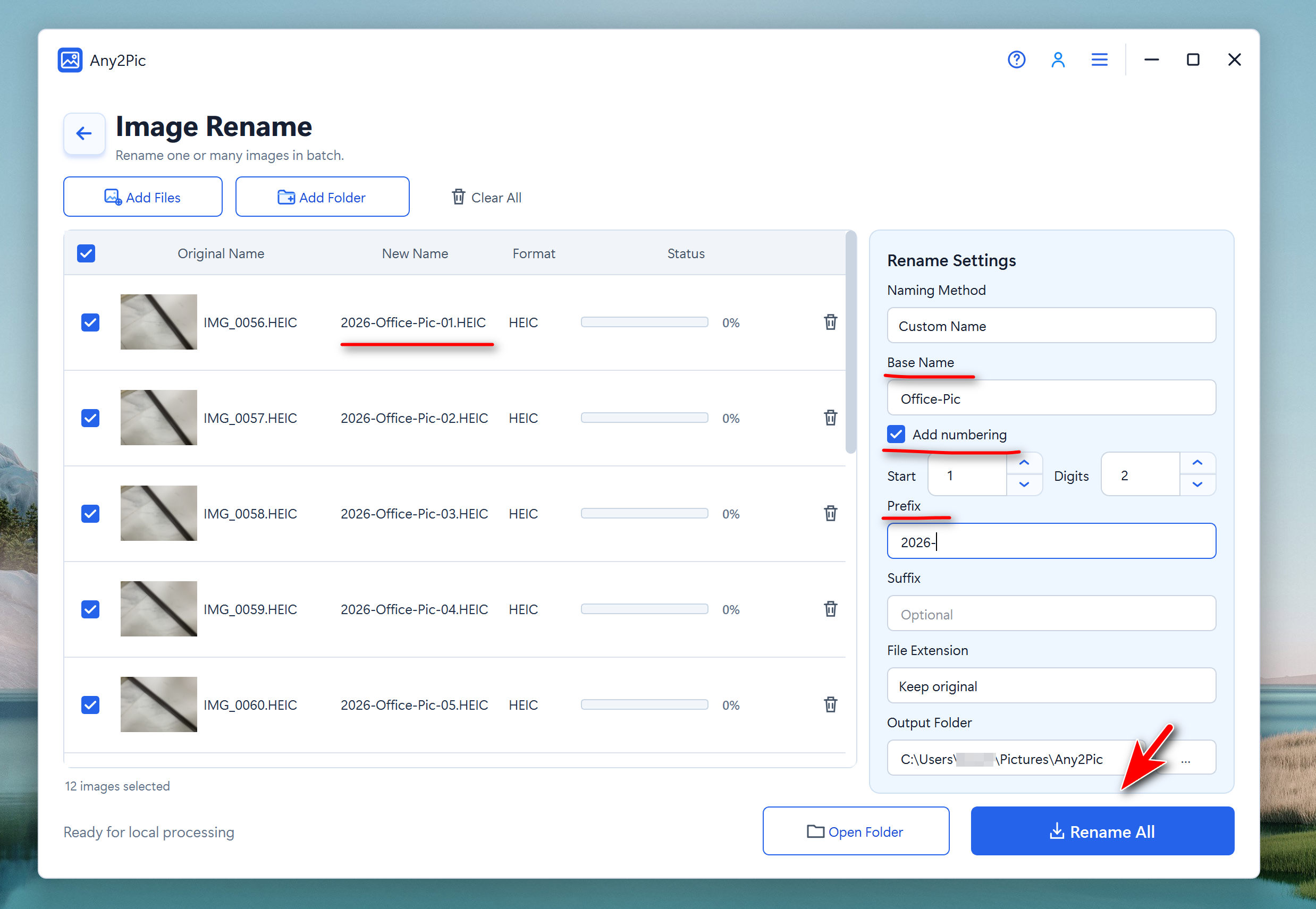
Step 4Start Renaming Images
At the bottom of the Rename Settings panel, check the Output Folder.
Before starting, review the New Name column in the file list so you can confirm that the new filenames look the way you want.
When everything is ready, click Rename All. Any2Pic will apply the naming settings to the entire image batch. There is no need to rename each file manually.
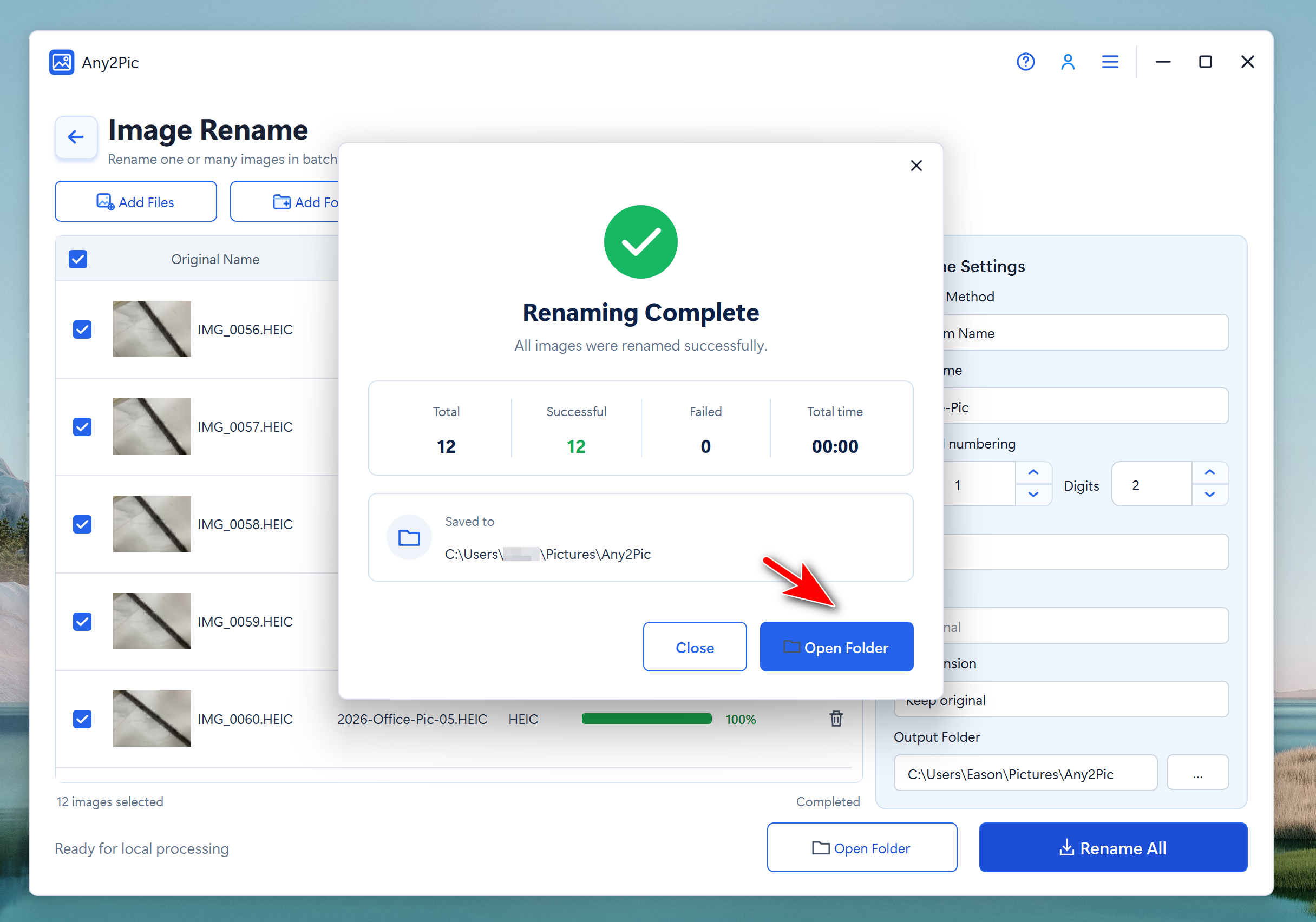
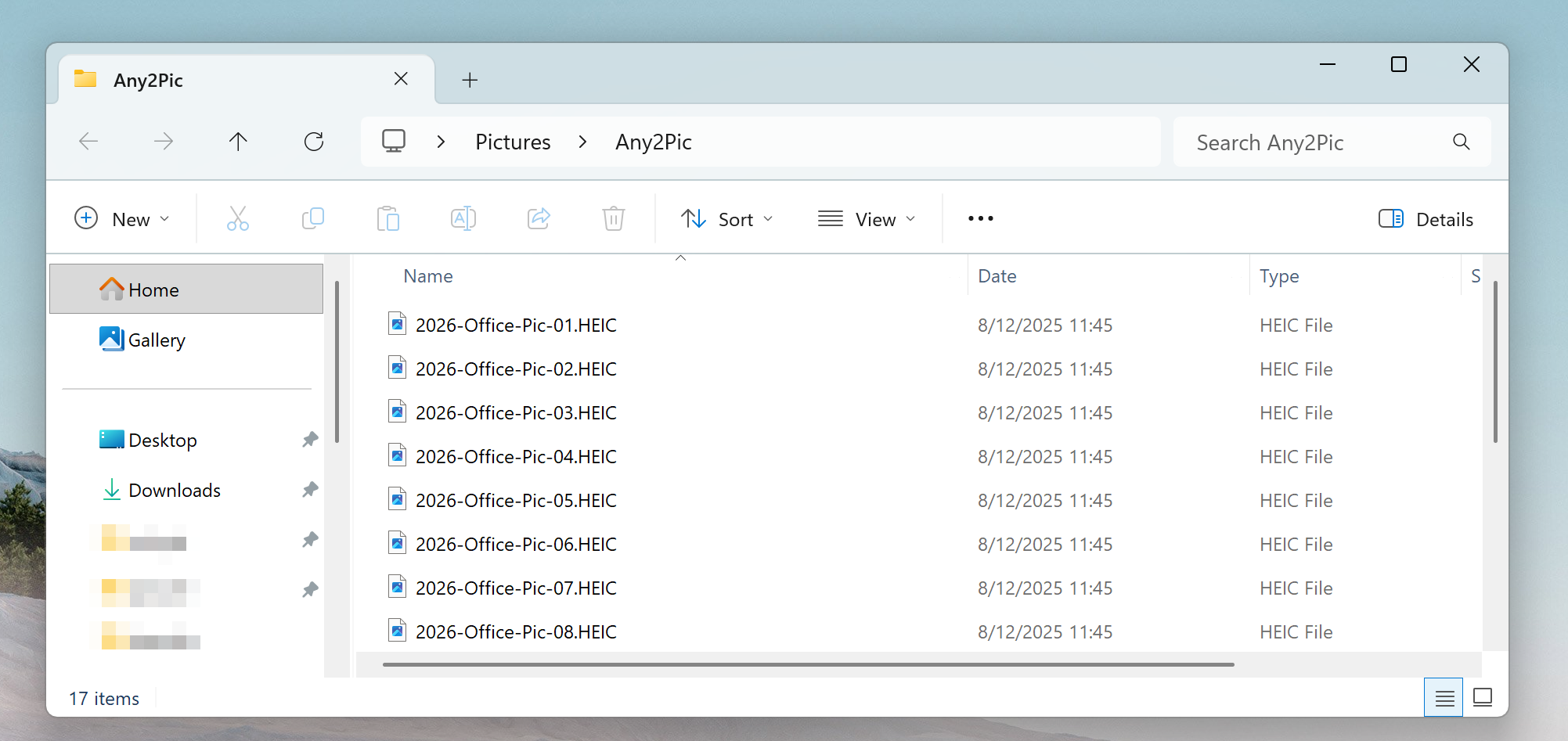
After the task is complete, click Open Folder to go directly to the destination and check the renamed images.
 Free Trial
Free Trial
Free Trial
What I Like About Any2Pic for Bulk Image Renaming
The main reason I prefer Any2Pic for this job is that it turns an extremely repetitive task into a simple batch operation.
There is no need to learn complicated command-line syntax or manually rename hundreds of files. Add the images, define the naming rule, and let the program process the collection.
Another advantage is that image renaming is only one part of Any2Pic. The same desktop application can also help with other common batch image jobs such as converting formats, resizing images, rotating or flipping photos, and other image-management tasks.
If you regularly work with large numbers of images, having these tools in the same application is much more convenient than using a different utility for every task.

Mateo Ryan
Mateo is a senior editor at Aiseefox and lifelong tech enthusiast with over a decade of experience writing thousands of articles about Windows and macOS. Beyond writing, Mateo enjoys creating short explainer videos, gaming and exploring animated shows.
💬 Reviews