
How to Completely Wipe a PC before Selling for Windows 11/10/8/7
Before selling, donating, or recycling an old Windows PC, it is important to make sure all personal data is fully removed from the computer. Many users think deleting files, emptying the Recycle Bin, or resetting Windows is enough, but in many cases, deleted data can still be recovered with data recovery software.
Why Safe Wipe Matters for Data Privacy
When files are deleted in Windows, the system usually removes the file reference instead of immediately destroying the actual data. This means the storage space is marked as available, but the original content may still remain on the disk until it is overwritten. With the right recovery tool, someone may be able to restore deleted files from the drive.
Safe wiping is especially important for computers used for work, school, online banking, tax documents, client files, or private media storage. Instead of only reinstalling Windows or using a basic factory reset, a dedicated wiping method gives stronger protection before the PC leaves your hands.
How to Completely Wipe a PC with AiseeFox Dr.Wiper
Dr.Wiper is a dedicated data erasing program designed to wipe disks, partitions, files, and free space. For a PC that will be sold or given away, using its bootable wiping feature is a practical option because it can erase the system drive outside of Windows. This helps remove the operating system, personal files, installed apps, hidden data, and recoverable traces from the disk.
Step 1Download and Install AiseeFox Dr.Wiper
First, download AiseeFox Dr.Wiper on a working Windows computer. After the download is complete, run the installer and follow the on-screen instructions to install the program.
Free Trial
Step 2Connect a USB Drive to Computer
Please backup the data on USB drive and plug it into the computer afterwards. The USB drive will be used to create a bootable wiping disk, so any existing files on the USB may be erased during the creation process.
Step 3Make a Bootable USB for Disk Wiping
Launch AiseeFox Dr.Wiper and choose the Wipe PC option from the left sidebar to create a bootable disk.
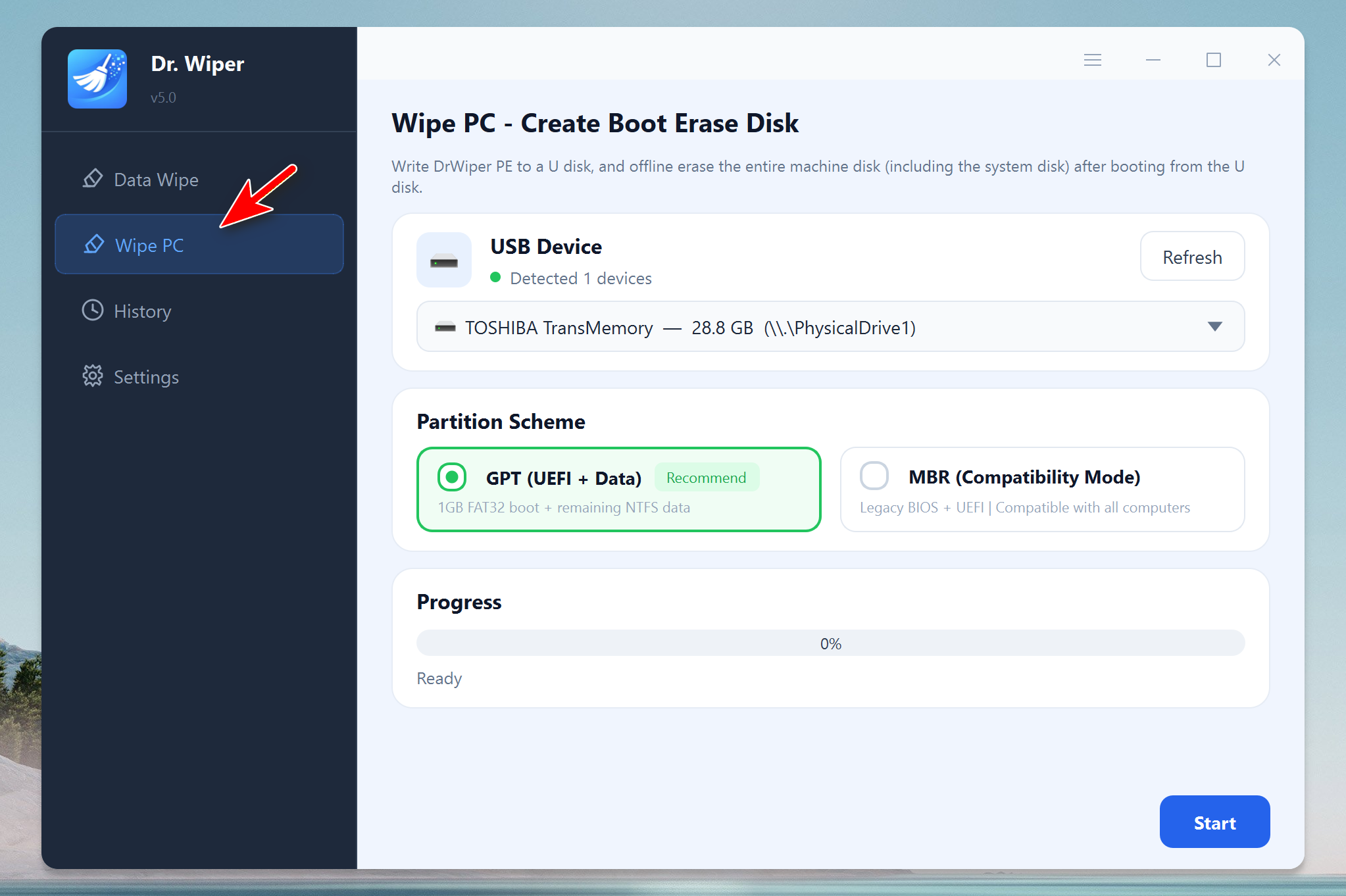
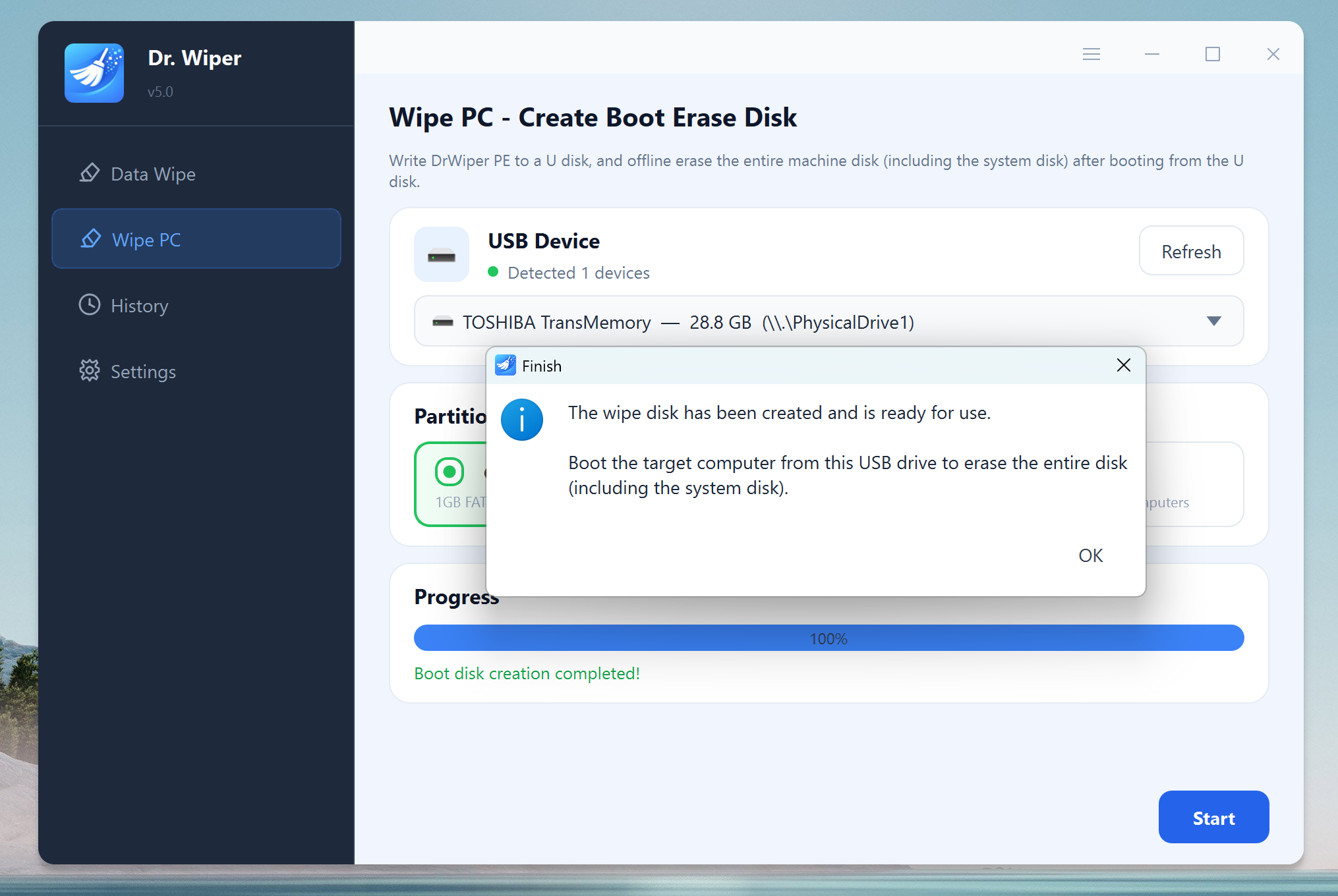
Once you see the USB drive listed in the program, please click the Start button to make a bootable USB for disk wiping. Wait about one minute and you will have a bootable disk for wiping the internal drive of any PC.
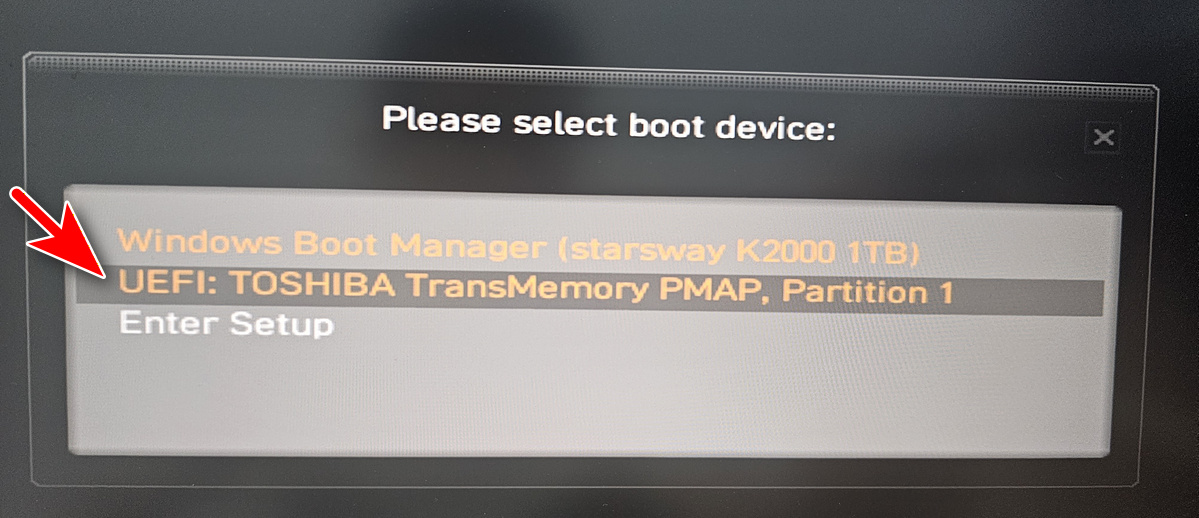
Step 4Boot the Targe PC from USB
Plug the USB drive into the targe PC that needs to be wiped. Restart the computer and enter the boot menu. The common boot keys may be F11, F12, Esc, or Del, depending on the PC brand. Once you see the boot menu, choose the USB drive as the boot device.
Step 5Choose a Wiping Algorithm
After entering the Dr.Wiper interface, carefully check the list of detected disks. Select the internal hard drive or SSD that contains the Windows installation and personal data. By default, the PhysicalDrive0 is the bootable disk that contains Windows OS.
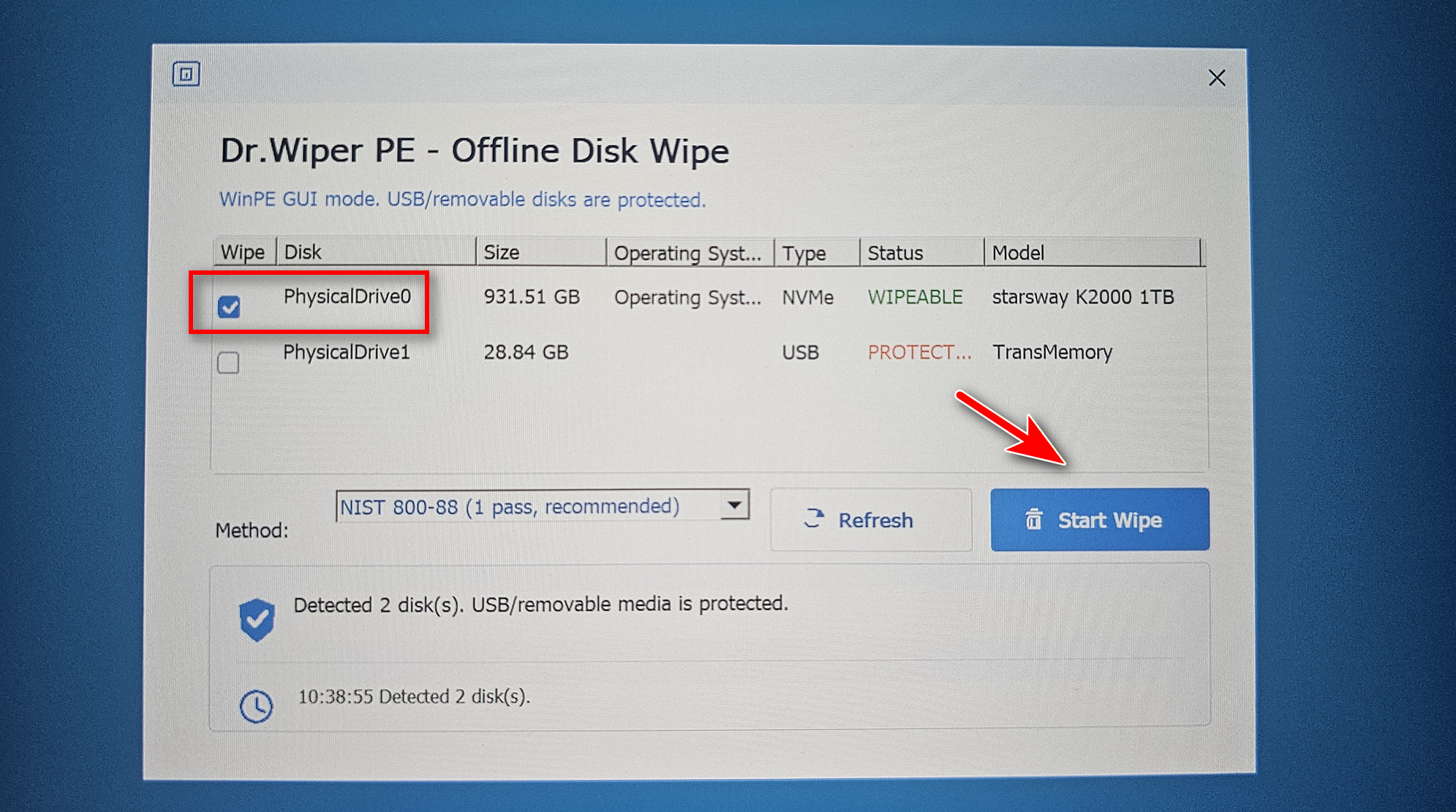
After selecting the disk and wiping algorithm, confirm the operation and start the wiping process. The program will begin erasing the selected drive.
NOTE: Do not shut down the computer or remove the USB drive during the process. The wiping time depends on the disk size, drive type, and selected erase method. A large hard drive may take much longer than a smaller SSD.
Once the wipe is complete, the PC will no longer contain the old Windows installation or personal files. At this point, the computer is ready for resale, donation, recycling, or a fresh Windows installation.
Free Trial
Conclusion
Completely wiping a PC before selling it is one of the most important steps for protecting personal privacy. Deleting files or reinstalling Windows may not be enough, because recoverable data can still remain on the disk.
For Windows 11/10/8/7 computers, AiseeFox Dr.Wiper provides a practical way to erase a full PC through a bootable USB disk. By booting from USB, selecting the correct disk, and wiping it with a dedicated data erasing algorithm, users can safely remove personal data before passing the computer to someone else.

Mateo Ryan
Mateo is a senior editor at Aiseefox and lifelong tech enthusiast with over a decade of experience writing thousands of articles about Windows and macOS. Beyond writing, Mateo enjoys creating short explainer videos, gaming and exploring animated shows.
💬 Reviews