
Forgot the screen passcode on your iPhone, or seeing an “iPhone Unavailable” message? AiseeFox iFoneGo provides a guided way to reset a locked iPhone using a Windows PC or Mac. This tutorial explains the five steps, from connecting your phone to installing iOS firmware.
Before You Start
Prepare your iPhone, a compatible USB cable, a computer, and a stable internet connection for downloading firmware.
Important: Removing a forgotten iPhone passcode normally erases the device and its data. Backed-up content can be restored afterward. If Find My was enabled, you may still need the original Apple Account credentials to complete Activation Lock verification.
How to Unlock iPhone with iFoneGo in 5 Steps
Follow these steps in order. The existing images are temporary placeholders from the supplied guide; replace them with the matching iFoneGo screenshots when available.
Step 1Download and Install iFoneGo
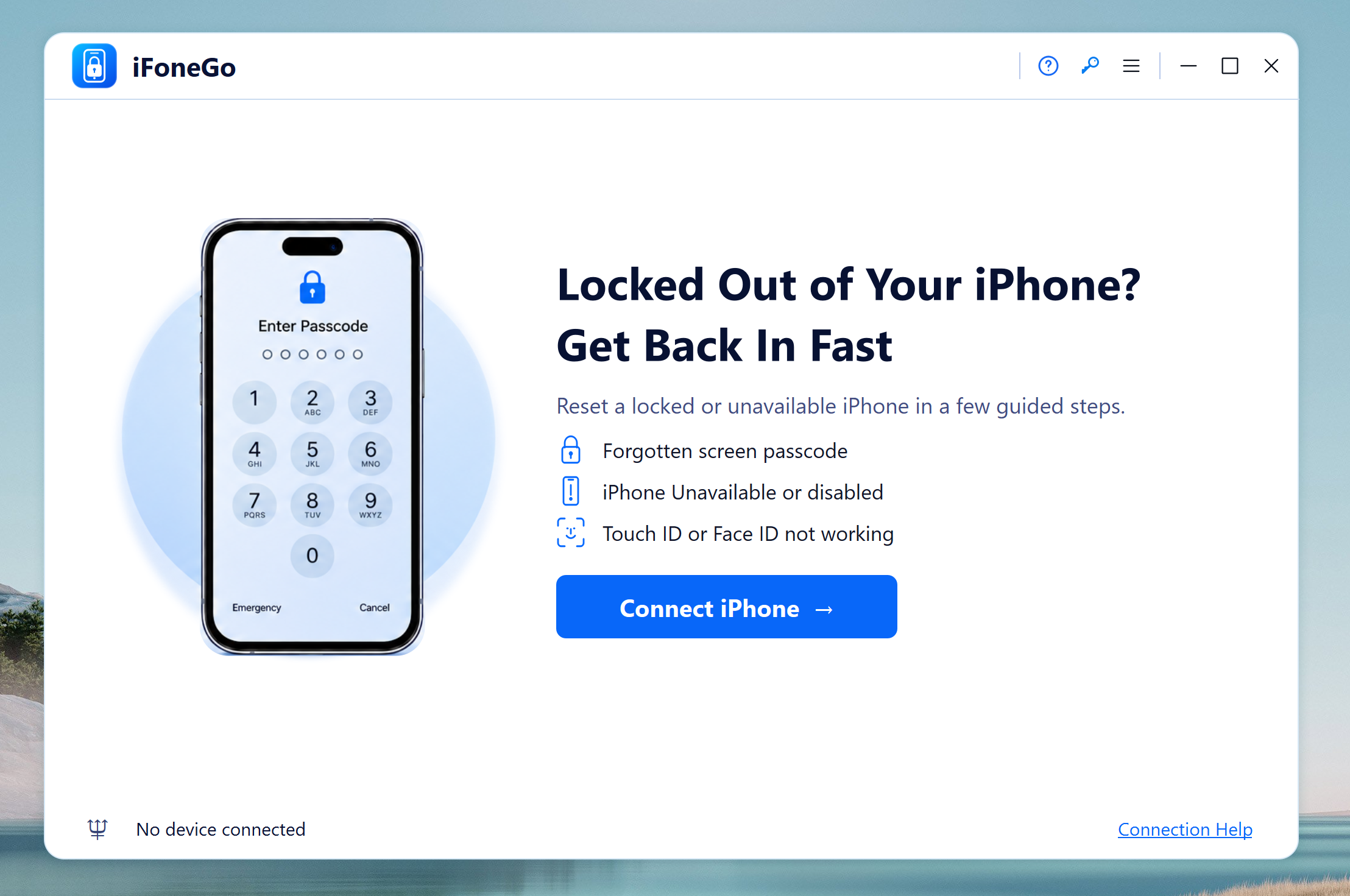
Download and install iFoneGo on your computer. Launch the program and select Remove iPhone Screen Passcode on the main screen to begin.
Free Trial Free Trial
Step 2Connect iPhone to Computer via USB
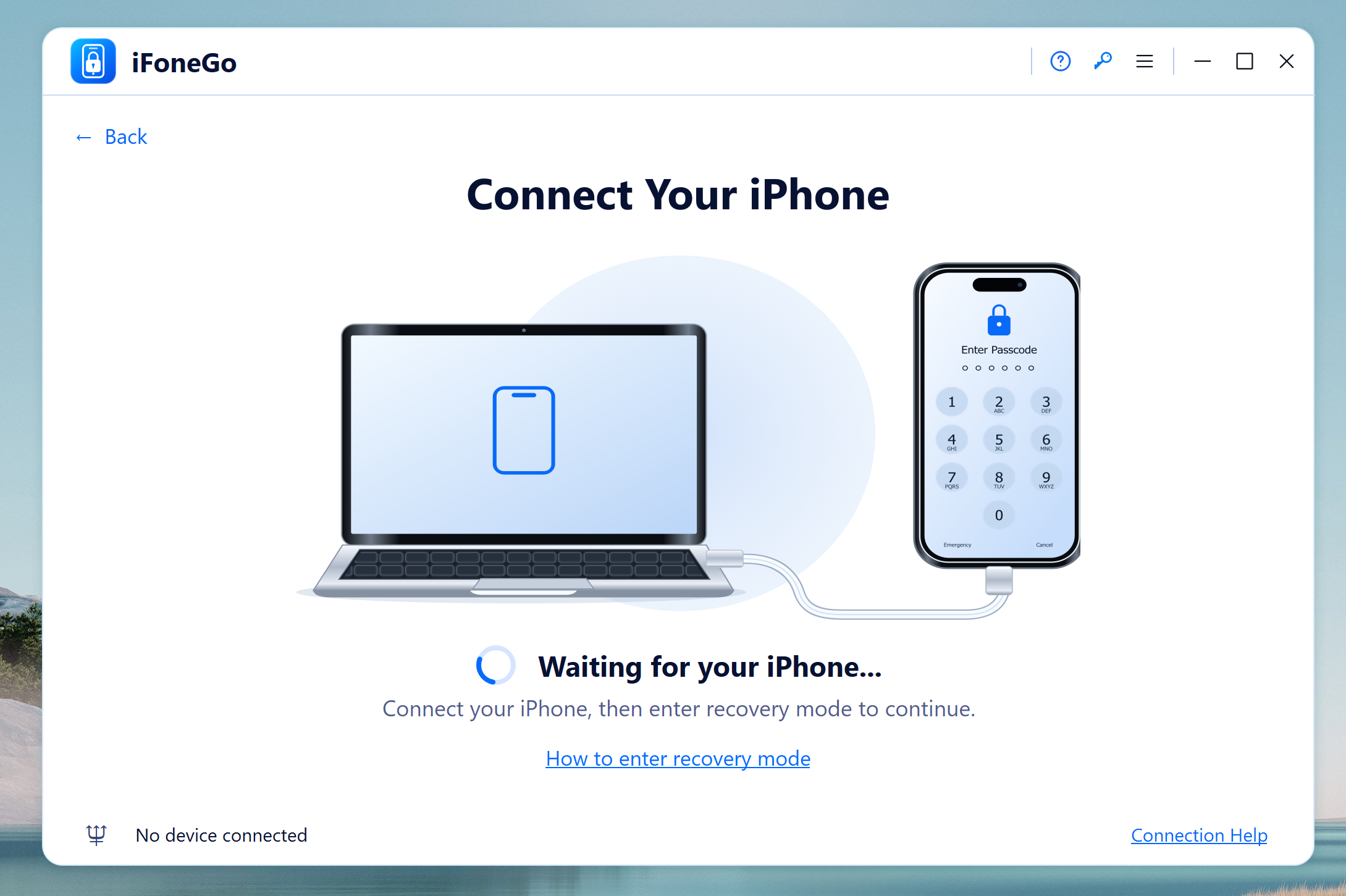
Use a USB cable to connect your locked iPhone to the computer. Keep the cable attached throughout the process and follow any device connection prompts shown by iFoneGo.
Step 3Download iOS Firmware
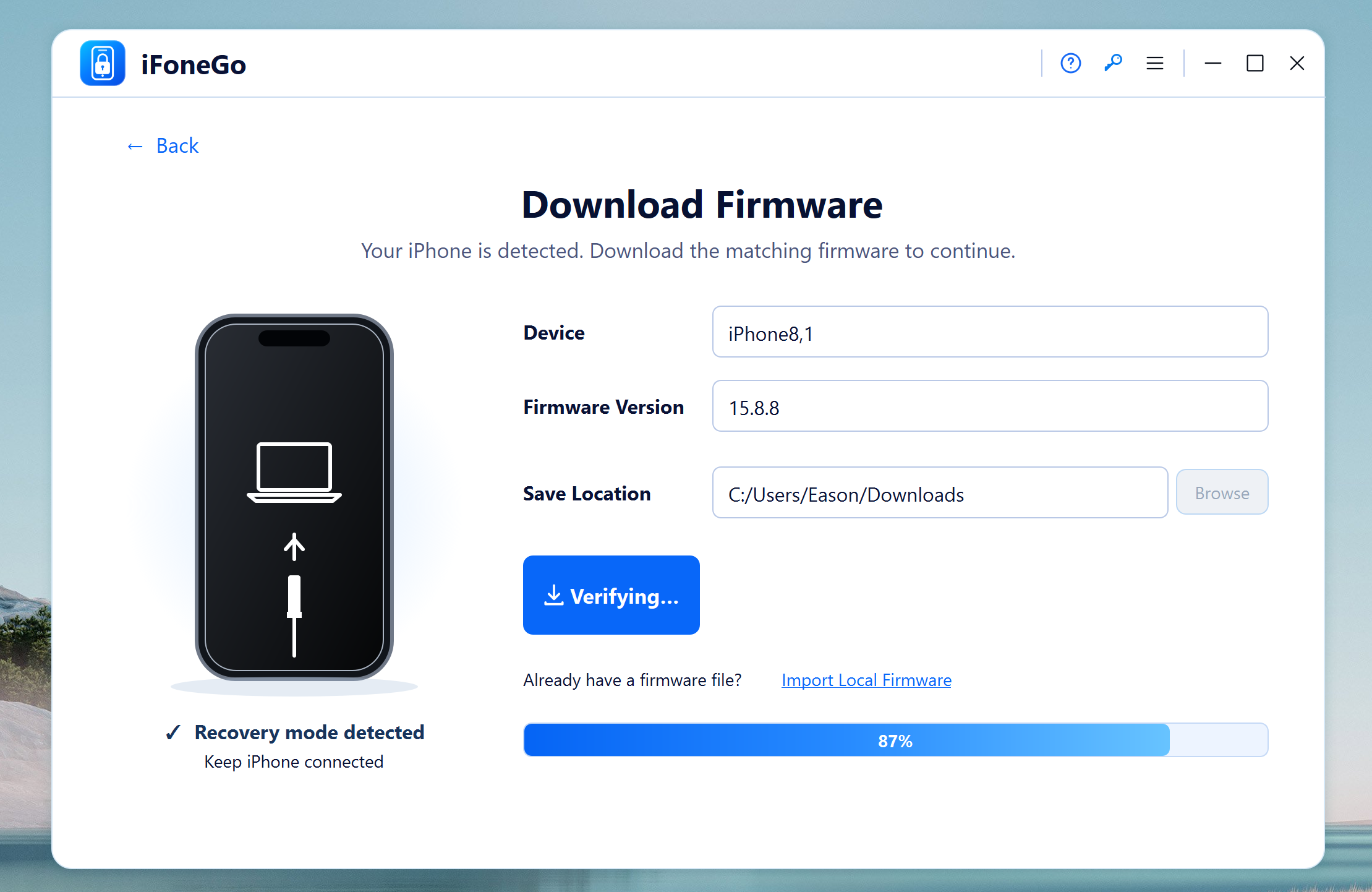
Once iFoneGo detects the device in Recovery Mode, review the displayed device information and available firmware version. Choose the appropriate iOS firmware and click Download. Wait for the download to finish before continuing.
Step 4Get iPhone into Recovery Mode
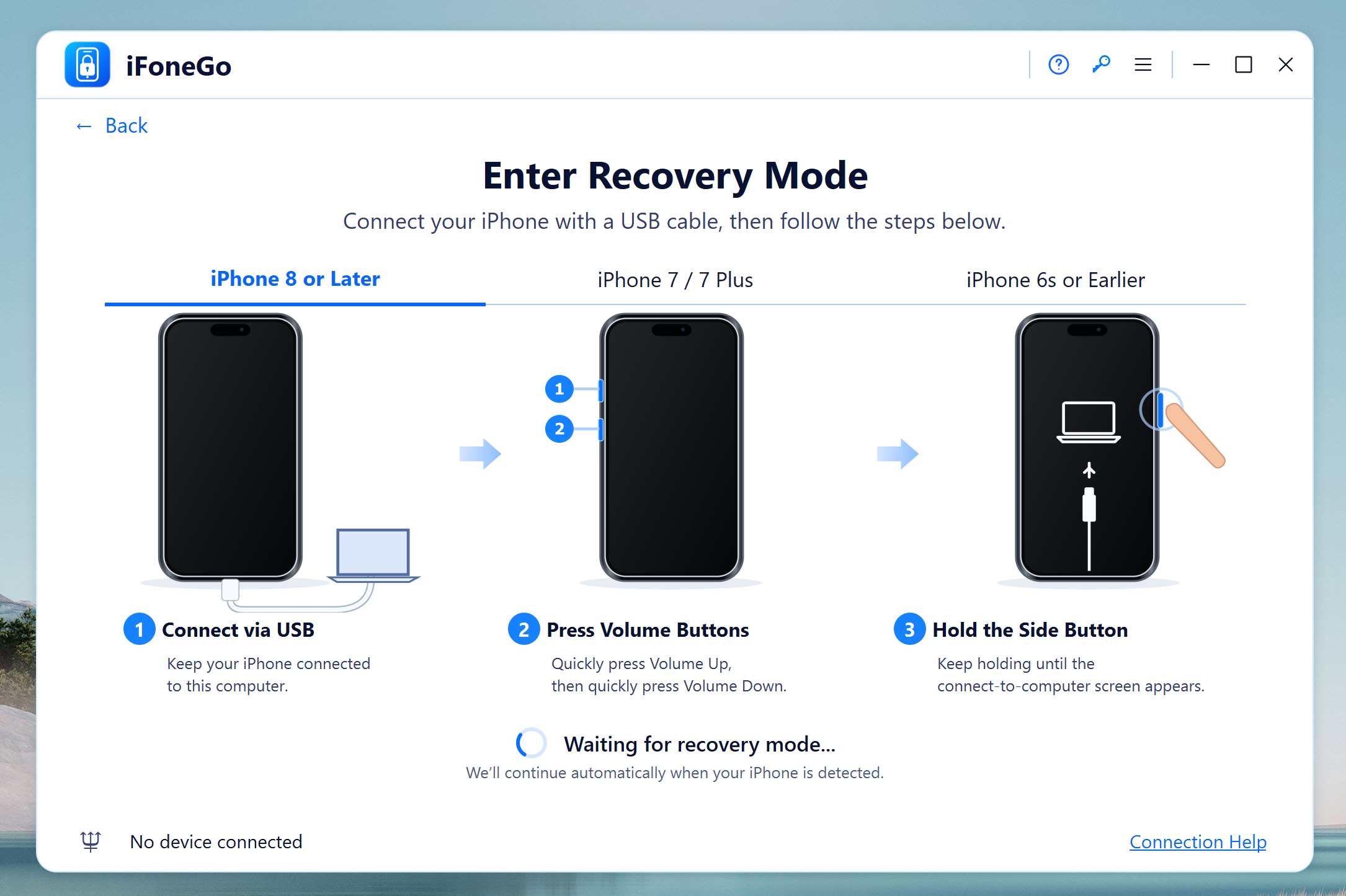
Follow the on-screen instructions to enter Recovery Mode. The button combination depends on your iPhone model.
For model-by-model instructions, see How to Put iPhone Into Recovery Mode.
Step 5Install Firmware to Remove the Forgotten Password
Confirm the reset warning and start the firmware installation as directed by iFoneGo. Do not unplug your iPhone while the reset is running. This will remove the forgotten password from the device.
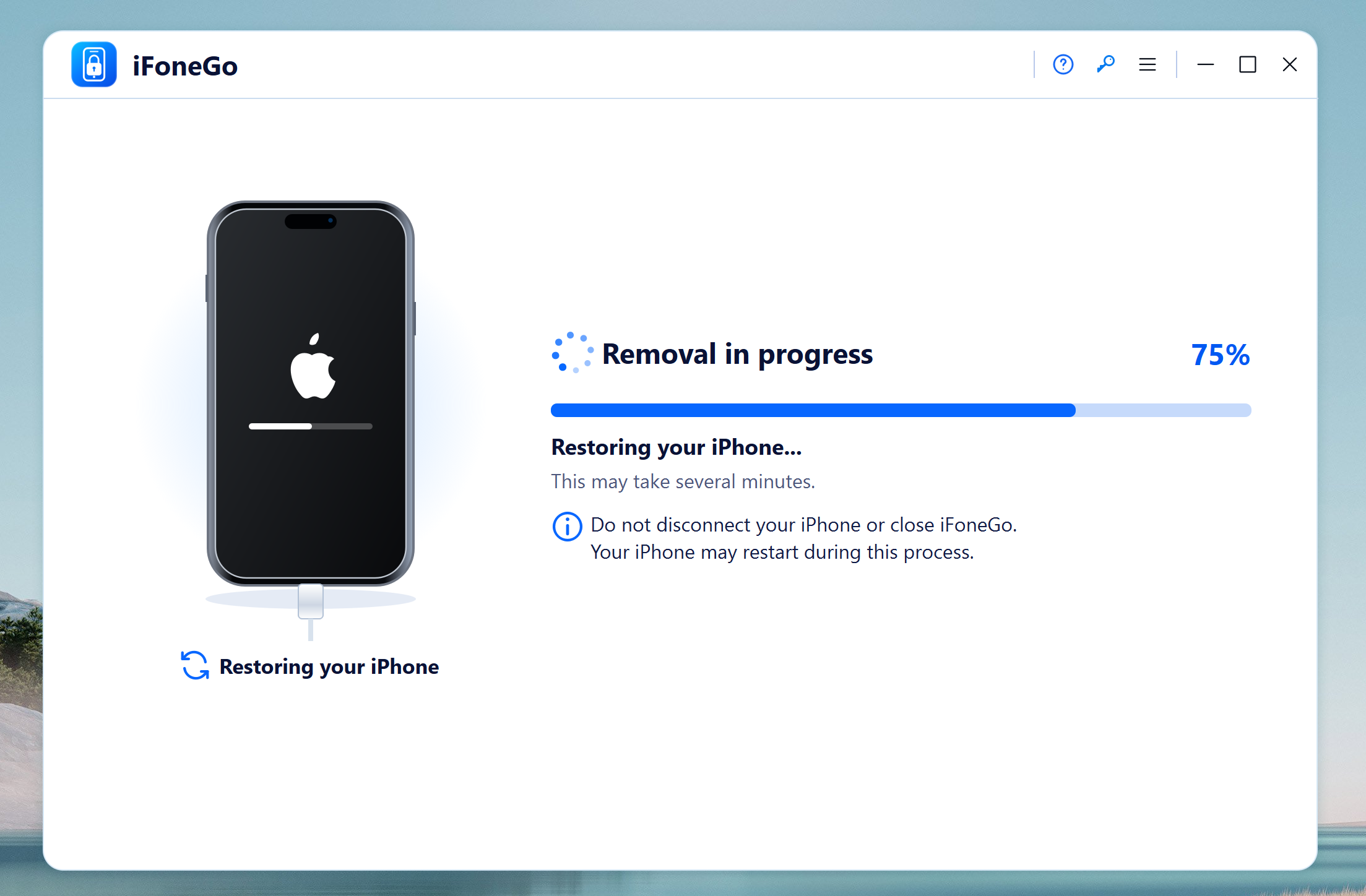
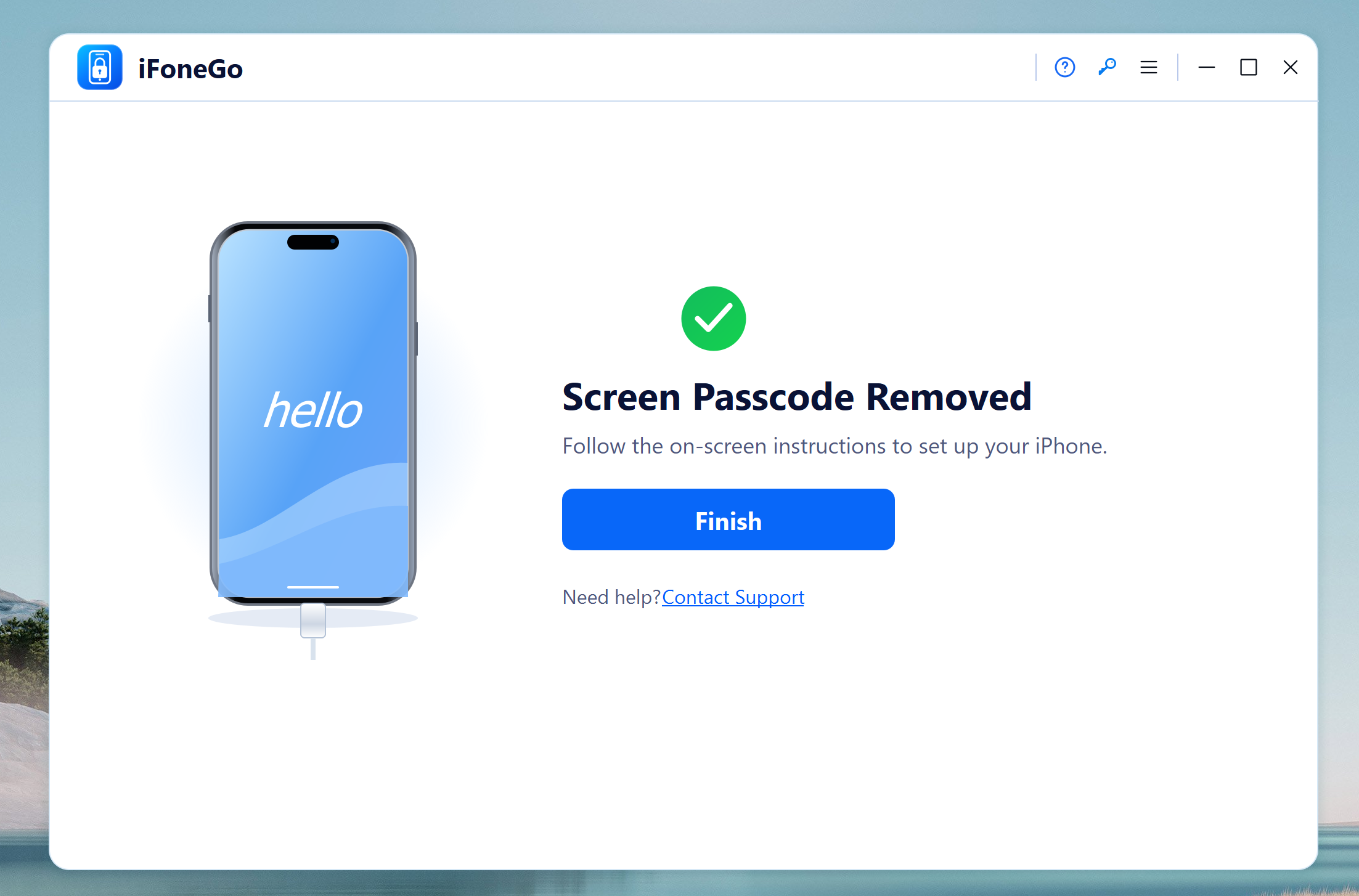
When it finishes, the phone restarts and you can set it up again. Restore from an existing backup if one is available.
Conclusion
iFoneGo offers a step-by-step workflow for resetting an iPhone when you no longer remember its screen passcode. Connect the phone, enter Recovery Mode, download the correct iOS firmware, and complete the reset. Remember that this process generally erases local data and does not remove Apple Activation Lock.
Free Trial Free Trial

Mateo Ryan
Mateo is a senior editor at AiseeFox and a tech enthusiast with over a decade of experience writing about Windows and macOS. He enjoys producing clear software tutorials and practical troubleshooting guides.